Kernel Migrator for SharePoint
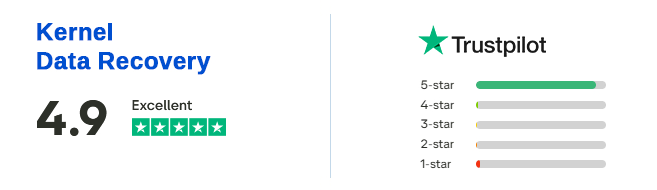
MVP-Recommended SharePoint Migration Tool for Secure Data Transfer (4.9/5) 485 Reviews
SharePoint migration tool transfers SharePoint site collections, classic and modern sites, subsites, site pages, permissions, version history, and metadata. Supports cross-tenant and hybrid SharePoint migrations across SharePoint Online, SharePoint Server 2019, 2016, and earlier versions. Used by IT administrators and SharePoint experts, the tool features delta migration that minimizes data duplication issues.
- Transfer SharePoint to SharePoint Online as a New or Existing site.
- Run batch migration for bulk SharePoint to SharePoint migration with minimal downtime.
- No need for PowerShell, Scripting, CSOM scripts or Power Automate Workflow.
- Provide incremental migration to transfer only new or modified data.
- Use Central Admin URL to connect all active sites from the site collection.
- Data filters and date type migration rules for selective SharePoint migration.
- Real time SharePoint migration tracking for easy monitoring.
- Detailed migration summary and reports to validate SharePoint site migration.
- Compatible with all Windows OS versions and Windows Server.
When to Use SharePoint Migration Tool
Check out all the common business scenarios where this SharePoint migration software can help you securely move data to SharePoint site.

On-premises SharePoint to SharePoint Online
Migrate on-premises SharePoint Server (2019, 2016, 2013, etc.) to SharePoint Online. Move the entire legacy server data, including site collections, lists, libraries, workflows, web parts, versions, user permissions, etc.

Migrate SharePoint site between tenants
Migrate SharePoint sites from one tenant to another during consolidations, acquisitions, or divestitures. Download SharePoint migration tool for cross-tenant migration of all the SharePoint objects between two SharePoint Online tenants.

Transfer site metadata and permissions
Provides secure SharePoint migration with site metadata, permissions, and other site objects. Map source and destination users with their preserved site permission levels, such as owners, members, site admins, etc.
Supported SharePoint Migration Objects
Our powerful SharePoint data migration tool allows the migration of the following objects across SharePoint tenants.
 SharePoint Sites
 Document Libraries
 Files & Documents Folder Structures
 Users
Users Metadata Site Collections Sites & Subsites Team & Communication Sites
 Site Pages
 Versions
 Permissions
 SharePoint Groups
 List Items
 Attachments Web parts Metadata attributes InfoPath and Workflow User and Group Mappings
Trusted by Microsoft MVPs & SharePoint Experts


Manual SharePoint Migration vs Kernel Migrator for SharePoint
- Limited or no support for tenant-to-tenant migration
- Limited support and potential issues when handling complex metadata
- Best for small-scale transfers
- Greater risk of migration-related disruption
- Need high-level tech expertise related to scripting
- Limited support for historical data
- Manual mapping is needed
- Completely overwrites files

- Supports SharePoint tenant to tenant migration
- Handles metadata efficiently
- Suitable for small as well as large scale migrations
- Low-risk migration process with minimal disruption
- No need to follow complex scripting or PowerShell commands
- Preserves version history and other historical data
- Retains user permissions with automated mapping
- Delta pass migration to move only new or updated data
Core Features of the Kernel SharePoint Migration Tool
Explore the features and functionalities of the SharePoint Online migration tool that help you with secure and structured migration of sites and other SharePoint content.

Migrate SharePoint Sites
Migrate SharePoint sites (team sites, communication sites, other templates) and subsites as new or existing sites. Migrate entire site content with lists, libraries, settings, look and feel, quick launch, views, permission level, and site structure.

SharePoint List and Library Migration
Migrate SharePoint lists (with default and custom rows & columns) and libraries with the SharePoint migration tool. Allows migrating SharePoint list and library views (List, Compact List, Tiles, and Custom views) in the same structure.

Migrate Single and Multiple Sites
Use the SharePoint migrator for single or multiple active sites (site collection) migration. Migrate multilingual sites and template-based sites with their site types (private or public) and language settings to the destination tenant.

OAuth 2.0 Authentication Login
Connect the SharePoint migration tool to SharePoint Server or SharePoint Online using secure authentication to move files from one SharePoint site to another. Use Modern Authentication (known as OAuth 2.0 Authentication, trusted by Office 365 admins) for a well-monitored migration.

Selective SharePoint Data Migration
Integrated with data filtering options to migrate specific content to SharePoint. The SharePoint Online data migration tool runs customized with filters, such as versions, dates, file, and user filters, to meet the needs of end users, SharePoint admins, and MSPs.

Run Parallel Batch Migration
SharePoint migration tool performs without size limitations. Moreover, create multiple batches of the migration jobs to accelerate content migration with parallel processing to minimize the time and effort required.

Migrate Only Newly Added Data
Use the Delta pass migration feature of the SharePoint migration tool to eliminate data duplication and disruption. Skip the transfer of previously migrated data items. After the first migration, only the newly added data to the SharePoint site will be migrated.

Schedule SharePoint Migration
Simplify the site migration by scheduling the job on a daily, weekly, and monthly basis. Enables users to perform the SharePoint content migration at their convenience, to avoid performance bottlenecks, and complete the migration projects on time.

Review Migration Summary
Displays a preview of the source and destination selected to migrate the data between the SharePoint tenants. Moreover, shows the data set, filters, and other options selected to allow a final review before migration to avoid errors.

Detailed Migration History
Download the SharePoint migration tool to view the detailed migration report and summary for simplified migration tracking. Validate the migration status and provide real-time progress updates of the SharePoint document migration.

Version History Migration
Move SharePoint contents between tenants with their version history. Allows users to migrate document versions, including all or specified versions, to allow users to restore or rollback to any document version whenever required.

Manage Migration Jobs
The software allows the users to manage migration jobs. Users can disable a job, stop a running migration job, and rerun the migration later at their convenience.
How to Use Kernel Migrator for SharePoint?
- Step 1: Launch the SharePoint migration tool, go to the source pane and right-click to select "Add new SharePoint Site."
- Step 2: Enter credentials to add a single site or multiple sites using the preferred authentication method.
- Step 3: Similarly, go to the destination pane and add the target SharePoint site.
- Step 4: Right-click on the source tenant and select Migrate to and then move to edit source selection.
- Step 5: Select whether to migrate to a new SharePoint site or an existing one and then apply data filters.
- Step 6: Choose to run the migration immediately or schedule it at your convenience.


Common User Queries
Here are some common queries that most of the users have when migrating SharePoint documents.
What is Kernel Migrator for SharePoint tool?
A SharePoint migration tool is a solution that simplifies the enterprise migration for businesses. It helps to migrate SharePoint sites, pages, permissions, metadata, version history, folder structure, workflows, etc., between SharePoint environments with security compliance badges.
Does the tool migrate permissions and versions?
Yes. You can migrate SharePoint permissions and document versions using the tool. If you need, migrate all the versions or the latest 'n' versions as per your choice. There is also an option to migrate SharePoint lists to another site with specific versions (both major and minor).
How long does the SharePoint migration take?
The duration depends on the size of the data stored within your SharePoint environment. However, our fast SharePoint migration software helps in completing the migration with minimal downtime. The tool will help in reducing the migration time significantly (compared to manual methods) with features like delta migration and schedule migration jobs.
What are the required post-migration tasks to perform?
You need to perform several essential post-migration tasks for the efficient performance:
- Go through the content and match it with the source to see that everything is migrated and there’s no duplication.
- Reassign user licenses and grant access to the necessary sites or documents.
- Decommission the old server after some time if it’s not required in the future.
I need to migrate document libraries with permission. Can I migrate them using this SharePoint Migration software?
Yes. You can migrate document libraries and the permissions according to requirements. You can also remap the user permissions using the tool if required.
What challenges can I face during SharePoint migration?
During SharePoint tenant to tenant Migration, you can face operational as well as technical issues interrupting your efficiency. There can be lost metadata issues, permission mapping failures, lost version history, and other migration errors. However, you can avoid these with the SharePoint migration utility that supports smooth and intuitive transfers.
What are the limitations of the software’s Trial version?
The SharePoint Migrator free trial version has the following limitations:
- Migrate only 5 items per folder.
- Do not migrate subsites.
- Migrate only 5 lists or libraries.
For unlimited data, lists, and subsites migration, purchase its full version from the website.
Can I migrate multiple sites using this SharePoint Online migration tool?
Yes, the tool supports the migration of multiple SharePoint sites. Simply click on the Find or Add Multiple Sites option when you connect the source, and then select the sites you want to add for SharePoint Online migration. This will allow you to migrate as many sites as you want in one go.
I want to save a backup of a few SharePoint sites. Is it possible with this tool?
Yes, you can also backup SharePoint sites with their site pages, lists, and libraries, etc. The tool will download the entire data in the original structure.
What other source options does this tool provide to migrate to SharePoint?
With this tool, you can migrate from file share, public folders, OneDrive, Google Drive, AWS, and other cloud storage to SharePoint. It allows you to transfer data from multiple other cloud storage services to the SharePoint ecosystem.
How do I fix the error "(404) Unauthorized" while adding the SharePoint server?
If you encounter this error message, it indicates that the login credentials you used are incorrect. Verify the credentials and try entering the correct username and password to resolve this issue.
How can I resolve the error message "Cannot contact the site at the specified URL https://sharepointxyz/xyz due to the current state of the objects"?
This error is commonly noticed when there's a disruption in the connection between the SharePoint server and its linked SQL Server. To resolve this issue, establish a stable connection between the SharePoint server and SQL Server. Additionally, verify that the respective SQL Server and its services are operational.
Should I overwrite the list or migrate it as a new one if I want to move the list from one SharePoint site to another separately?
When migrating as new, the list will have a suffix added to the name for identification. On the other hand, if you choose to overwrite, it will first delete the earlier list or library with the same name and then create a new one.
Trusted & Recommended by Industry Experts
A blend of real-world experiences and industry appreciation for SharePoint Online Migration tool.

A well-known tool to migrate SharePoint sites, lists, & libraries and other site content securely. Featured by TechTarget as an all-in-one SharePoint migration solution that helps minimize business downtime and is budget friendly too. TechTarget

Calance recommends Kernel Migrator for SharePoint to migrate SharePoint sites as it preserves metadata, version history, permissions, and site structure. The solution supports bulk migration between SharePoint Server and SharePoint Online. Calance

Software Suggest gives a rating of 5 stars and says Kernel Migrator for SharePoint is a user-friendly tool that makes migration easier for all. Verified


F6S considers Kernel SharePoint Migrator a well-thought-out and designed tool that delivers swift migration and preserves the site structure. Verified
Supported SharePoint Migration
 File Server to SharePoint
 Public Folder to SharePoint
 Dropbox to SharePoint
 Box to SharePoint
 Amazon S3 to SharePoint
 Google Drive to SharePoint
SharePoint Migration Software Prerequisites & recommendations
 About software
Version: 26.2
Release Date: Aug 2025
Update Date: Feb 2026
 Version support
SharePoint Servers: SharePoint 2013/ 2016/ 2019/ SharePoint Online (Office 365), SharePoint Server Subscription Edition, SharePoint Foundation 2013/ 2010, SharePoint Server 2010
Exchange Server: Exchange Server Online (Microsoft 365)/ 2019/ 2016/ 2013/ 2010/ 2007/ 2003/ 2000
Outlook: Outlook 2019/ 2016/ 2013/ 2010/ 2007/ 2003
Virtual Environments: Hyper-V Server, VMware ESX/ ESXi Server, Microsoft Virtual PC
 System requirements
Hard Disk: 4 GB free space for the installation and data migration
Memory: Minimum 4 GB RAM
Processor: Intel® Pentium 4 Class or higher Processor
Operating System: Windows 11/ 10/ 8 /7 Service Pack 1, Windows Server 2022/ 2019/ 2016/ 2012 R2/ 2012/ 2008 R2/ 2008/ 2003
 Installation guide
What customers say about Kernel Migrator for SharePoint
(4.9/5) 485 ReviewsWhen we made our decision to run a SharePoint Online tenant to tenant migration, we were really scared, because there was no native solution to handle such a massive data volume. But then we found this SharePoint Online migration tool, which was quite easy to use and allowed our SharePoint admins to switch without losing anything in the process.