

Migration to a SharePoint environment (regardless of the source) is always exhausting. There are so many activities involved, such as site mapping, managing site configurations, and version history management. When moving between SharePoint environments, you need to make sure that the content remains accessible and compliant even after the migration. So let’s move straight to learn SharePoint to SharePoint migration using a well-defined action plan while minimizing risks and downtime.
What is SharePoint to SharePoint Migration?
SharePoint to SharePoint migration is a process to move sites, subsites, pages, lists, libraries, etc., with the version history, permissions, and metadata from one SharePoint environment to another.
The migration scenarios include:
- Two on-premises SharePoint servers,
- On-premises SharePoint to SharePoint Online, and
- SharePoint Online to SharePoint Online.
Why is SharePoint to SharePoint Migration needed?
Businesses perform tenant to tenant SharePoint migration for the reasons explained below:
- Access enhanced security patches and feature updates.
- For merging SharePoint tenants of one organization with another.
- Handling the increasing volume of data efficiently.
- Backup SharePoint data to recover deleted SharePoint data.
- For upgrading from legacy SharePoint versions to modern architectures.
- For collaborating on a specific project with particular team members.
Why can't you solely rely on native SharePoint Migration Solutions?
There are manual and native solutions to migrate SharePoint to SharePoint, which include PowerShell scripts, SPMT (SharePoint Migration Tool), and Microsoft Migration Manager. However, you cannot depend on these methods for migration because:
- PowerShell scripts do not support migration of workflows, search configuration, Power Automate flows, and complex permissions inheritance.
- The SPMT tool cannot migrate SharePoint Online to SharePoint Online scenarios.
- Microsoft Migration Manager allows migration from a non-SharePoint environment to a SharePoint environment only.
Why is Selecting the Right SharePoint Migration Tool Crucial?
Migration is a complex procedure, and a successful SharePoint site migration requires a thorough understanding of the platform and planning of each phase for a structured transfer. Migrating to SharePoint Online using PowerShell, the SPMT tool, or other native solutions can often lead to business downtime. Nevertheless, use a professional Kernel Migration for SharePoint tool so that you can focus on creating an optimized and a well-structured SharePoint environment.
How to Migrate SharePoint to SharePoint?
Kernel Migration for SharePoint allows administrators migrate sites, lists & libraries, documents, workflows, etc., and other SharePoint supported content between two SharePoint environments. The SharePoint Migration Tool will help you troubleshoot SharePoint migration issues you might face while migrating SharePoint to SharePoint with native approaches.
- Perform incremental migration of data with no duplicity.
- Data integrity and hierarchy are preserved.
- Migrate permissions and metadata with other site contents.
- Migrate bulk SharePoint content with the complete site collection.
- Run on-demand SharePoint migration using the ‘Schedule’
Stepwise Guide to SharePoint to SharePoint Migration
Here is the process explaining how to migrate SharePoint site to another tenant:
Step 1. Launch Kernel Migration for SharePoint, go to the source pane, and right-click SharePoint (On-premises/Online). Select Add New SharePoint Site.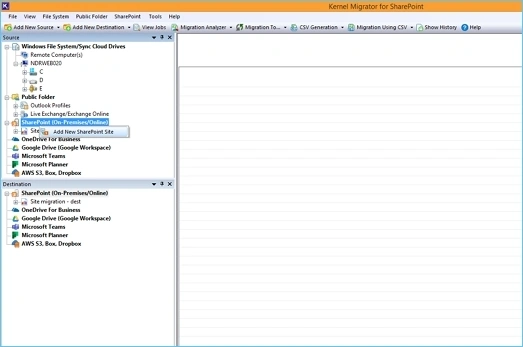
Step 2. Enter a Project Name, choose Site Connection and Connection Type and provide the asked credentials then click OK.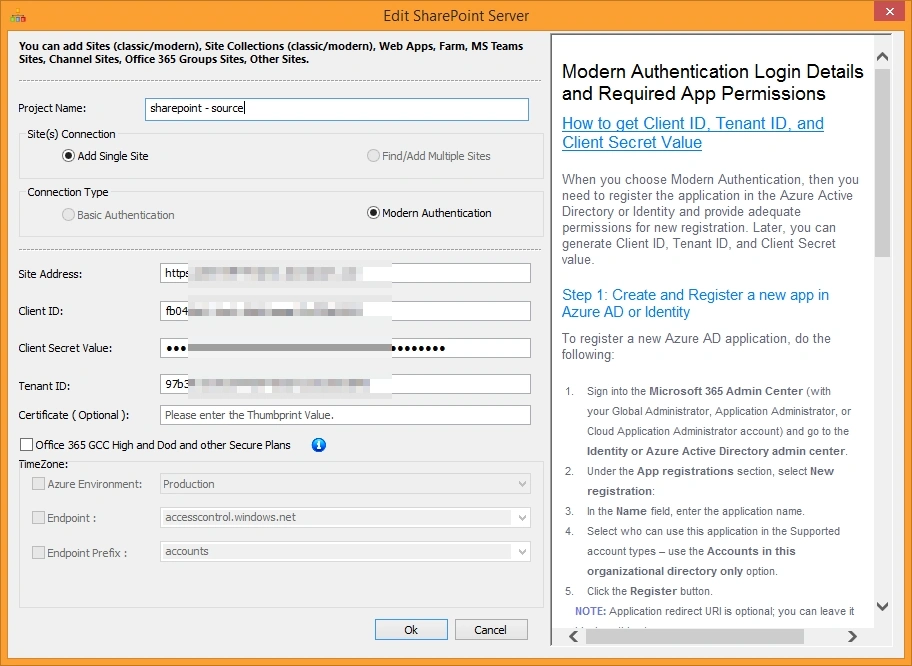
Step 3. SharePoint site is now connected in the source.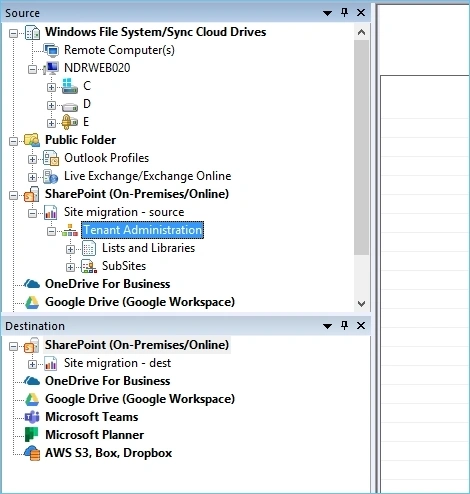
Step 4. Similarly, go to the destination pane and right-click on SharePoint (On-premises/Online) to add the destination site.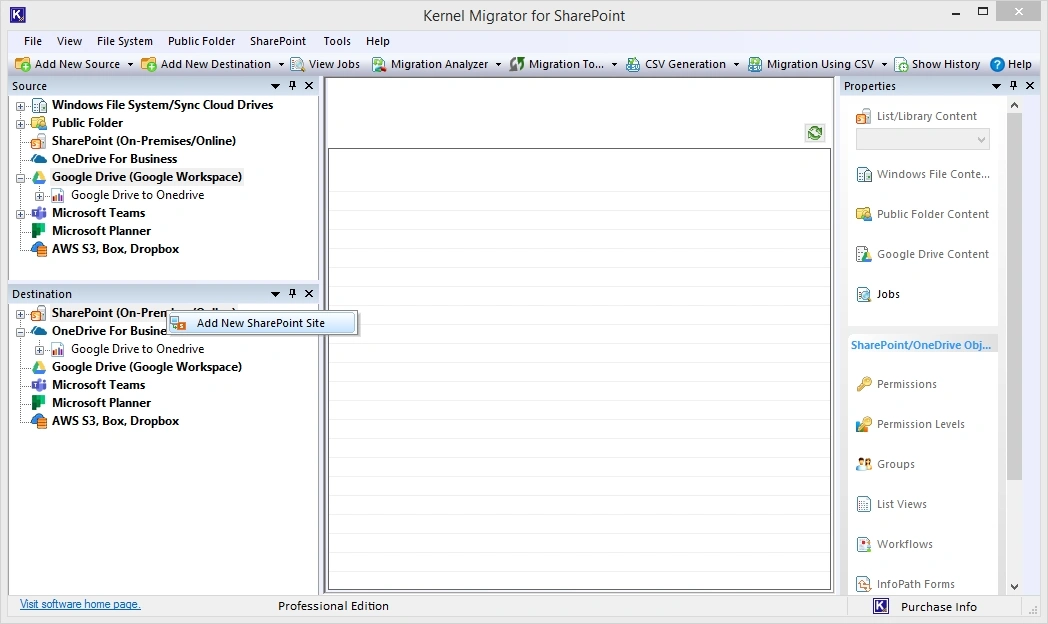
Step 5. SharePoint is now connected in the destination pane.
Step 6. Expand the Project Name in the Source pane and right-click on Tenant Administration and select Migrate To.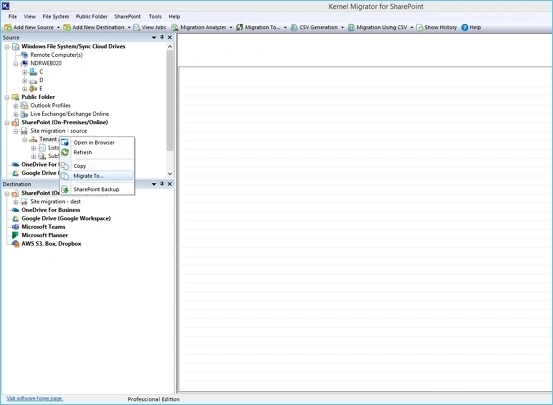
Step 7. Select the added source and then click on Edit Source Selection to select the source type.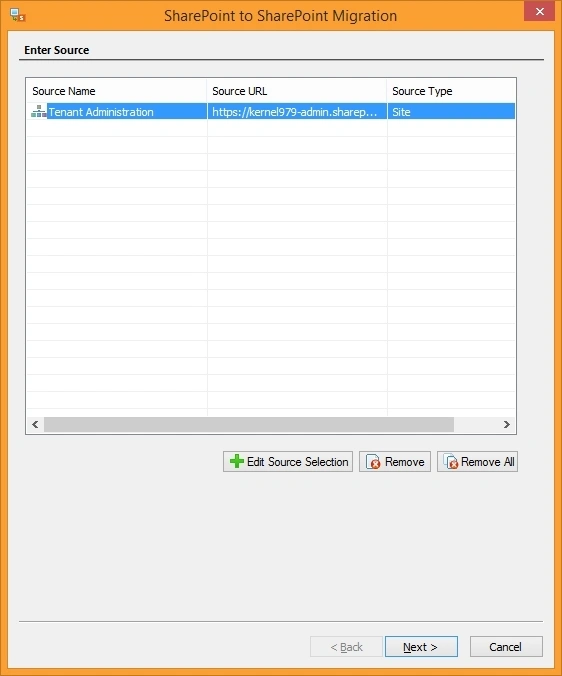
Step 8. From the Select Site Copy Options screen, choose from:
- Migrate as new Active Site/ Site Collection(s): Choose the authentication method and accordingly provide the destination credentials as requested.
- Migrate as an existing site.
- Migrate as a new sub site of existing target selected site. Then, click Next.
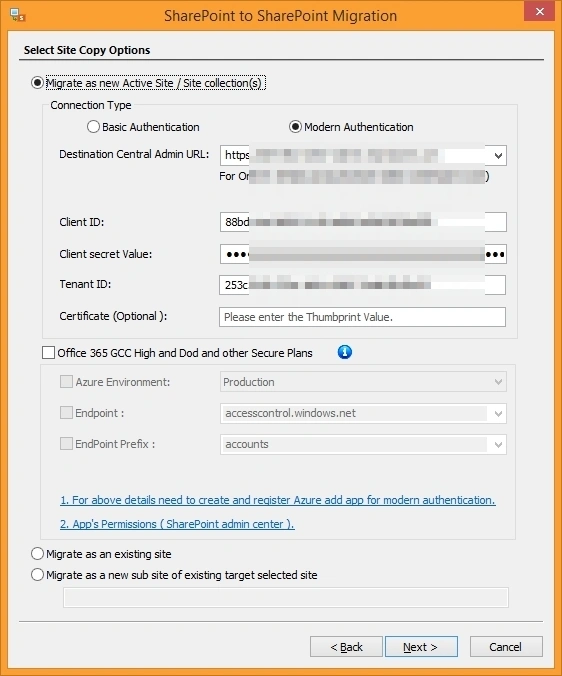
Step 9. Select the destination and click on the Site URL to select the site, then click Browse to define the Site/Subsite URL.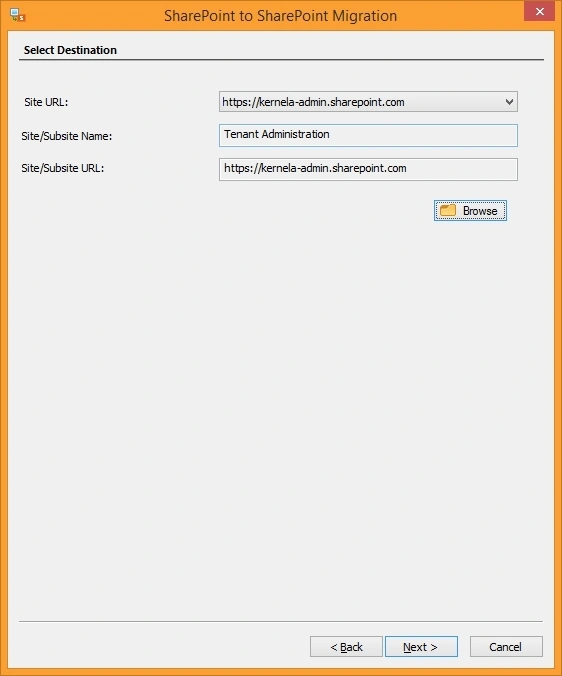
Step 10. Now select data filter options in the next wizard. Click Next.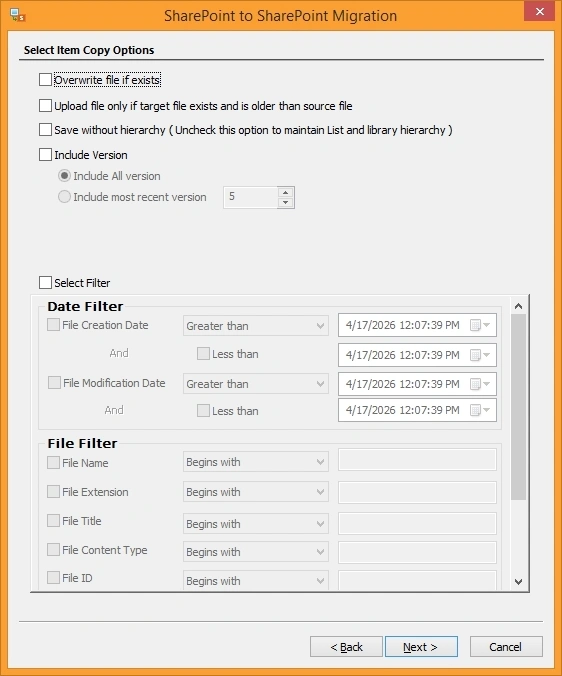
Step 11. Click on Migrate Permissions to map permissions to another user.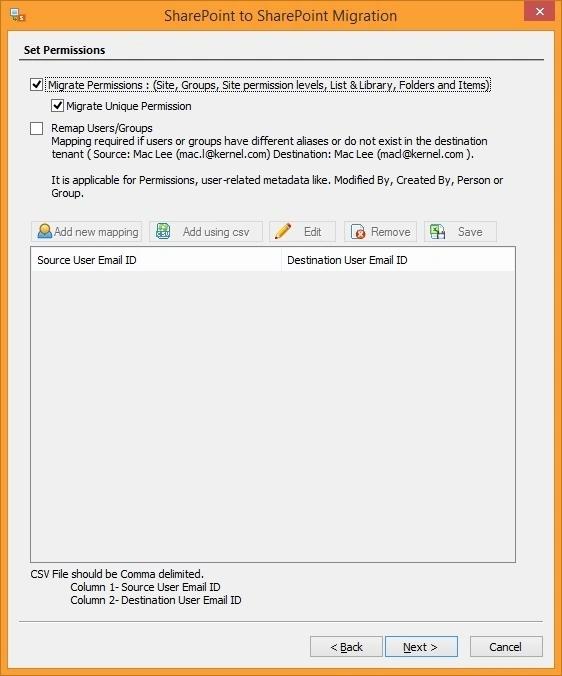
Step 12. Select Execute Immediate to run migration instantly or Schedule SharePoint data migration for later.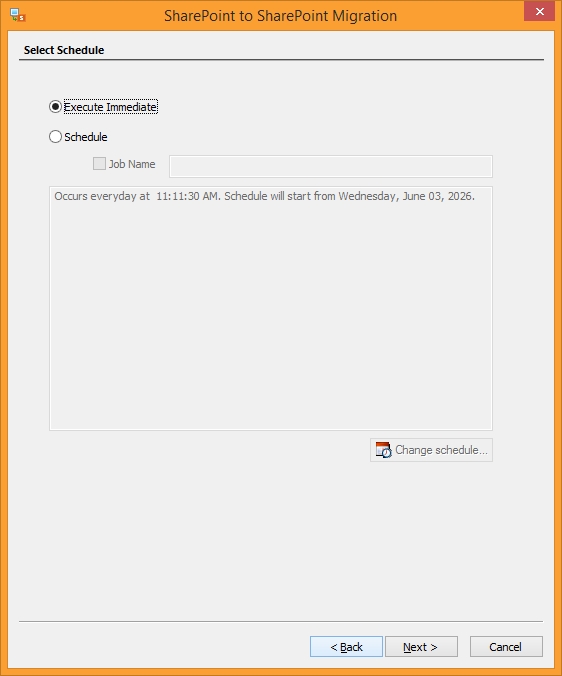
Step 13. Check the Migration Summary and click Next to begin SharePoint to SharePoint migration.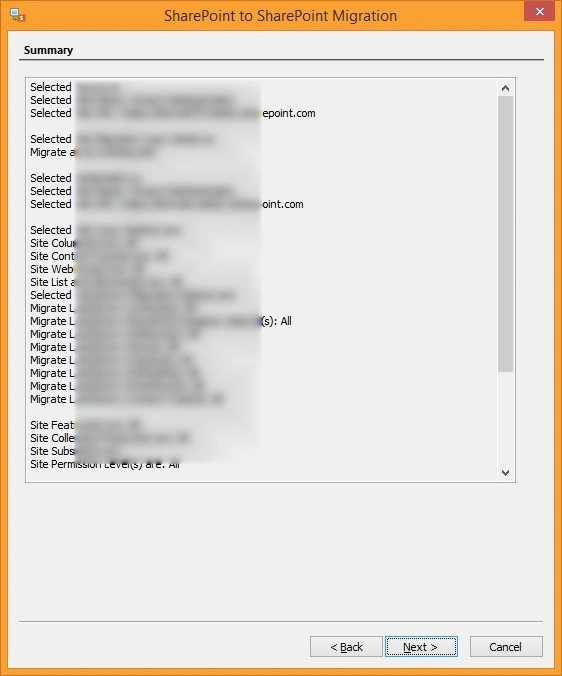
Once the process is finished, you can see all the details of the process in the Completion Summary.
What Comes after SharePoint migration?
Post migration activities help you verify the entire destination. Check out what to do after the migration process:
- Compare the source and target environment to confirm the data is successfully migrated.
- Open some of your migrated documents to verify formatting and metadata.
- Review permission hierarchy, access levels, and settings.
- Check connected services and verify migrated URL, links, and external access.
- Test all the key features, such as workflows, custom lists, search functions, and other integrations.
- Verify all the document versions in your destination.
Provide training and learning guides to the users.
Frequently Asked Questions
Check out answers to some of the common user queries related to SharePoint to SharePoint migration.
What are the common challenges faced during migration?
Let’s get an overview of the challenges that can result in SharePoint data migration failures:
- Poor planning can often result in lost content from SharePoint sites and inefficient functionality.
- Improper planning can cause unavailability of data during working hours, resulting in lower productivity.
- Documents unsupported content, invalid metadata, and unsupported characters can cause failed migrations.
- Improper internal server configuration will impact the speed of SharePoint site migration.
- Migrating large data volumes without proper cleanup will include irrelevant and useless data in the destination.
How can I migrate multiple sites using the SharePoint to SharePoint migration tool?
After launching the Kernel SharePoint Migrator, you enter the SharePoint Server/Tenant credentials on the Add SharePoint Site (s) wizard, select Find/Add Multiple Sites in the Site(s) Connection. This will open the Site Collection from which, after entering the details for Central Admin, you select SharePoint sites to migrate to the SharePoint server in the destination.
Can I migrate SharePoint permissions using this tool?
Yes. The tool allows you to migrate SharePoint permissions in the correct hierarchy to help you avoid broken inheritance issues. It also assures that you do not accidentally allow additional access to any user that’s not intended.