

SharePoint to SharePoint Online migration (tenant to tenant migration) requires a foolproof strategy prepared in advance. Businesses that undergo the transition without doing the aftermath often face complications like data loss, broken permission inheritance, migration downtime, etc.
Whether you’re an organization with multiple tenants looking for a way to manage them, merging businesses, or simply migrating to a new tenant, a proper understanding of methods is required. Use the tried and tested solutions by SharePoint admins to avoid any issues during SharePoint Online to SharePoint Online migration.
What is SharePoint Online to SharePoint Online migration?
SharePoint Online to SharePoint Online migration involves migration of site contents between two SharePoint cloud environments. This migration can happen within the same tenants or between two different tenants.
You can use the free utility by Microsoft, known as SPMT, with “Save site as template” option, or using the PowerShell commands. Apart from this, a professional tool can be a go-to solution to execute the transition.
Why Migrate SharePoint Online to SharePoint Online?
Moving SharePoint data across different tenants or even the same tenant is a challenging task, requiring adequate technical expertise. So, why would anyone want to get their hands dirty with a job as complicated as SharePoint migration? Let's see why:
- Events like business mergers and acquisitions are major reasons for an enterprise to migrate SharePoint to SharePoint Online in a different tenant. Data from all the businesses involved in the partnership will be moved to a single SharePoint Server for centralized data management.
- The user may want to migrate only an individual site to another SharePoint Server. May be for a particular project or specific team collaboration.
- Scenarios like shifting a department may also trigger the need to transfer entire content related to that department into a new server created specifically for that category.
- You can also perform SharePoint to SharePoint Online migration to create a backup. Backup also helps in cases when you must recover deleted SharePoint data.
What Makes Manual Methods Unreliable?
Let's explore the limitations that makes the native methods unreliable for SharePoint Online to SharePoint Online migration.
- SharePoint Migration Tool (SPMT), designed for SharePoint to Microsoft 365 migration, allows data transfer only from SharePoint On-premises server (as a source).
- Cannot migrate SharePoint permissions and file version history with the manual approach.
- Manually downloading and uploading each site is a tedious task.
If you only have a small amount of data like a few documents to transfer, open the SharePoint documents and download them. Then, upload the data to the new SharePoint Server site manually. But this is not a feasible approach for a business trying to avoid the risk of losing clients and their valuable data.
Secure Method for SharePoint Online to SharePoint Online Migration
Use Kernel Migration for SharePoint, an expert-recommended tool for all your SharePoint migration needs. The SharePoint Migration Tool helps to simplify migrating data from on-premises and SharePoint Online to any version of SharePoint.
- Retains original file/folder hierarchy and structure.
- Migrate SharePoint site data with version history, metadata, and permissions.
- Schedule migration easily and track the real-time data transfer process.
- Support Microsoft 365 GCC High, DOD, and other secured Office plans.
How to move data from SharePoint Online to SharePoint Online?
Now, let’s see the step-by-step process of migrating SharePoint data with the Kernel Migration for SharePoint tool. Follow the steps carefully to achieve a quick data migration.
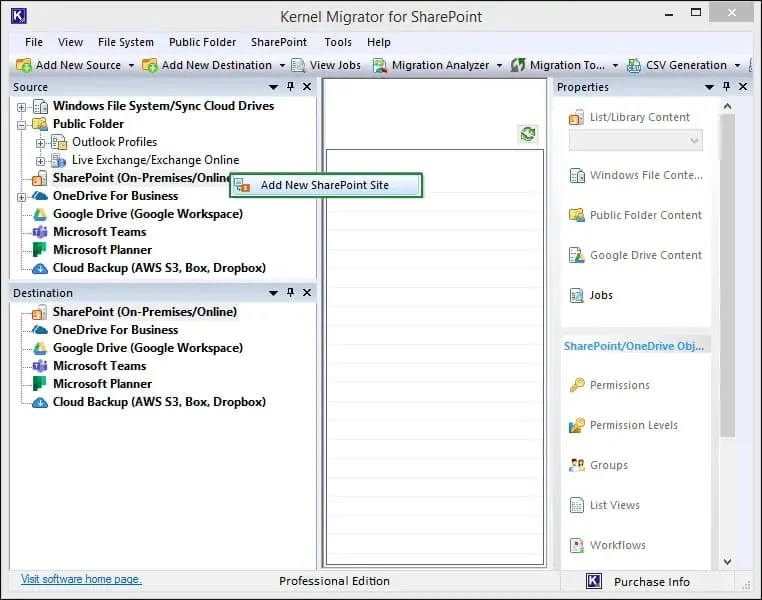
- Download, install, and open the SharePoint Online to SharePoint Online migration tool, go to the source pane, and right-click SharePoint (on-premises/Online). Select Add New SharePoint Site.
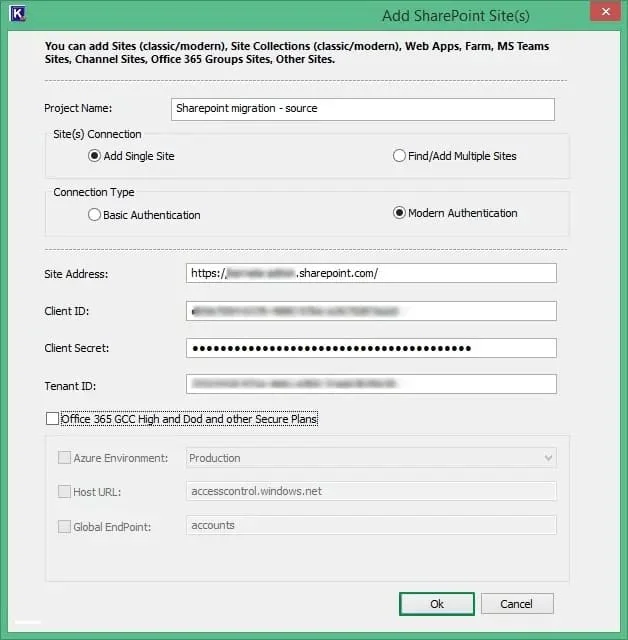
- Provide a Project Name and site (s) Connection. Choose a Connection Type (Basic Authentication or Modern Authentication) to connect to the source.
- Select No, when tool asked for “Do you also want to add this SharePoint server as a destination?”
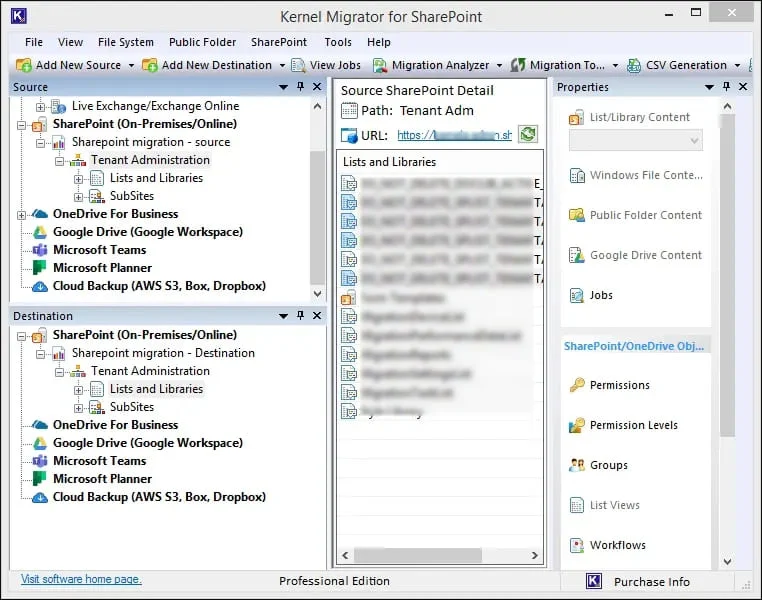
- Similarly, go to the destination section and add the SharePoint site where you want to migrate the data. After adding both source and destination, you can check the item by double clicking the project name.
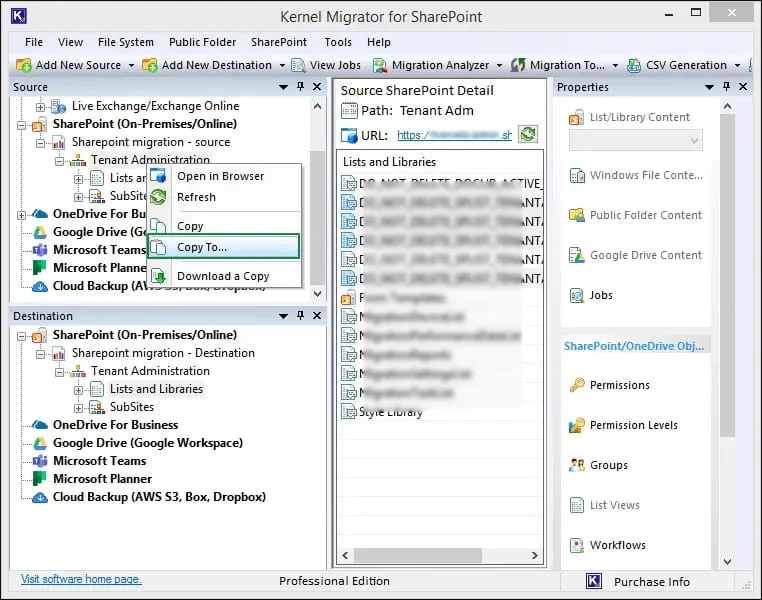
- To begin the migration, expand the project you added to the source and right-click. Now, select ‘Copy To.’
- This will open the Enter Source wizard, showing the Source Name, Source URL, and Source Type. Click Next.
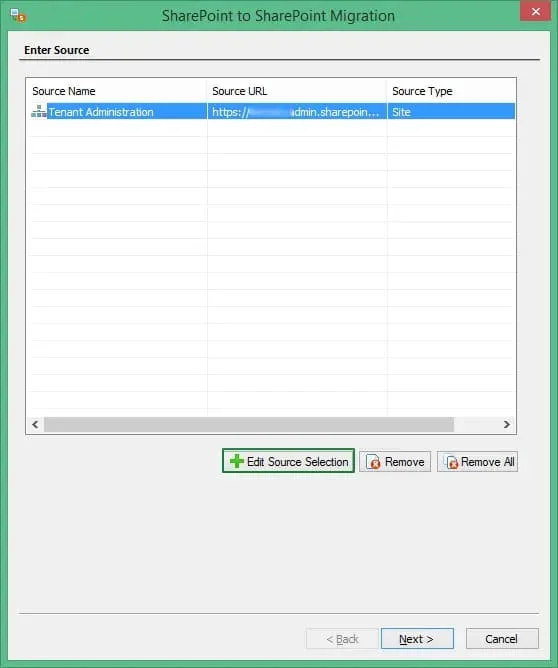
Note: You can change the source type to Site, List/Library, or Item Level (Folders/Documents) by clicking Edit Source Selection.
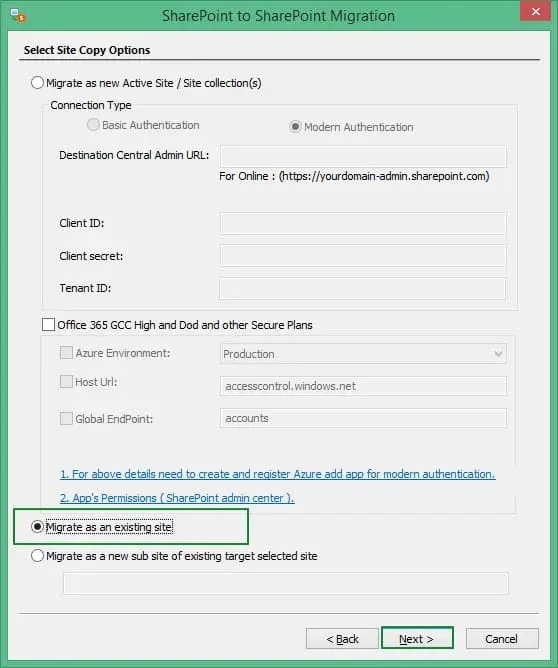
- Choose a migration option and click Next.
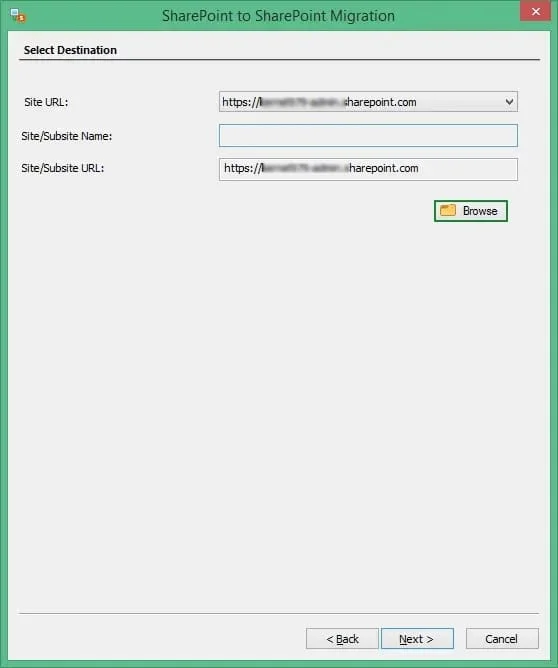
- First, use the Site URL dropdown to choose the destination site and then click the Browse button to select the subsites. Once the destination subsite is selected, click Next to move ahead.
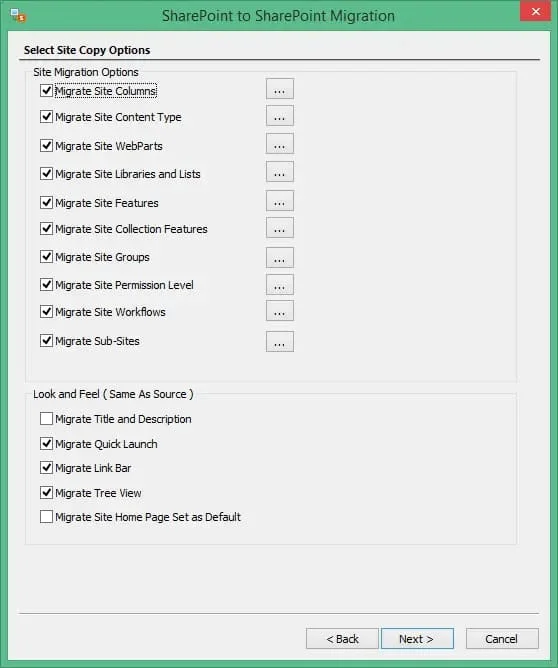
- Select the properties and attributes that you want to migrate along with the data from the SharePoint site. After selection, click Next.
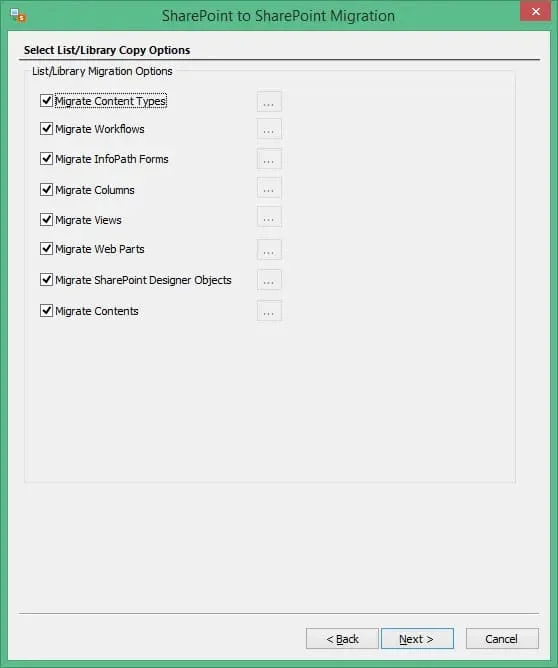
- Choose List/Library attributes and click Next.
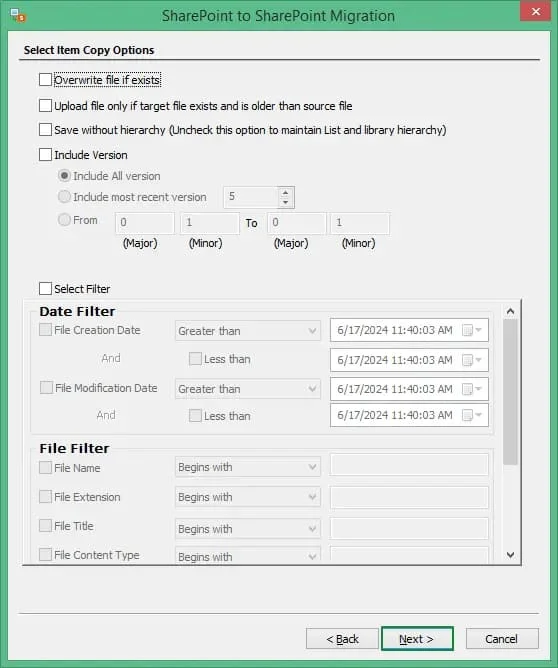
- Apply filters to customize the data transfer. Then, click Next.
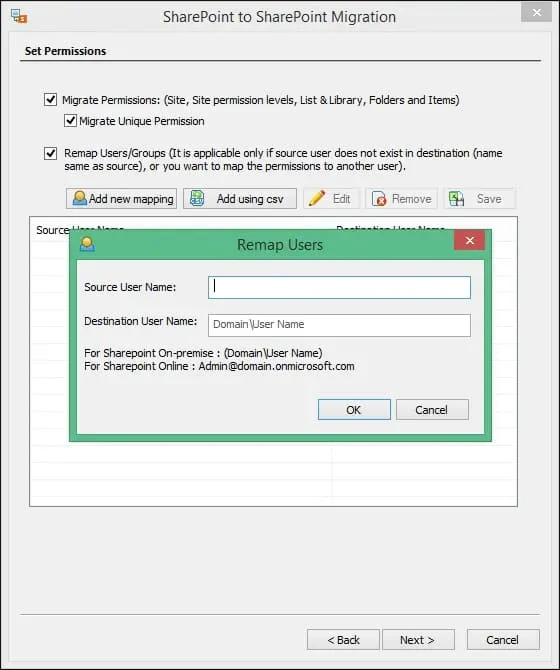
- Select the option Migrate Permissions to transfer the predefined site permissions. You can also remap users and permissions by checking the second box, selecting Add new mapping, and then providing the details asked. Click Next to proceed with the migration.
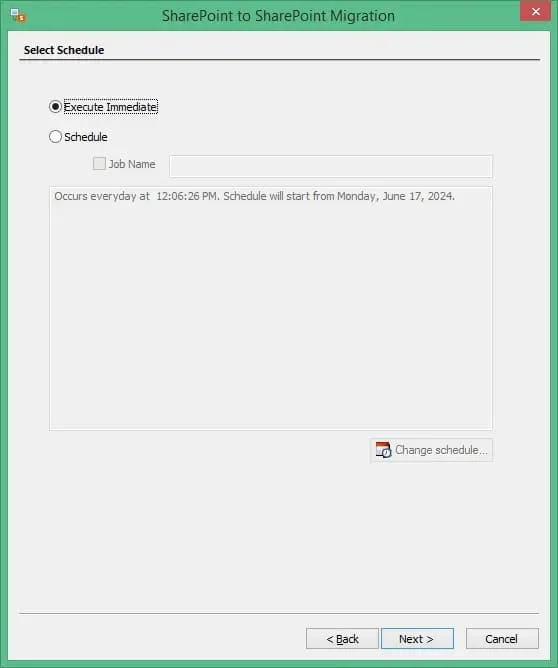
- Use the schedule feature to select a suitable timing to start the migration or you can begin the transfer immediately. Click Next.
- A summary section shows the selected items for migration, desired destination, chosen features, filters, etc. Quickly go through it and click Next.
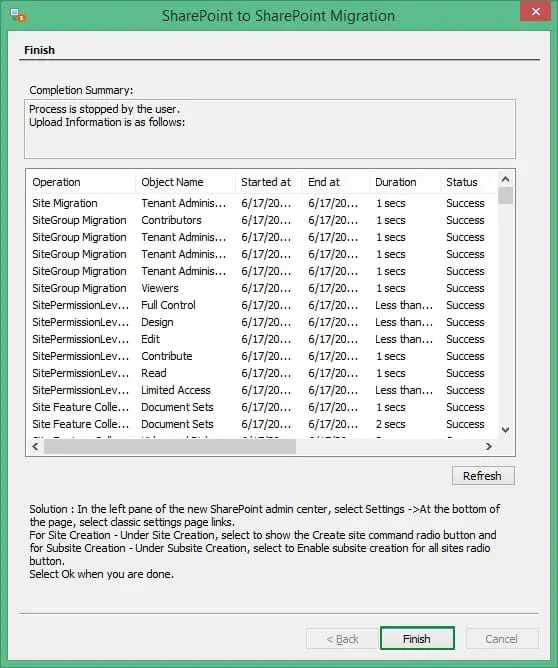
- When the migration is complete, you can see a completion summary showing the status of each migrated item. Click Finish.
Conclusion
SharePoint Online to SharePoint Online migration is a demanding task and using manual migration solutions is not a practical solution. These methods aren’t designed to handle such complex data transfer. Therefore, use Kernel Migration for SharePoint to run a secure data transition.
FAQs
Can I transfer a single site during SharePoint Online to SharePoint Online migration?
To transfer an individual site during SharePoint to SharePoint Online migration, use the “Save site as template” option. Once saved, upload the site template with the data to the target SharePoint server.
Can the SPMT tool help with SharePoint to SharePoint Online migration?
No, the SPMT tool can only migrate SharePoint On-premises to Microsoft 365 (SharePoint Online). Tools like Kernel Migration for SharePoint are majorly recommended by MVPs and SharePoint experts to migrate sites between SharePoint tenants.
How do you check SharePoint Online storage?
You can either use SharePoint Online Admin center or PowerShell to check SharePoint Online Storage. The storage information can help you in case you are planning for a SharePoint Online to SharePoint Online migration.