Quick Ways to Fix “Outlook Couldn’t Start Last Time” Error
 Written By Aaruni Arora
  Updated On October 08, 2026 Written By Aaruni Arora Updated On October 08, 2026
 While working with Outlook, users encounter various common errors that restrict complete access to email and other mailbox data. One such error is "Outlook couldn't start last time. Safe Mode could help you to troubleshoot it, but some features may not be available”, which occurs while opening or launching the Outlook application. It also restricts you from opening Outlook and disrupts your email operations.
You don’t need to be hassled anymore for resolutions. This write-up will provide primary reasons and effective solutions to fix the "Outlook couldn't start last time issue effectively. Let’s get started by understanding the error Outlook couldn't start last time. Safe Mode could help you to troubleshoot it, but some features may not be available.
The “Outlook Couldn’t Start Last Time” error is a built-in diagnostic warning. It occurs when Microsoft Outlook fails to launch or crashes during its previous initialization phase. This error, or you can say warning message, triggers automatically on your next launch attempt after a failed startup.
Mainly, it stops you from accessing your email workspace, contacts, and calendar schedules available in Outlook and forces you to choose to run in Safe Mode as a fix. However, Safe Mode doesn't always work because sometimes the real cause is something different.
Read Also: Classic Outlook Not Opening: Reasons and Fixes
Spotty internet connection, other application interference, abrupt system shutdown or closing Outlook unexpectedly, extreme resource usage, and faulty add-ins can be the common reasons. Beyond that, there are various other critical causes responsible for the Outlook couldn't start last time error, including:
Even after trying out fixes and checks, if the Outlook couldn't start last time error still appears, do follow the methods given below in order. Try each one, check, and know what works for you:
Firstly, you must open the Outlook application in Safe Mode. However, it may lack a few features, but to fix Outlook Couldn't Start Last Time, you must try this once. Here are the steps:
Note: Alternatively, close Outlook completely, press and hold the Ctrl key, double-click your Outlook shortcut icon, and confirm Yes for the prompt You're holding down the Control key.
When working continuously, sometimes a few unwanted instances of Outlook are still locked in memory. You must end them via Task Manager to fix Outlook couldn't start last time error. Here are the steps to follow
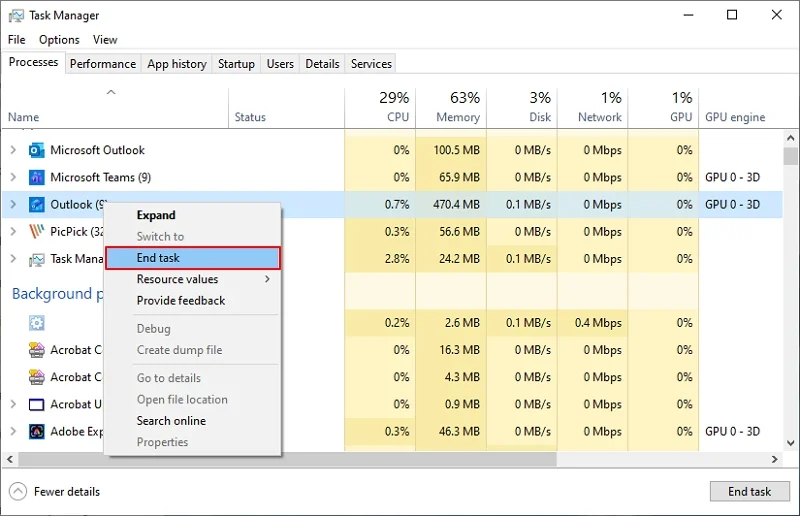
After that, restart Outlook and check whether the "Outlook couldn't start last time" error is prompting or not. Once Outlook opens, disable faulty add-ins immediately to prevent it from prompting again.
A damaged Outlook profile may also lead to this issue. So, create a new Outlook profile using the Control Panel and delete the existing one to fix the Outlook couldn't start last time error. Here are the steps to follow:
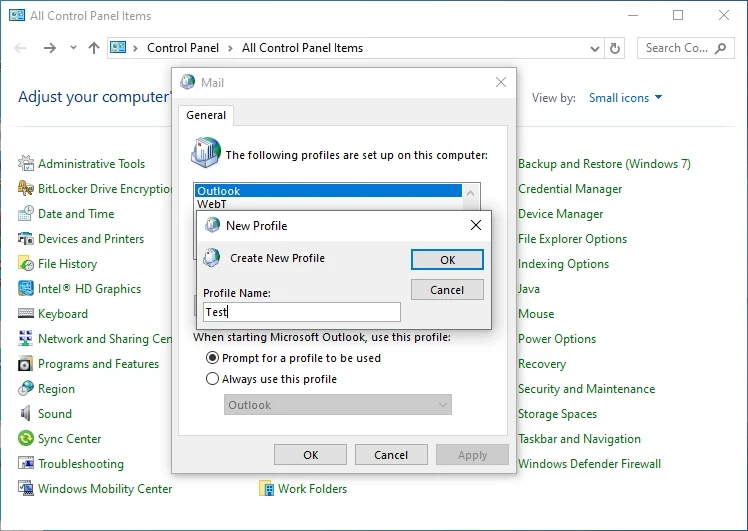
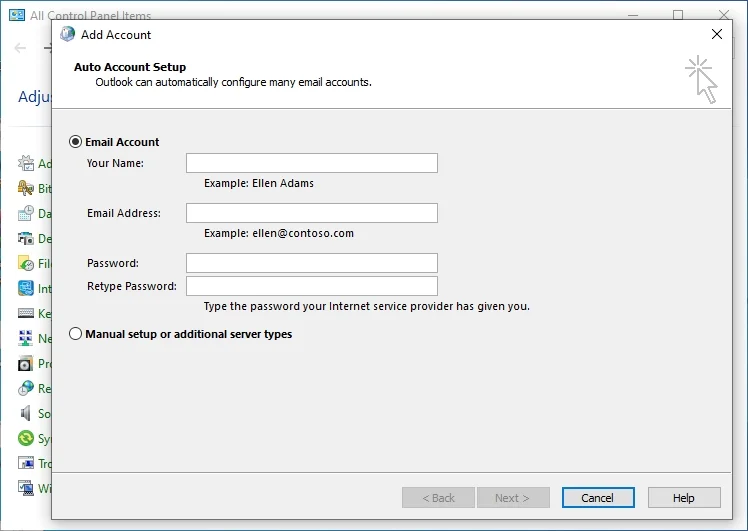
Restart Outlook using the new profile. The error Outlook couldn't start last time might be gone.
If there is an issue with the installation files that is causing the Outlook couldn't start last time error, then repair the Microsoft 365 installation. For guidance, follow these steps:
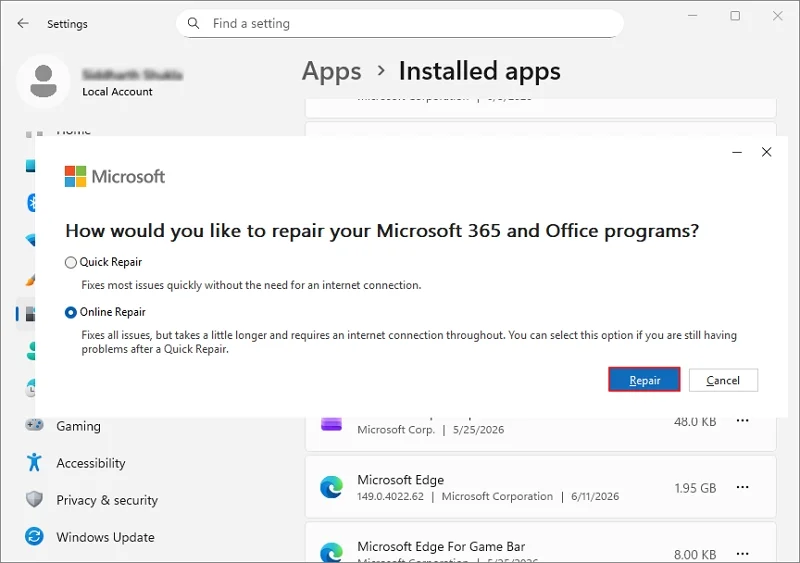
Once completed, open Outlook and determine that the error is still occurring.
We hope the error has now been resolved. Still, if you're encountering the "Outlook couldn't start last time" error, you must check and repair Outlook Data files, especially PSTs.
Microsoft itself provides the free & native Inbox Repair tool (ScanPST.exe) to check PST file issues and fix upto a minor level. So, check and repair PST files, and then check for the error. However, the Inbox Repair tool, ScanPST.exe, comes with several limitations, like it fails when corruption is severe or the file size is large.
In such a case, you can consider using the Kernel for Outlook PST Repair tool. This software repairs all kinds of corruption in any PST file. It also recovers deleted items and helps you to split large PST files into smaller PST files for better file management.
Read Also: Fix error Outlook not opening in Windows 10
Outlook could not start last time error may happen unexpectedly, and we hope you can fix it yourself now. Start with basic fixes and checks like internet connection, closing parallel running applications, opening Outlook in Safe Mode, etc. If they don’t work, reinstall or repair Outlook, create a new Outlook profile, and repair files as well. Follow the methods in order as guided and make your Outlook operations smooth and uninterrupted.
A: Press Windows+R, run the command outlook.exe /resetnavpane via the Windows Run dialog box to reset the navigation pane in classic Outlook.
A: Yes, only if the Outlook could not start last time error is prompted due to a weak internet connection. Ask your service provider, or close the application or device that is using a lot of internet bandwidth.