Read time: 10 minutes
User scenario: “Outlook Classic was recently updated on my PC, and after that, the Outlook application has not been working properly. I even uninstalled the update to restore the functioning, but nothing helped.”
Seeing Outlook Classic won’t open error due to faulty add-ins, corrupted Outlook profile, or any other reasons? Use the following solutions that I tried to recover from the Classic Outlook not opening:
- Disable faulty add-ins
- Create a new Outlook profile
- Check for corrupt system files
- Repair corrupt Outlook data files
Check out the detailed steps to use these fool-proof solutions to help you get rid of the error and send or receive your emails.
What is Outlook Classic?
Outlook Classic, the traditional Outlook for Desktop version, is an email application that comes as part of the Microsoft Suite. It is also known widely by the names, such as:
- Old Outlook
- Desktop Outlook
- Microsoft Office Outlook
- Outlook
The Outlook version is suitable for users looking for advanced email and shared mailbox management. Additionally, it helps with the extensive integration with the third-party add-ins and works efficiently even without an active internet connection.
Kernel for Outlook PST repair is an automated solution that can repair corrupt Outlook PST files with complete data integrity.
Common Issue: Why is my outlook classic not opening on Windows 11?
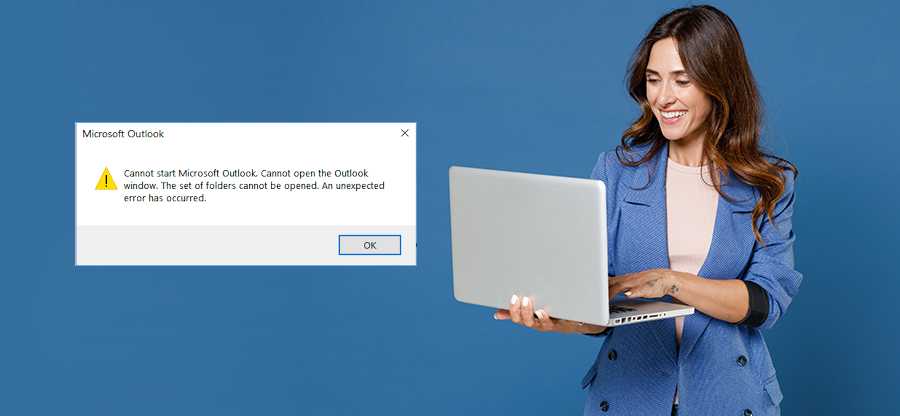
Users often complain of seeing error message, “Outlook Classic Not Opening on Windows 11” or “Cannot start Microsoft Outlook.” When this error is seen, users often notice frozen screen, startup failures, functionality loss, invisible processes, immediately crashes after opening, and even more. To resolve the error and get back access to emails, you need to apply the methods that are discussed ahead.
Possible Causes for Classic Outlook Not Opening
Before you find out the solutions to the error, Outlook Classic does not open on Windows, let’s learn what the possible causes of this are:
- Due to faulty add-ins enabled in Outlook Classic, you might see the Outlook Classic not opening Windows error.
- You might be using the outdated version of the Office suite or Windows operating system.
- Outlook profile you’re working on is corrupted or damaged.
- Security programs you’ve enabled are blocking the Outlook connection.
- Outlook data files becomes too large and go beyond the ideal limits.
- Too many background tasks are running at the same time, causing slow performance.
- Your Outlook data files (OST or PST) are corrupted or inaccessible.
Methods to Troubleshoot Outlook Classic Not Opening
Go through the listed methods that you can perform to troubleshoot the error from the Outlook account:
Method 1: Restart Your System
This might seem to be a basic step to do but sometimes it resolves even the complicated errors. Simply close all the running programs safely, shutdown your computer. Now, restart the PC and then launch Outlook Classic again to check if the issue is resolved; otherwise proceed further.
Method 2: Use Safe Mode to run Outlook
Another simple solution to rectify the problem is opening Outlook in the safe mode. You can run this utility without any plugin or extension. For this, follow these steps:
Step 1: Press Windows and R key together to open the Run window.
Step 2: Write outlook.exe /safe and press OK to open the application in safe mode.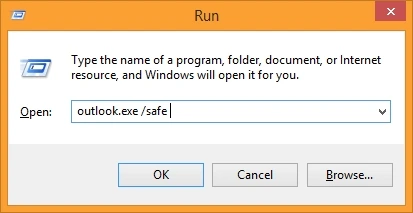
If the email applications work fine, the issue might be because of any faulty add-in enabled. Try disabling it and then see if the issue is eliminated.
Method 3: Disable Add-ins
Turning off the faulty or problematic add-ins in Outlook tends to resolve some Outlook errors permanently. Follow the steps below:
Step 1: Open Outlook and go to File tab.
Step 2: Click on Options from the left pane.
Step 3: Go to Add-ins and scroll down the right pane.
Step 4: Click Go under Manage> COM-add ins.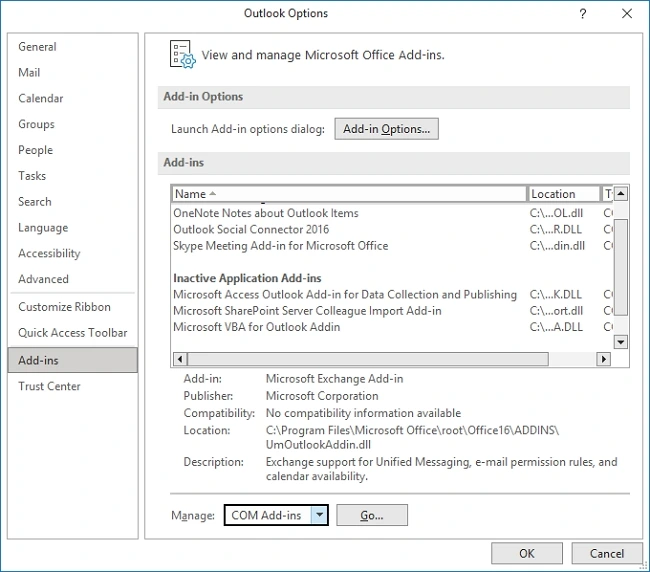
Step 5: Disable all the add-ins and then enable one-by one.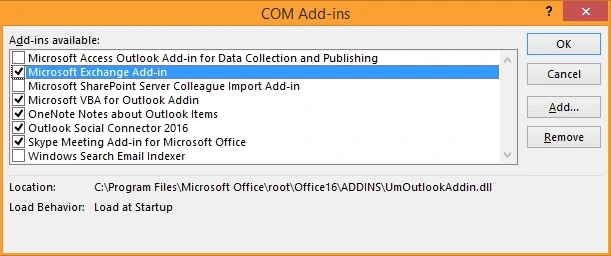
This will help you identify which one of them has problem that you need to remove Classic Outlook not opening error and make the mailbox functional again.
Method 4: Repair Microsoft Office Programs
Repairing the Office installation using the Control Panel allows you to perform a quick or online repair on the Office programs. Use the steps below:
Step 1: Make sure all the Office apps are closed.
Step 2: Go to the Start menu and enter Control Panel to open it.
Step 3: Select Programs, then Programs and Features, and go to Microsoft 365 Apps.
Step 4: Right-click on the Microsoft 365 Apps and tap on Change.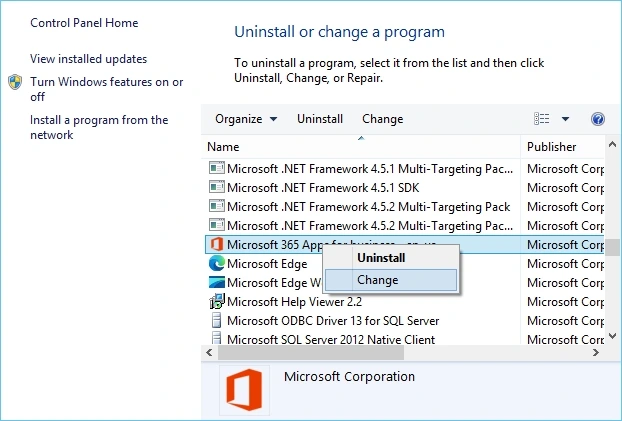
Step 5: Select if you want to perform Quick Repair or Online Repair.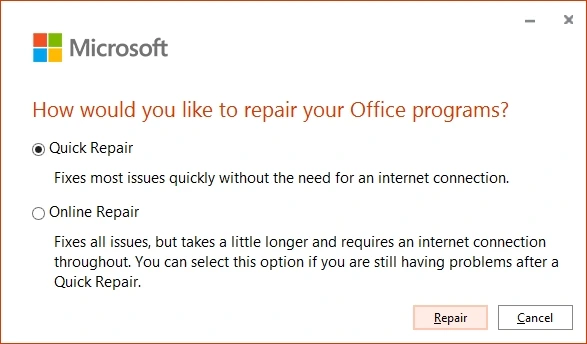
Note: Quick repair helps in fixing most of the issues without internet connection too, while Online repair requires internet connectivity and takes a lot of time but fixes all the issues.
Step 6: Follow the instructions to repair the programs and make the Outlook Classic application accessible.
Method 5: Update Microsoft Outlook and Windows
Remember that an outdated Windows OS can affect the functioning of several applications and processes that you perform on your PC. You need to regularly update your operating system version and Outlook to its latest update.
To update Outlook, follow the steps given:
Step 1: Open Outlook and go to File.
Step 2: Click on Office account > Update options > Update Now.
To update Windows OS 8, here are the steps:
Step 1: Go to search bar and open Settings.
Step 2: Go to Updates and Recovery and click Install to install the updates.
Point to Remember: If you’re using Windows 10 or 11, open Update & Security and then click Windows Update> Check for Updates > Download & Install.
Method 6: Repair Outlook Data Files (PST & OST)
When the Outlook data files are corrupted, you’ll see errors while accessing the mailbox within Outlook Classic. To resolve it, you need a solution that can repair corrupt OST files or PST files, providing you with uninterrupted access to the email items.
Use Scanpst.exe utility to repair the PST files if the corruption induced within these data files is minor. However, you cannot expect foolproof recovery if there is severe corruption, which often damages the files making the data inaccessible. For such cases, use a professional tool like Kernel for Outlook PST Repair tool, which is integrated with features like quick recovery, 100% accuracy, and zero data loss.
Method 7: Check for Corrupt System Files (SFC Scan)
Corruption in the Windows system files can influence the performance of the Outlook and sometimes other applications too. Use the SFC scan check to identify the damaged or affected files and resolve Outlook Classic not opening on Windows 11. Here is the process:
Step 1: Open Command Prompt as administrator using Windows and R key.
Step 2: Run the given command on cmd: DISM.exe /Online /Cleanup-image /Restorehealth.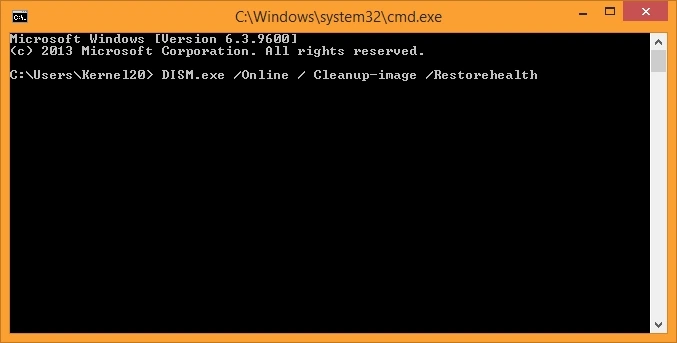
Step 3: After that run sfc/ scannow command and restart your PC.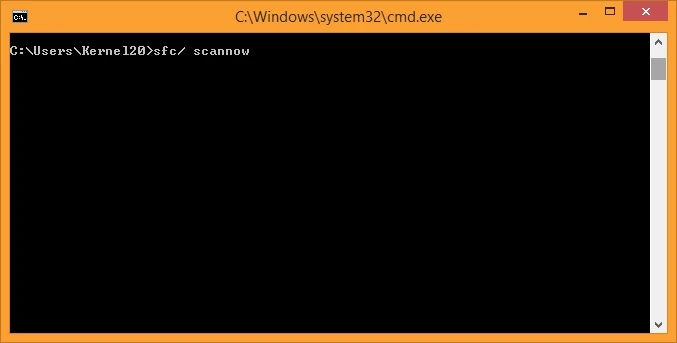
Method 8: Check Compatibility Settings
Inefficient compatibility settings of the Outlook application result in the failure of running Outlook operations. Here is how to resolve:
Step 1: Open file explorer and go to the Outlook.exe location
C:\Program Files\Microsoft Office\root\Office16\outlook.exe /safe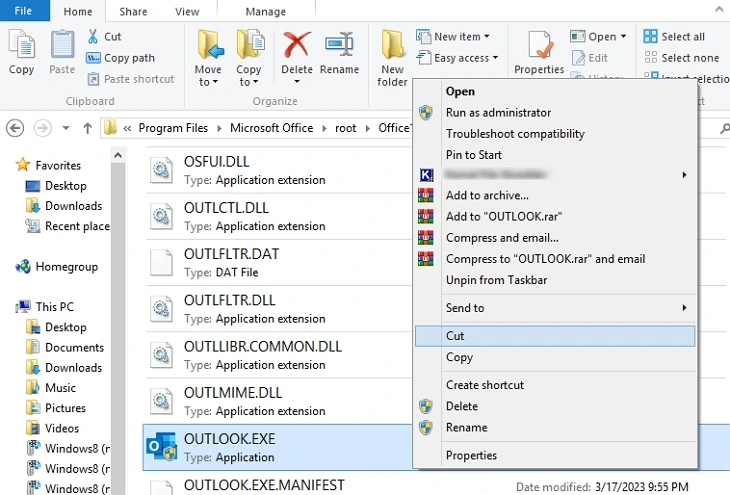
Step 2: Right-click on the exe, select Properties, and open the Compatibility tab.
Step 3: Uncheck the option “Run this program in compatibility mode for.”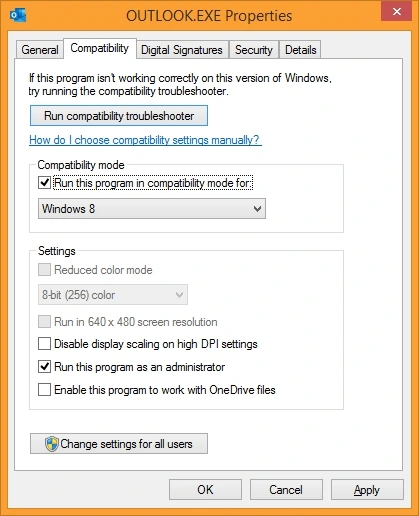
Step 4: Tap on the Apply option and save changes.
Method 9: Create a New Outlook Profile
When the Outlook profile you’re accessing to send or receive emails is corrupted or damaged, you won’t be able to access the mailbox items. For easy data accessibility, you need to build or create a new Outlook profile using the steps mentioned below:
Step 1: Exit Outlook and open Control Panel > Mail (Microsoft Outlook).
Step 2: Click Show Profiles and then Add.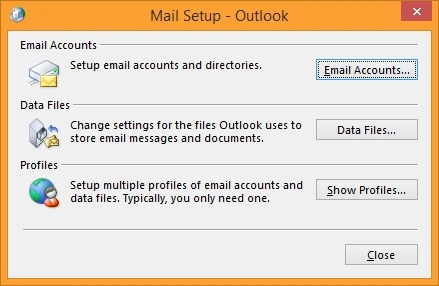
Step 3: Write a new name for the profile and click OK.
Step 4: Follow the instructions, provide credentials, and click Connect.
You can set this profile as the default to open each time you open the Classic Outlook application.
Outlook Classic Not opening: Advanced Troubleshooting Tips
Here are some additional tips you can follow to fix Outlook Classic Not Opening error on Windows 11:
- Reinstall Outlook or Microsoft Office from the official site.
- Make sure that Outlook is not functioning in the background apps.
- Turn off antivirus or other security programs for some time.
- Run Microsoft troubleshooter to identify the cause of the error.
- Disable hardware acceleration if it’s enabled.
- Reset the navigation pane (open cmd and run outlook.exe /resetnavpane).
- Manage the mailbox size to avoid seeing issues frequently.
When to contact Microsoft support to fix Outlook not opening on Windows?
Contact Microsoft for the support, if:
- The error is persistent after trying all the methods.
- Outlook is crashing again and again.
- Can’t access mailbox items even after multiple repairs.
- Similar issue is experienced on multiple workstations.
- Can’t install or launch Outlook Classic from the store.
Tips to Avoid Future Issues: Proactive Approach
- Always store an offline backup of your mailbox.
- Do not install unnecessary add-ins to your account.
- Regularly update the software to the latest version.
- Regularly diagnose mailbox for corruption in OST and PST files.
- Close Outlook properly and check using Task Manager if it’s properly closed.
Key Takeaway to Fix Classic Outlook Not Opening
I have shared all the possible solutions to fix the error Classic Outlook not opening on Windows 11. Try the solutions one by one to see which one actually helps you solve the problem thoroughly. Repair the damaged and corrupted PST files using the recommended PST repair tool that thoroughly removes corruption and makes the data accessible to continue using your mailbox.
Frequently Asked Questions
A: Follow the given steps to use Scanpst.exe to repair your Outlook mailboxes:
1: Go to the location of scanpst.exe at: C:\Program Files\Microsoft Office\root\Office16.
2: Double-click on the .exe and click Browse to select files.
3: Select Start to detect errors and click Repair if found.
Once done, open Outlook to verify if issues are resolved.
A: Open Task Manager using Ctrl + Shift+ Esc keys together and hit End task to quit the application.
A: Quick Repair feature of Microsoft Office provides an easy option to perform quick repair on the issues after scanning them within Office programs and files. The utility solves the issue without installation.