Read time: 9 minutes
File Share is a collection of shared files stored on a network drive. When a user chooses SharePoint Server as the storage location for their data, it becomes essential to migrate data from its file shares as well. File Share to SharePoint migration can be done for a lot of reasons, including better collaboration, centralized storage, easy file/data sharing, accessibility, and many more. Furthermore, the need for a professional document management tool compels the user to migrate and explore the advanced features & benefits of SharePoint.
On-premises file server vs SharePoint: One-on-one comparison
Before moving ahead and discussing the process to migrate file shares to SharePoint Online, here is a clear comparison between the two platforms:
Other major differences
| Features | On-premises file server | SharePoint |
| Integration | Support limited integration capability with other tools | Integrated with other Microsoft solutions, like Office, Exchange, Outlook, etc. |
| Storage | Limited physical storage | Flexible storage that can be updated by upgrading subscription. |
| Accessibility | Can be accessed by internal network only | Being a cloud-based solution provides accessibility from anywhere. |
| Maintenance | Requires manual efforts for backup and updates | Automatic backup facility is supported alongside automated updates. |
| Collaboration | Support limited collaboration | Comes with built-in collaboration and content management tools. |
The difference table shows clearly that SharePoint is superior to File server storage in all ways and supports enhanced productivity and efficiency.
Why migrate file shares to SharePoint?
Let’s check out some reasons to perform file share to SharePoint migration:
- Moving to SharePoint supports better collaboration among team members as it acts as a central platform supporting real-time co-authoring, version control on documents, etc.
- Since SharePoint is a part of a bigger Microsoft 365 suite, it is backed by a strong protection system, which includes multi-factor authentication, data loss prevention, and more.
- Allows easy access to files and documents for users from anywhere and using any device.
- Supports efficient document management by managing document changes efficiently.
- Easily scalable platform that allows a simple subscription upgrade for enhancing storage, users, etc., and is more cost-efficient than maintaining or scaling file servers.
How to migrate file share to SharePoint Online?
Users can manually upload files to SharePoint sites or drag & drop the files from a file share to the SharePoint document library. However, it is not ideal for transferring a large volume of data. Let us know the next possible options to move large amounts of data from on-premises file share to SharePoint.
Users can manually upload files to SharePoint sites or drag & drop the files from a file share to the SharePoint document library. However, it is not ideal for transferring a large volume of data. Let us know the next possible options to move large amounts of data from on-premises file share to SharePoint.
SharePoint Migration Tool – Microsoft utility
Microsoft offers a free in-built utility to migrate file share to SharePoint Online, that too from local file shares. Download the SPMT (SharePoint migration tool) software using the Microsoft website easily. To use this utility, you require the exact location of the file share, Microsoft 365 administrator credentials, and the destination SharePoint URLs beforehand. This tool provides filter options as well, which the administrator needs to set before the migration via tool settings. It also provides the facility of bulk migration via a .csv or .json file. The process takes quite a time to complete, depending on the Internet speed. Also, there is a limitation on the file size. The SMTP tool only allows files of up to 250GB to transfer from file share to Microsoft 365.
Note: After performing the file share to SharePoint migration using SPMT, you can alter the permission settings on the files according to the location of your on-premises data and the synchronization of the Active Directory accounts to Azure Active Directory.
Common challenges during file share to SharePoint migration
Manual methods often impose challenges in migrating data to SharePoint server. Here are some of those:
- The migration process that involves transfer of a large amount of content often includes errors.
- Inefficient network bandwidth can slow down the data transfer during bulk migration.
- Risk of downtime if not done properly due to disrupted migration process.
- Lack of training can lead to confusion among users.
- Metadata can get lost during the process using the manual methods.
An easier way for file share to SharePoint migration [Automated Tool]
Enterprise-level users can use professional third-party tools to easily move the desired data and permissions from their on-premises file shares to SharePoint Server or SharePoint Online. Kernel Migration for SharePoint follows a relatively simple and direct process for migration and provides flexibility and customization options. Moreover, you can migrate file share to SharePoint Online without putting any size restrictions. A migration job involves various steps. Therefore, to prevent skipping any step, we recommend creating a quick SharePoint migration checklist.
Process to migrate file share using Kernel migration tool
Download and install the SharePoint Migration tool on your system. Carry out the following steps for File Share to SharePoint migration (both On-premises and Online) using this advanced utility.
Step 1. Launch the installed tool and connect both source (File System) and destination (SharePoint).
Step 2. Click on File System from the menu and select File System to SharePoint.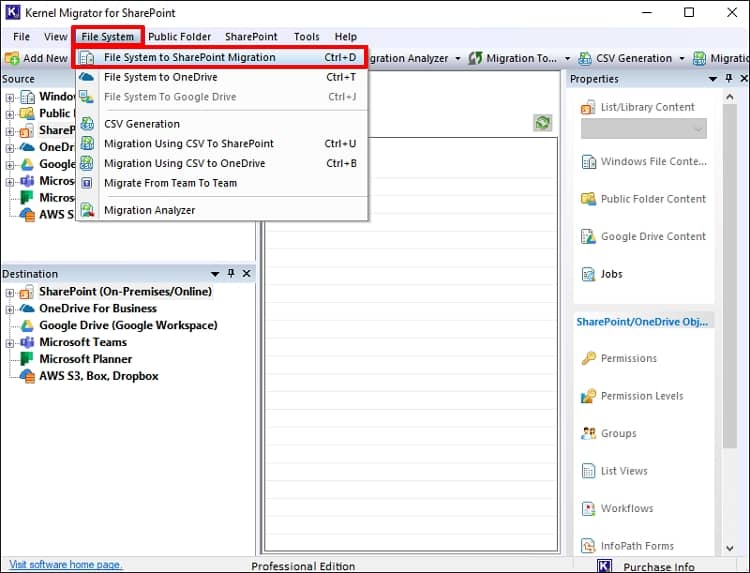
Step 3. Click on the down arrow next to the Add button to select files or folders.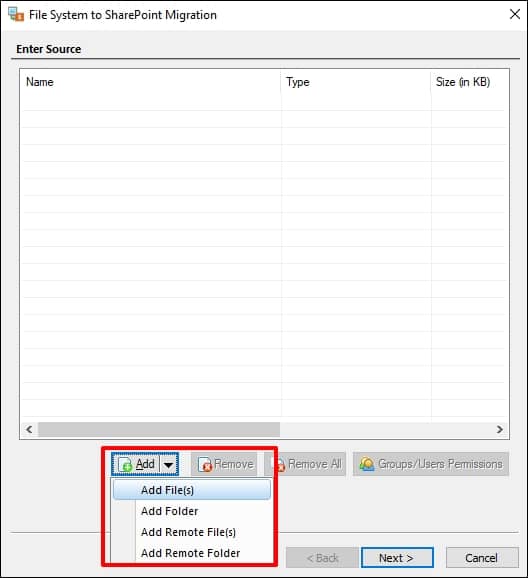
Step 4. After adding the items to upload click Next.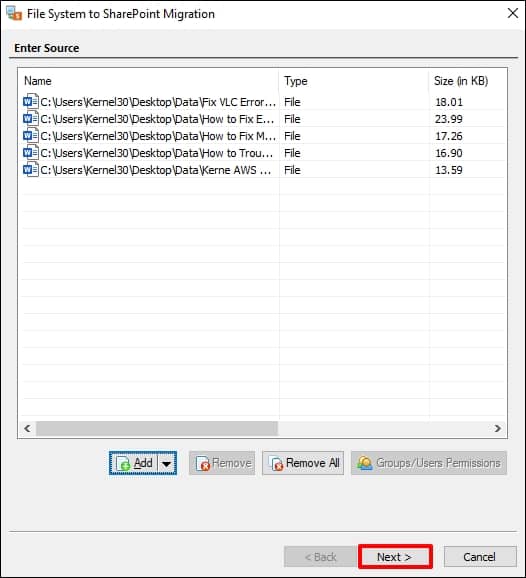
Step 5. Select the destination SharePoint site and click Browse.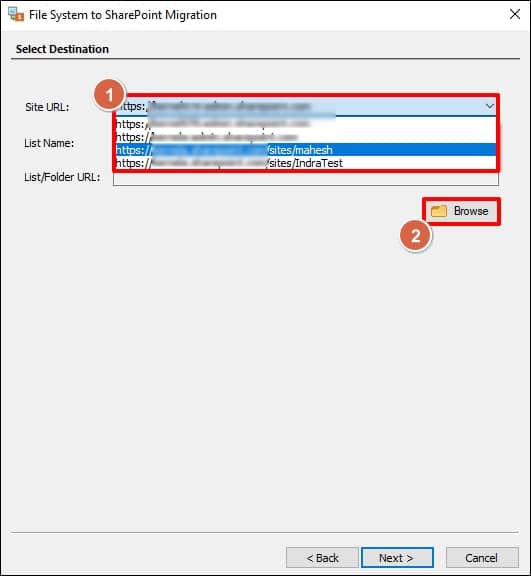
Step 6. Select the library and click OK. Then click Next.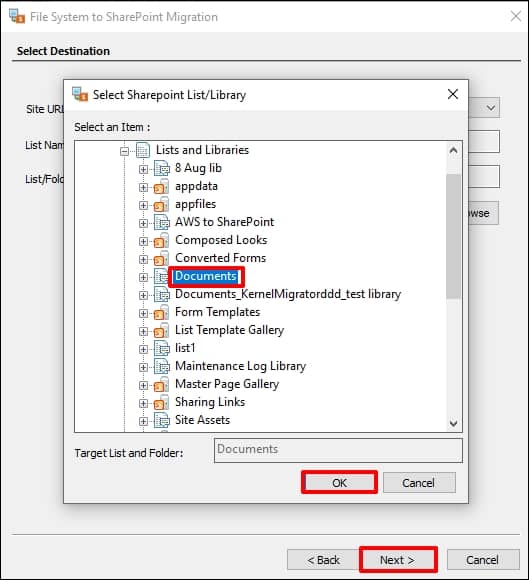
Step 7. The tool will automatically map the attributes. To map them manually, select any attribute and click Edit. Click Next to proceed.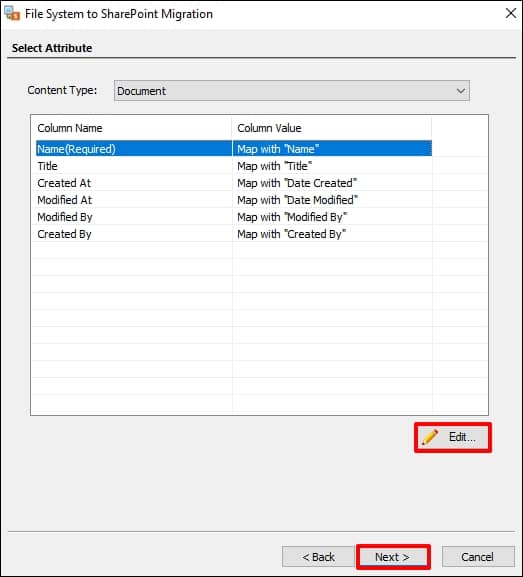
Step 8. Apply the required filters as per your need and click Next.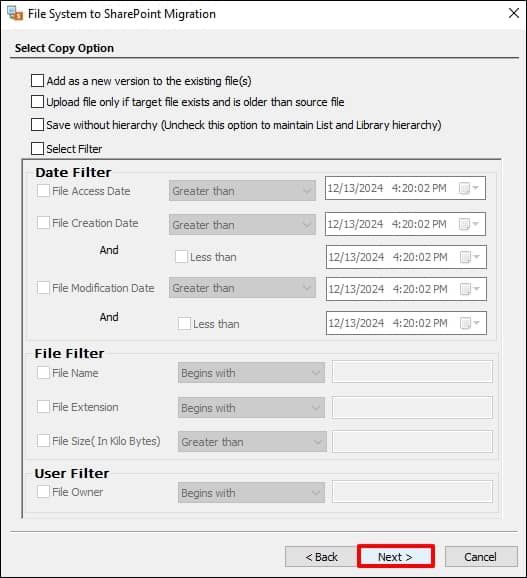
Step 9. At the Set Permissions window, click Next to proceed.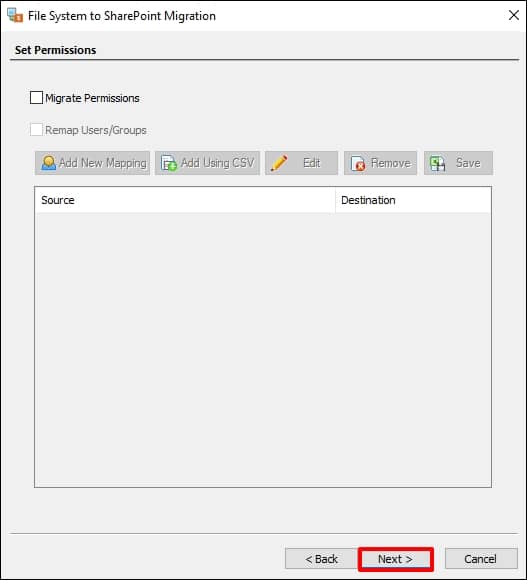
Step 10. To begin the data migration instantly, select Execute Immediate and click Next. To generate a detailed log report post data transfer, select the Generate detail log report.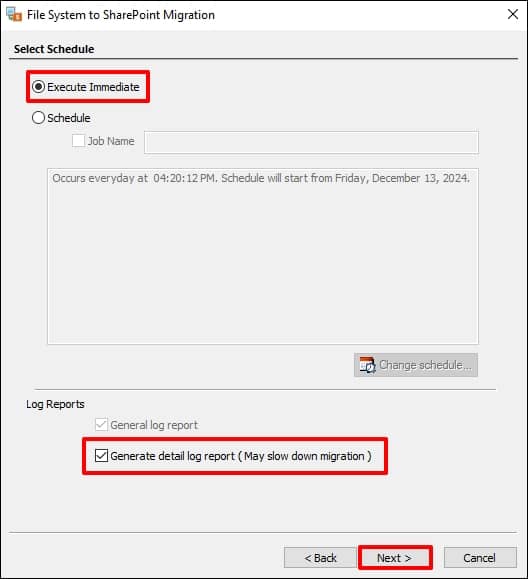
Step 11. To schedule the migration, select the option Schedule and provide a Job name. Then click the Change schedule button to configure the date & time. Finally, click Next to move forward.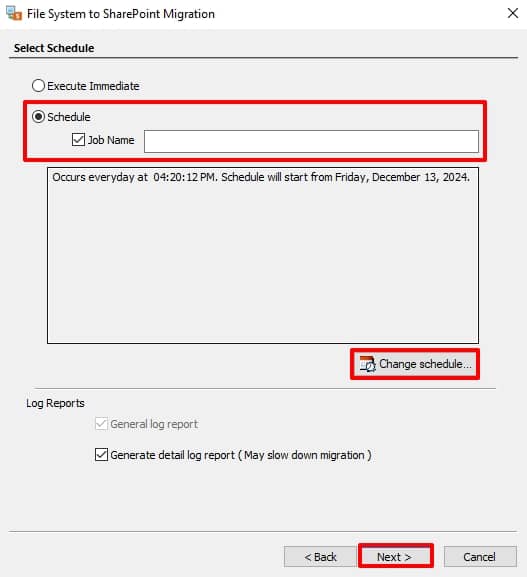
Step 12. The tool will display a detailed summary log of the transfer. Click Next to begin the transfer.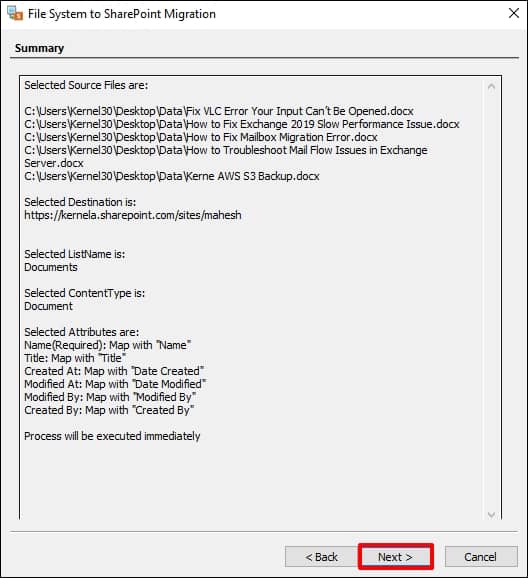
Step 13. When the migration is completed, a detailed report will be displayed. Click Finish to exit the process.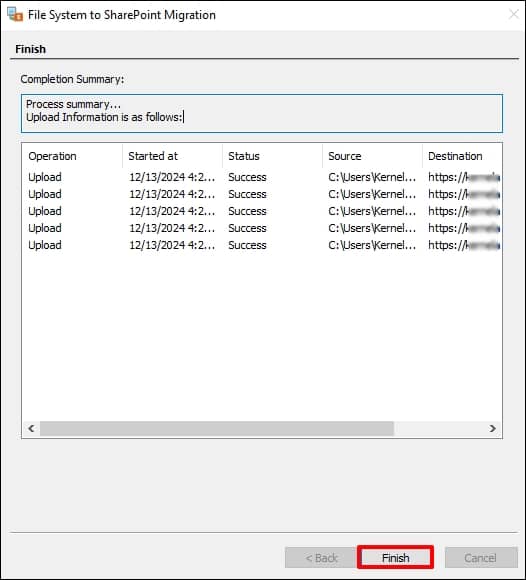
The tool not only helps you to migrate File Share data to SharePoint online from on-premises but also supports migration from different platforms.
Major migration jobs possible with the tool are:
- Migration from SharePoint 2010 to 2013, 2016, 2019 & SharePoint Online.
- SharePoint tenant to tenant migration.
- Exchange Public folder to SharePoint migration.
- You can also move data from SharePoint to Microsoft 365 (SharePoint Online).
- The tool also offers to move data from Google Drive & One Drive directly to SharePoint.
The tool ensures complete data integrity and can easily migrate SharePoint permissions during the migration. It is compatible with all versions of SharePoint Server, Exchange Server, and Windows Operating System.
Conclusion
The article explained that file share to SharePoint migration makes collaborative document management and team collaboration easy. With the help of SharePoint Migration tool by Microsoft and a third-party Kernel Migration for SharePoint, migrating content in bulk can be done without any hassle. However, the third-party solution provides unlimited data transfer and maintains the data integrity and original file/folder structure, as it was in the file system.
Frequently Asked Questions
Ans: To migrate file server to SharePoint Online, follow the given steps:
1. Open your web browser and sign in to SharePoint.
2. Now, go to the file server and select the desired files to move.
3. Drag the files to the SharePoint site within the SharePoint and drop the files.
This will migrate your files to the desired location in SharePoint server.
Ans: Yes, when you try to migrate files from file share to SharePoint, you’re not handling the folder structure. Manual methods fail to support the folder migration. However, the best method will be to use SharePoint Migration Tool (SPMT) or a professional file share to SharePoint migration tool.