How to manage external email warnings in Outlook using Microsoft 365
 Written By: Sarthak Poswal
  Updated On September 16, 2026 Written By: Sarthak Poswal Updated On September 16, 2026
 Administrators can manage Outlook external email warnings in Office 365 for emails that are received from outside the organization using Exchange mail flow rules. They can create new rules, delete the old ones, and even edit the existing rules directly from the Exchange Admin Center.
The warning in an email allows the members of the organization to identify whether an email is sent from within the organization or from outside. To manage the mail flow rules, you must be an administrator or have the Organization Management role assigned. In the following sections, we will explore how you can manage the warnings for an external email in Outlook.
Outlook shows a warning when an email matches the conditions of a mail flow rule. Such a warning alerts users that the email was sent from an untrusted source. You must be cautious before you open any attachments or links in the email.
The motive to use an external sender warning in Microsoft 365 is to:
To setup external email warning rule in Outlook using the admin center GUI, follow these steps:
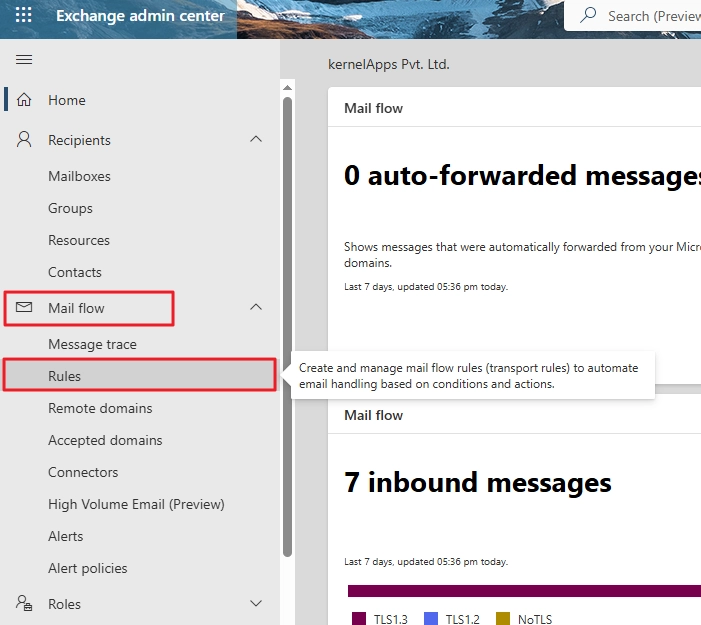
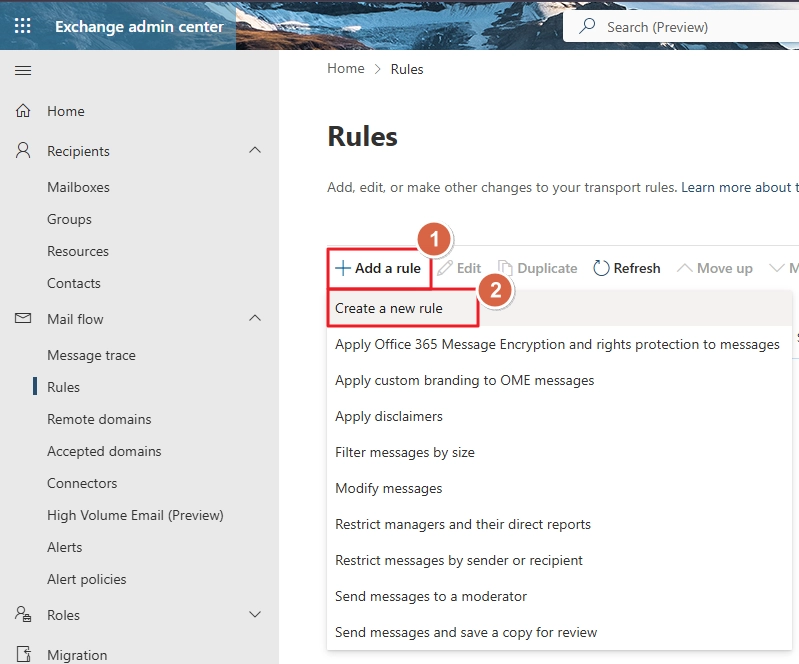
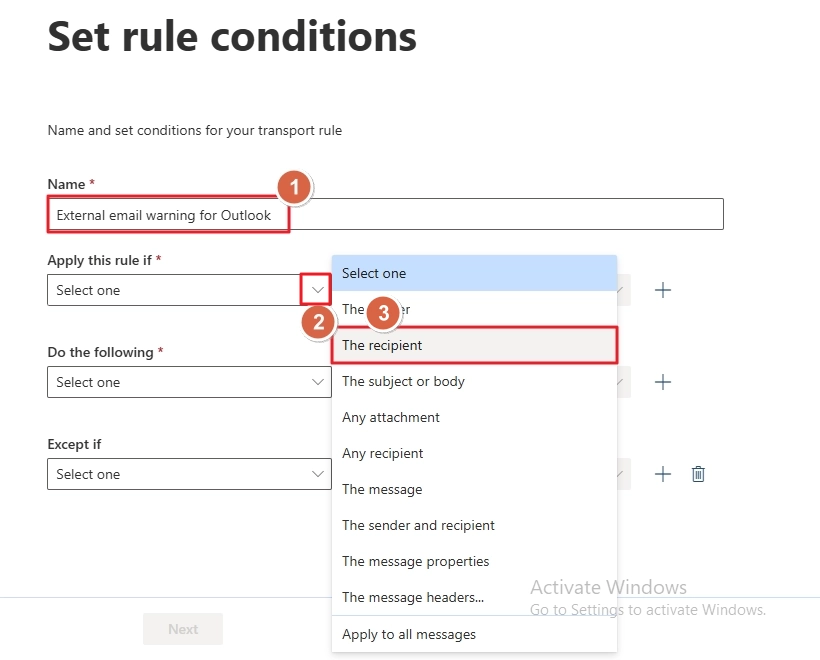
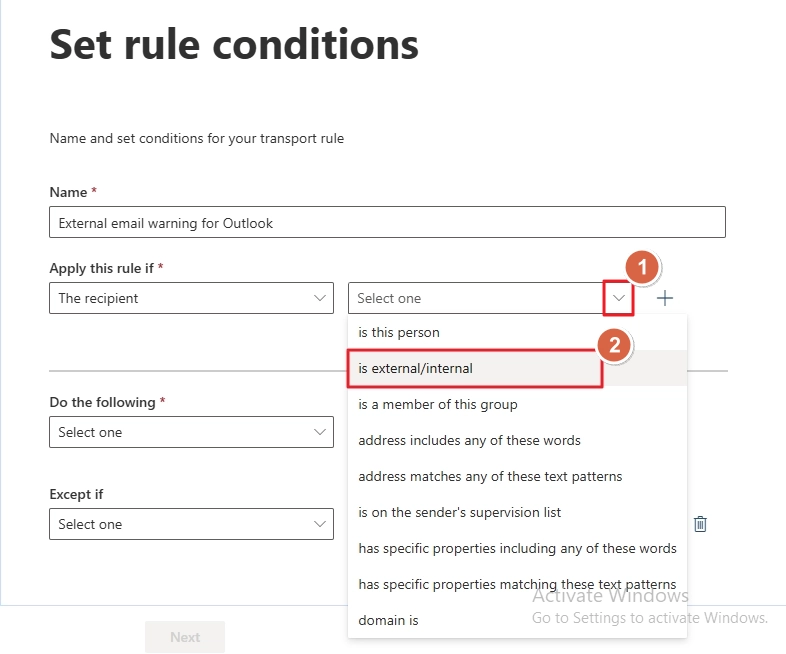
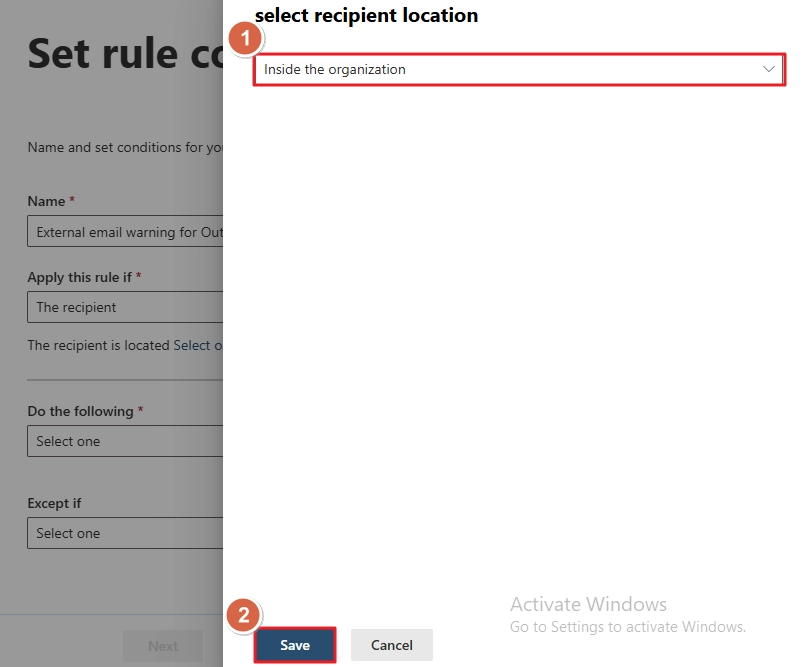
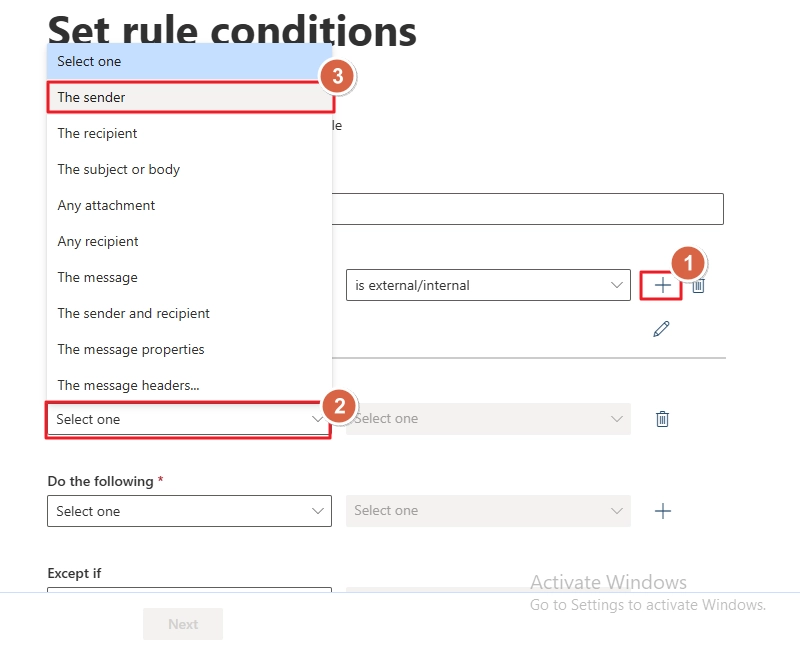
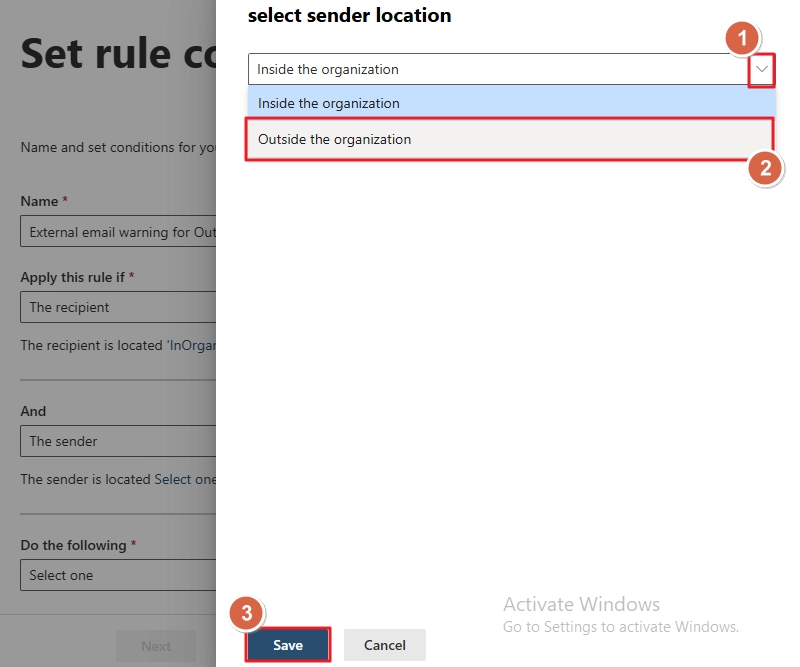
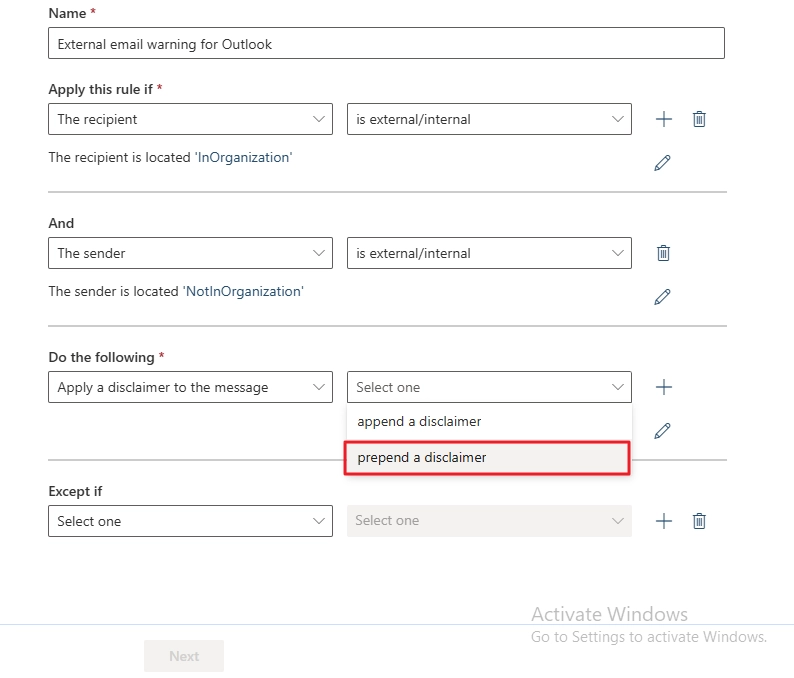
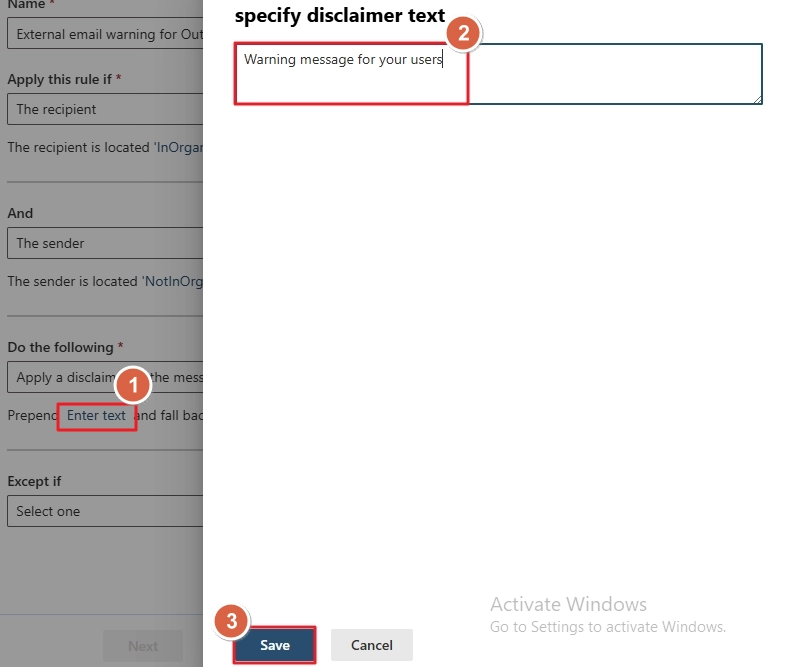
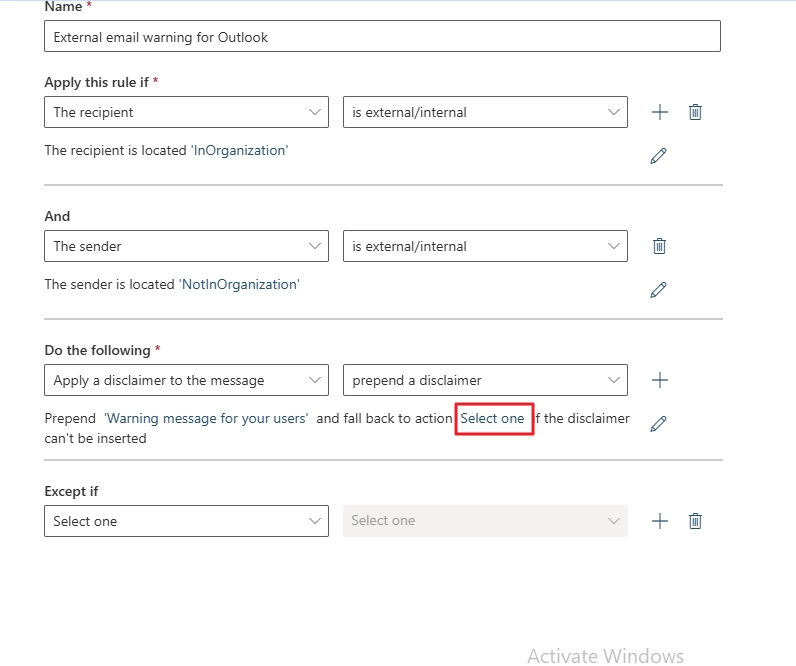
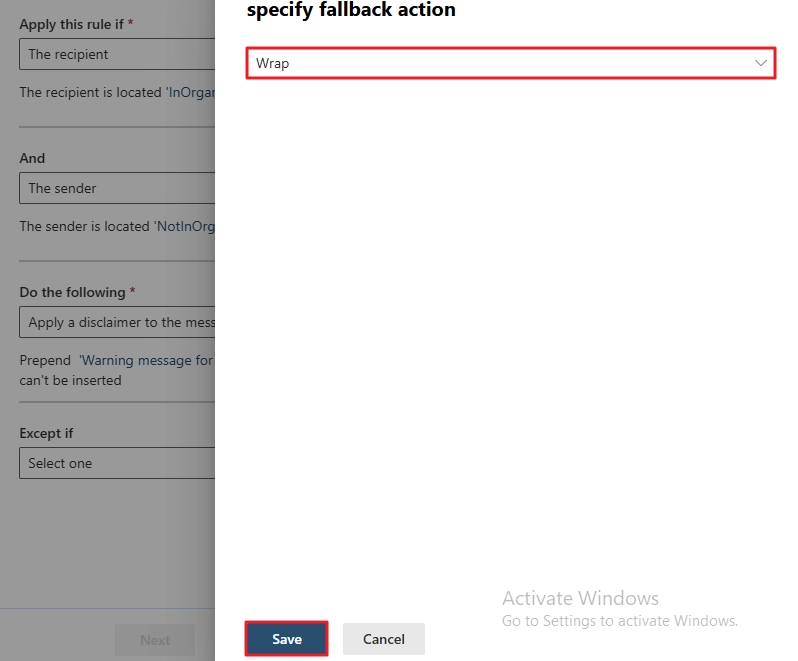
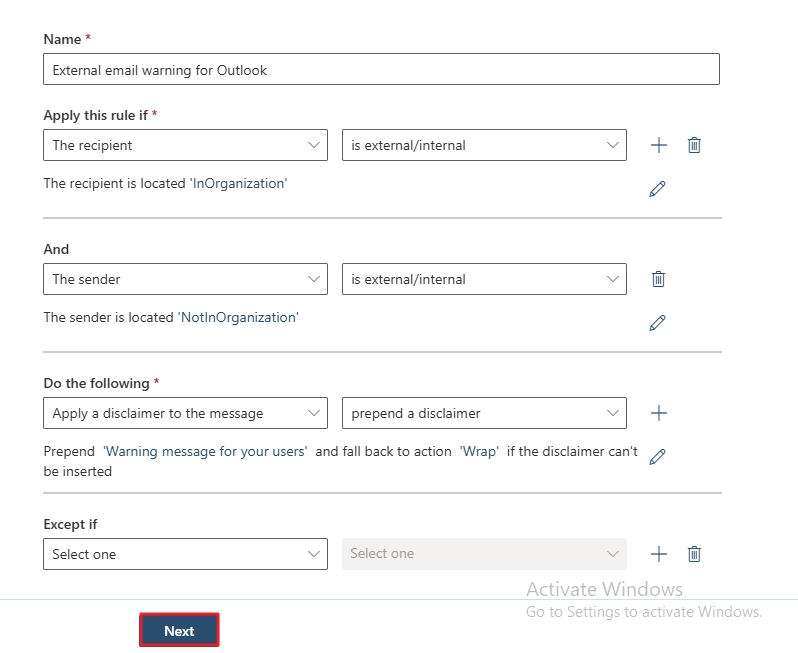
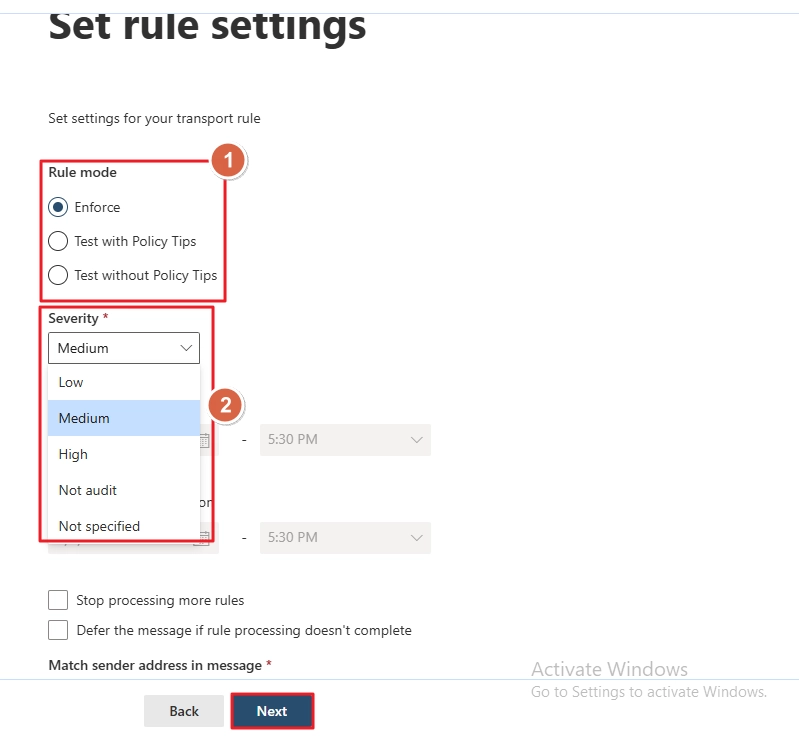
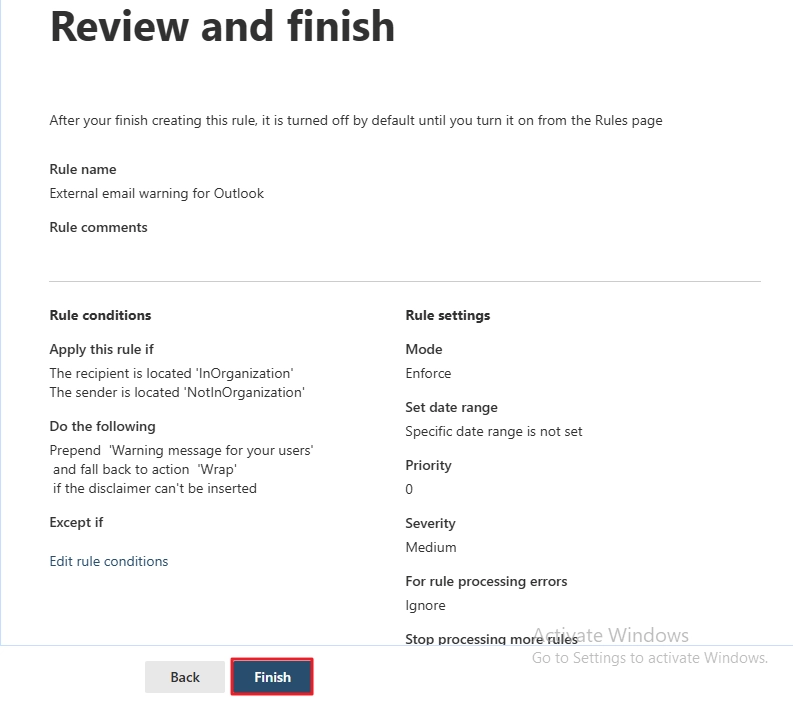
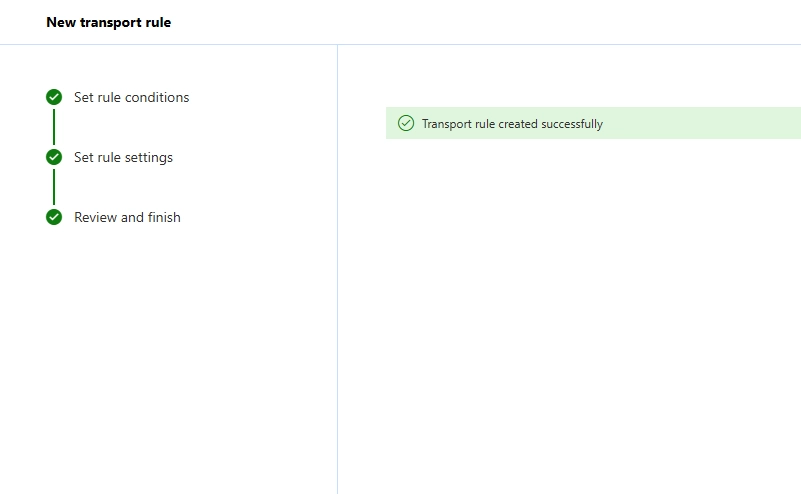
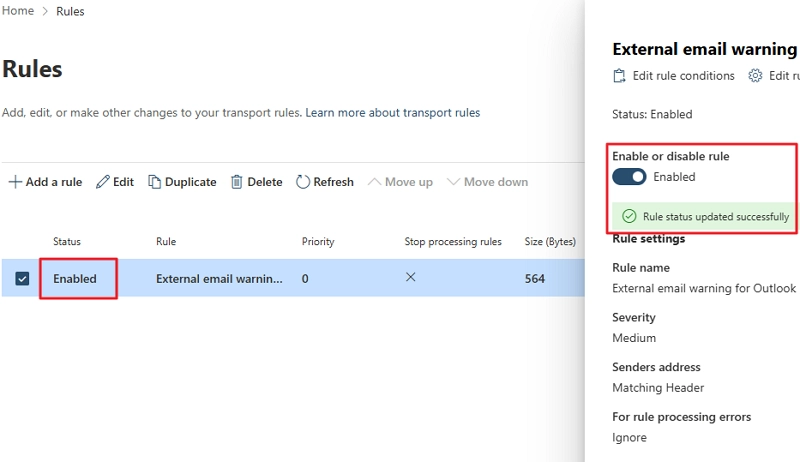
You can also use the cmdlets to manage Outlook external email warning in Office 365. To setup external email warning rule in Outlook, open Exchange Management Shell (EMS) and connect to Exchange Online. Then, run the following command:
New-TransportRule -Name "External Disclaimer" ` -FromScope NotInOrganization ` -ApplyHtmlDisclaimerLocation Prepend ` -ApplyHtmlDisclaimerText "PASTE THE TEXT YOU
WANT TO DISPLAY BEFORE ANY EXTERNAL EMAIL IN OUTLOOK." ` -
ApplyHtmlDisclaimerFallbackAction Wrap
Note: You must be an admin or at least have the Organization Management permission assigned to run the New-TransportRule cmdlet.
The above command will prefix a disclaimer/message to an email (that matches the condition of the rule) that you receive from a sender that is not in your organization.
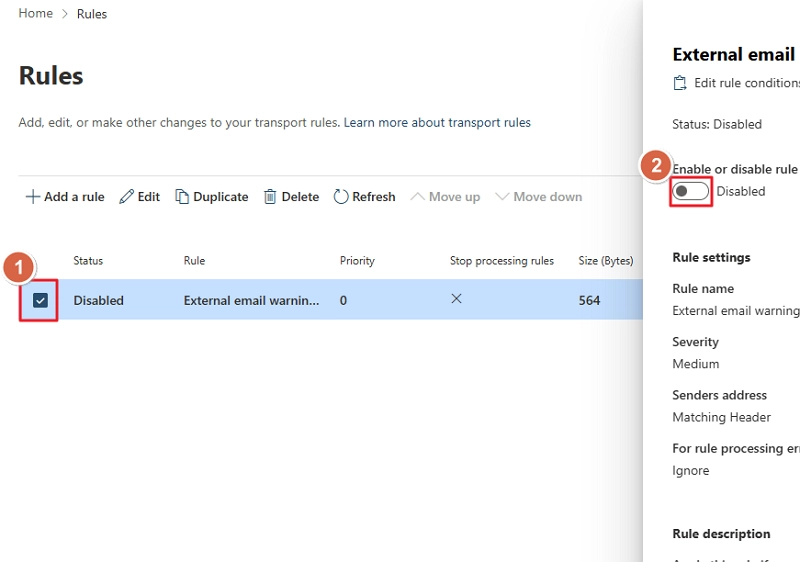
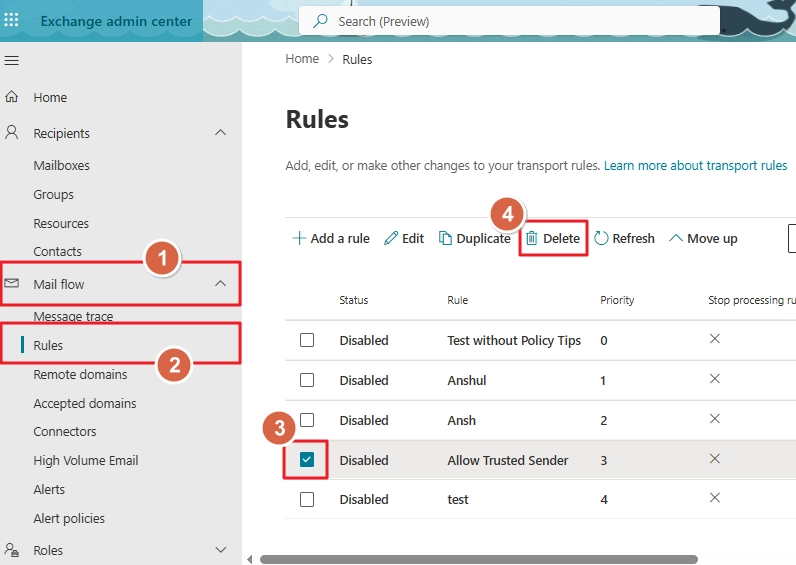
If you no longer need a warning rule, you can disable it using the EAC or the EMS. Let’s see how:
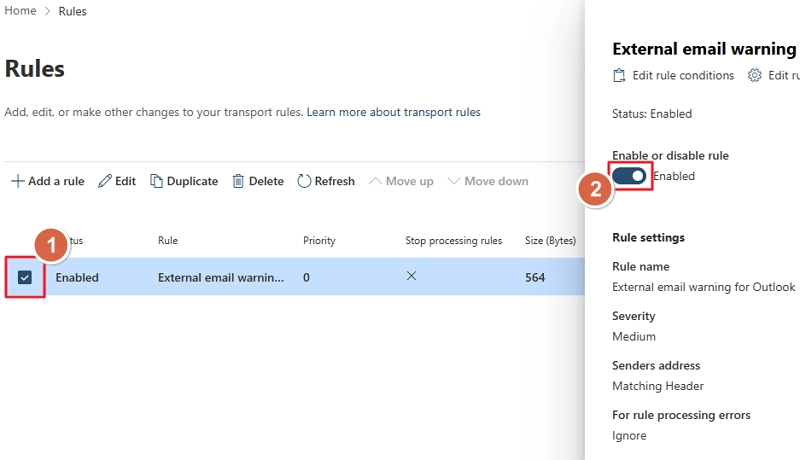
Note: If it shows Disabled, don’t click on it.
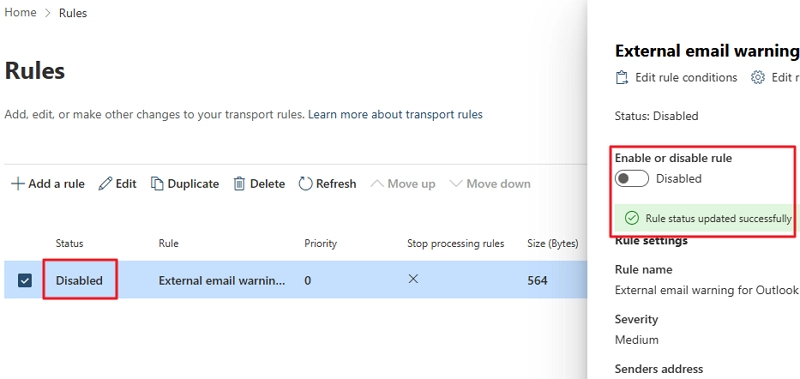
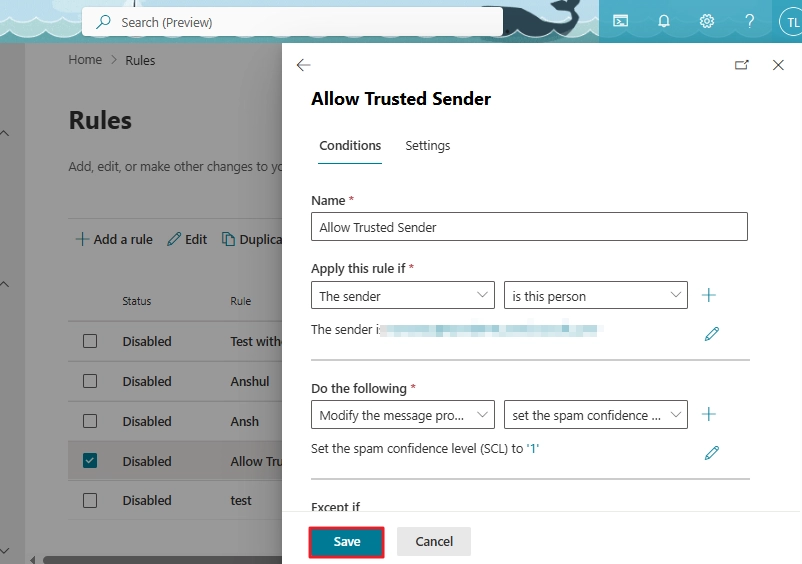
After creating a new rule, you can edit its conditions and settings from the admin center. Use the following steps to modify an existing Outlook email warning rule:
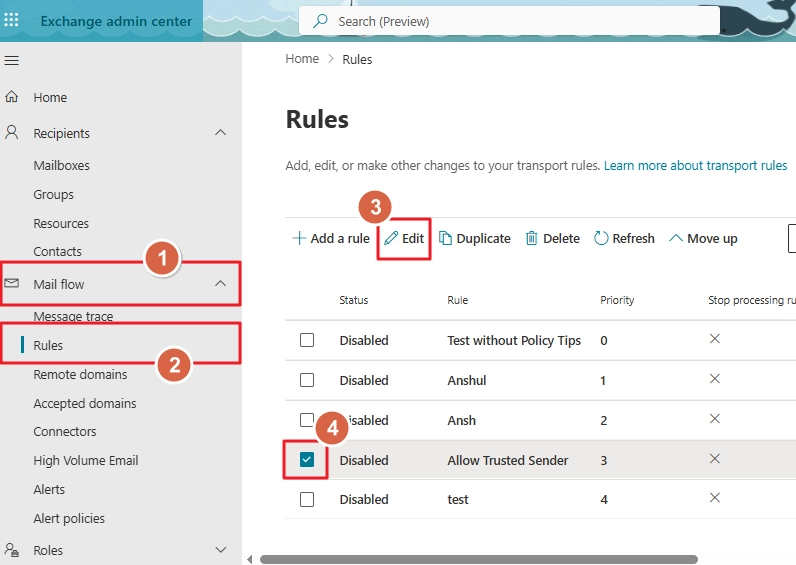
Using the admin center or the PowerShell commands, you can remove the external email warning in Office 365.
In the management shell, run the following command:
The Outlook external email warning can only help in identifying and avoiding suspicious emails. However, they will not help you if your EDB file is already corrupted due to a malware attack. In this case, you need to repair EDB file. The fastest way to restore the server is to recover the database using a backup. However, if you don’t have a backup or the backup itself is affected by viruses, you can use the Microsoft built-in tool, eseutil. Follow these steps to remove the corrupt data:
Dismount-Database -Identity "YourDatabaseName"
Note: All the damaged pages will be deleted permanently after running this command
eseutil /p "YOUR_EDB_FILE_COMPLETE_PATH"
eseutil /d "YOUR_EDB_FILE_COMPLETE_PATH"
After repairing the EDB file, check its status using the eseutil /mh command. If the .edb is in a clean state, mount the EDB file to the server. But if the command shows the EDB file state as dirty, the eseutil fails due to severe corruption.
In such instances, you must use a professional Exchange database recovery tool. Choose a tool that can repair any level of damage from EDB file, without losing any mailbox items. And most importantly, restore all the files/folders with the original folder structure and metadata.
Our Kernel Exchange Suite software is a one-stop solution to every Exchange Server-related issue. EDB repair, restore deleted mailbox, migrate mailbox across tenants, database backup, etc., the suite can help you with all.
The Exchange transport rules help with secure email communication. The fastest way to manage Outlook external email warning in Office 365 is to use the EMS. With a single command, you can create it, disable it, or delete it. And for users who prefer a GUI approach and want more control, use EAC. But make sure you have the required role assigned to manage the mail flow rule. Moreover, since the mail flow rules affect the whole organization, discuss with your teammates before adding or removing a mail flow rule.
Ans. It is a way to alert users about the origin of the email, so they can be cautious before replying or opening links.
Ans. No. Outlook is where you see the warning along with the email. To manage Outlook external email warning in Office 365, you must use either EAC or EMS.
Ans. Only an administrator or someone with the appropriate permission can remove the external sender warning. A standard user cannot remove it.
Ans. You can create a mail flow rule to automatically add the "External" word in the subject line of an email based on some conditions.
Ans. Yes, you can edit the warning message as per your requirements using the Exchange Admin Center.