
Are you looking to connect Google Calendar to Google Docs but cannot find a button? You are not alone. Many people attempt to include their calendar in a document but get stuck because there is no direct button for it yet. Instead, you have to do a few clicks to add the event.
In this blog, we will see four simple ways to add calendar to Google Docs, along with a few basic troubleshooting tips to help you fix some common linking issues and a tool to secure your data. Let’s get started.
Methods to Connect Google Calendar to Google Docs
Can you add a calendar to Google Docs? Yes, you can. You can include calendar events, link meetings, and attach a document to your calendar if required. Moreover, you can also create a basic calendar manually in the doc file.
However, because Google Docs and Google Calendar are two separate applications, you will not be able to embed a live calendar.
Method 1: Insert a Calendar Event using the @ Menu
This is the quickest way to add a single event. Here is how:
- Go to doc.google.com and create a new Google Doc or open an existing one.
- Type ‘@’.
- Scroll down and find the Calendar Events section under Files section.
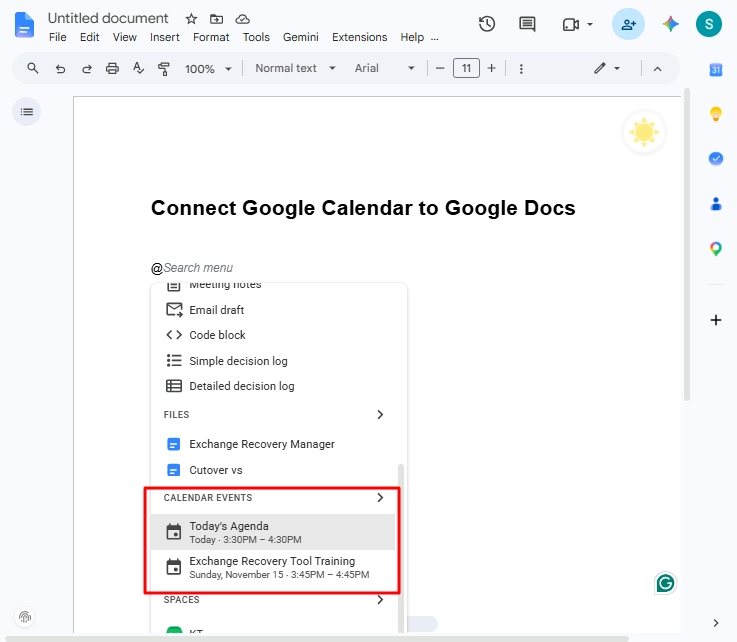
- Select your event.
- This will add the event in the document file.
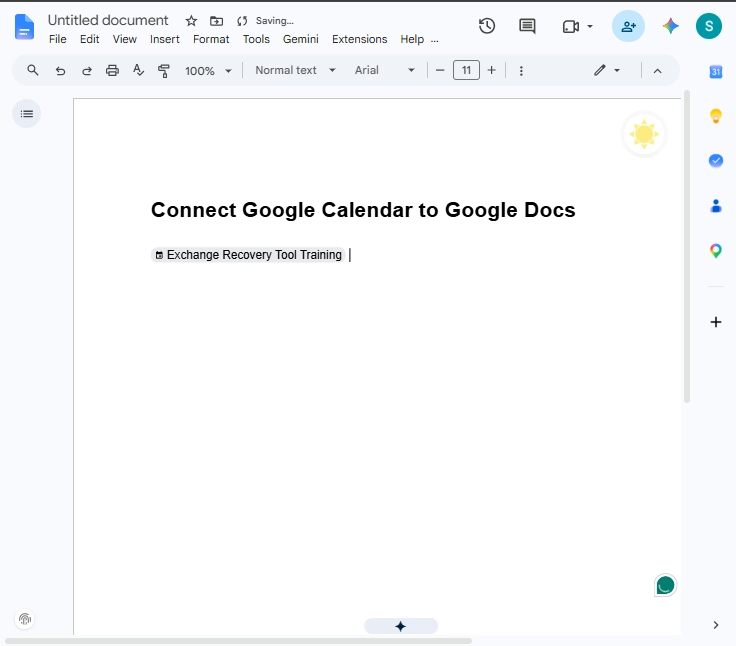
In case there are multiple calendar events, you can search for your event by typing the name of the event or the date when it was created after the @ symbol.
Method 2: Add Meeting Notes using the @ Menu
Often, the motive of adding calendar to Google Docs is to get the calendar notes created for your meeting. If this is your requirement, follow these steps:
- Open the Google Doc document file and type ‘@’.
- Expand the BUILDING BLOCKS section.
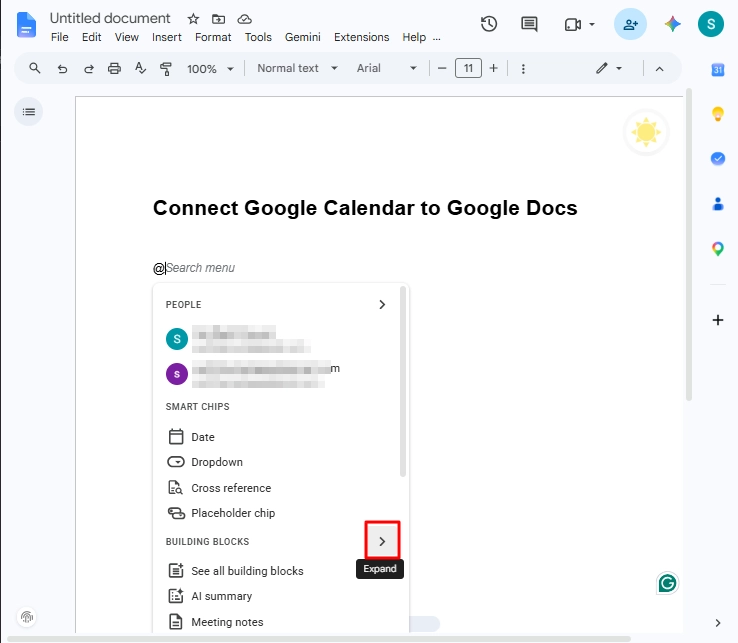
- Select the ‘Meetings notes’ option.
- A list of calendar events will appear. Choose your required meeting.
- Google Docs will insert the title, date, and attendees of your meeting. There is also a section for you to add your agenda and notes.
Method 3: Attach a Google Doc to a Calendar Meeting
This method is opposite of what we did in the last two. Here, to connect Google Calendar to Google Docs, we will attach a document file from Google Doc to a calendar event. You can do it either from Google Docs or from Google Calendar.
Add Document to Calendar from Google Docs
This is the fastest way to add a document from Google Docs to a calendar event.
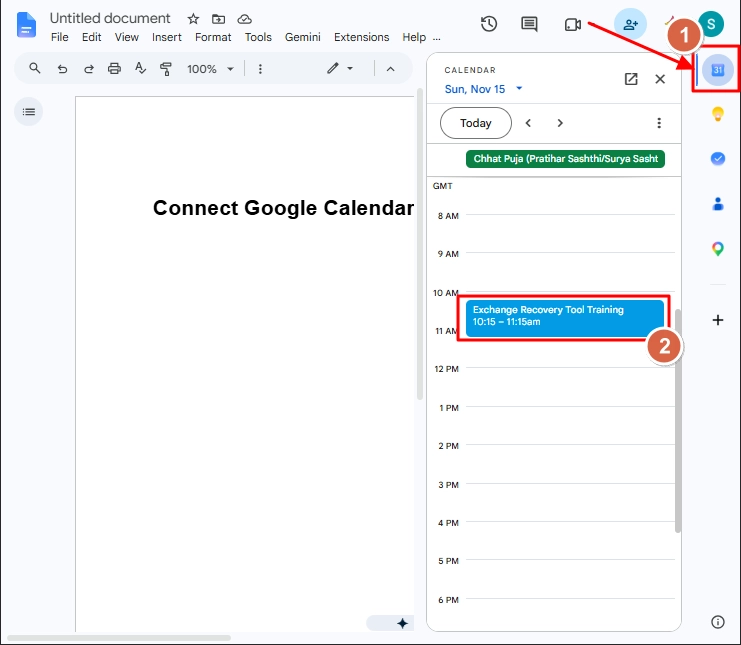
- Within Google Docs, click the Calendar icon in the side bar on the right. Select your event.
- Click ‘Edit’.
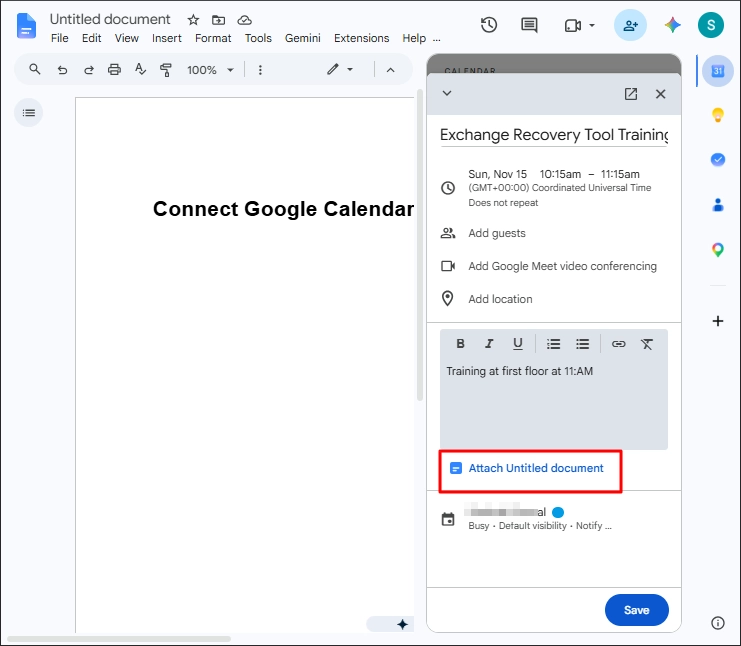
- Click the Attach this document button.
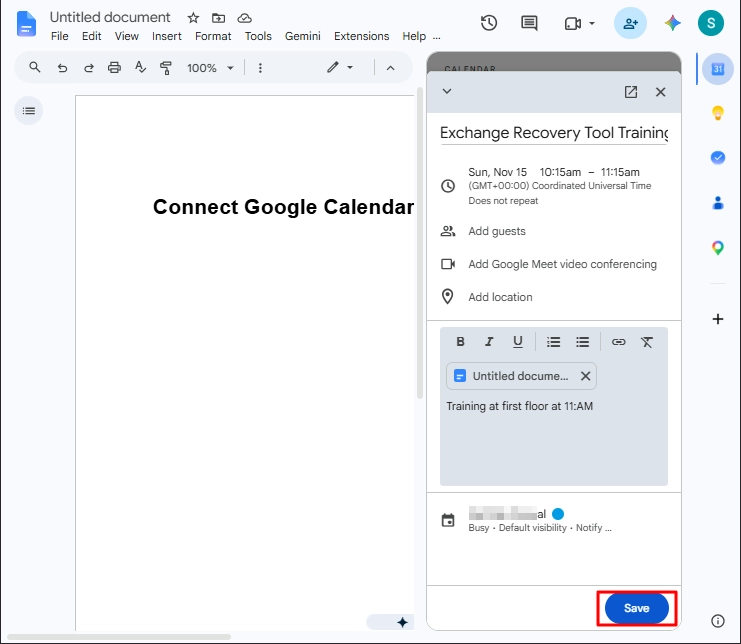
- Document is attached. Click the Save button.
Add Document to Calendar from Google Calendar
This process is a little lengthier than the previous one but offers the advantage of adding multiple documents together, including the shared ones. Note that, when attaching a document to an event on your calendar, your attendees won’t be automatically informed. You’ll need to let them know manually.
- Open your Google Calendar page and click your event.
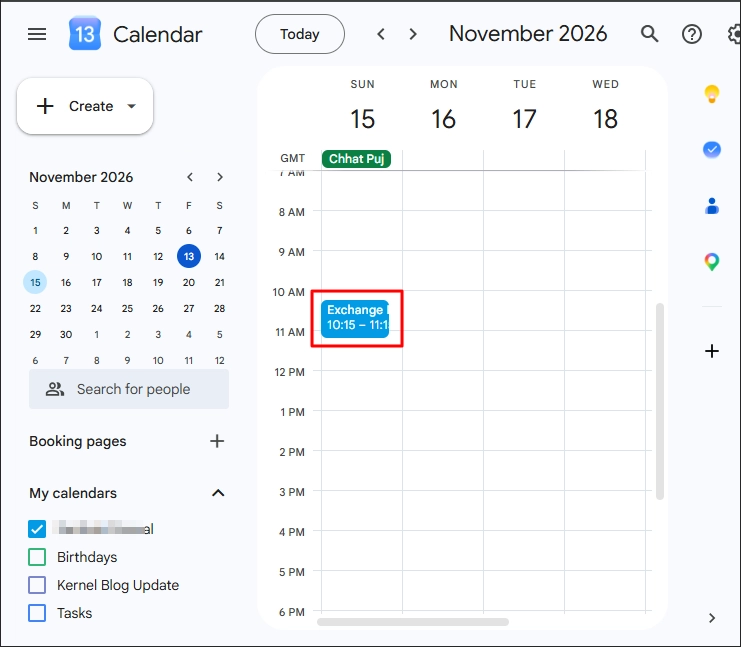
- Click the Edit event icon.
- Scroll down and click the Google Drive icon.
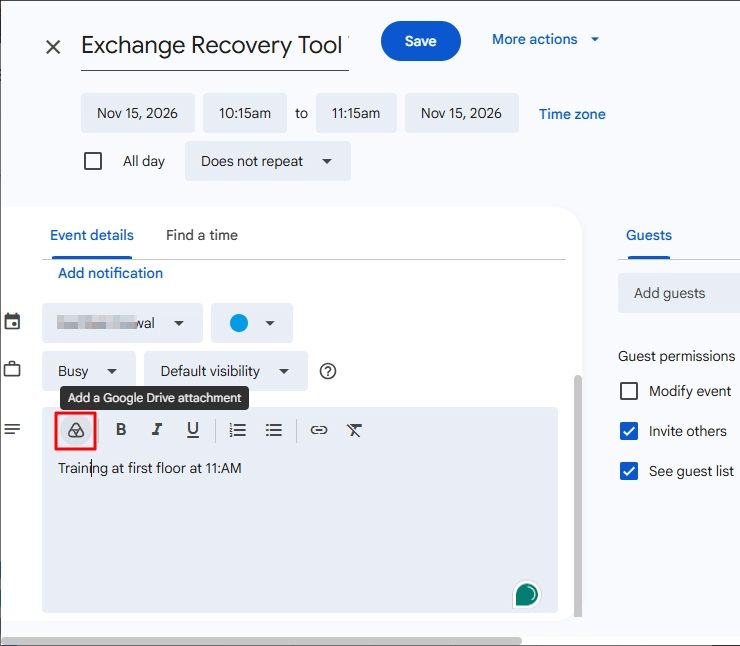
- Select your file (single or multiple) from the Drive and click Insert.
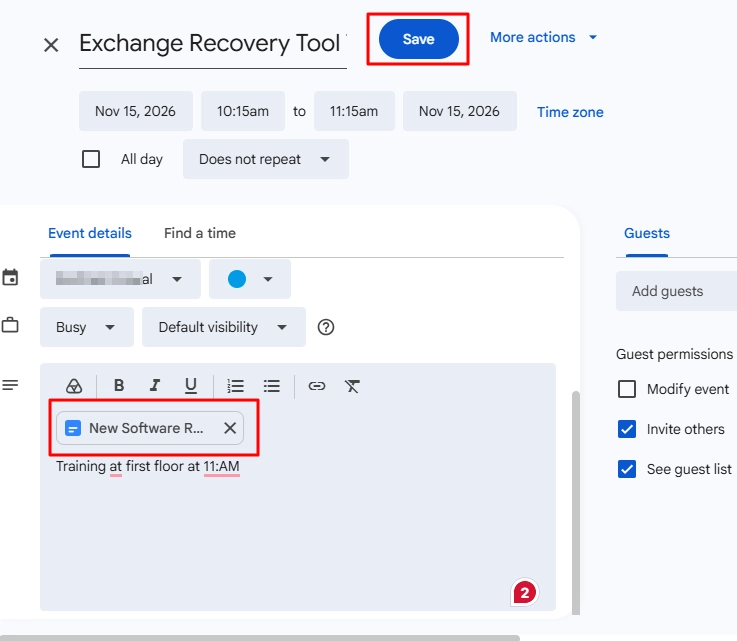
- The document is attached, click Save.
Method 4: Manually Create a Calendar in Google Docs
If you require a full calendar of the complete month or week, you can manually add calendar to Google Docs. It will not be live, but works great for printing, planning, and scheduling. To do this, you have two options. Let’s see both:
Option A: Add a Table
- Open a new Google Doc.
- Click Insert > Table. Choose a grid. For a monthly calendar, choose 7 columns (Mon-Sun) and 6 rows.
- Type in the days of the week in the first row and provide the dates and events as per your requirement.
- If required, customize the calendar by changing the colors, borders, and sizing.
Option B: Use a Template
Manually creating a calendar and editing is not for everone. If you don’t want to create a custome calendar, you can choose one from the free Google Docs calendar templates.
Common Issues When You Connect Google Calendar to Google Docs
Let’s discuss the common issues and their solutions that you may encounter when connecting G Doc to G Calendar
1. Calendar/meeting not appearing after typing @
It could happen due to multiple reasons like:
- Browser cache is out of date or full.
- An extension is interfering.
- Logged into multiple Google accounts and the Docs are connecting to the wrong account.
- It is a brand-new calendar event that is not synced yet.
- Your Workspace administrator has disabled some smart features such as smart chips or meeting notes.
To fix these issues, try below given steps:
- Refresh the page or close and open the doc.
- Clear your cache/cookies.
- Disable extensions for a little while or open your doc in incognito mode.
- Ensure you are logged into the same account in Docs and Calendar.
- If it is a new event, wait a little while before trying again.
- If you’re on a work account, contact your administrator and ask them to check that smart features are enabled.
2. Error: ‘You need permission’
This means that the event is either private or your teammate isn’t on the guest list. You can view the event in Google Calendar and add them as a guest or change the visibility.
3. Events aren’t able to be linked between accounts/domains.
Due to security settings, Google will restrict sharing between separate accounts and organizational accounts. If your calendar and doc are on different accounts, ensure they are moved onto the same account or manually share the event details.
4. Event is missing/deleted
If the linked event has vanished, it may have been deleted from the calendar. Either recreate the event or restore the deleted events from Google Calendar.
Back Up Your Calendar and Docs Data
When you start linking calendars, notes, and documents together, there’s a lot of important information stored in one place. If you delete something by accident, your account gets hacked, or a team member leaves, you could lose everything. Google only stores deleted items for a short period of time, so it’s a good idea to save your own copy. To safeguard the data, Kernel Google Workspace Backup can help. The Google Workspace Backup tool allows you to save your Workspace data onto your own device locally.
You can back up:
- Gmail, Contacts, Calendar, Google Drive, Shared Drives, and Google Groups.
- Save to various formats, including PST, PDF, DOCX, HTML, EML, and MSG.
- Use filters to ensure you only back up what you want.
- Create incremental backups so only new data is saved every time you run a backup.
- Back up data of multiple users at once.
Conclusion
Now, you know how to connect Google Calendar to Google Docs. Google Docs and Google Calendar may be separate applications, but they can still work together. Whether you insert events, link meetings, attach a document or build a calendar from scratch, the choice is yours. As your schedule and notes are valuable information, ensure you back them up regularly. You can back up your Google Calendar events and export your Google Docs to keep them safe.
Frequently Asked Questions
A. If you have created a calendar using Google Docs (using a table or template), it will not sync with Google Calendar, as it will be a plain text file. If you aren’t seeing your event chips, try refreshing the page, clearing your browser cache, and turning off any extensions. Make sure you are logged into the same Google account on both apps.
A. Yes, you can add calendar to Google Docs by either inserting a table or using a calendar template. Then simply type in your dates and events. Whilst it can be edited at any point, it will not auto update with your Google Calendar.
A. Yes, you can link Google Calendar to Google Docs by typing @ in your document and selecting either an event from the Calendar section or Meetings. Alternatively, under the Calendar side panel in Docs, you can attach the document to an event or alternatively from the event page in Google Calendar. These will only link specific events and meetings.