In email communication, users use BCC (Blind Carbon Copy) to send a copy of emails to additional recipients while keeping their email address completely hidden from everyone else on the thread. So, can you BCC an Outlook meeting invite? Not in the same way you BCC an email. Outlook uses a different feature for calendar meetings.
If you want to BCC on Outlook calendar invite or send an invitation without showing all recipients to one another, you can use Hide attendee list option in the newer Outlook versions. This guide explains how Outlook calendar BCC actually works, how to hide attendees, what changes between Outlook versions, and what you can do if you are using Classic Outlook.
- Can You BCC An Outlook Calendar Invite?
- BCC vs. Hide Attendee List in Outlook
- How to Hide Attendees in New Outlook | Step-by-Step Process
- How to Hide Attendees in Outlook on the Web | Step-by-Step Process
- Does Classic Outlook Support Hiding Attendees?
- How to BCC Calendar Invite in Classic Outlook via Resources
- Protect Your Outlook Data Beyond Attendee Privacy
- People Also Ask
Can You BCC An Outlook Calendar Invite?
No. Outlook does not support a true BCC field for meeting requests. Unlike an email, an Outlook meeting invitation has attendees, scheduling information, responses, and calendar updates. Microsoft specifically announced that there is currently no way to BCC an Outlook calendar invite meeting request. To send the same meeting invitation to several people without letting them see who else was invited, you can use Hide attendee list in New Outlook for Windows and Outlook on the web. It is not available in Classic Outlook for Windows.
BCC vs. Hide Attendee List in Outlook
The terms are often used interchangeably online, but they describe different features. BCC (Blind Carbon Copy) is an email feature. When you add recipients to BCC, their email addresses are hidden from the other recipients of the message.
Hide attendee list is a calendar-meeting feature. It prevents meeting invitees from seeing the complete list of attendees. The practical result can be similar, but the underlying functionality is different.
| Email Address | Name | Domain Name |
|---|---|---|
| Used with | Calendar meetings | |
| True BCC recipient | Yes | No |
| Hides recipients from one another | Yes | Yes, where supported |
| Meeting invitation | No | Yes |
| New Outlook | Supported for email | Supported |
| Outlook on the web | Supported for email | Supported |
| Classic Outlook for Windows | Supported for email | Not available |
How to Hide Attendees in New Outlook | Step-by-Step Process
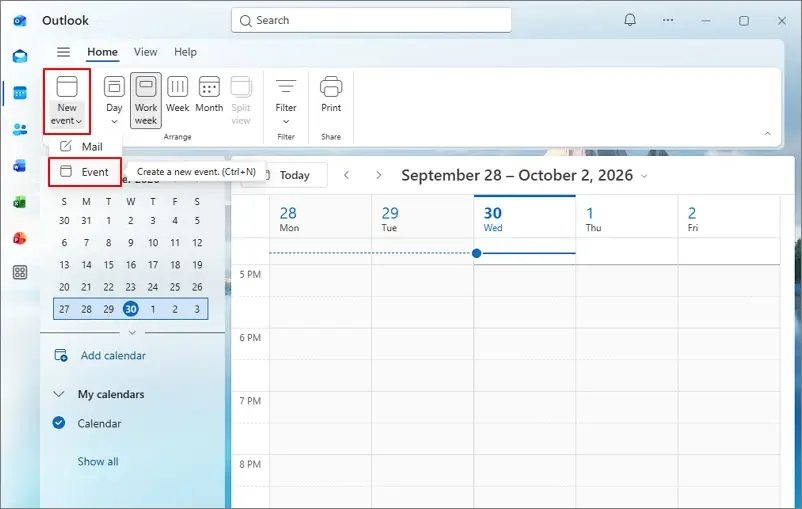
If you use New Outlook for Windows, you can use hide attendee list option directly when creating the meeting. Here are the steps to hide the attendee list in New Outlook:
- Open New Outlook and go to Calendar, then select New Event, then Event.
- Enter the meeting subject, date, time, location, and other details.
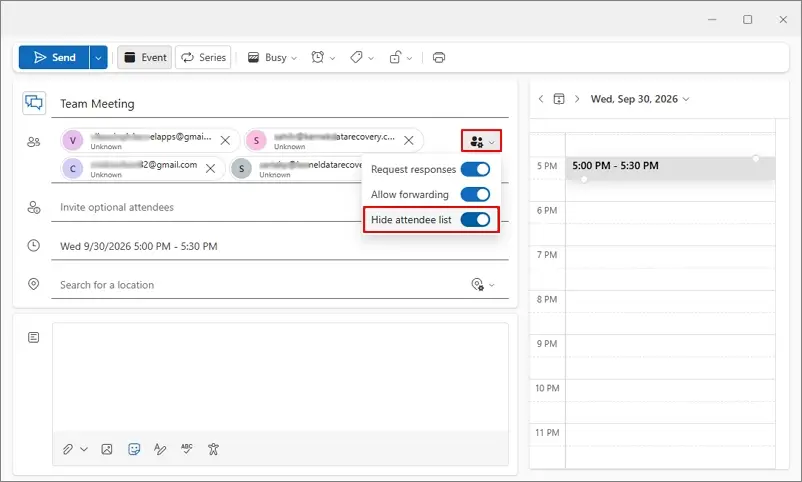
- Add the people you want to invite, tap Response, then enable Hide attendee list.
- Review the meeting details and tap on Send.
By enabling Hide Attendee List, attendees can’t see the complete list of people invited to the meeting. Each attendee can see only the organizer and themselves.
What If You Cannot Find “Hide Attendee List” in Outlook?
Check for the type of Outlook you’re using: Classic Outlook or New Outlook. Microsoft does not provide this option in Classic Outlook for Windows. Also, make sure you are creating a meeting with attendees rather than a personal calendar appointment. If the option is still missing, enable Hide Attendees List through Outlook on the web.
How to Hide Attendees in Outlook on the Web | Step-by-Step Process
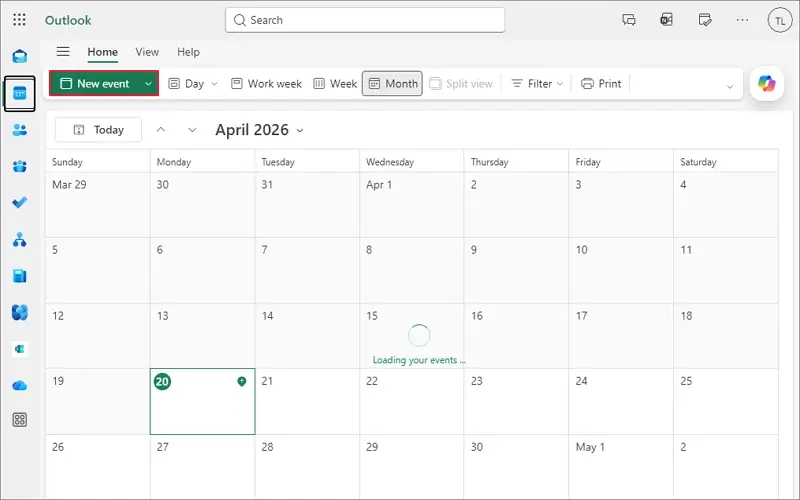
On Outlook for Web (OWA), you can also hide the attendee list. Here are the steps to follow:
- Open Outlook in your web browser, go to Calendar, and select New Event.
- Add the meeting subject, date, time, location, and other information.
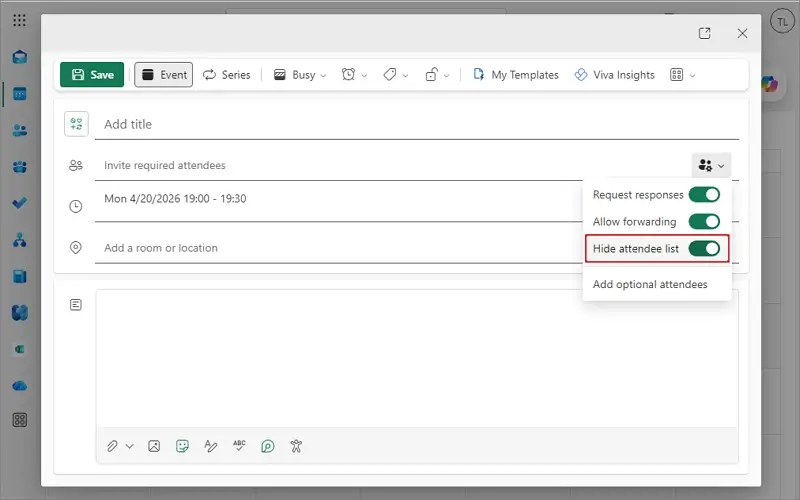
- Add the attendees, tap on Response, and turn on Hide attendee list.
- Review the invitation and click on Send.
The invited attendees won’t see the other participants in the meeting, except the organizer.
Does Classic Outlook Support Hiding Attendees?
Classic Outlook for Windows does not currently include the Hide attendee list option. This is one of the main differences to keep in mind when following instructions for an Outlook calendar BCC. Classic Outlook still lets you create meeting requests and assign people as required or optional attendees. It also has a Resources field in the Scheduling Assistant. According to Microsoft, Resources is a way to add resources to a meeting, but this should not be described as a true BCC feature. However, if you are required to work in Classic Outlook for Windows and do not have access to the Hide attendee list option, consider one of these alternatives.
Send Separate Meeting Invitations
For a few recipients, you can send individual invitations instead. By doing this, your invitation remains separate, and you can prevent recipients from seeing a shared attendee list. With separate meeting invitations in Classic Outlook, changes, management, cancellations, and updates become more time-consuming.
Send a BCC Email with an .ics Calendar File
Alternatively, create the event in Classic Outlook and send it as an .ics calendar file attached to a regular email. You can then use the normal BCC field in the email message. However, this is not the same as sending a managed Outlook meeting invitation. Depending on the recipient’s email and calendar application, RSVP tracking, updates, and cancellations may not work in the same way as a standard meeting request.
How to BCC Calendar Invite in Classic Outlook via Resources
In Classic Outlook, you can use Resources to simulate BCC behavior. However, this is a workable workaround rather than Microsoft’s native hidden-attendee feature. Here are the steps to follow to hide attendees in Classic Outlook via Resources:
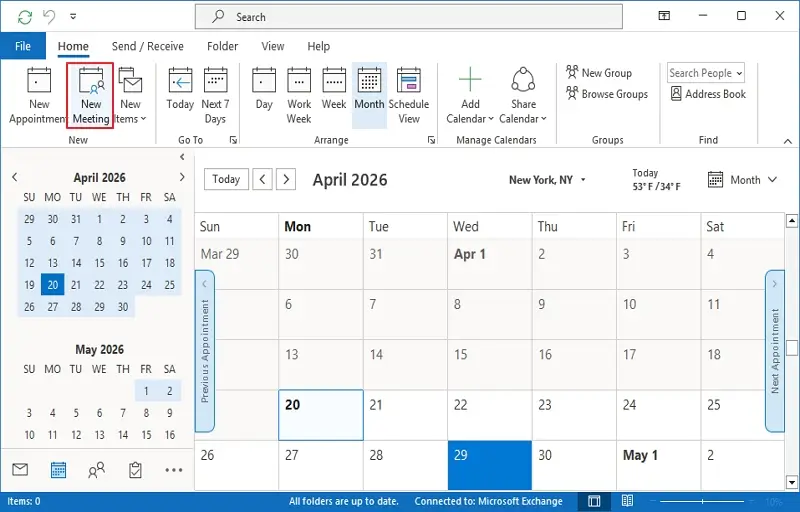
- Open Classic Outlook, go to Calendar, & tap on New Meeting.
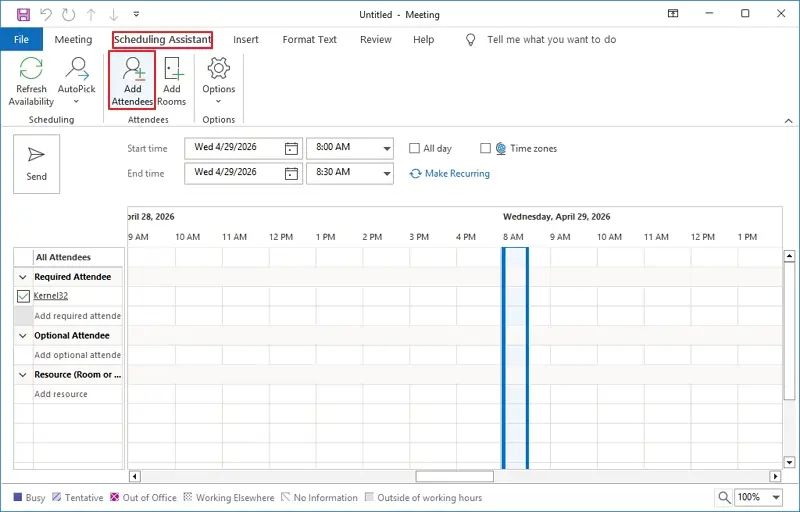
- Navigate to the Scheduling Assistant tab, then tap on Add Attendees.
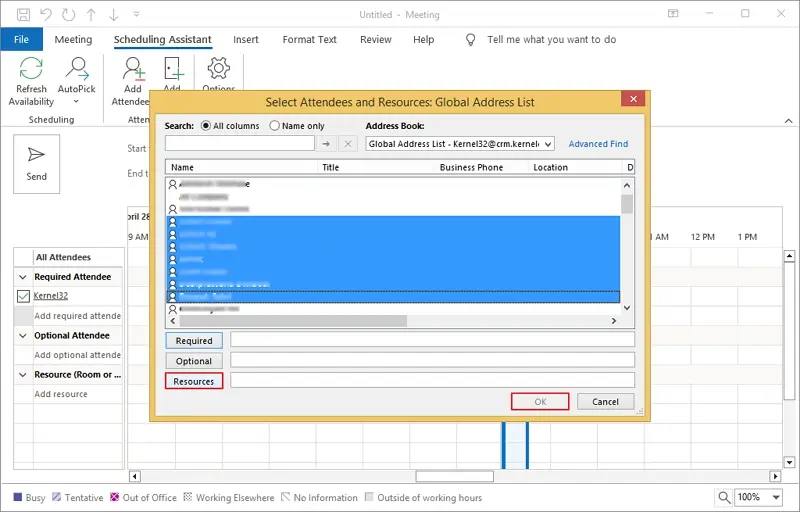
- Add the names of meeting participants. After that, click Resources and then OK.
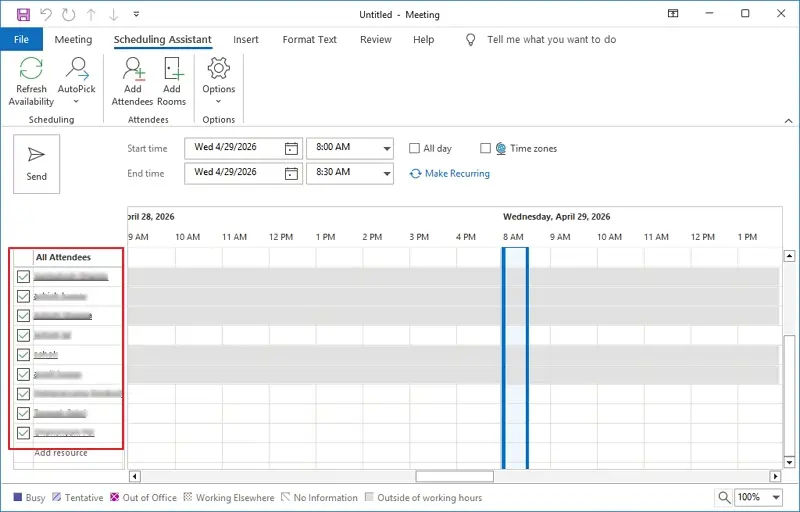
- Double-check invitees’ names and input other meeting details you want, then tap Send.
Protect Your Outlook Data Beyond Attendee Privacy
We hope you understand that hiding the attendee list helps protect who is included in an Outlook meeting. Still, your meeting, invitations, calendar items, emails, contacts, and other mailbox data itself is at risk from accidental deletion or data loss. However, they need to be protected as they are important for business records and future reference.
If your organization, or even you, need an independent copy of Microsoft 365 mailbox data, use native or professional methods. Kernel Office 365 backup tool can be used to back up mailbox data from Microsoft 365 to a local device. It allows you to export contacts and calendar entries to .vcf or .ics files, and you can schedule your backup task accordingly. Moreover, this can help when data needs to be retained or restored after accidental deletion.
Key Takeaways
Now, it is clear that Outlook does not provide a traditional BCC field or a dedicated BCC button for meeting requests. You can use Hide Attendee List in New Outlook (desktop) and Outlook on the web as well to prevent recipients from seeing who else has been invited to the meeting. If you’re a Classic Outlook user, you can use the resource option to do so, but it is not the same as Hide Attendee List. It may involve risks. Via separate invitations or an .ics attachment sent through a BCC email can be considered a safe approach.
Don’t confuse BCC, Hide Attendee List, Private, and Resource. They are different Outlook features. Using the correct one will help you protect attendee privacy without sacrificing the calendar functionality you actually need. Additionally, protecting your data is also necessary for privacy, so consider backing up every byte of Office 365 mailboxes to keep your business safe and running.
People Also Ask
A. No. Outlook does not support a true BCC recipient for meeting requests. In New Outlook for Windows and Outlook on the web, use Response options > Hide attendee list instead.
A. No. BCC is an email feature. Hide attendee list is a calendar-meeting feature that provides a similar privacy outcome by preventing invitees from viewing the full attendee list.
A. Yes. Outlook on the web supports Hide attendee list under Response options when creating or editing a meeting.
A. Create or edit the meeting in New Outlook or Outlook on the web, open Response options, and select Hide attendee list before sending the invitation.
A. Yes, you should use the Hide Attendee List instead of BCC because a true BCC field does not exist for calendar meeting requests.
A. As in Windows Outlook, there is no direct BCC button for Outlook Mac calendar invites. Instead, you can invite as an (.ics) file via Email or use Hide Attendee list in newer Outlook for Mac versions.