

When you need to organize emails and group them under a specific tag, labels are your best buddy. But sometimes, the need arises to delete a label in Gmail. The most common reported reason for label deletion is clearing obsolete and old labels that you no longer need.
Two-step process to say goodbye to your custom labels in Gmail
- Go to Gmail and click on the 3-dot button on the label.
- Select the option Remove label and click the Delete button.
Things to Know Before You Delete Labels in Gmail
The following points are not compulsory to know, but can help you when you are deleting labels in Gmail.
- No Email is Deleted: Your emails are safe. Removing a label will not delete the emails tagged to that label in Gmail. You can view the emails by clicking on the All Mail label.
- Nested Labels Will Also Be Deleted: If you have multiple labels in a single label, then deleting the parent label will remove all the sublabels as well.
- Cannot Delete Default Labels in Gmail Gmail does not allow you to remove any default label (Inbox, Sent, Drafts, All Mail, Social, etc.). These labels are critical for Gmail’s workflow.
How to Delete Labels in Gmail from Desktop (PC or Laptop)?
The simplest way to remove your custom labels from the computer is to use an internet browser. Steps to do so are:
Step 1. Open any web browser (Chrome is recommended).
Step 2. Navigate to Gmail’s login page and log in with the same account from which you want to remove the labels.
Step 3. Go to the Labels section and click the 3-dot button next to the label name.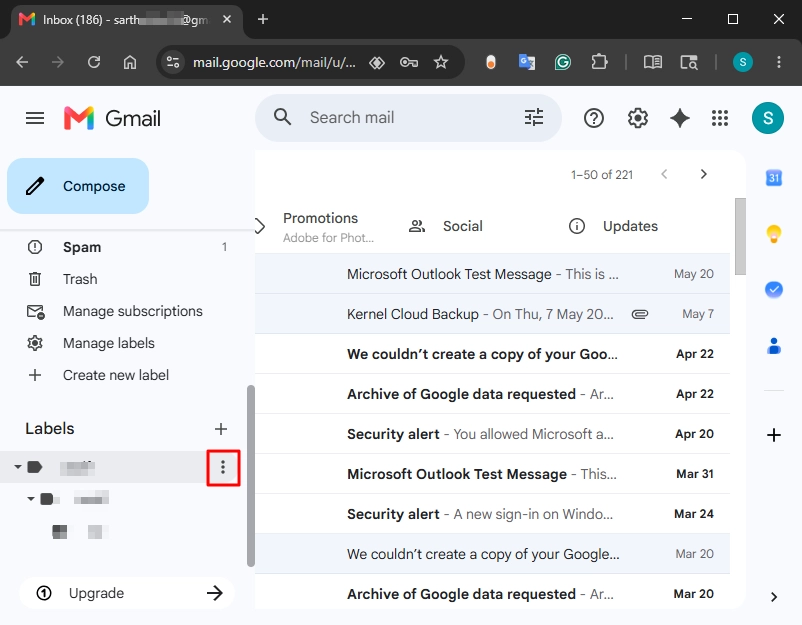
Step 4. Select the option Remove label.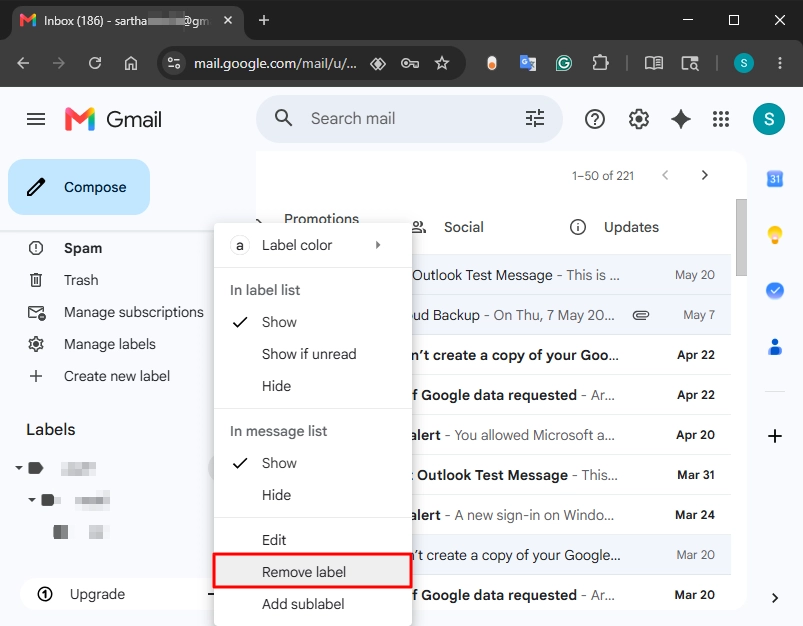
Step 5. Click the Delete button to confirm the removal process.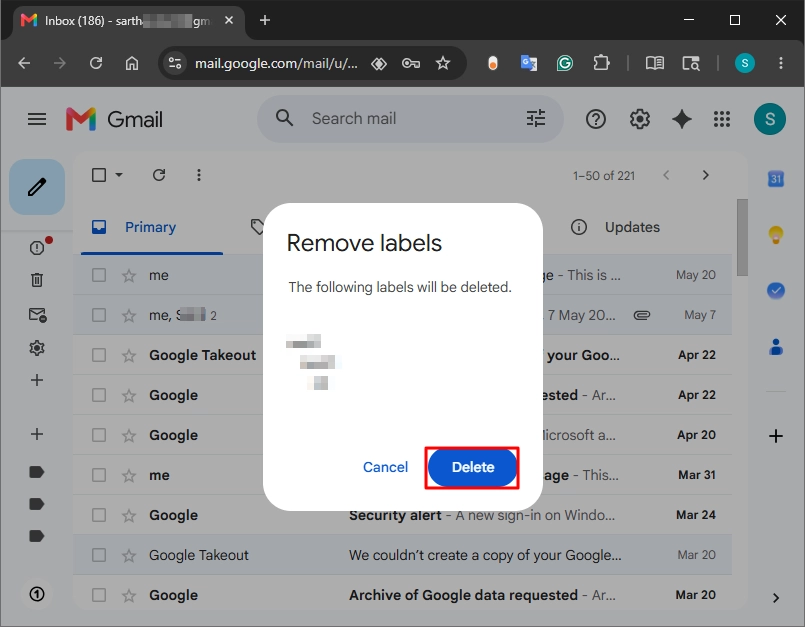
How to Delete Multiple Labels from Gmail?
When you need to delete a dozen labels, using the above method for deleting labels in Gmail will take up a lot of your time. You can reduce a few steps and save time using Gmail’s settings. For bulk label deletion, use these steps:
Step 1. In Gmail, click the Settings icon and select the See all settings option.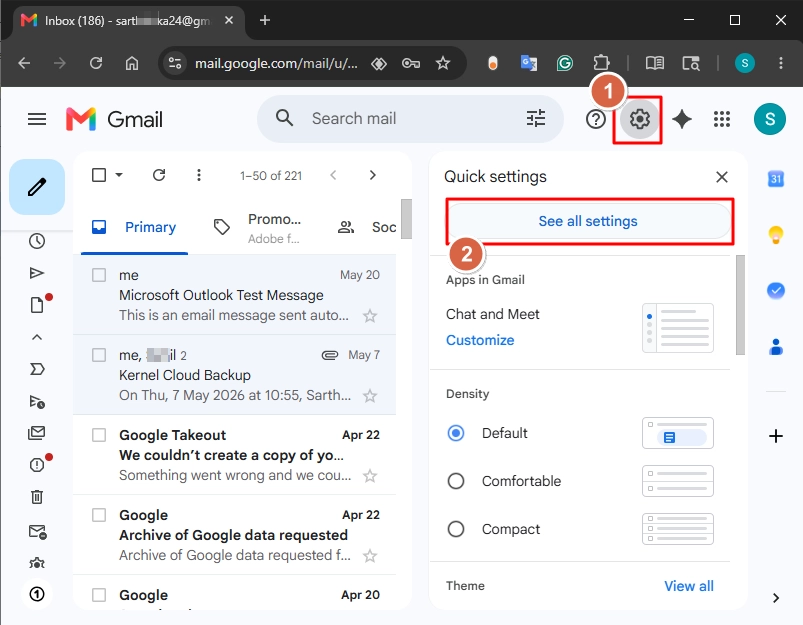
Step 2. Select the Labels tab and scroll down. Then, click on the remove button for the label you want to remove.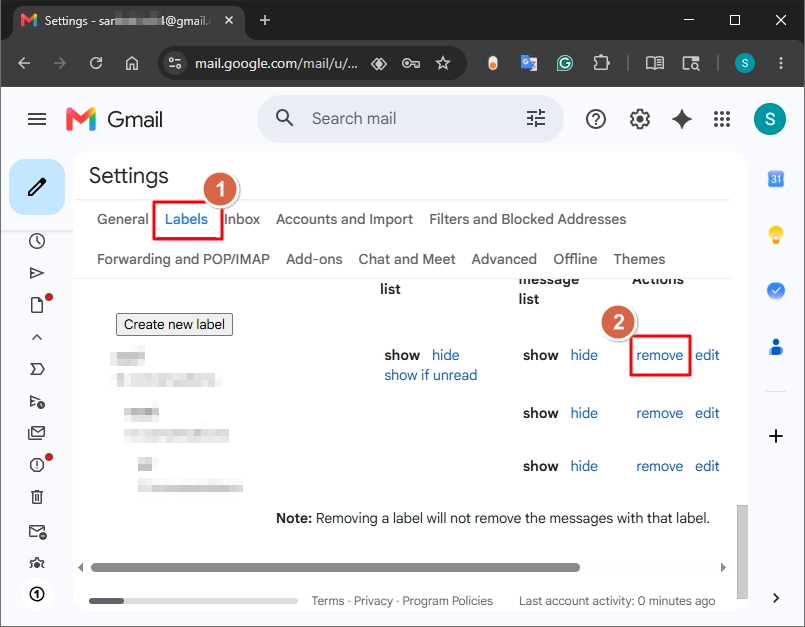
Step 3. Click Delete to delete a label in Gmail.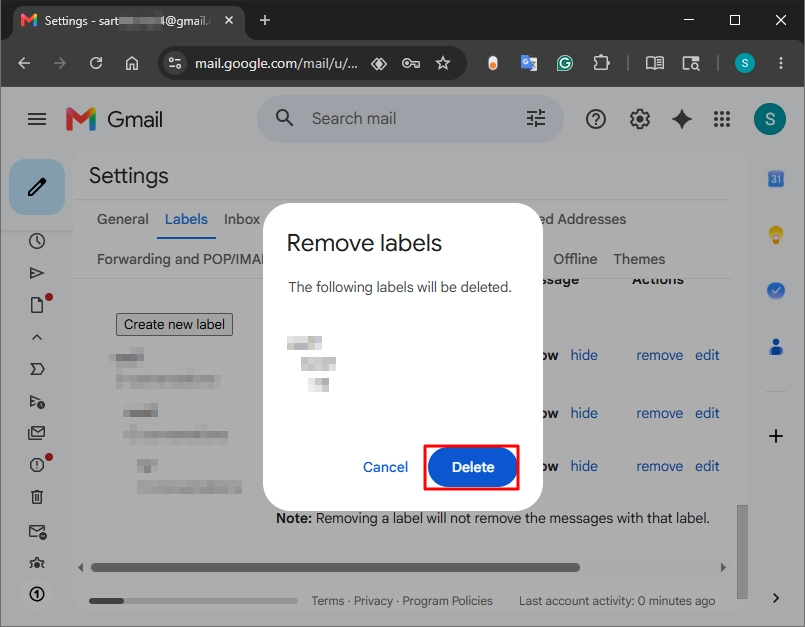
Step 4. Repeat the last 2 steps for all the labels that you want to remove.
What is the Procedure to Delete Labels in Gmail from Mobile?
The Gmail mobile app also allows you to delete a label in Gmail.
Steps to Delete Labels in Gmail on Android:
Step 1. Open the Gmail app.
Step 2. Expand the side navigation panel by clicking the hamburger icon at the top left.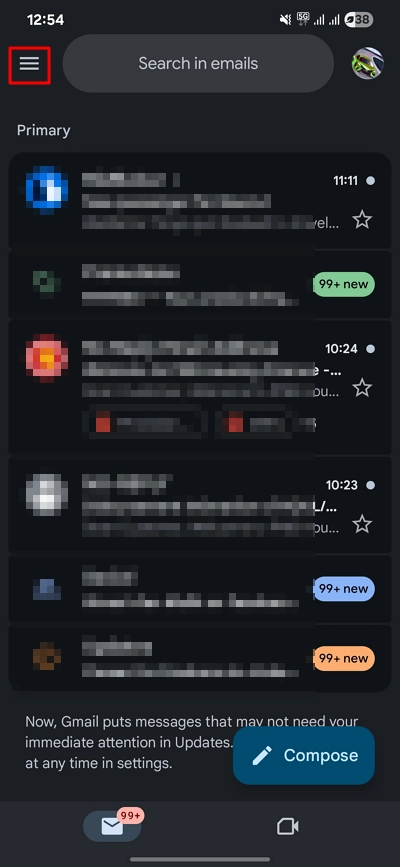
Step 3. Select the Settings option and choose the Gmail account from which you want to remove the labels.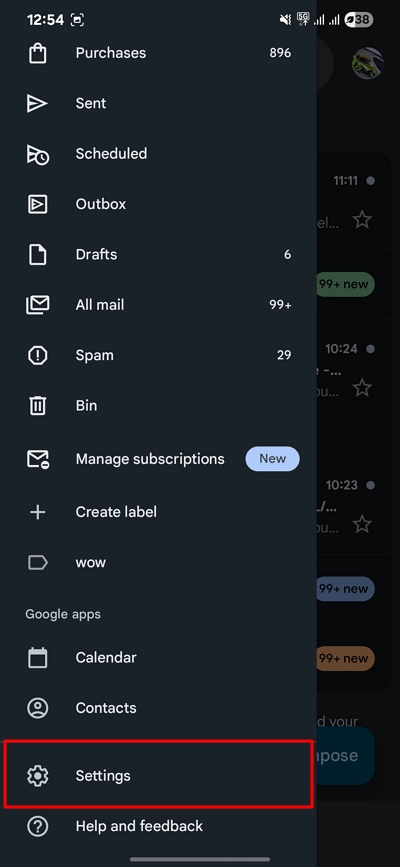
Step 4. Click on the Manage labels option and select the label you want to delete.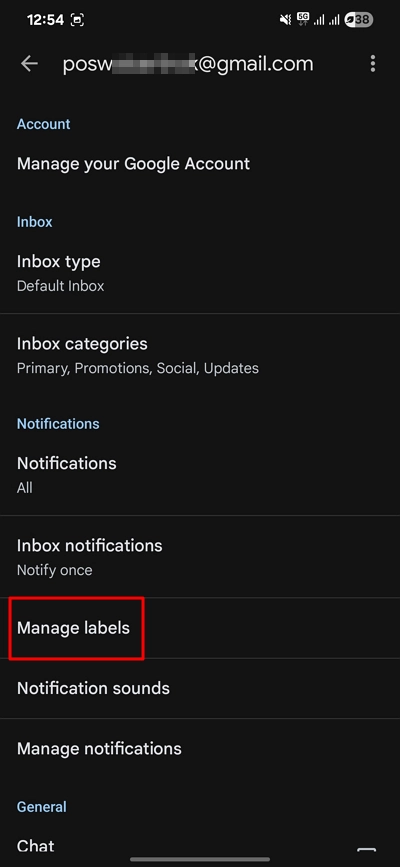
Step 5. Click Delete and again click Delete to confirm the removal request.
Quick Steps to Delete Labels in Gmail on iPhone
Step 1. Open the Gmail application on your iPhone or iPad.
Step 2. Click the menu button (hamburger icon) at the top left and click on the Settings option.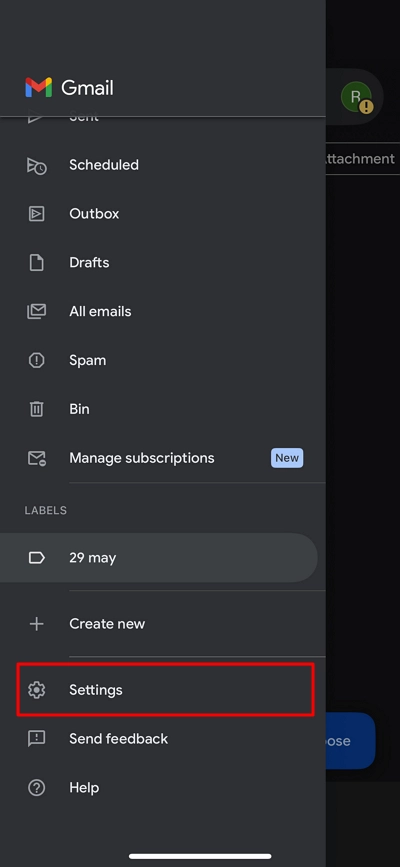
Step 3. Click on the Inbox customisations option.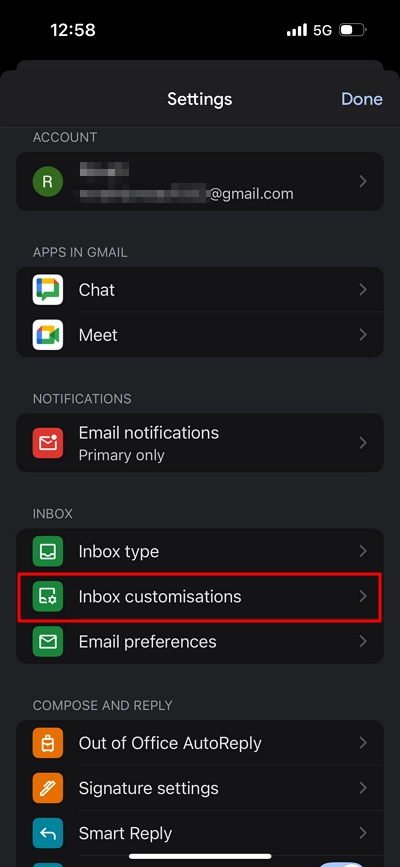
Step 4. Select the option Labels.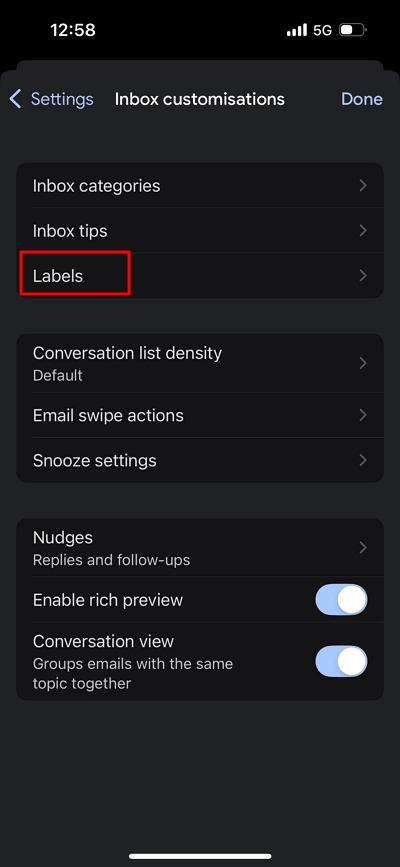
Step 5. Choose the label you need to delete.
Step 6. Click Delete and confirm the deletion process.
How to Hide a Label in Gmail Easily?
If your requirement is only to hide the label for the left navigation pane in Gmail to make it feel less cluttered, then instead of deleting labels in Gmail, follow these steps:
Step 1. In Gmail, click Settings > See all settings.
Step 2. Select the Label tab and go to the label you want to hide, and click the hide button.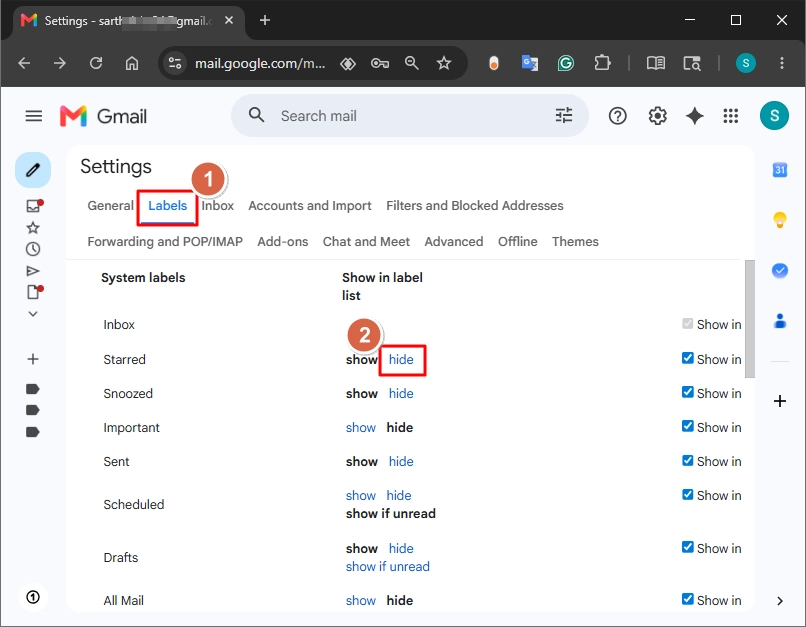
You can use the above steps to hide both the default labels and the labels created by you. However, Gmail does not allow you to hide two types of labels:
- The Inbox label
- The nested sublabels. To hide the sublabels, you must hide the parent label.
Note: To unhide the hidden labels, click on the show button.
How to Delete the Labels Along with the Emails?
Some users want to delete both labels and emails tagged with that label in one single operation. The steps to perform the simultaneous deletion of both are:
Step 1. Open Gmail and go to the label you wish to remove.
Step 2. Select all the emails that are visible in the selected label by clicking the checkbox at the top.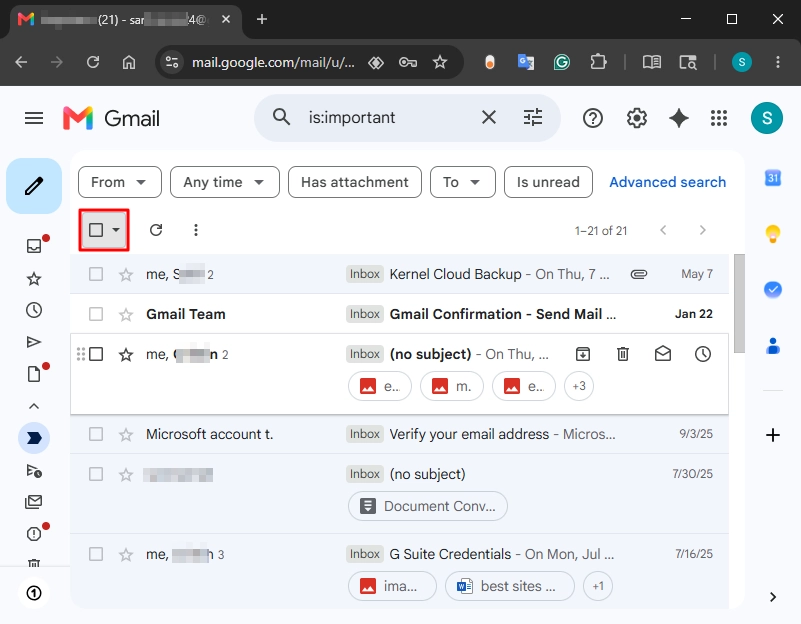
Step 3. Click the Delete button.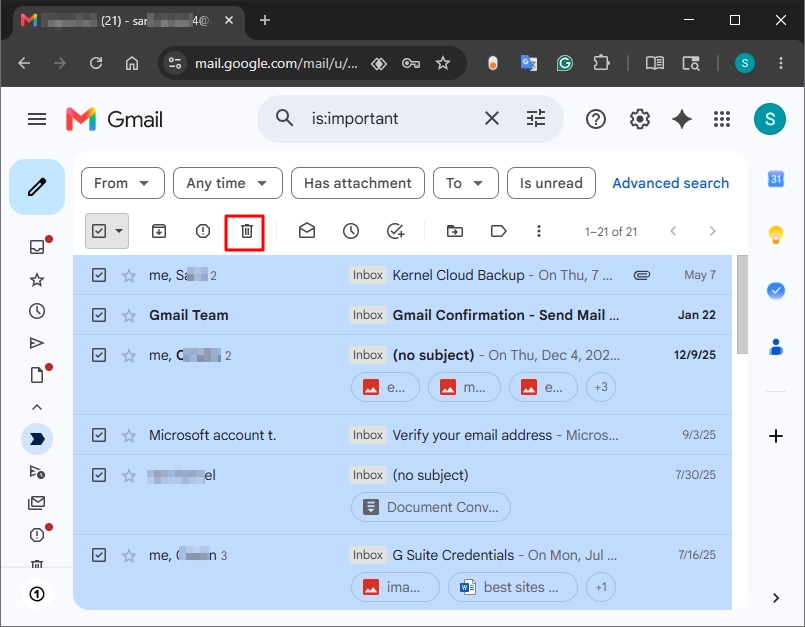
Step 4. After deleting the emails, delete the label using the steps given in the above section.
Note: All the deleted emails will be moved to the Trash folder. You will have 30 days to recover the deleted emails before they are permanently purged from the Google servers.
How to Avoid Permanent Data Loss When Deleting Labels?
Before you start deleting both the emails and the label together to free up the mailbox space, make sure to take a backup of important emails. After the retention period (30-days) is over, there is no way to get back those emails.
You can use Google Takeout to extract emails, but it will not allow you to do a selective data backup. To back up specific emails from your Gmail account, you must use a professional Gmail backup tool.
A recommended tool for complete or specific Gmail backup is the Kernel Gmail Backup tool. It uses Google APIs to securely connect and save your emails from Gmail directly on your local system. Furthermore, the tool auto-generates a CSV file report that you can use to find any skipped or failed items during backup.
Author’s Verdict
For most users, the default labels are more than enough, but power users often end up creating multiple labels in Gmail. Use the methods discussed in this guide to safely delete labels in Gmail. However, if your intent is only to remove the label from the Gmail navigation sidebar, then instead of deleting it, you should hide it from settings.
For users who wish to delete emails along with the labels, we suggest backing up the Gmail emails to your computer. You never know when that old email in your Inbox becomes critical.
Frequently Asked Questions
Ans. Currently, Gmail does not provide any option to save a sublabel when deleting a parent label. The only workaround is to create a new label (parent label, not a nested label) and retag the emails with it.
Ans. Adding or removing an email to a label (default or custom) is very simple.
Add: Open email, click the label icon, select the label (single or multiple), and click Apply.
Remove: Open email, click the label icon, unselect the label (single or multiple), and click Apply.
Ans. Sometimes, the changes may not reflect immediately. It could be due to a server-side issue (Gmail servers are under a heavy load), or your internet is too slow for the changes to appear. If you are on a browser, try a hard reset (Ctrl + Shift + R) after deleting labels in Gmail.
Ans. Deleting labels cannot make the emails disappear from Inbox in Gmail. It could be an accidental deletion, or you have set up a deletion filter.