How to Extract Attachments from MBOX File?
 Written By: Sahil Verma
  Updated On October 21, 2026 Written By: Sahil Verma Updated On October 21, 2026
 User Query: "My MBOX files contain important documents, photos, and other email attachments that I need to save on my computer. Is there a way to extract all these attachments on my local computer?”
You can extract attachments from MBOX files using Mozilla Thunderbird-compatible add-on (attachment extraction tool). For individual files, open the email and use the Save As option. If you need to extract attachments from multiple emails, a dedicated MBOX attachment extractor can help you save the files to a local folder.
MBOX files can contain emails with important documents, images, and other attachments. Saving these files separately helps you organize, access, and back up crucial attachments. In this article, we will cover all the manual methods to extract attachments from MBOX files with Thunderbird, along with a professional alternative for users who need a more convenient way to save their email attachments.
Here are some prominent root causes of extracting MBOX file attachments:
There are only two reliable manual methods available to extract attachments from MBOX files. Let’s explore both methods with their step-by-step guide:
Attachment Extractor is a free add-in offered by Mozilla Thunderbird which easily extracts attachments from MBOX emails in batches. Follow the steps below to use this add-in:
Step 1. Launch Thunderbird and locate the MBOX files with attachments.
Step 2. Then, tap on the Menu icon given on the top right corner.
Step 3. Choose Add-ons and Themes from the list.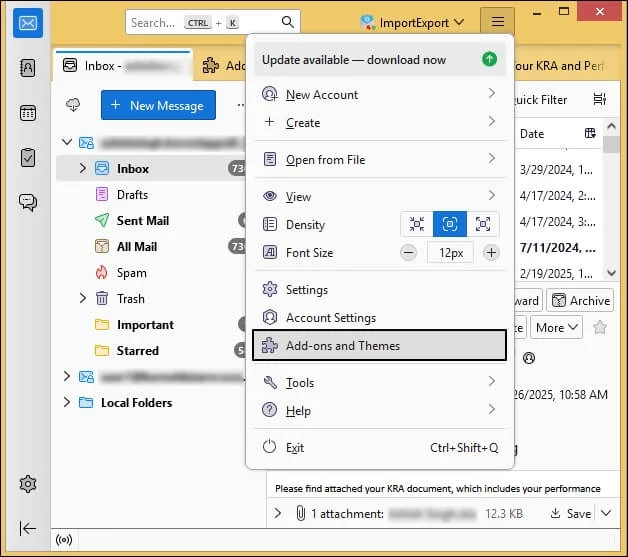
Step 4. In the Add-ons manager, search for Attachment Extractor and press Enter.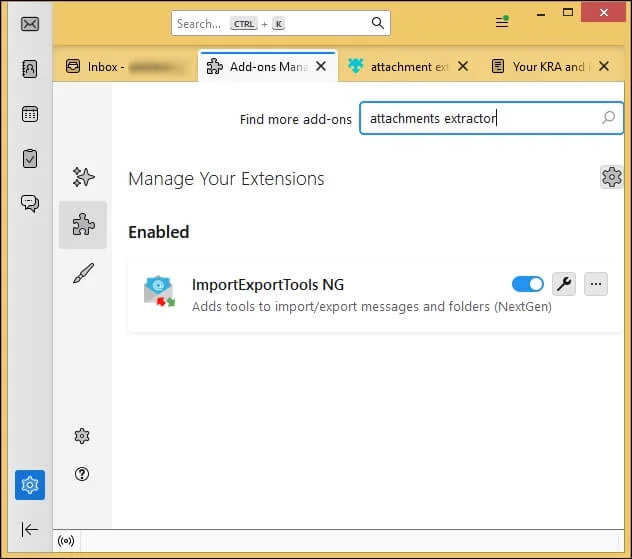
Step 5. Choose the Attachment Extractor add-on and click on Add to Thunderbird button.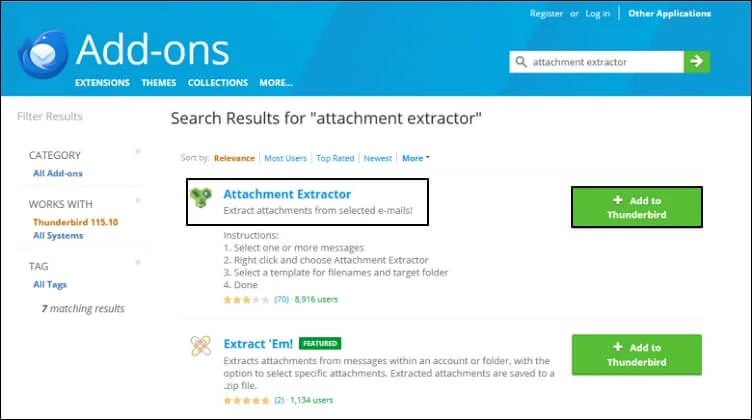
Step 6. Now choose the MBOX files with attachments and right-click on them individually.
Step 7. Choose Attachments Extractor > Extract Attachments to option.
Step 8. Rename your attachment file if needed and then browse for a location to save the extracted attachment file.
Step 9. You can also delete attachments from the email after you’ve extracted them.
Step 10. Verify that all the extracted attachment files are saved at the location of your choice.
Step 1. Launch Thunderbird and go to the folder where your MBOX files are stored.
Step 2. Open each MBOX file with attachment one by one and download the attachments by clicking on Save As.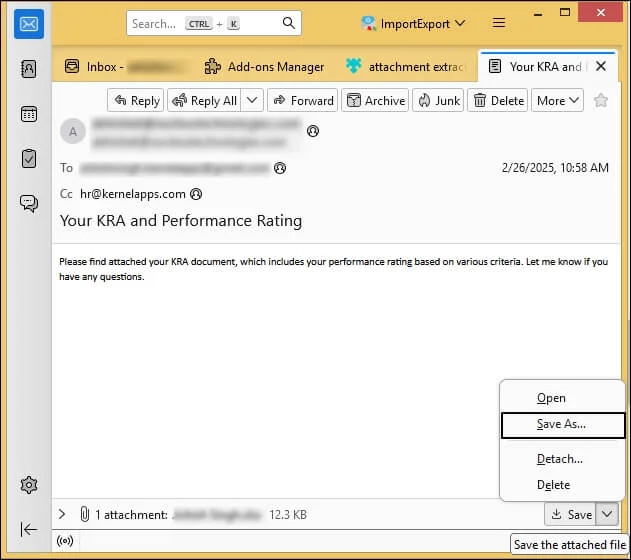
This is the most basic method to extract attachments from each MBOX file individually. It involves selecting MBOX file with attachments and saving it one by one. The steps to do so are:
It’s equally risky to extract attachment files from MBOX emails using the methods mentioned above as its easy. Things can go wrong instantly with a single mistake, leading to loss of crucial data. Some of the limitations you might face are:
Manual methods may work for a few emails, but professionals and businesses often need to extract attachments from large MBOX mailboxes. Kernel MBOX Converter Pro offers a more flexible solution to save attachments from MBOX files to a local folder.
The tool lets you save attachments in their original raw format, with or without file extensions. You can also customize the extraction process by including or excluding specific file types, such as JPG, PDF, and other supported formats. It even helps you to extract only the attachments you need instead of saving every file from your mailbox.
With these options, you can manage attachment extraction more efficiently and keep the required files ready for future use.
Extracting attachments from MBOX files helps you save important documents, photos, and other files to your computer for easy access and backup. We hope you are able to follow the working solutions given above to extract attachments from MBOX files. However, if you need bulk attachment extraction, then use Kernel MBOX Converter Pro to easily extract attachments to your local computer.
If you also plan to move from Mozilla Thunderbird to Microsoft Outlook, you can convert MBOX files to PST format. It helps you to import your mailbox into Outlook and access your emails along with their attachments.
Ans.Yes, use Attachment Extractor add-on of Thunderbird to easily extract all the attachment files from your MBOX files. Just add the add-on tool to your Thunderbird application and extract the needed files.
Ans. Yes, it’s possible to export only attachments from a MBOX file to another location using a professional MBOX attachment extractor. Using a professional tool guarantees the safety of your data and ensures a safe extraction process. It also keeps the folder hierarchy and original data formatting intact.