

Outlook allows you to save single or multiple emails to PDF while maintaining the original message, sender/receiver details, date & time stamp, and attachments. You can save each email in a separate PDF file or choose to save multiple emails in one single PDF file.
The steps to save Outlook email as PDF vary in different Outlook versions. In this guide, we will discuss the process of converting emails to PDF in classic Outlook, Outlook on the Web (Outlook.com), and New Outlook. Also, we will see how to save multiple Outlook emails as PDF using a professional tool. But before that, let’s see a few reasons for converting the Outlook emails.
Why Save Outlook Email as PDF?
Here are some reasons why you may convert Outlook email to PDF with attachments:
- Accessibility: PDF is a universal file format. You can convert Outlook emails to PDF and access them on any device, including mobile, tablet, or computer.
- Email Backup: Saving emails as PDF helps with Outlook email backup and archiving.
- Data Compliance: Some industries and legal procedures have strict regulations to export emails only as PDF.
- Reduce Mailbox Size: You can export large emails to the local system and remove them from the server to avoid oversized OST file issues.
- Enhanced Security: You can provide an extra layer of security by converting the Outlook emails into PDF, as you can encrypt PDFs with passwords.
- Shareability: PDF files can easily be shared with others and can be accessed offline too.
- Easily Printable: You can take a printout of PDF files anytime and anywhere as they are in a print-ready format.
Methods to Save Outlook Email as PDF in Classic Outlook
Outlook itself offers an option to save email messages as PDF format. To perform the procedure, follow the steps mentioned below:
To save single email, follow the below mentioned steps:
Step 1. Launch Outlook, double-click on the email message you want to save, and click the File option.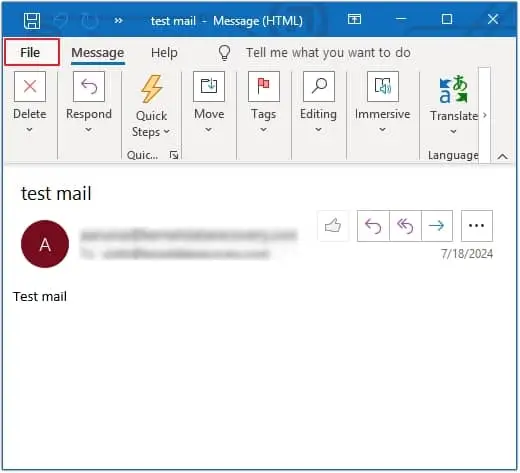
Step 2. Now, select the Print option mentioned on the left-pane.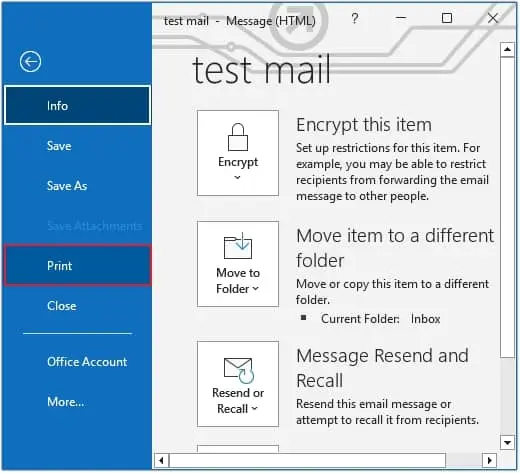
Step 3. Under the Printer option, click on the drop-down list and select Microsoft Print to PDF option and press Print Options.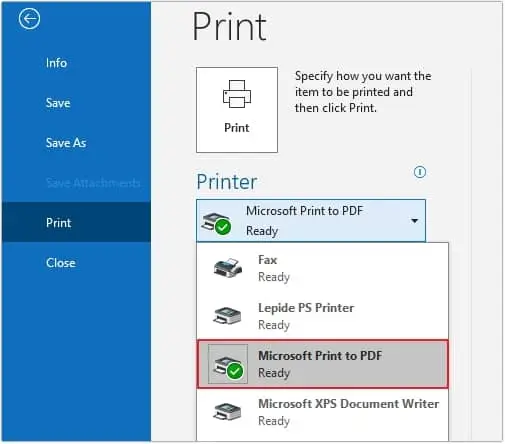
Step 4: If your email contains attachments, you must tell the printer to print them too. For that, click Print Options, and select the highlighted checkbox, then click Print.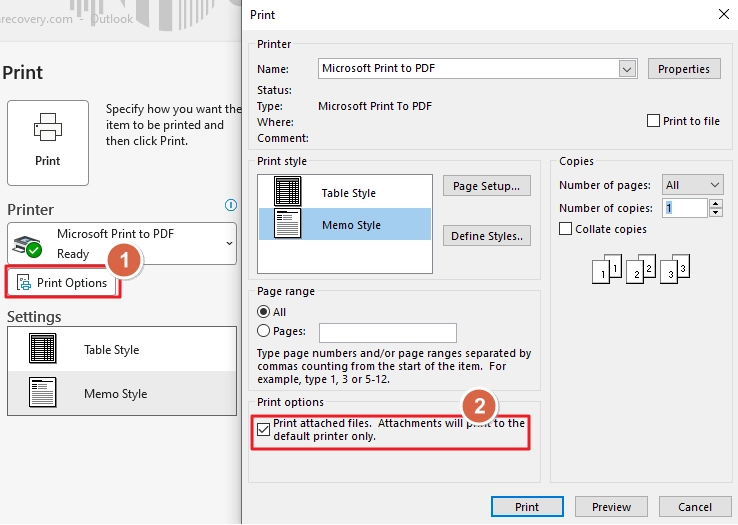
Step 5. Now, provide the saving location, name for the PDF file, and click Save Now, provide the saving location, name for the PDF file.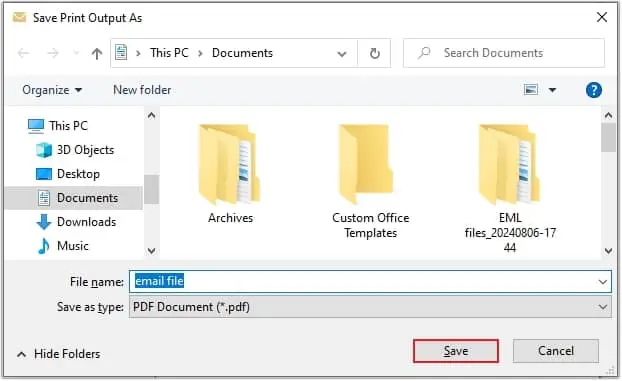
To save multiple emails, follow the below mentioned steps:
Step 1. Launch Outlook, select all the email messages to save and File option.
Step 2. Click the Print option and complete the process just like we did when saving a single email to PDF.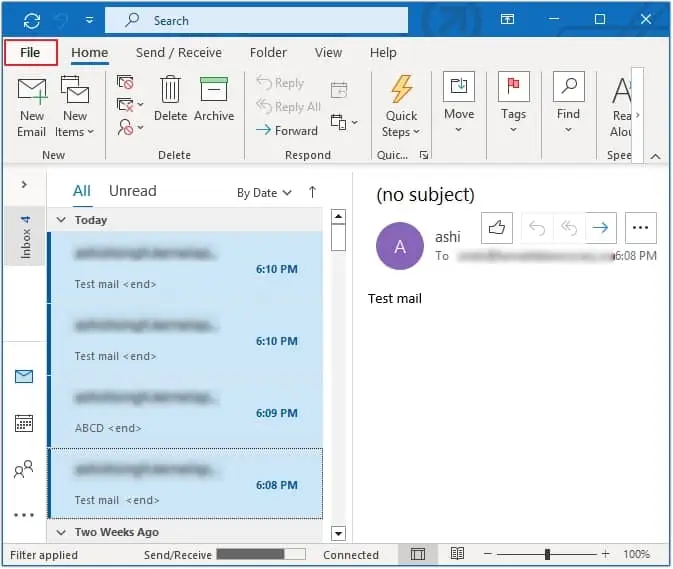
Convert Outlook Emails to PDF in Outlook on the Web and New Outlook
If you are using the web version of Outlook or the New Outlook, the steps to save Outlook email as PDF are slightly different. The process is mostly similar to the one we did above in the case of classic Outlook, but the interface may vary. Open the New Outlook or Outlook on the Web and follow the steps below:
Step 1: Open the email that you want to save to PDF and click the Print button.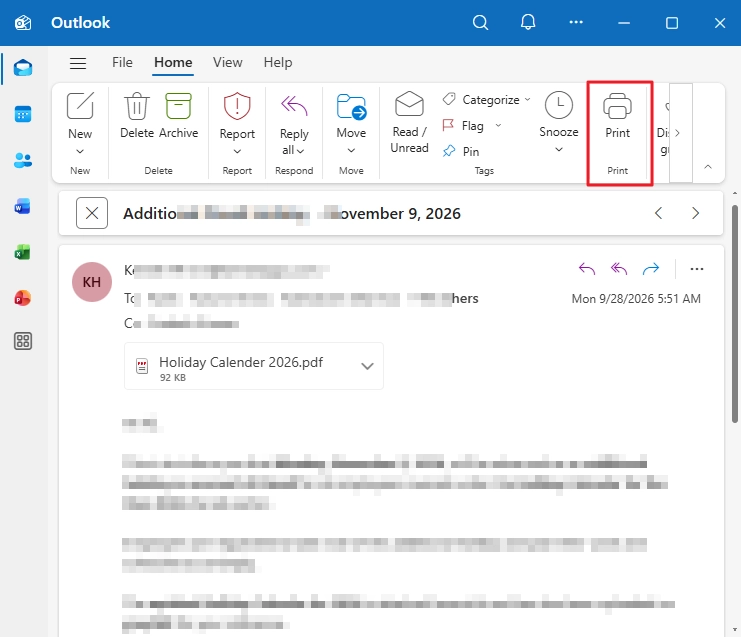
Step 2: Then select the Microsoft Print to PDF option and click Print.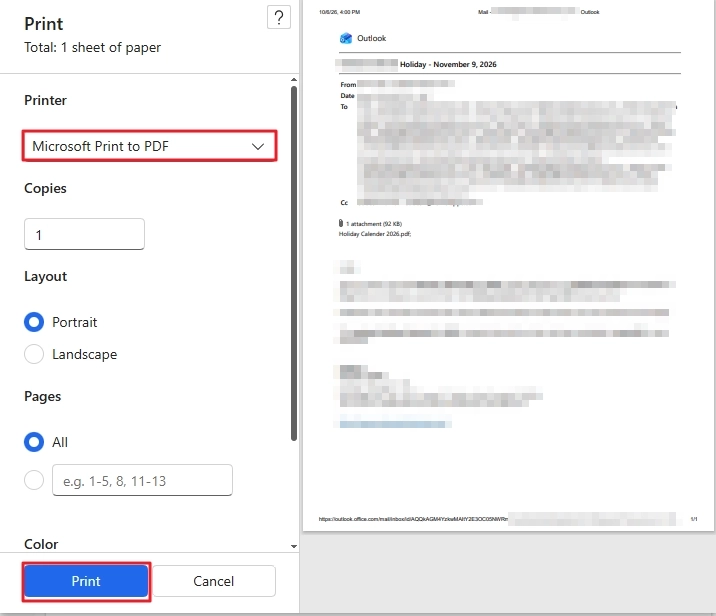
When using Outlook on the Web and the New Outlook, you must extract Outlook attachment separately from the emails. Because the option to print attachments is only available in the Classic Outlook.
Moreover, the option to save multiple emails to PDF is also missing in the Outlook Web app and the New Outlook. The print option is only clickable as long as you select a single email. As soon as you select 2 or more emails, you will see the option turn grey.
Easier Way to Convert Outlook Emails to PDF in Bulk
The manual method has a few limitations, like it requires Windows 10 or 11, and the printing option is only available in Outlook 2010 and later. But the biggest disadvantage you will find with the manual method is that there is no option to save multiple Outlook emails as separate PDF files in one go. There is an option to select multiple emails, but they all get saved in one single PDF file.
To save time when saving each email as a separate PDF file, a smart approach is to use Kernel Email to PDF Converter.
What more does Email to PDF Converter tool offer?
- Converts multiple emails to PDF while maintaining the email properties like message, From, To, and other key attributes.
- Saves your emails with the original attachments.
- The software keeps attachments saved in PDF or in a separate folder.
- Comes with the trial version to convert upto 25 emails per folder without buying it.
Which Method to Choose to Convert Outlook Email to PDF?
The right method depends on your requirements. If you need to save only a few emails to PDF, you can use Outlook’s built-in print option. However, this manual method can be time-consuming when converting multiple emails and no guarantee of attachments getting saved.
For bulk conversion, a method that can process multiple emails and preserve their attachments can be more suitable. This helps in saving time and keeping the email content and attachments together in the resulting PDF files.
People Also Ask
A. To save email with attachments, use the Print option in Outlook while making sure the print attachment option is selected.
A. Yes, but this option is only present in the classic Outlook. The Outlook on the Web and the New Outlook only allow saving one email to PDF at a time.
A. Most of the email properties and styling will be preserved. However, 100% retention is hard because the PDF is not a dedicated email file format like PST, MSG, and EML. Therefore, expect a slight to moderate level of variation but only in styling and formatting. The message content will be intact.
A. The option is only available for Windows 10 and 11 users. If you are not seeing this option, then you may be using an older version of Microsoft Windows.
A. Yes, the Outlook mobile app allows you to save emails to PDF. For this, open the email, click on the three-dot icon, and choose the option to print. Then save the email as PDF.