Comcast email still exists, but it is shutting down its internal email platform and is currently transitioning service to Yahoo Mail.
Have you used Comcast email for years and now want to move your old messages to Gmail instead of Yahoo? Your inbox may contain important conversations, work emails, personal messages, and attachments that you don’t want to lose.
Moving your emails to Gmail lets you access your old messages from one place and across a wider OS, be it Android, iOS, Windows, macOS, Linux, ChromeOS, or others. However, you do not need to leave all your old emails behind. You can transfer Comcast emails to Gmail in different ways. Let’s understand how to transfer Comcast email to another account (Gmail) step by step.
- Is Comcast Email Really Moving to Yahoo Mail?
- Things to Check Before Transferring Comcast Email to Gmail
- 4 Methods to Migrate Comcast Email to Gmail
- Common Problems That May Occur While Transitioning to Gmail
- Which Method is Best for Transferring Comcast Email to Gmail?
- Concluding Words
- People Also Ask
Is Comcast Email Really Moving to Yahoo Mail?
Yes, Xfinity is moving eligible Comcast.net email accounts to Yahoo Mail in phases. The transition began in 2025, and invitations are continuing through 2026. However, you can generally keep your existing Comcast.net email address, messages, folders, and other data after completing the move. Some exceptions apply, including messages larger than 25 MB and certain unsupported formats.
So before you transfer your emails to Gmail, check where your Comcast mailbox is currently hosted.
- If your account is still on Xfinity: Sign in through Xfinity Email.
- If your account has moved to Yahoo Mail: Sign in through Yahoo Mail using your full Comcast.net email address.
Once you’ve confirmed your account status, you can choose a suitable migration method.
Things to Check Before Transferring Comcast Email to Gmail
A little preparation can help prevent missing emails and connection errors during migration.
|
What to Check |
Why it Matters Before Transition |
|
Internet Connection |
Needed while signing in to the account and syncing emails |
|
Source account access |
You must be able to sign in to your Comcast mailbox |
|
Current email provider |
Xfinity and Yahoo-hosted accounts may require different server settings |
|
Gmail storage |
Your Google account needs enough space for the incoming messages and attachments |
|
Backup |
Lets you keep a separate copy of important messages until you verify the transfer. |
|
Enable Third-Party Access |
Allows third-party programs or external clients to connect to your account |
4 Methods to Migrate Comcast Email to Gmail
Here are 4 ways of transferring Comcast email to Gmail that you can follow to get your job done. Understand each method and choose the one that suits you:
Method 1: Transfer Comcast Email to Gmail Using Gmail’s Import Feature
You can use Gmail itself to migrate Comcast email to Gmail. It offers an import feature to bring your existing messages and allows you to manage them in Gmail. Here are the steps to import Comcast emails into Gmail:
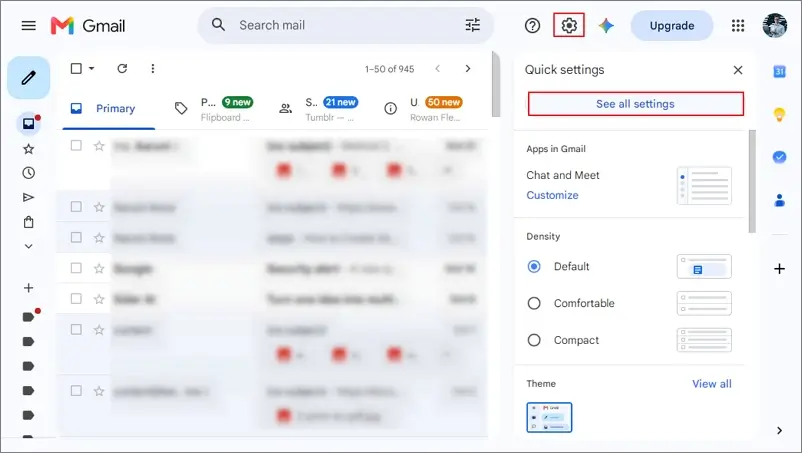
- Sign in to Gmail, click the gear icon, then tap on See all settings.
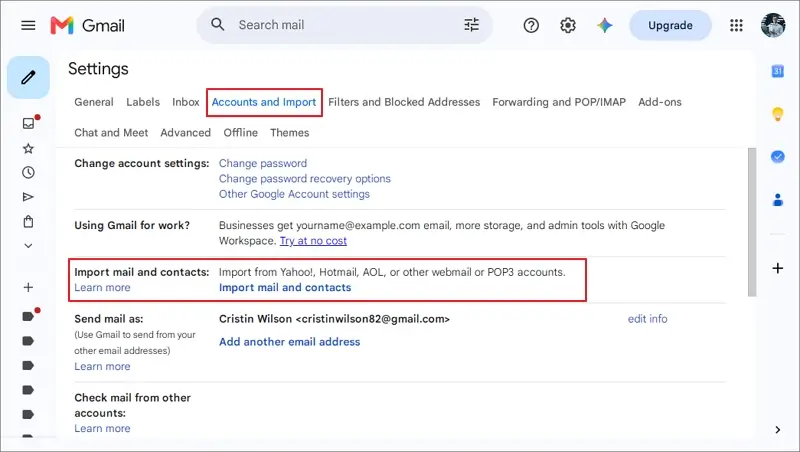
- Go to the Accounts and Import tab and tap on Import mail and contacts.
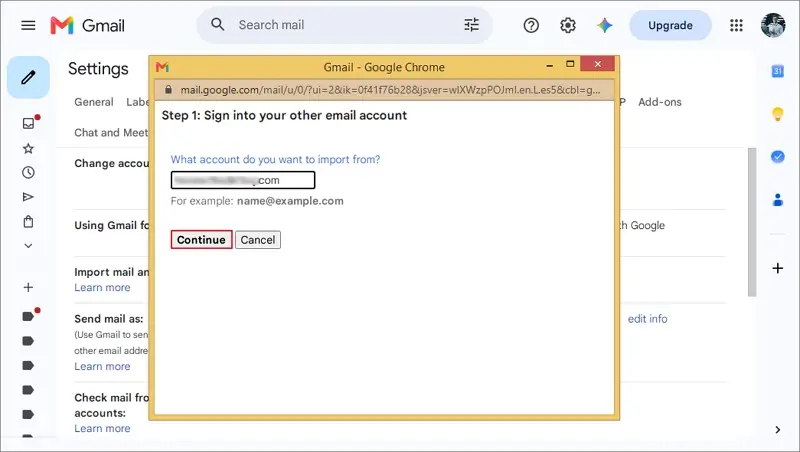
- Enter your full Comcast.net email address and tap on Continue.
- Follow the prompts to authenticate your source account. You may need to enable POP access or use another supported connection method.
- Once connected, choose the available import options and start the process.
- After the import finishes, search Gmail for older messages and check their dates, senders, and attachments.
Limitations of Gmail’s import method
- May fail to connect to every Comcast or Yahoo-hosted account.
- Does not import the original folders or labels as folders.
- Messages that exceed Gmail’s import size limit may not transfer.
Method 2: Move Comcast Emails to Gmail Using Thunderbird
You know Mozilla Thunderbird is a free email client that can connect to multiple email accounts. Use it to copy messages from your Comcast mailbox into Gmail without forwarding. Here are the complete steps:
- Download Thunderbird and install it on your computer.
- Open the application and select the option to add an email account.
- Enter your name and full Comcast.net email address. Follow the prompts to sign in and configure the account. The incoming server settings depend on where your mailbox is hosted.
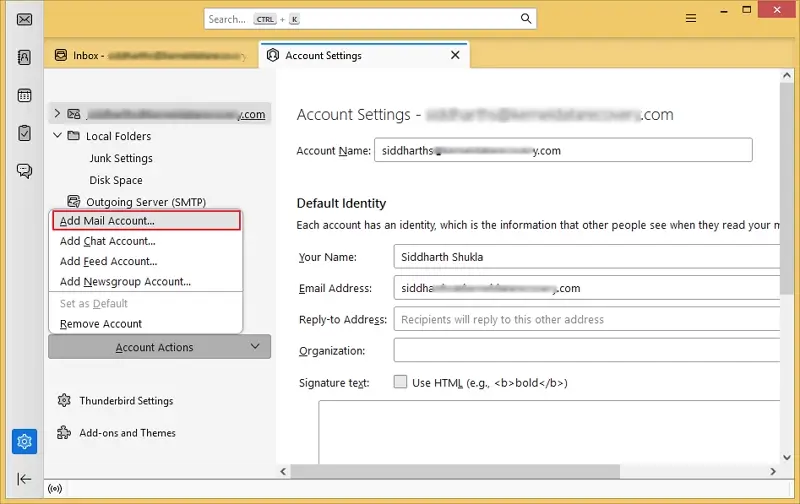
- Now, in Thunderbird, go to Settings, then Account Settings, then choose Add Mail Account under Account Actions.
- Enter your Gmail address and check the available configuration, click Done. You can configure server settings manually.
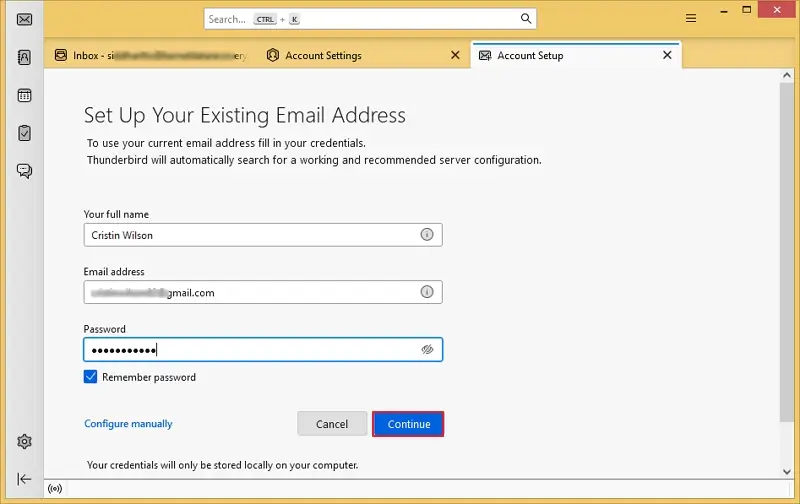
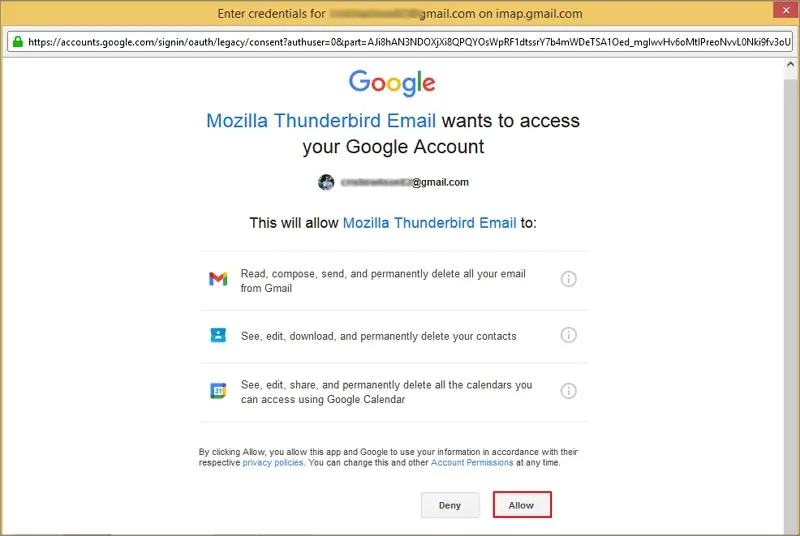
- Use Google’s sign-in window to authenticate your account and approve the requested permissions.
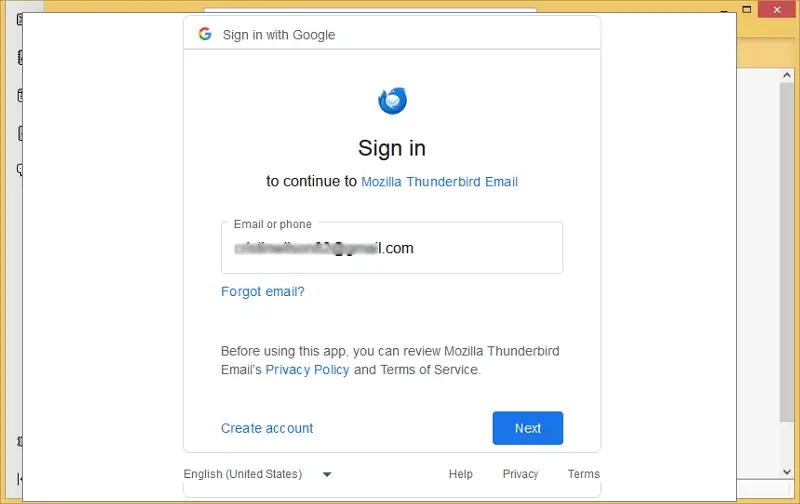
- After signing in, allow Thunderbird to synchronize your Gmail folders before proceeding.
- Once both accounts appear in Thunderbird:
1) Open your Comcast account, select the folder, then the required messages
2) Right-click the selection and choose Copy To.
3) Select the preferred destination folder under your Gmail account.
You can also create corresponding folders in Gmail and copy messages into them. Start with a small group of messages.
Thunderbird needs time to sync copied messages to Gmail, so keep your computer connected to the internet and allow the synchronization to finish. After that, check the copied messages, older conversations, important attachments, and emails from different folders.
Drawbacks of Using Thunderbird to Migrate Comcast Email to Gmail
- Transferring a large mailbox can take time.
- May need to troubleshoot authentication errors.
- Synchronization delays or storage limitations may bother you.
Method 3: Transfer Comcast Email to Gmail via Forwarding
If you only want future Comcast emails to arrive in Gmail, automatic forwarding can work for you. But there is a catch: with this method, your existing mailbox won’t migrate; only new email can be accessed in Gmail. Follow these steps to enable Comcast email forwarding:
- Sign in to your Comcast mailbox using Xfinity Email if your account has not moved, or Yahoo Mail if the transition is complete.
- Look for an email forwarding option in your mailbox settings and enter your Gmail address where you want to receive emails.
- Complete any verification steps requested by your provider.
Send a test message to your Comcast.net address from another account to check that the message arrives in Gmail. Also, check the spam folder if it doesn’t arrive in the inbox.
Method 4: Migrate Comcast Email to Gmail Using Kernel IMAP Migration Tool
If you have a large Comcast mailbox or need to migrate several folders, copying emails manually or using the above methods can become time-consuming, as they involve various email apps and account configuration. Instead, you can use Kernel IMAP Migration tool to transfer Comcast email to Gmail directly in no time.
It may be a suitable option when you want a more organized process for moving messages between email accounts. Just add your source Comcast account and Gmail account as the destination, select mailboxes, and start the migration. You can even use it to migrate Comcast emails to Gmail when they are moved to Yahoo.
Common Problems That May Occur While Transitioning to Gmail
Here are a few issues you can face when migrating Comcast emails to Gmail manually. Also, each has its specific solution you can follow:
- Gmail cannot connect to Comcast email
- Your Comcast password is not working
- Some emails are missing after migration
- Duplicate emails appear in Gmail
Solution: The server settings and sign-in process may differ. Check whether your mailbox is still hosted by Xfinity or has moved to Yahoo Mail. After that, use the correct username, password, and connection settings for the current provider.
Solution: Your account may require a different authentication method for third-party email clients. If your account has moved to Yahoo Mail, check Yahoo’s current app-password instructions.
Solution: Don’t let the internet disrupt the process. Also, manually migrating Comcast email to Gmail results in such issues. A migration tool can avoid such issues.
Solution: Avoid copying the same folder more than once or repeating a migration. Use only the proper way for Comcast email migration.
Which Method is Best for Transferring Comcast Email to Gmail?
The best way to migrate Comcast email to Gmail depends on how much email you need to move, ease of use, effectiveness, and how much control you want over the process.
|
Method |
Best Suited For |
Limitations |
|
Gmail import |
A simple one-time import when the source is supported. |
May not connect to every mailbox. |
|
Thunderbird |
Users who want to copy selected messages and folders. |
Requires manual setup and verification. |
|
Email Forwarding |
Receiving new messages in Gmail. |
Does not transfer existing emails. |
|
Kernel IMAP Migration |
Larger migrations between supported IMAP accounts. |
Requires a license purchase for bulk emails. |
Concluding Words
Now that you know all possible methods to transfer Comcast emails to Gmail. Choose the method that suits you. For a smaller mailbox, try Gmail’s import option first. If you want to select messages or folders manually, Thunderbird or the email client method may be a better choice. If you want only new mail to arrive in Gmail, try to configure email forwarding. For large mailboxes or bulk emails, use the dedicated migration solution.
People Also Ask
A. Yes. You can try Gmail’s one-time import feature or use a free IMAP email client such as Thunderbird.
A. Yes, it is possible, but the size of your mailbox, available storage, and the method you use can impact the job.
A. Yes, there is, if you can access your migrated Comcast.net mailbox and use a supported migration method. You’ll need to configure the source connection for Yahoo Mail rather than the old Xfinity-hosted mailbox.
A. Not necessarily. With manual migration, keeping folders intact is quite complex. Instead, use the IMAP migration tool to keep all email, properties, and folders intact.
A. Yes. You can migrate Comcast emails to Yahoo. Also, Comcast is actively transitioning its @comcast.net email accounts to Yahoo Mail automatically.