

Opening Outlook and seeing Inbox Repair Tool keeps popping up on your screen can frustrate everyone and I am one of them. You click Repair, it finishes, and the next moment you open Outlook, the same message appears repeatedly.
It keeps on popping up because Outlook thinks your PST or OST file is still corrupted, or something is making it corrupt every time you close Outlook.
What are the reasons for Outlook Inbox Repair Tool keeps popping up?
There are multiple reasons behind encountering “Microsoft Outlook Inbox Repair Tool keeps popping up” issue. Let’s have a look at some of them:
- Oversized PST file: Large sized PST files, nearly reaching their size limit, cause Inbox Repair Tool to repeatedly run or fail.
- Severely corrupted PST: Corruption in PST or OST file can be the main root cause of this persisting issue.
- Improper Outlook shutdown: If Outlook application was not shutdown properly, then it might have damaged your Outlook files.
- Antivirus program interference: Antivirus programs that scan emails can lock PST while Outlook is writing to it.
- Bad sector or hard drive errors: If your PST sits on a failing sector, then the Inbox Repair Tool might try to fix it whenever you start Outlook.
- Damaged user profile: If the Outlook user profile is corrupted, then it can trigger the repair loop.
- Multiple Outlook profiles accessing same PST: This is a rare case; if 2 profiles use same PST, they can corrupt each other.
DO NOT SKIP TO BACK UP YOUR OUTLOOK DATA FILE FIRST
Before you try any method to fix “Outlook Inbox Repair Tool keeps popping up” issue, backup or copy your PST or OST file to a safe location on your desktop or external drive. SCANPST can make things worse on a severely damaged file. I have seen, it truncate PST files.
To find your PST file location, follow the path below:
Open Outlook >File >Account Settings >Account Settings >Data Files >select PST/OST file, then click Open File Location.
How to fix Microsoft Outlook Inbox Repair Tool keeps popping up issue?
After trying and testing a lot of methods, I found four of them are most effective and can help in resolving this issue. I have explained each of them with detailed steps below:
Method 1. Run SCANPST.exe manually
The automatic pop-up automatically quits after 1 pass. But a deep repair requires multiple attempts. Run SCANPST.exe and let the tool finish any incomplete processes first. Here is how you can do it:
Step 1: Close Outlook application and locate SCANPST on your computer.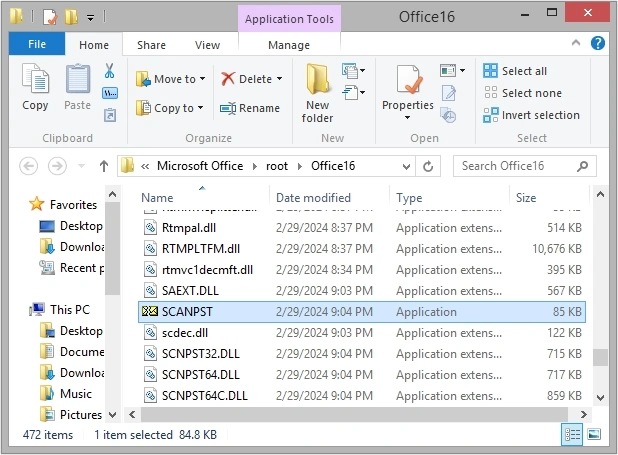
Step 2: Open it and click Browse to add PST file.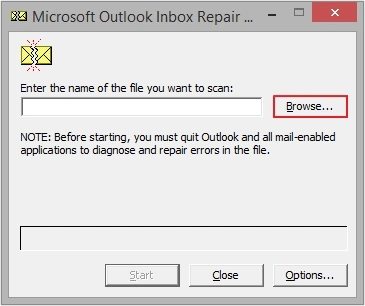
Step 3: Click Start to begin scanning.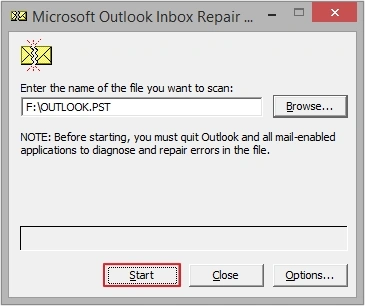
Step 4: Wait till SCANPST deeply scans the PST for corruption.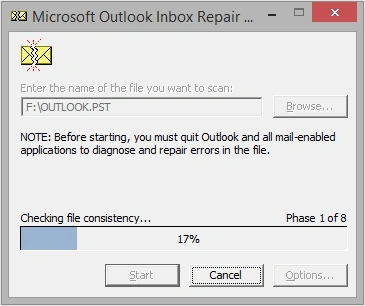
Step 5: Once scanning is done, the tool will show you if there are any errors in the file.
Step 6: If yes, then click Repair to begin the repairing process.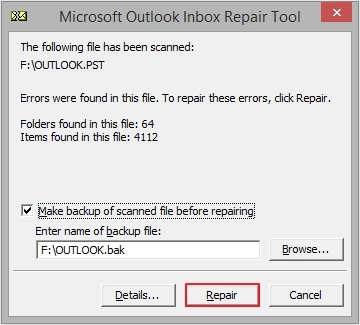
Step 7: Wait till Inbox Repair Tool repairs your PST file completely. Click OK to end.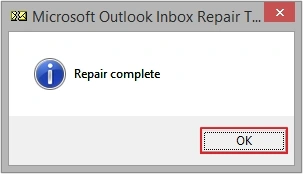
If the issue hasn’t been resolved yet, then use Inbox Repair Tool once again. And if it still pops up, then move to another method.
Method 2. Try disabling all add-ins temporarily
There might be a chance that some add-ins are conflicting with your Outlook and triggering the Inbox Repair Tool to open. You can try to disable them temporarily.
Step 1: Open Outlook in Safe Mode, then go to File, and click Options.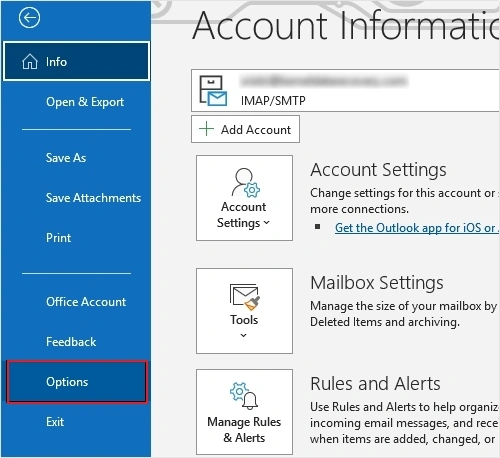
Step 2: Click on Add-ins, then select COM Add-ins in Manage and click Go.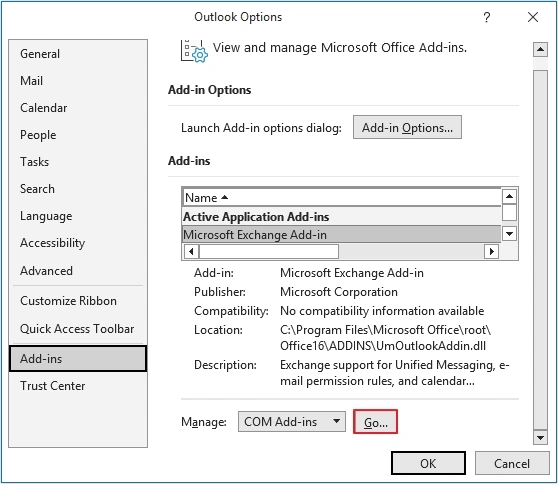
Step 3: Disable all the Add-ins and click OK.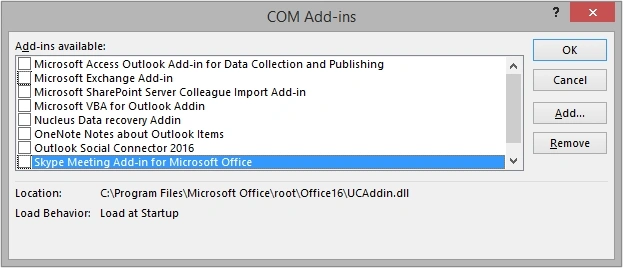
Step 4: Reopen Outlook and enable add-ins one-by-one to find any faulty add-in.
Step 5: Once you find it, then remove it permanently from Outlook.
Method 3. Create a new Outlook Profile
What if your Outlook profile is corrupted and causing the issue? You can try to create a new profile in Outlook to resolve the “Microsoft Outlook Inbox Repair Tool keeps popping up” issue. There are two methods to create new user profile in Outlook, i.e., using Outlook’s account settings or via Control Panel.
Method 4. Repair Microsoft Office Installation
There might be chances that your Microsoft Office installation is conflicting and causing this issue. You can repair the installation from your system’s settings. Here are the steps to do it:
Step 1: Open Control Panel, then look for Programs and Features.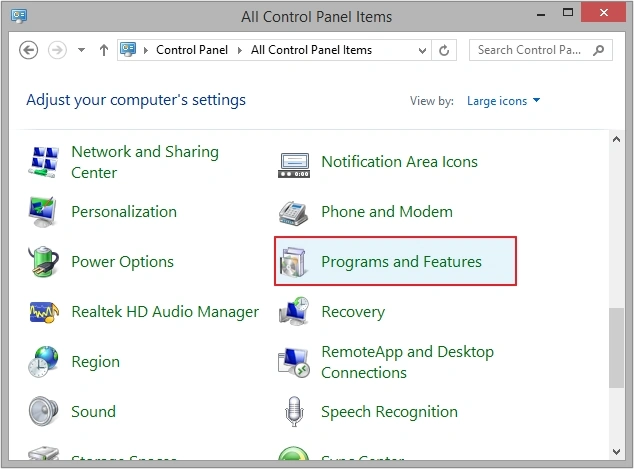
Step 2: Search for Microsoft 365 installation and right-click on it. Later, click Change.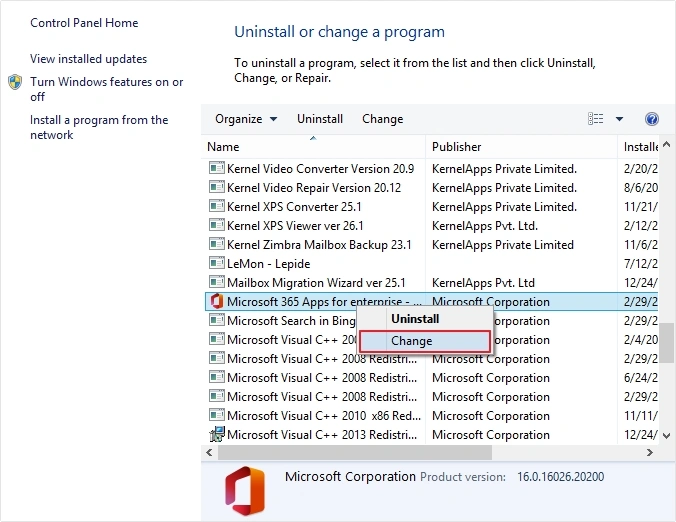
Step 3: Select any of the given options, then click Repair.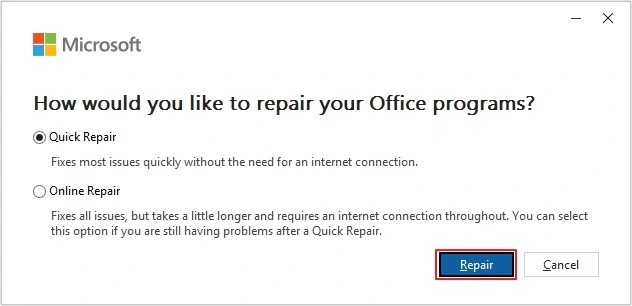
Follow on screen instructions, then wait till process completes. Once done, restart your Outlook application.
Professional solution to fix Outlook Inbox Repair Tool keeps popping up issue
If all the above methods fail to fix the issue, it could be due to a severely damaged or corrupted PST file. You should consider repairing it with the help of a expert-recommended Outlook PST Repair tool.
Kernel for Outlook PST Repair is a trusted solution designed to easily repair and recover data from PST files within a matter of minutes (depending on PST file size). You can repair multiple PST files in one cycle without any file size restrictions. Moreover, tool allows users to convert repaired PST file in MSG, MBOX, EML, DOC, PDF, Gmail, Office 365, etc.
You can even split large PST file into multiple more manageable PSTs for easy accessibility. Download free trial version of the tool to repair and save 25 items per PST folder into the format of your choice.
Concluding: Outlook Inbox Repair Tool keeps popping up
The Microsoft Outlook Inbox Repair Tool keeps popping up because Outlook doesn’t trust your data file, either it’s still corrupted, too big, or something keeps corrupting it. Creating the new Outlook profile is the most reliable permanent fix; it solved the issue for me. But if it doesn’t work for you, then you can use our recommended tool to fix PST file.
Frequently Asked Questions
A. No, there might be chances of corruption, and you can’t risk losing your emails. Fix it immediately and backup data.
A. If in Outlook 2016 Inbox Repair Tool keeps popping up, it might be because Outlook is detecting corruption in your PST file. Resolve PST corruption issue to work continuously.
A. It can if your Outlook data files are heavily damaged or corrupted.
A. Run until you receive “0 errors found” message.