PST (Personal Storage Table) files in Outlook store the copies of messages, calendar events, and other items. Whenever a mailbox in Outlook behaves abruptly, becomes corrupted, damaged, or inaccessible, the issue resides within the PST files. You need to repair these data files to retrieve access to your email messages, and for that, you must know the Outlook PST file location.
During the process of saving mailbox items into PST from exchange server or other sources, the only risk involved is missing link of PST file location. This happens when PST files are saved to some destination point and later on the location is not recalled, which creates the chaos.
Why PST File Location is Lost?
Sometimes the Outlook PST file location becomes unidentifiable due to several reasons, causing inefficiency in the mailbox. Some of them are as follows:
- Getting all rubbish clean: This action often leads to loss of PST file location without knowledge of the user. Basically, when such process is run on user's system, the system tries to erase the PST files located in hard disk, due to which all PST files do not appear to the user for the first time.
- Undetermined file path: PST files are not saved often when file path is undetermined. It loses entire data and makes entire efforts of the user of no use. Therefore, it is cautioned that file path must be chosen carefully prior to saving any PST file.
- Hardware anomalies: Hardware anomalies are another factor that requires you to know the PST file location. Once Hard Disk Drive gets crash, the entire file is lost, leaving behind the traces of existing file which are beyond recovery and repair.
Once the factors responsible for losing PST file location is clear, the user can look to recover the lost files. There are numerous ways to locate PST files, but the choice of selection depends upon the type of operating system being used.
Finding location of Outlook PST file
Prior moving your PST files, it is important to locate the file path. Since there are different versions of Windows OS, it is obvious that different OS have different PST file saving destination and hence there path will be quite different. For example, the location of PST file in -
- Outlook 2007 and previous versions of MS Outlook:
File-> Data File Management - To find PST file location in Outlook 2010 and Outlook 2013:
File-> Info-> Account Settings-> Accounts Settings -> Data Files-> Open file location. - Outlook 2013, 2016, 2019, 2021 & Office 365:
drive:\Users\UserName\Documents\Outlook Files - Outlook PST file location on Windows 11:
drive:\Users\Username\AppData\Local\Microsoft\Outlook. - In Windows 10:
drive:\Users\username\AppData\Local\Microsoft\Outlook - In Windows 8, Windows 7 and Vista:
C:\Users\%username%\AppData\Local\Microsoft\Outlook - In Windows XP:
C:\Documents and Settings\%username%\Local Settings\Application Data\Microsoft\Outlook
It is quite clear that the above-mentioned PST file locating patterns varies for different Windows OS.
Thus, it becomes quite hectic for different users to make such adjustments in a short period. Therefore, it is necessary to install a reliable third-party tool that can effectively search for PST files within the user's system.
Common Problems When Finding PST Files
Here are some problems with the solutions that you may face when trying to find the PST file location on your workstations. Use the solutions to fix the issue and perform your sending/ receiving of emails:
- Outlook is unable at finding the PST file from the system.
- PST file has been renamed or moved from the default location.
- PST file is too large or oversized.
- PST file is corrupted.
How to unhide the hidden folder?
Sometimes, the folders in the Windows are hidden from the normal view, and the user will not be able to view the deep folders of the Outlook data file. But there is a simple solution to the problem. You can easily unhide the hidden folders:
Step 1: Open the Control Panel.
Step 2: After opening the Control Panel, go to View list and make sure that either Large or Small icons are enabled to give a clear preview in Control Panel.
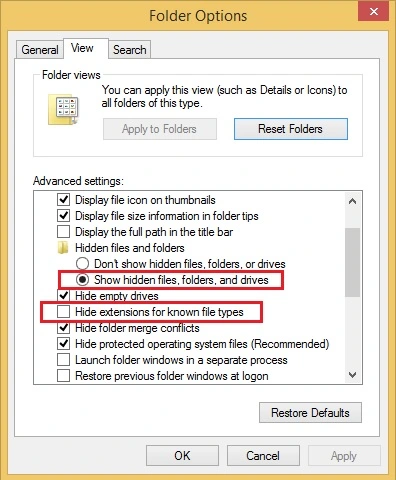
Step 3: In the Folder Options, choose the View tab.
Step 4: In the Advanced Settings, you need to perform the two actions –
- Click ‘Show hidden files, folders, and drives’ button in the Hidden files and folders.
- Uncheck the option ‘Hide extensions for known file types’ in the Files and Folders.
- Go to File and click Info.
- Tap on Account Settings then Account Settings.
- Go to Data Files tab and click on Open File Location.
Step 5: Click OK.
How to move the Outlook PST file?
If you want to move the PST file to a more convenient location on the system, then you cannot just cut-copy-paste the PST to a new place. Because the Outlook will once again create the PST at its default location and start using it. To change the location of the PST file permanently, you need to change the registry settings. Here is the procedure:
Step 1: Start Run and type regedit in it. Then press Enter.
Step 2: After opening the Registry Editor, go to Outlook folder by following the path -
HKEY_CURRENT_USER>>Software>>Microsoft>>Office>>16.0>>Outlook.
Step 3: Right-click the Outlook folder, then click New>>Expandable String Value.
Step 4: Provide the name ForcePSTPath and click OK.
Step 5: After creating the String Value, double-click it, and in the Value Data file, input the path of the new location where you want to save the PST file.
Step 6: After saving your changes, the Outlook will start to save the PST file here.
How to manage oversize PST file?
When Outlook PST file reach its maximum size limit, show errors that can cause slow performance and other issues. To resolve the issue, you can archive old data item from PST, compress PST file, or split PST. Here is how you can archive data in Outlook:
Step 1: In Outlook, go to File and select Info.
Step 2: Now, click on Tools and from drop-down select Clean Up Old Items.
Step 3: Now, check Archive this folder and all subfolders:, and select the specific folder to archive data.
Step 4: Provide the required date in front of Archive items older than option, browse the location to save Archive file, and click Ok.
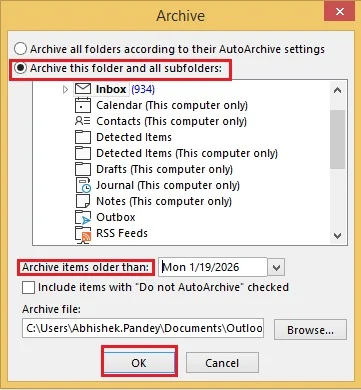
Doing this will archive the old data items from the PST file.
Conclusion: Finding the best tool to repair Outlook PST
In case there is corruption within the PST file due to change in the location of the Outlook PST file, you need to repair the PST before continuing. There are numerous tools available in the market that claim to locate PST files perfectly, but most of them does not perform when certain complications in the process get involved. To overcome such insecurity, Kernel for Outlook PST Repair has got excellent feature in locating the PST file and fix file corruption as well. Using its evaluation version, you can view its performance. Apart from this, you can use Outlook PST Viewer tool if you want to view Outlook data file only.
Frequently Asked Questions
Q: Can I Open PST Files without Outlook?
A: No. Generally, it is impossible to view PST files without Outlook, but you can use other email clients to open the content of a PST file by converting it into other formats. You can also use a PST file viewer tool to read the files.
Q: Where is the Outlook PST file located?
A: To find the location of a PST file, perform the following steps:
Q: What Happens if my PST file gets too large?
A: An oversize or large PST file can cause issues, such as application crashing again and again, seeing multiple Outlook errors, issues in sending or receiving emails, etc. It is important to manage the size of your PST file to avoid issues that can result in corruption and even data loss. To manage large PST files, you can use an advanced PST split software.