

Many users depend on Microsoft Outlook for daily email tasks, calendar updates, and business management. It plays a key role in business communication as well as personal use. However, like any other email client, Outlook may show errors that interrupt smooth work. One such issue is the “Outlook has exhausted all shared resources” error. This problem often appears when system resources reach their limit or when Outlook fails to manage its internal data properly.
This error can feel confusing at first, especially when your Outlook stops responding or fails to open mailboxes. You can face delays, crashes, or incomplete actions while sending emails. These issues will affect your productivity, and you can lose your essential emails.
We have most working solutions for you to fix Outlook running out of shared resources and prevent your emails. Before exploring the solutions, let’s find out all the reasons behind this issue.
Why does Outlook Has Exhausted All Shared Resources error occur?
Here are some of the common reasons behind the error in Outlook:
- When your Outlook has synced with too many PST files or excessive shared mailboxes, especially large ones.
- Outlook 32-bit cannot manage as much memory as 64-bit, often leading to resource exhaustion.
- A broken navigation pane (.xml file) can cause Outlook to consume excessive resources trying to render it.
- Enabling cached mode for large shared mailboxes strains memory and storage.
- When your system is out of storage, apps like Microsoft Teams, Skype, or Zoom are competing for memory.
Fix Outlook Has Exhausted All Shared Resources Issue
Explore all the free manual methods to solve the Outlook issue to maintain your workspace email management:
Method 1: Repair Outlook Profile
Make sure to repair the Outlook profile, as it helps you fix errors caused by damaged or misconfigured account settings. It restores proper connection with mail server, improves performance, and ensures smooth access to emails, contacts, and other Outlook data without technical hassle. Here’s how to do so:
Step 1: Open Outlook and click File.
Step 2: Click Account Settings > Account Settings.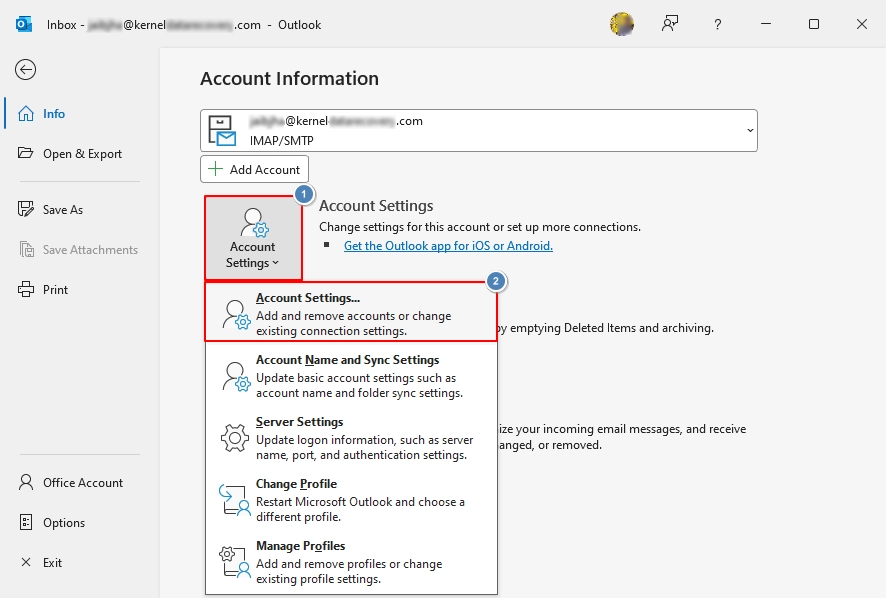
Step 3: On the Email tab, select your profile and click Repair.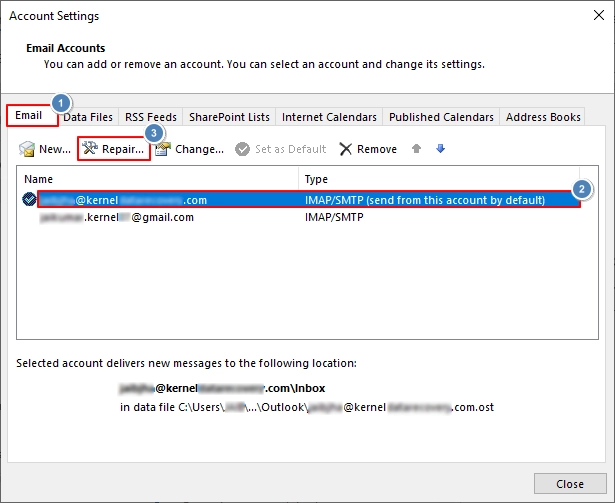
Follow the wizard prompts, restart Outlook, and enter credentials if asked.
Note: This option is unavailable for Exchange accounts in Outlook 2016.
Method 2: Disable Unnecessary Add-ins
Disabling unnecessary add-ins helps reduce extra load on Outlook and improves overall speed. Some add-ins may cause conflicts or errors, like Outlook Has Exhausted All Shared Resources, so turn off unused ones to make sure smooth performance and better stability during daily email tasks.
Step 1: Launch Outlook and click on File.
Step 2: On the left side of the following window, click on Options.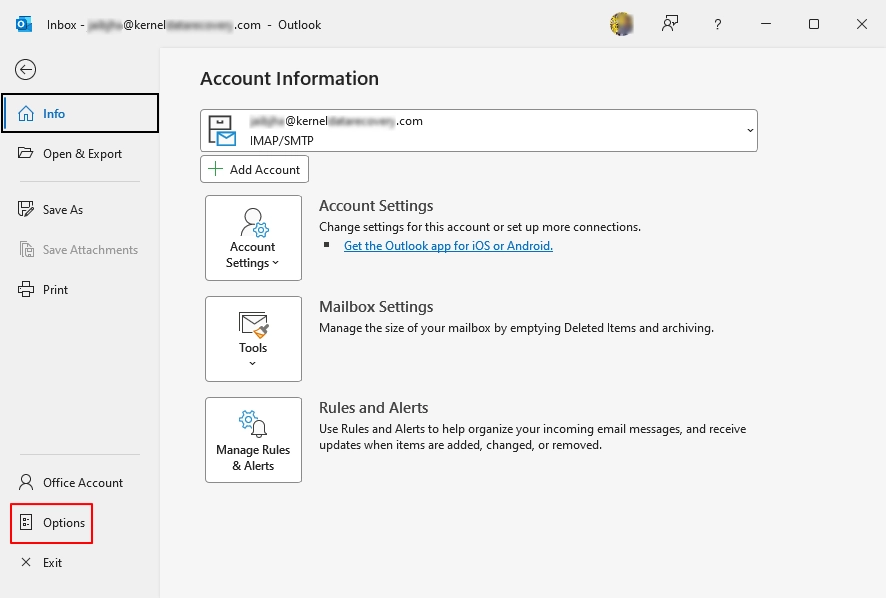
Step 3: Go to the Add-ins, select COM Add-ins in the Manage box, click Go.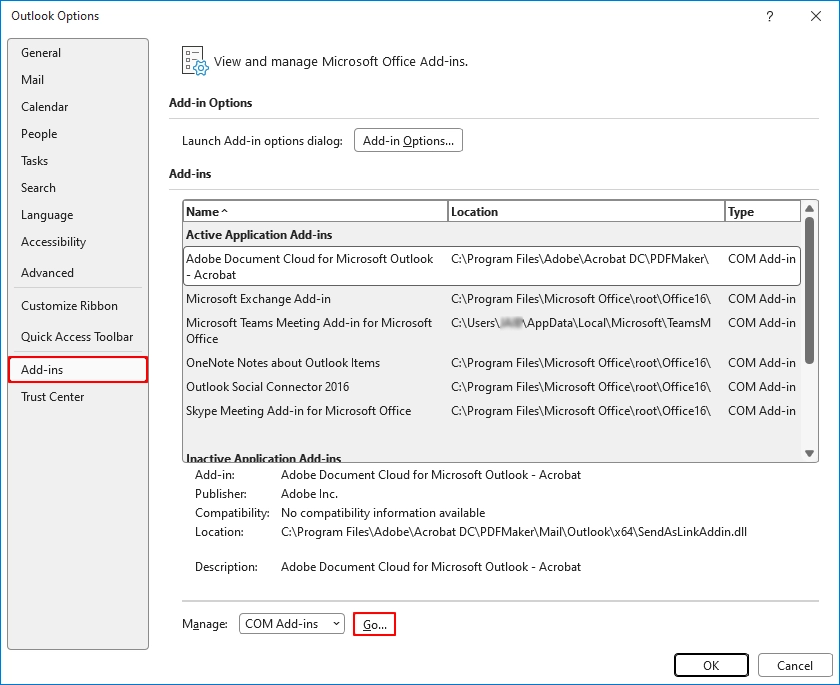
Step 4: Select unnecessary add-ins and click on Remove.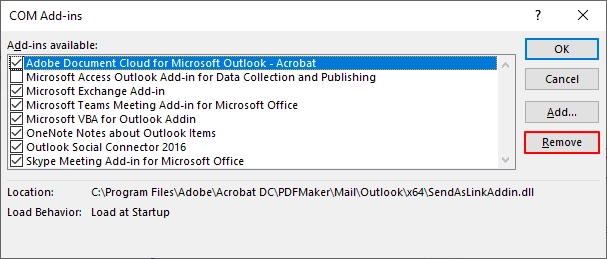
Method 3: Repair Office 365 Installation
It will help you fix issues caused by damaged or missing program files. It restores proper functionality of Outlook and other apps, improves stability, and ensures all features work correctly without the need for a full reinstall. The process to repair Office 365 installation in as follows:
Step 1: Open Control Panel > Programs and Features.
Step 2: Right-click on Microsoft Office.
Step 3: Select Changes > Quick Repair or Online Repair.
Method 4: Update Outlook
Sometimes, you face such issues due to an outdated Outlook. In this situation, you need to update Outlook to fix bugs, improve security, and make sure smooth performance. To update it, open Outlook, go to File, select Office Account, click Update Options, and choose Update Now to install the latest updates quickly.
Method 5: Open Outlook in Safe Mode
Even still, if you are experiencing Outlook has exhausted all shared resources, open Outlook in Safe Mode to identify issues caused by add-ins or settings. It starts Outlook with basic features only, so you can check errors and fix them. Here are the steps to run Outlook in safe mode:
Step 1: Press Win + R on your keyboard to open the Run dialog box.
Step 2: In the Run dialog box, type Outlook.exe /safe and click OK.
Step 3: Choose the desired profile and click OK.
Method 6: Close Unnecessary Applications
Make sure to close all the unnecessary applications to free up system memory and improve Outlook performance. Press Ctrl + Shift + Esc to open Task Manager, select unused apps, and click End Task. It helps you to reduce load and ensures smoother Outlook operation.
What are the Drawbacks of Manual Methods?
- Manual steps take time and effort, especially for non-technical users.
- Add-in removal may not resolve deeper issues within Outlook.
- Profile recreation may lead to data sync issues.
- Manual fixes do not guarantee permanent resolution.
- Users may face data loss risk if a single step goes wrong.
Sometimes, users face these errors in Outlook because of corrupted and damaged files. In that situation, experts recommend avoiding manual solutions and suggest taking help from professional tools.
What to do if the Outlook Data File is Corrupted?
To repair the corrupted files, you can utilize the Microsoft in-built ScanPST.exe (Inbox Repair tool). However, this software can’t work with severely corrupted and large PST files. In that case, you need to use an advanced Outlook PST repair tool. It provides a safe and quick way to repair damaged PST files and restore Outlook performance without much technical effort. Some of the advanced features of the Kernel for Outlook PST Repair are as follows:
- Repairs severely corrupt PST files with high accuracy.
- Recovers emails, contacts, calendar items, and attachments.
- Supports large PST files without performance issues.
- Provides a preview of recoverable data before saving it.
- Maintains original folder structure during recovery.
- Offers a simple interface suitable for all users.
- Allows saving data in multiple formats like PST, EML, MSG, and more.
- Ensures safe and secure data handling process.
Final Thoughts
As discussed, the “Outlook has exhausted all shared resources” error can disrupt daily work, but it is manageable with the right approach. Use the given manual methods to overcome this issue. However, in case of corruption in your data files, make sure to use the recommended PST repair tool for quick resolution. It helps you fix PST files and avoid all the errors in Outlook that are disrupting your workflow.
Frequently Asked Questions
A: This shows that Outlook cannot access enough system or application resources to perform tasks properly, often due to memory limits or large data files.
A: Yes, simple methods like restarting, archiving emails, or removing add-ins can help. However, advanced steps may require basic technical understanding.
A: Yes, large PST files increase memory usage and can lead to this error if Outlook cannot manage resources efficiently. So, make sure to split PST files to easily manage them.
A: A professional tool offers faster repair, better accuracy, and reduces the risk of data loss compared to manual troubleshooting steps.