

The need for extracting email addresses from Gmail account can arise to create backups of data, create marketing lists with email addresses, or while switching email clients. And hence, extracting email addresses in a list is quite helpful when you need to send out information to a large number of people. This guide covers all the information needed to extract all email addresses from Gmail account. First, let’s know the reasons to extract email addresses from Gmail account.
Reasons to Extract all Email Address from Gmail Account
There are many reasons for extracting email addresses from Gmail account. Some of them are listed below:
- Creating a Backup: Extracting and saving email addresses at one place creates a safe backup. Doing this protects the email addresses from data loss. You can also protect other data by backing up G Suite Contacts and Calendars, emails, attachments, etc.
- Switching Platforms: While switching the email client, the organizations look to extract all the email addresses in a single file.
- Collaboration with Others: For a smooth collaboration with clients and colleagues, extracting email addresses is necessary.
- Easy to Share: Storing all the emails in a single file facilitates easy file sharing with others within the organization.
- Mass Emailing: With all email addresses arranged in a single file, it helps to send bulk emails at once.
Manual Methods to Extract Email Addresses from Gmail Account
There are a few manual methods available to extract email address from Gmail, based on whether you’re planning to extract only saved contacts or all the email addresses in your mailbox.
Method 1. Export all Email Addresses from Gmail
Saved or pre-existing email addresses can be extracted from Gmail easily. Here are the steps to export all email addresses from Gmail account:
Step 1. Open any web browser on your system and login to your Gmail account.
Step 2. Click on the Google Apps icon and select Contacts from there.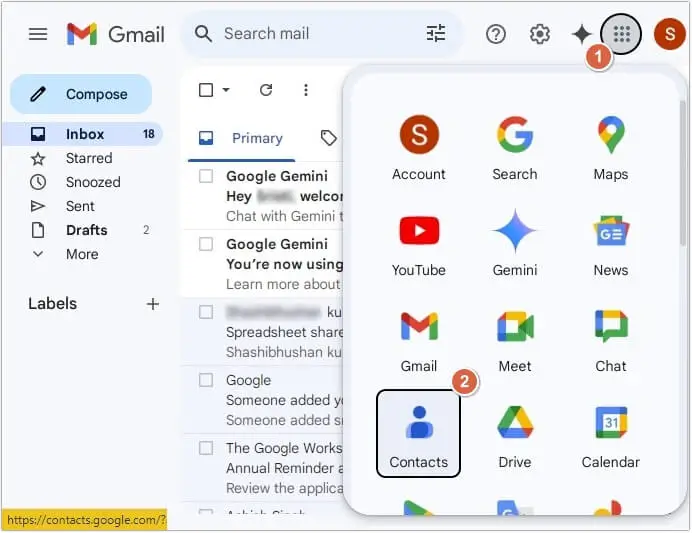
Step 3. Select all the contacts you want to export, then click on three-dots >Export.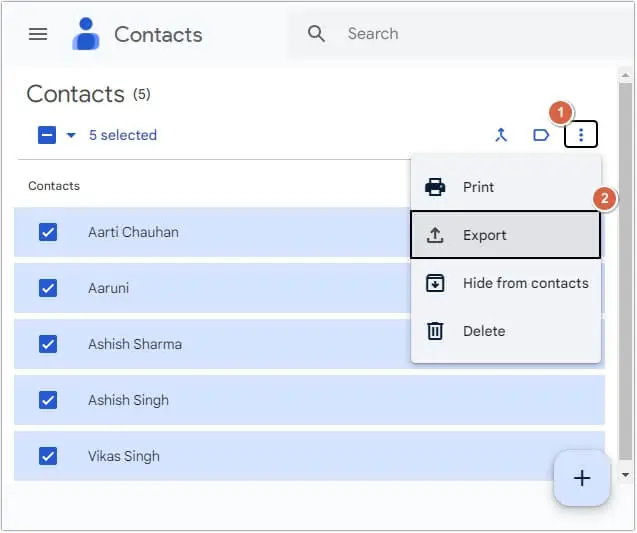
Step 4. From the given options, select any according to your requirements (we have selected Google CSV) and click Export. Once the process is done, all the email addresses will be saved on your local system.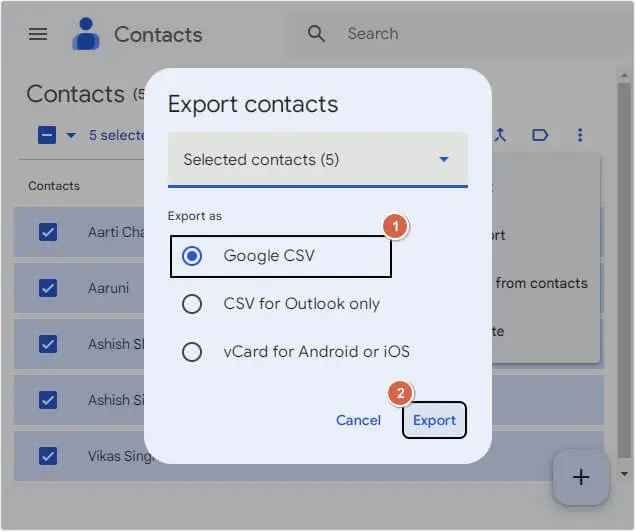
Method 2. Extract Email Address from Gmail Directly Using an Add-on
If you want to extract all email addresses from your Gmail account rather than just the saved contacts, you can use the Email Address Extractor available on the Google Workspace Marketplace. Follow the steps below to use this add-on:
- Open the Email Address Extractor page on Google Workspace Marketplace listing and click on Install.
- Select the Google account you want to add this add-on to and review all the on-screen permissions.
- Open a new Google Sheet and launch Email Address Extractor from the add-ons icon and click on Create Workflow
- Specify the exact criteria like Gmail labels, date range, sender, subject, etc. that you want to scan in the messages.
- Select relevant fields like From, To, CC, BCC, Reply-To, Subject Line, etc. The add-on will extract email addresses from the fields you choose so make you select the fields properly.
- Give a name to your workflow and click on Save & Run
- The add-on processes the workflow request and saves the extracted result in the Google Sheet.
- Check whether the extracted email addresses matches what you required and save the list.
How to Extract Email Addresses When Add-Ons Fail?
If, for any particular reason, you’re not able to use the Email Address Extractor add-on of Google, you can consider using an Email Address Extractor tool. Kernel Email Address Extractor tool fits best in this scenario. The software provides multiple filters, including a date filter to make the email extraction easy and selective. Moreover, it also allows you to extract email addresses from Outlook and save at your desired location in your system’s local storage. Here is the detailed working of the software with step-by-step guide to successfully extract email addresses from Gmail account:
Step 1. Download and set-up Kernel Email Address Extractor tool.
Step 2. Click on Add Outlook Profile option.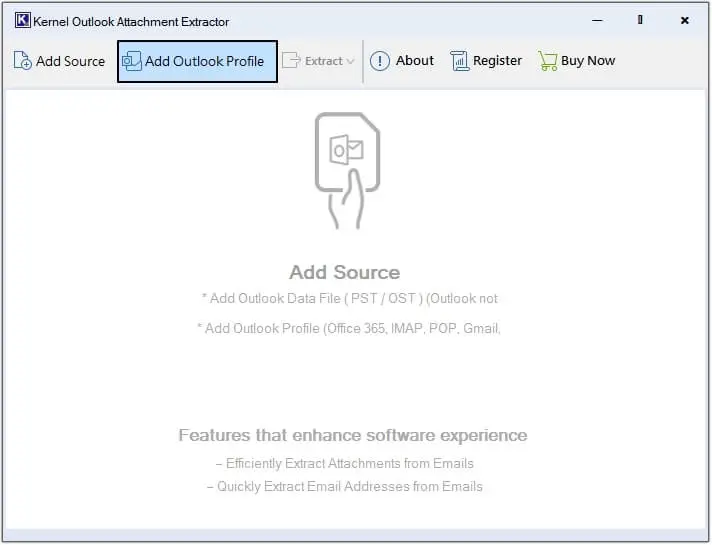
Step 3. All the profiles configured with Outlook will get listed. Click on any folder to get a preview.
Step 4. Click on Extract, then Email Addresses.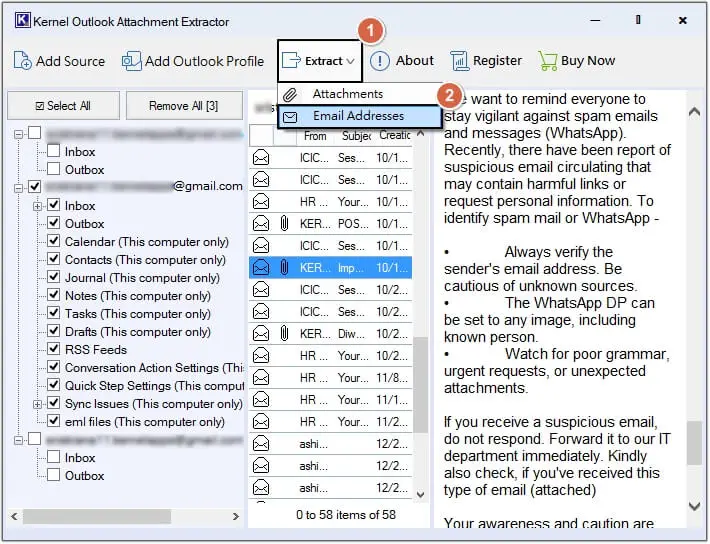
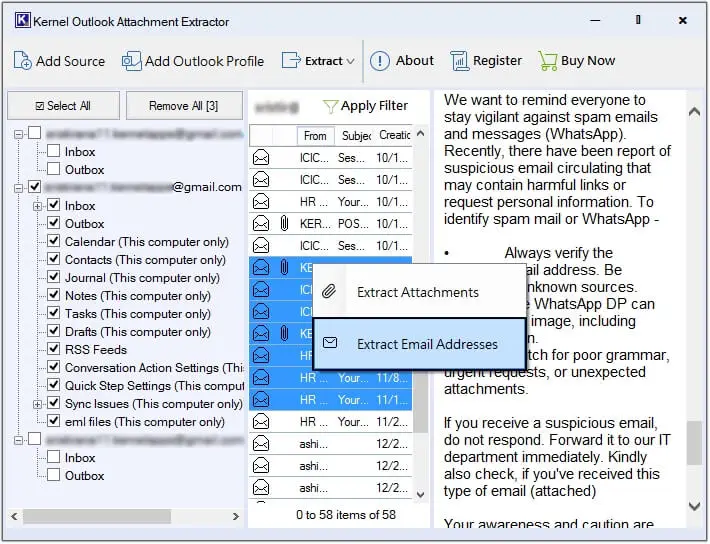
Step 5. Click on Browse to provide the saving location.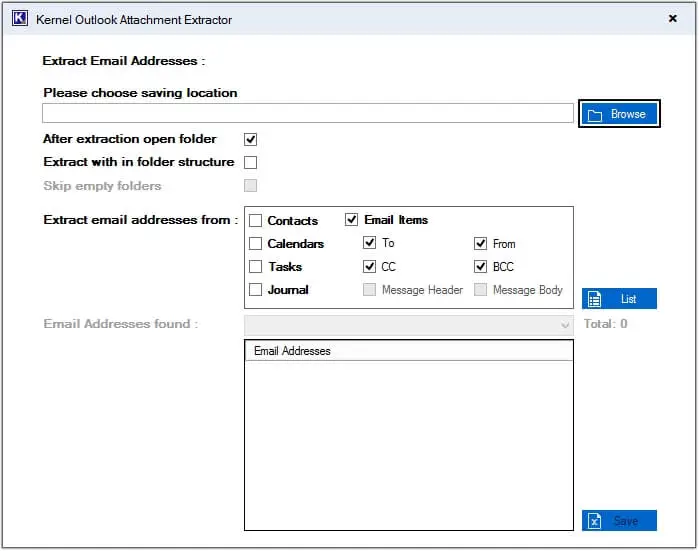
Step 6. Click on Make New Folder, then OK.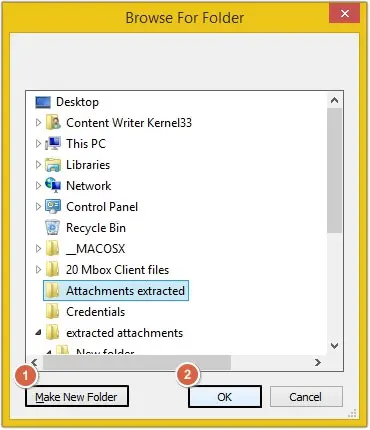
You will get two options to save extracted email addresses:
1. Extract and save email addresses in a single Excel sheet:
a) Select the email attributes from Extract email addresses from pane, then click List. The software will list all email addresses in the Email Addresses found pane. Click Save.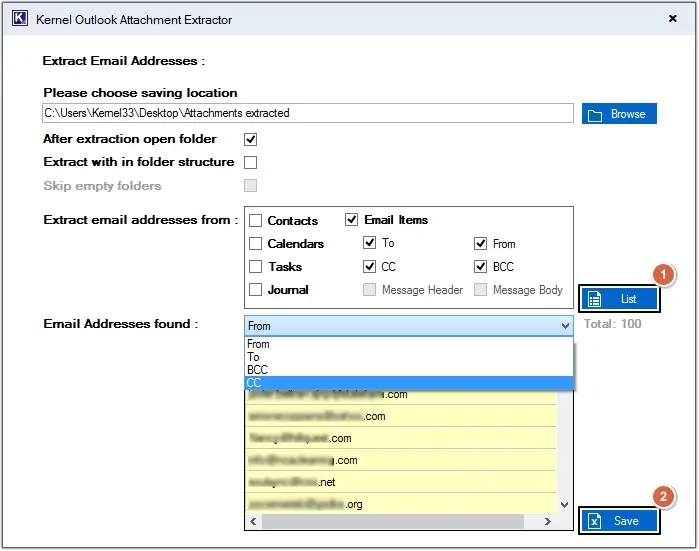
b) Once the extraction process is completed, click OK >Done and you will be redirected to the extracted email addresses location.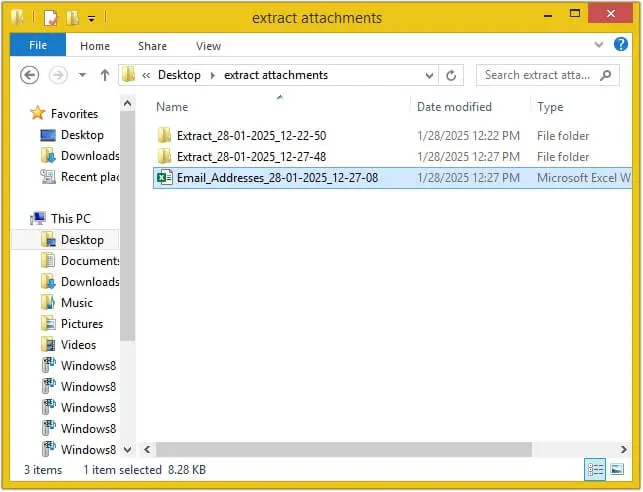
c) All the email addresses are saved in a single excel sheet, click on it to get a preview of them.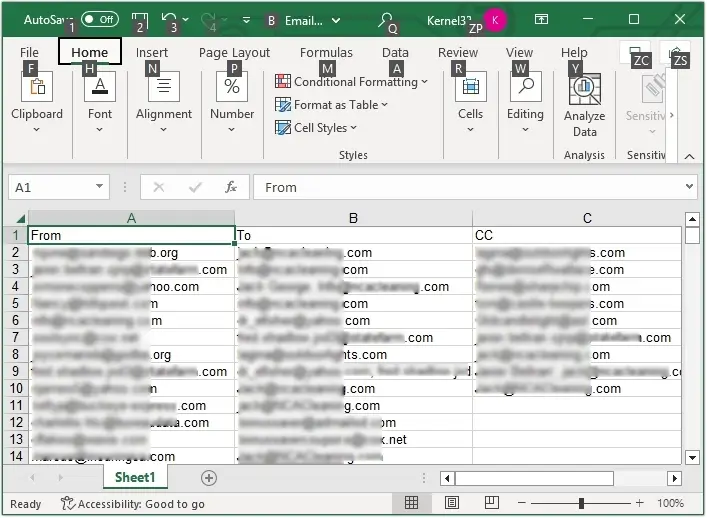
a) Choose necessary email attributes, then select Extract with in folder structure option and Skip Empty folders for selective email address extraction and click Extract.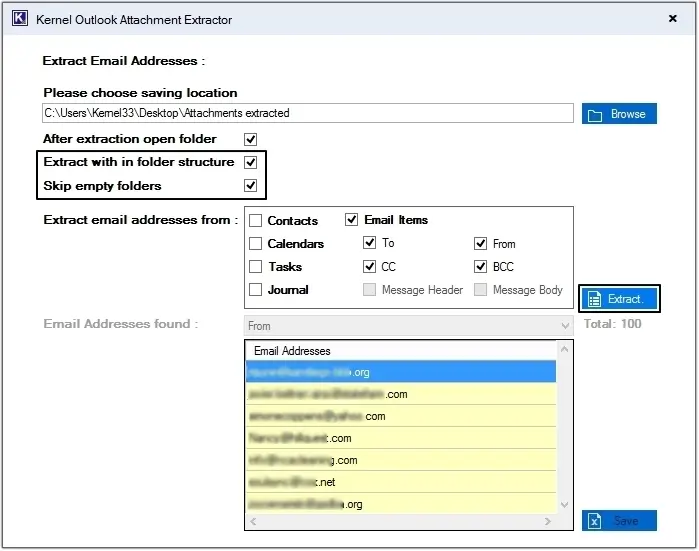
b) Once the process is completed, click on Done and you will be redirected to the specified location, click on any folder and get a preview of extracted email addresses.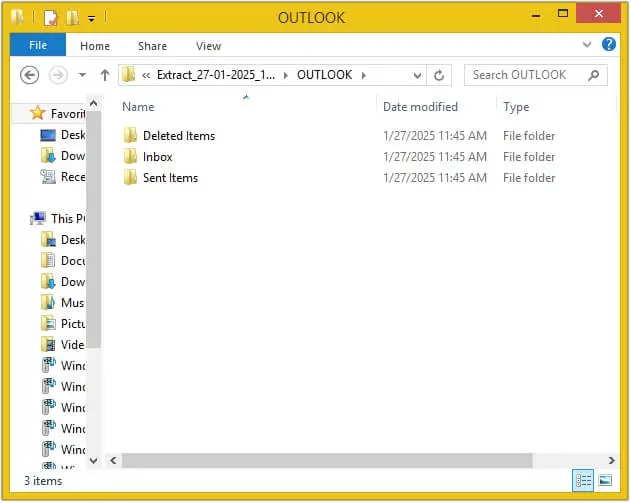
Conclusion
Extracting email addresses from Gmail is needed if you’re planning to make a list of all your contacts or for mass emailing or digital marketing purposes. We’ve discussed various ways in the above guide to extract email addresses from Gmail easily. To export all email addresses from Gmail, we have highlighted a built-in add-on email address extractor for Gmail. Just make sure you select categories correctly to extract all the email addresses you require.
People Also Ask
Q. How do I export or download an entire email thread from Gmail? A. You just have to open the email conversation in Gmail, click on the three-dot menu, and select Save as PDF in the Print dialog box to save the entire email thread as a PDF file.
Q. Is there a way to extract all email addresses from Gmail? A. Yes, you can extract all email addresses from Gmail with an Email address extractor like the add-on offered by Google, or with the help of a dedicated email extractor tool.
Q. How can I download a list of email addresses from my Gmail account? A. If the addresses are saved in Google Contacts, export them as a CSV file. If you need addresses from Gmail conversations, use a compatible email extraction tool to collect them into a list or spreadsheet. Check the tool’s supported fields and search limits before extracting addresses from a large mailbox.
Q. Will extracting email addresses from Gmail also include their names and other details? A. It depends on the extraction method. Google Contacts export can include saved names, email addresses, phone numbers, and other contact fields. Email extractors may collect names and addresses from message headers, and some can capture additional information, such as subject lines, depending on their features and settings.
Q. Is your software safe to use for extracting email addresses from Gmail accounts? A. Yes, our software is completely safe to use for extracting email ids from Gmail accounts. The software remains on your system when you extract email addresses, and we don’t save any of your data on our servers.
A. You just have to open the email conversation in Gmail, click on the three-dot menu, and select Save as PDF in the Print dialog box to save the entire email thread as a PDF file.
A. Yes, you can extract all email addresses from Gmail with an Email address extractor like the add-on offered by Google, or with the help of a dedicated email extractor tool.
A. If the addresses are saved in Google Contacts, export them as a CSV file. If you need addresses from Gmail conversations, use a compatible email extraction tool to collect them into a list or spreadsheet. Check the tool’s supported fields and search limits before extracting addresses from a large mailbox.
A. It depends on the extraction method. Google Contacts export can include saved names, email addresses, phone numbers, and other contact fields. Email extractors may collect names and addresses from message headers, and some can capture additional information, such as subject lines, depending on their features and settings.
A. Yes, our software is completely safe to use for extracting email ids from Gmail accounts. The software remains on your system when you extract email addresses, and we don’t save any of your data on our servers.