

On the Microsoft community forum, we recently came across a query where a user wrote:
How can I extract a complete list of email addresses I've ever interacted with in Outlook — including those not saved in my contacts?
This is a common requirement, especially for users who are migrating, building contact lists, or trying to organize their outreach. If you are facing a similar issue, you are not alone. In this guide, we will address this exact query and show you how to extract email addresses from Outlook, including those that are not saved in your contacts.
Why Extract Email Addresses from Outlook 365?
There are various reasons why organizations need to extract email addresses from Outlook 365. Let's look at some of them:
- Easy collaboration: Extracting email addresses ensures easy collaboration with employees and clients within the organization.
- Backup and archive: Email extraction creates a secure backup or archive file for future purposes.
- Easy transfer: Having all the email addresses in a single file helps with easy transfer of information with others.
- Switching email client: When a business organization switches to another platform, then they need all email addresses to re-establish communication.
- Bulk emailing: Email addresses saved in a single file helps in sending emails to many users at once.
- Marketing campaigns: Email extraction helps in building an email list for promotions or newsletters.
Is There a Way to Extract Email Addresses from Outlook Manually?
Yes, you can extract email addresses from an Outlook PST file or OST file manually using the built-in Import/Export wizard or by simply copying and pasting them. But these methods are limited to saved contacts, inefficient, prone to severe data management issues, and more issues, such as:
- Manually extracting email addresses from Outlook is very time-consuming.
- The manual method is not suitable for large Outlook profiles because it requires hours of repetitive effort.
- In case of any unexpected errors, it becomes impossible to track their origin.
- There is a high risk of human error because of inaccuracy or low performance.
- These methods may generate endless duplicate entries that require deep cleaning later.
- The newer Outlook version or web app completely lacks the advanced export and field mapping function which is available in Classic Outlook.
In this scenario, users must rely on a dedicated email address extractor to get efficient results.
Extract Email Addresses From Outlook Without Opening Every Single Email
To overcome the restrictions of manual methods, using an Email Address Extractor software is recommended. Kernel Email Address Extractor is specifically designed to extract email addresses from Outlook distribution lists, PST files, OST files, and directly from the Outlook profile. The software comes with multiple advanced features to ease the extract email addresses from Outlook procedure. A few major features of the software are as follows:
- Supports multiple Outlook profile: Compatible with Outlook profile of Office 365, Exchange, Gmail, IMAP, POP, Yahoo, etc.
- Save emails in Excel sheet: Effortlessly save all the extracted email addresses in an Excel sheet to access them without any trouble.
- Maintain folder structure: Preserve all the email addresses without hampering the structure in the original folder hierarchy.
- No size restriction: There is no size restriction on Outlook profile with this feature-rich software.
- Advanced filters: Use date and other email filters such as To, From, CC, BCC, Attachments, etc. to make extraction precise.
- Compatible with all Outlook and Windows versions: The software is widely compatible with all the versions of Outlook and Windows including the latest ones as well.
Simple Steps to Extract Email Addresses from Outlook
Here is the detailed step-by-step guide to extract email addresses from Outlook into Excel file with the software:
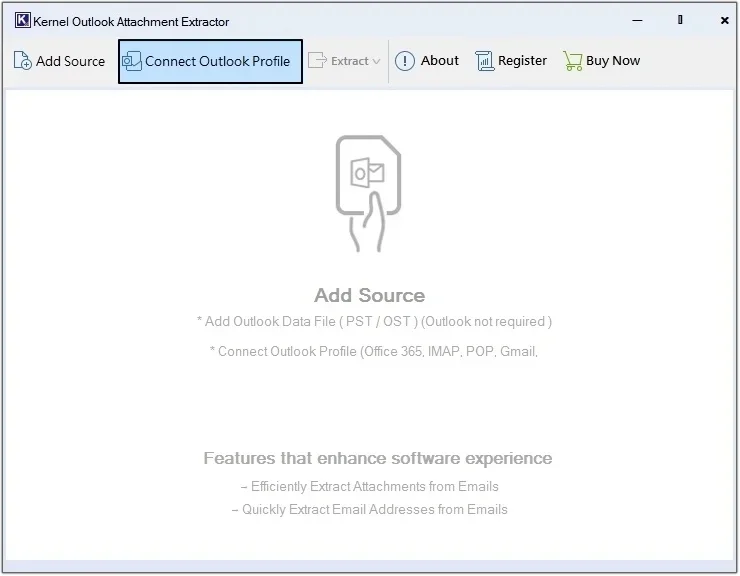
- Download, install, and launch the tool, then click Connect Outlook Profile to directly connect your Outlook Data File.
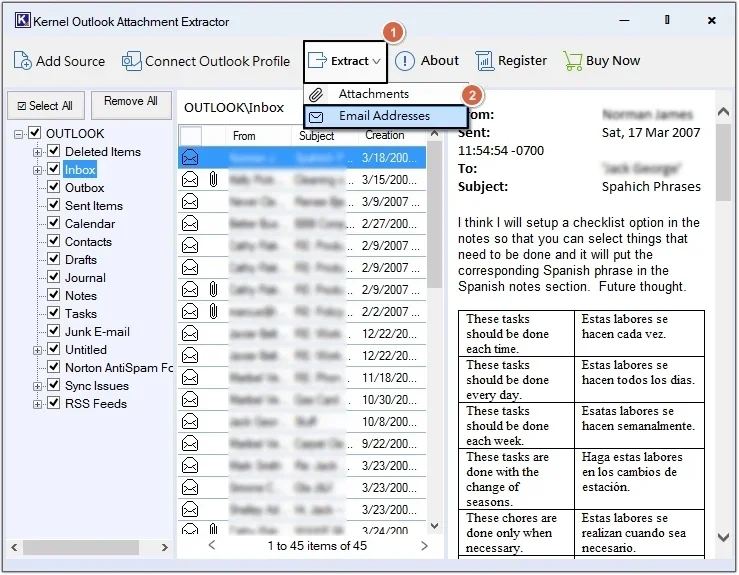
- Click on any folder to get a preview of it. Then click Extract >Email Addresses.
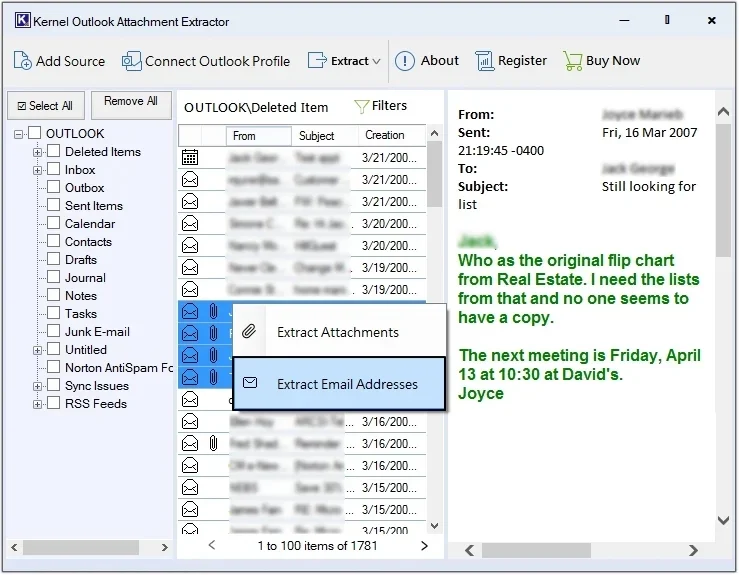
Note: If you want to extract email addresses from selective emails, then right-click on it and select Extract Email Addresses.
- Click on Browse to define the saving path.
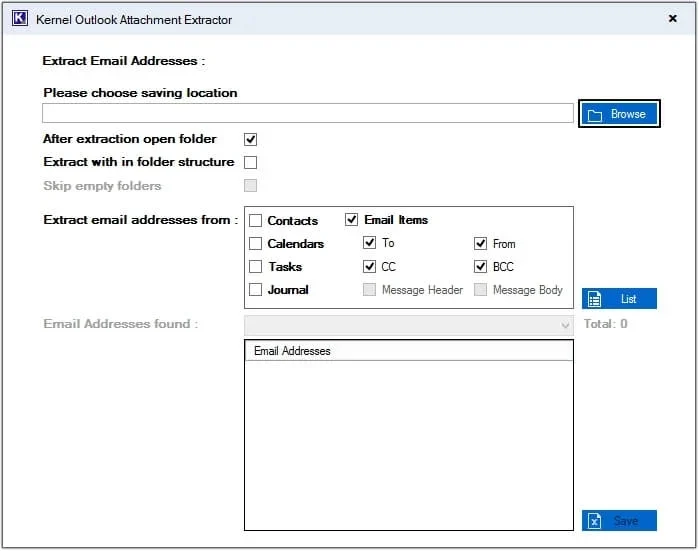
Note: Here you will get two options to save extracted email addresses:
A. Save all the email addresses in a single Excel file
To save the extracted email addresses in a single file, follow the steps mentioned below:
- Select the email attributes for precise extraction, then click List. The software will detect and list all email addresses in the Email Addresses found Click Save.
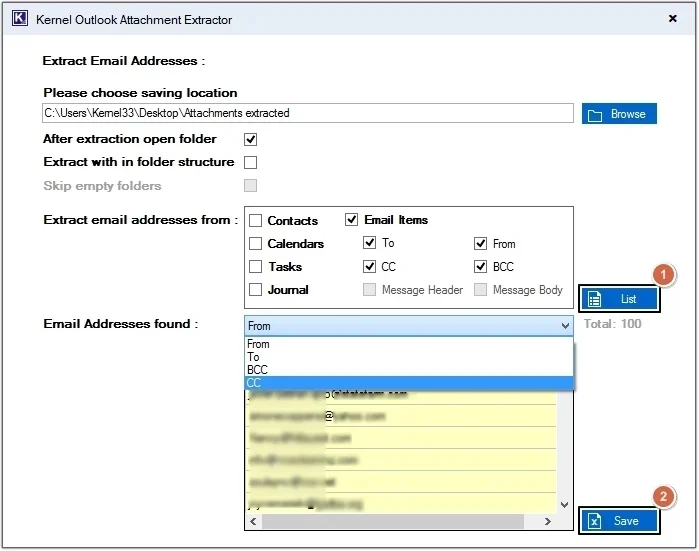
- After the completion of the extraction process, a successful message will pop-up on your screen, click OK and you will be redirected to the extracted email addresses location.
- All the email addresses are saved in an Excel sheet, click on it to get a preview of them.
B. Save all the email addresses in the original folder structure
To save the extracted email addresses in their actual folder structure, follow the steps listed below:
- Select required email attributes, then select Extract with in folder structure and Skip Empty folders for precise extraction and click Extract.
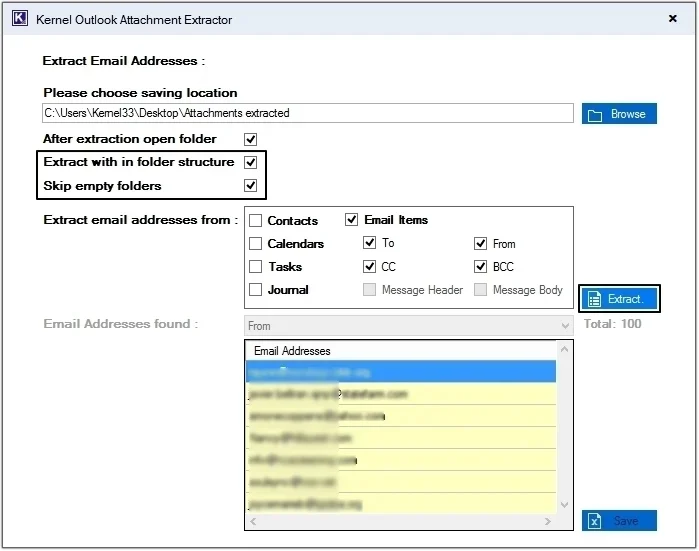
- Once the process is done, you will be redirected to the specified location, click on any folder and get a preview of extracted email addresses.
Last Say
Extracting email addresses from Outlook fulfills various purposes for business organizations. But, due to lack of direct manual methods, the process becomes challenging. Hence, taking help from an email address extractor is best in this scenario. The software provides a simple interface which makes it easily accessible for non-technical users as well. Moreover, you can extract email addresses from Gmail accounts as well using this tool.
Frequently Asked Questions
In which format do the extracted email addresses get saved with this extractor tool?
This software extracts email addresses from Outlook to Excel sheets.
How can I get a list of all email addresses in Outlook?
To get a list of all email addresses in Outlook, you can use the built-in export option to save your mail or contacts as CSV.
How to extract email addresses from Outlook distribution list?
Expand the distribution list in a new email, then copy and paste them into a text file or Word document.