How to Fix “Outlook PST File Cannot Be Found” Error
 Written By Aaruni Arora
  Updated On October 05, 2026 Written By Aaruni Arora Updated On October 05, 2026
 Quick Answer: The ‘Outlook.pst cannot be found’ error occurs when Outlook is unable to locate a specific PST file. It could’ve been moved, deleted, or renamed, which is why Outlook is unable to find it. There’s also a chance that the file might be damaged and that’s why Outlook cannot find the PST file. Try locating the PST file via Account Settings > Data File > Open File Location in Outlook. If that doesn’t work, create a new PST file, or check for corruption in the existing file.
Outlook.pst cannot be found error can turn into a big problem if affected PST file contains important personal or business-related information. You must fix this issue on a priority basis if you want to access your data again. This guide talks about the reasons behind the Outlook PST file cannot be found error and the effective methods to resolve this issue easily, starting with the easiest fix and then moving onto specific fixes like ScanPST.exe if you find out that your PST is damaged.
This anomalous behavior of MS Outlook can happen in the following situations:
After discussing about Outlook PST not found error, let’s now discuss how to fix it. Below are the solutions that may work in this situation.
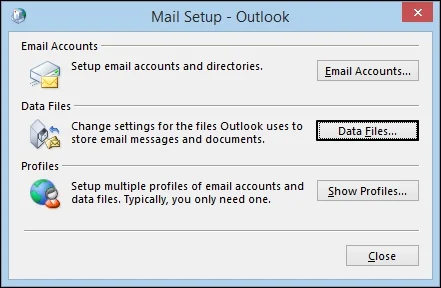
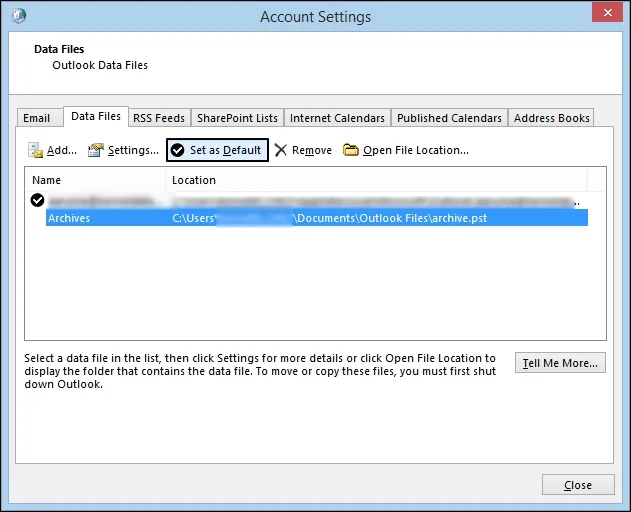
If the PST file was moved sometime ago or if it’s on an inaccessible network drive, you can verify its file path again and then re-open it in Outlook. Follow the steps below to do this:
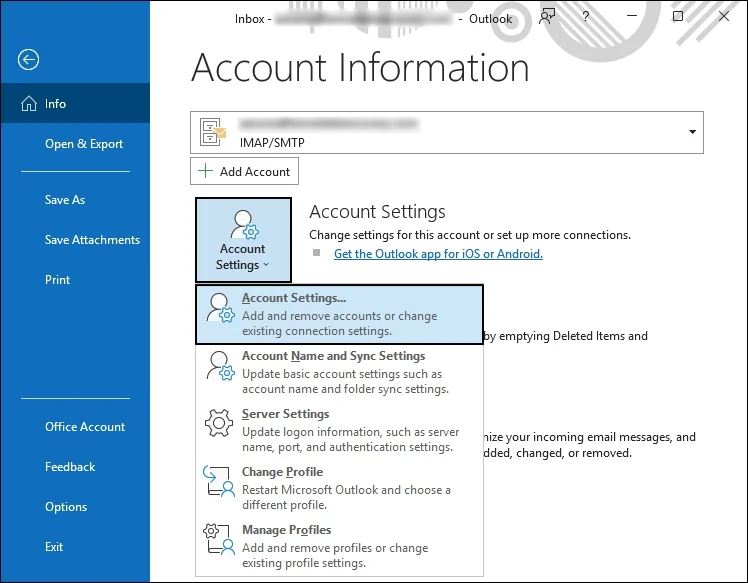
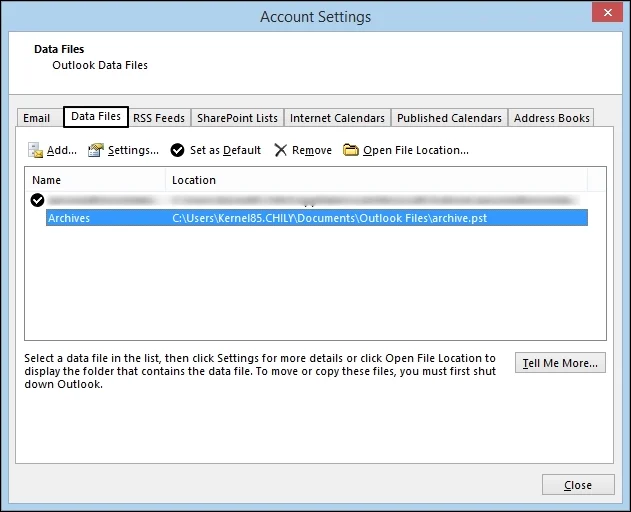
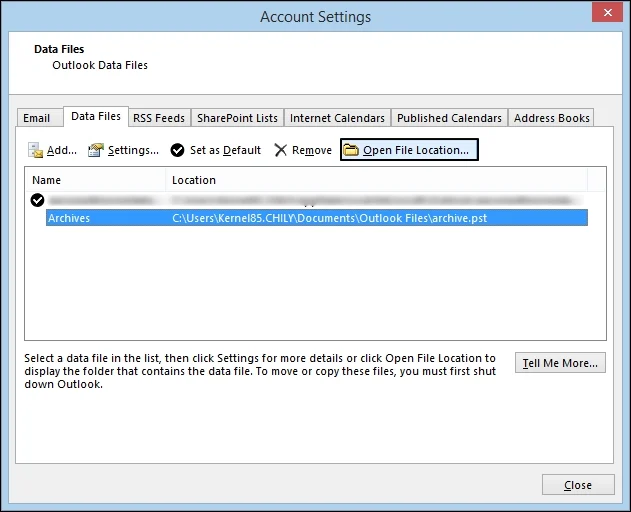
If you’re able to successfully locate the PST file, follow the steps below to open the PST file in Outlook:
If the PST file is available at the correct location, check if your Outlook account has permission to access the PST file or not. This can happen if you’ve received the PST file from someone else or you’ve restored it from an old backup. Follow the steps given below to check this in your Outlook:
If the PST file is available at its location and there’s no permission issue either, check once if there’s any damage or corruption in your PST file. To check for errors in PST file, take the help of the Inbox Repair Tool (ScanPST.exe) to scan for and detect errors. Locate the ScanPST.exe tool on your system depending on the version of Outlook and Windows. If you do find that there’s any corruption in your PST file, repair it promptly and then see if Outlook can open it or not.
But what if you face severe corruption issues in your PST? Is ScanPST still the best way now? Not ideally but you can use a reliable Outlook PST repair tool to fix any major structural or any kind of damage within your PST file.
Creating a new Outlook profile might help you fix this issue. For this, you will need to follow the steps below:
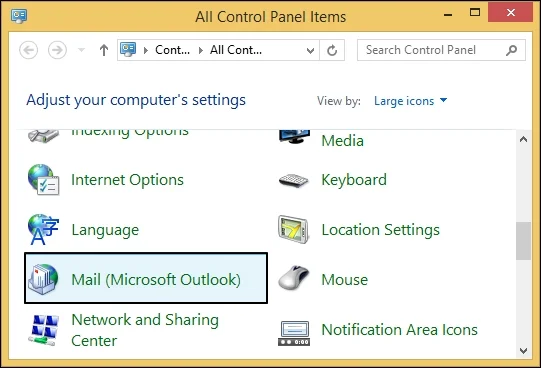
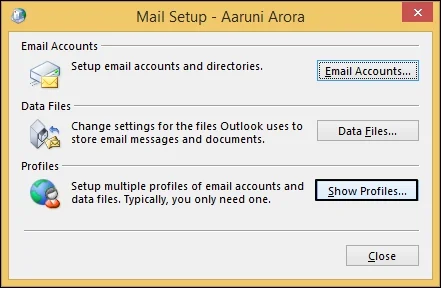
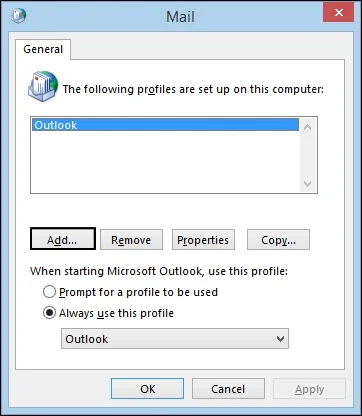
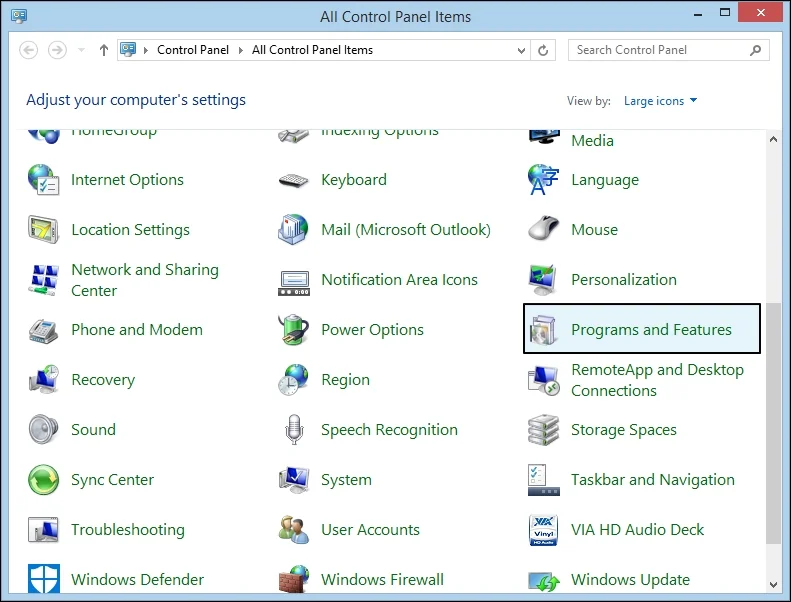
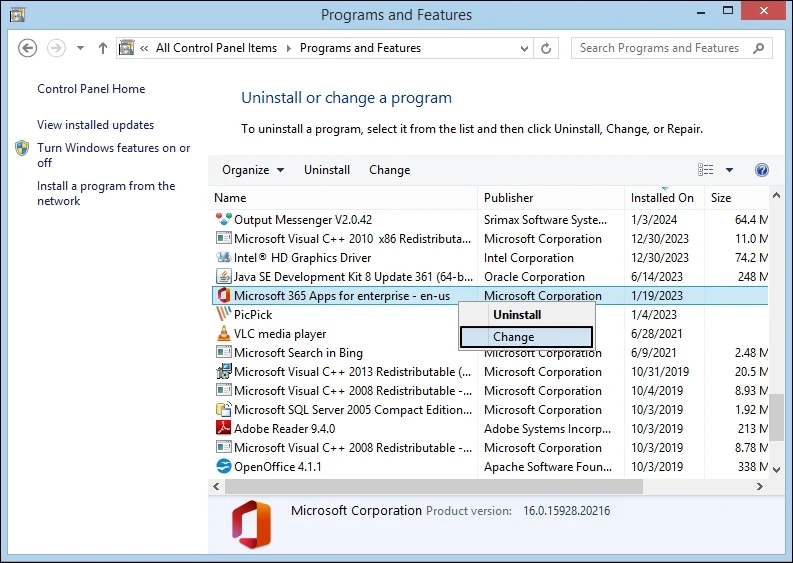
Another way to fix the Outlook PST not found issue is to try repairing Outlook. By repairing the Outlook installation you can actually avoid the chances of having the corrupt files. Follow the below-mentioned steps to repair the Outlook installation:

The Outlook.pst cannot be found error doesn’t always occur because of PST file corruption. The right method to fix depends on if the PST file is available at its original location or not and whether it can be opened and accessed in Outlook easily. First, try locating it and then try to reconnect it with Outlook. If you fail, then check for any structural damage in the file.
A: This error occurs when Outlook cannot find the file it’s set work on. Usually, it happens if the PST file was renamed, deleted, or moved to a different location recently. It can also happen if the data file was stored on a network drive that’s now unavailable.
A: No, it’s not always the case. Corruption can be one of the reason, though not primary, if the file still exists at its original location.
A: Not necessarily, if the file was moved or renamed, the emails are still safe but at a different location. If the PST file was deleted, check in the Recycle Bin once or look for any backups.