Kernel Import PST to Office 365 Tool
Migrate emails, contacts, calendars, and notes from PST files to Office 365 mailboxes, Public Folders, and Groups with Kernel Import PST to Office 365. Perform secure bulk PST files migration without requiring Outlook, PowerShell Commands and Scripts.
Download trial version and migrate 50 items per folder free.- Import PST files to Office 365 Primary, Archive, and Shared mailboxes.
- Incremental Migration feature to skip already migrated items.
- Supports secure connection to Office 365 through Microsoft Graph API.
- Option to select a single or multiple folders before PST import.
- Comes with Date filter to import PST data of specific duration.
- Supports Concurrent processing to handle multiple import jobs.
- Import bulk PST Files to Office 365 without Outlook.
- Preserves email attributes and metadata after migration.
- Create multiple Projects to run different migration jobs.
- Easy mapping of PST files to Office 365 mailboxes.
- Allows to schedule PST migrations for a specified date and time.
- Works on Windows OS and supports all Office 365 plans.


- 4.9/5 Trustpilot Rating
- Safe & Secure
- 2M+ Happy Customers
- Money-Back Guarantee
- Lifetime Free Support
Supported PST Items For Migration
See the complete list of PST items that you can transfer to Office 365.
- Email header: From, To, Cc, Bcc, Subject, flags, etc.
- Attachments: DOC, PDF, & other files, inline images, signatures, business cards, and other digital documents.
- Body: Plain text with HTML and Rich Text format, etc.
- Inbox, Sent Items, Outbox, Deleted Items Junk Email, Calendars, Contacts, Drafts, Search Folder, RSS Feeds, and Other created folders
- Full name or display name, Email address, Work, Contact number, Address, and Organization
- Calendar Attachments: Files, Docs, business cards (VCF), Outlook items, Zoom or Teams conference links.
- Reminders: Pop-up, alerts, emails, or other reminders.
- Appointments: Events, recurring appointments, slots, meeting records, meeting requests, status, location, categories, start date & time, end date & time, duration, time zone, categories, etc.
- Sent/received messages
- Appointments and task completions
- Office files, such as Word, Excel, and more.
Why Choose Our Import PST to Office 365 Tool
The Kernel Import PST to Office 365 tool is feature-rich software that can easily migrate Outlook emails to Office 365 with all their metadata. Check out all the scenarios where our software fits and fulfils user’s migration tasks:

Import PST Files to Single or Multiple Users
Transfer PST files of any size to single or multiple Office 365 users. It allows users to import bulk PST file to Office 365 using admin credentials, like Tenant ID, Client ID, and Client Secret Value.

Import PST to Office 365 without PowerShell
The biggest advantage of PST to Office 365 Migration tool does not requiring PowerShell commands or scripts. Simply, select PST files, map them with Office 365 users, and start PST Migration without any manual scripts or commands.

Secure Modern Authentication (OAuth 2.0)
The Kernel Import PST to Office 365 tool is designed with new technology that offers secure authentication using Microsoft Graph API. Protect your data from various errors, throttling issues, and impersonation while importing PST to Office 365.

Easy CSV Mapping
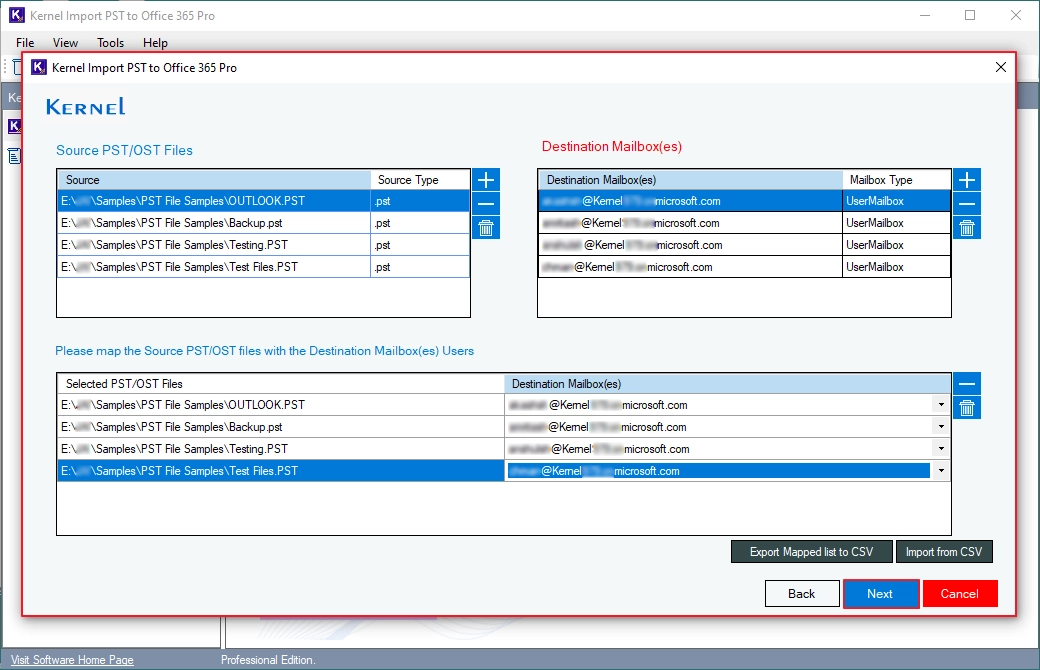
Map PST files to specific Office 365 user mailboxes with a CSV file. Add source and destination details in a single CSV file and upload it directly to the tool.

Schedule PST Migration Tasks
Automate the PST data migration process using Schedule feature. The software allows users to schedule the import PST to Office 365 job on a daily, weekly, and monthly basis, along with their preferred start and end times.

Import PST Without Installing Outlook
No need to install Outlook to import PST files to Office 365. Our software connects Office 365 account and transfers PST data directly without setting up Outlook, to make the process simple for individual users or IT admins.
How to Import PST Files to Office 365?
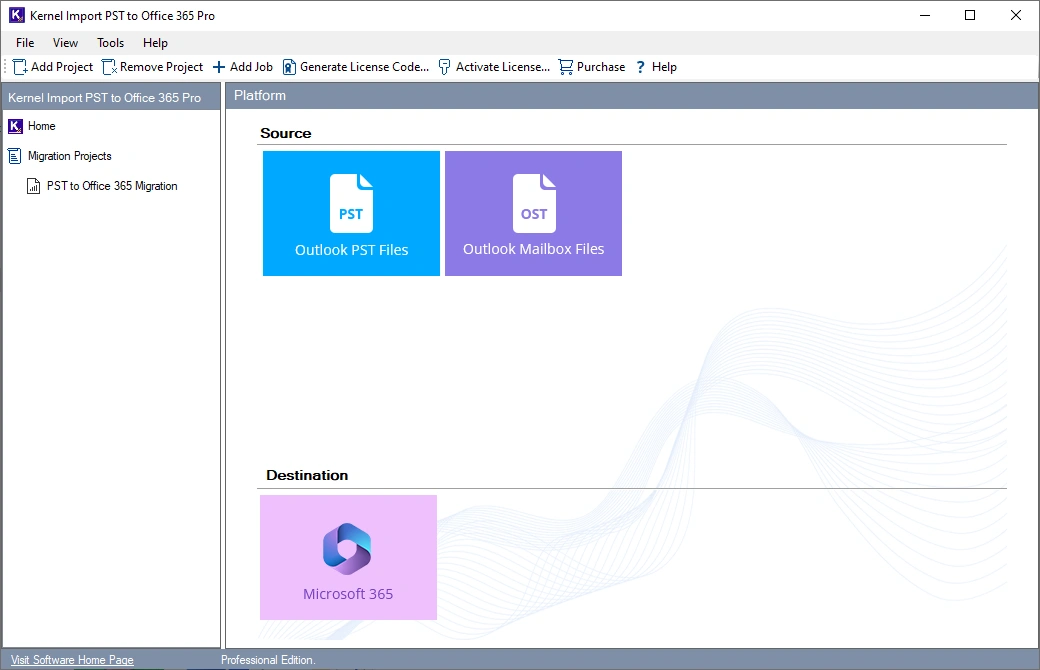
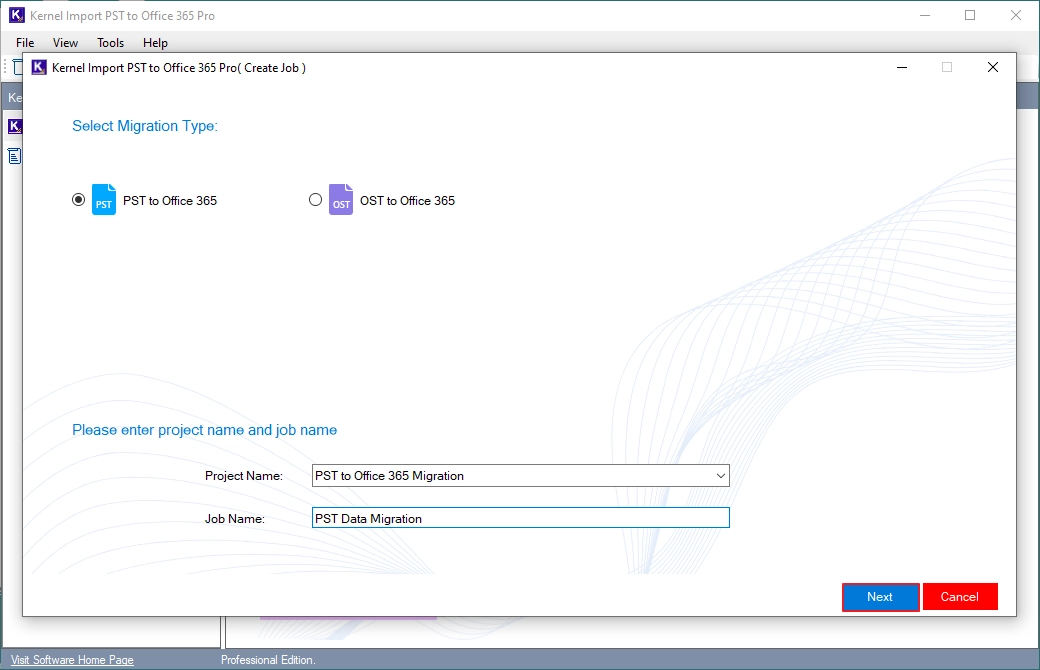
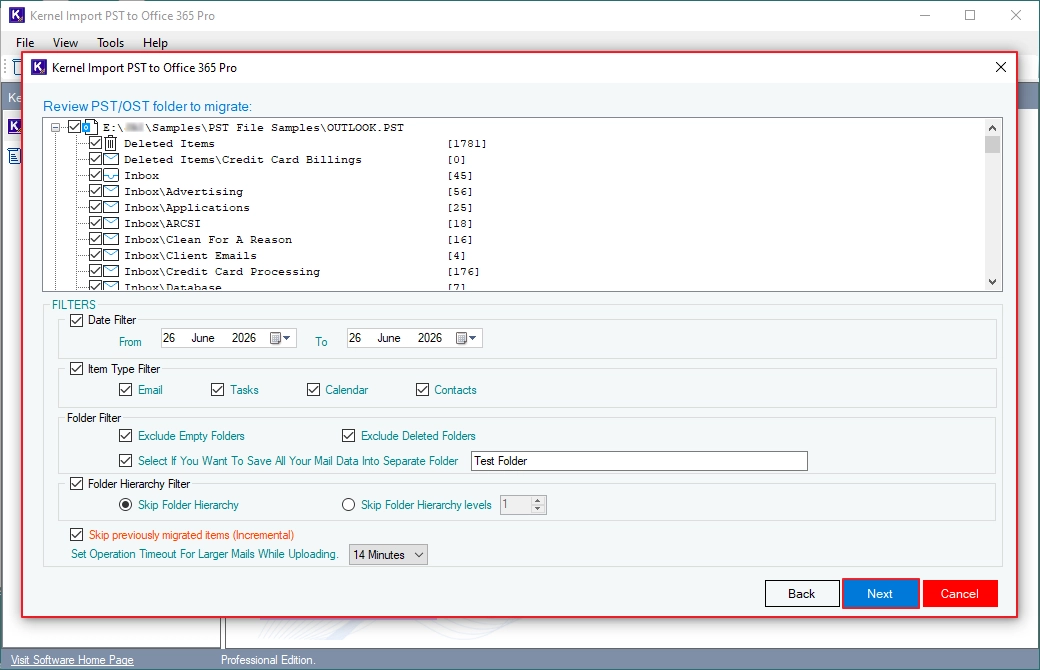
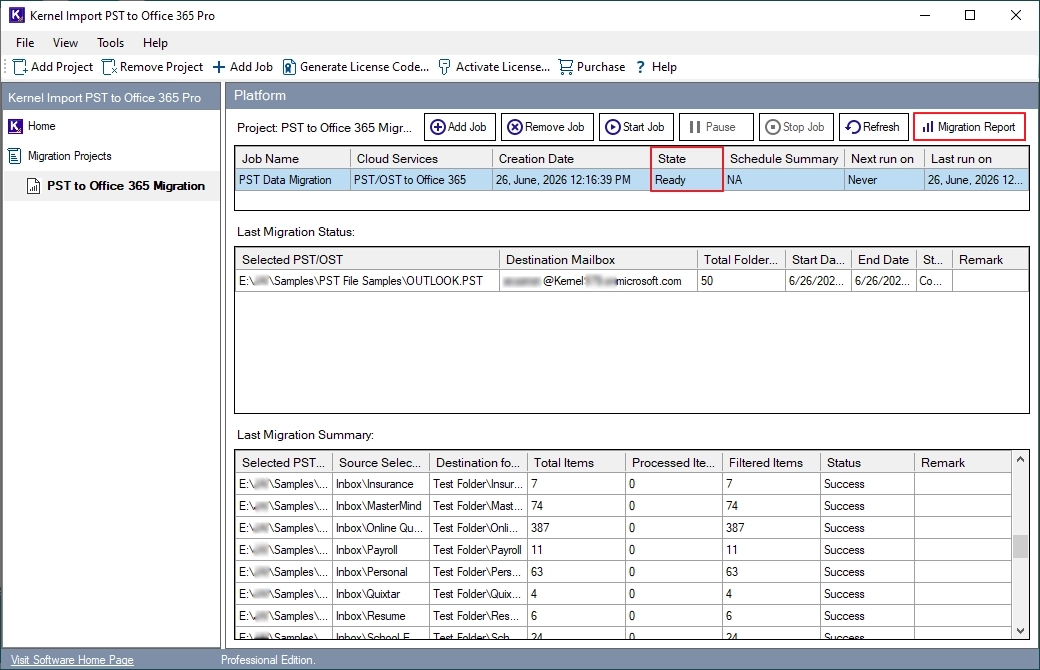
Here is the complete step-by-step process to to import PST files to Office 365 using Kernel Import PST to Office 365 Pro.
Key Features of Kernel Import PST to Office 365
Explore features of our software that help you successfully import PST files to Microsoft 365.

Import Outlook Data Files to Office 365
The PST to Office 365 Migration tool allows you to import Outlook data files (.pst / .ost) to Office 365. Migrate emails, contacts, calendars, attachments, and other data items from source OST and PST files with original folder structure and metadata.

Import PST Files to Office 365 Mailboxes
Securely Import PST files to Office 365 Shared mailboxes, Archive mailboxes, and Primary mailboxes. You can easily transfer PST file data to the required Office 365 mailbox without any restrictions.

Import Emails with Attachments
Import multiple email attachments in original raw format to Microsoft 365 with file name, format, and attributes. Get all your attachments, including images, Docs, PDFs, Excel sheets, and other digital documents in Office 365.

Migrate Contacts and Calendars to Office 365
Import only Contacts and Calendar items from PST files to Office 365 with Item Type filter option. Keep all your important contact details, meetings, appointments, and schedules intact in your destination account.

Import PST to Office 365 Groups and Public Folder
Our software allows you to directly import PST files to Office 365 Groups and Public Folders. Transfer all your PST data into your selected Office 365 Groups and Public Folders in the original hierarchy.

Incremental PST Migration
Skip already migrated items using Kernel Import PST to Office 365 incremental migration feature. Migrate only newly added data to eliminate data duplication in Office 365.

Import Selective PST File Data to O365
Customize your import PST to Office 365 process to upload only the required data using filters. Transfer specific data using folder selection, date range filter, or option to exclude deleted and empty folders.
Real-Time Migration Tracking
Monitor every PST import process in real time with two detailed reports: Progress Status and Current Migration Summary. Track the import process and stay informed about the folders and PST files imported.

Free Import PST to Office 365
Download Free Import PST to Office 365 software and test all its capabilities without any feature restrictions. It allows you to add bulk PST files, map Office 365 mailboxes, and verify migration results before purchase. The free version lets you save up to 50 items per folder.
- 20+ Data migration expertise
- 2K+ Organizations served
- 50K+ PST files imported
- 4.9/5 Customer rating
- 24/7 Customer support
Compare Manual PST Import with Kernel Import PST Pro
Here are some PST migration challenges and how you can overcome them with Kernel Import PST to Office 365 Pro.
Manual Import Challenges
- Import failure with large PST files.
- Daily ingestion limits 24 GB per day.
- Only the admin can import PST to Office 365.
- Drive Shipping method takes several days.
- Complex setup and CSV mapping errors.
- Difficult to manage multiple PST imports.
How Kernel Solves It
- Successfully imports large PST files.
- No ingestion rate limits (depends on tenant throttling & network speed).
- Any user can import PST files with admin credentials.
- Direct import PST from local, network, and external drives quickly.
- Easily upload PST to Office 365 without any PowerShell commands.
- Bulk PST migration with concurrent processing.
Free vs Full Version
Video Tutorials - Kernel Import PST to Office 365
Watch these videos to learn how to import PST file(s) to Microsoft 365 using EWS and Graph API.
Frequently Asked Questions
Find answers to common questions about our Import PST to Office 365 software.
What is Kernel Import PST to Office 365?
Kernel Import PST to Office 365 is software designed to migrate bulk PST and OST files to Office 365 for one or multiple users. It lets you map PST files to specific Office 365 user accounts for precise data migration. Multiple filters, scheduling options, and incremental migration help you customize the PST import process.
Can I import bulk PST files to Office 365?
Yes, our software allows you to import bulk PST files without any size restriction to Office 365.
Can I import Contacts and Calendar from my PST file to Office 365 account?
Yes, you can easily import your Contacts and Calendars from PST files to Office 365.
Can I import multiple PST files to different Office 365 mailboxes?
Yes, you can import multiple PST files to different Office 365 mailboxes and import data in specific user’s mailbox without any manual mapping.
Can I import PST files into primary, shared, and archive mailboxes directly?
Yes, you can import PST files into primary, shared, and archive mailboxes. Simply map your PST files to any mailbox and import your data directly. Apart from these mailboxes, you can transfer PST data in Office 365 Groups and Public Folders.
Will attachments, contacts, calendars, and tasks be imported from PST files?
Yes, all your email’s attachments. Contacts, calendars, and tasks will be imported from your selected PST files to Office 365.
Can I import PST files containing non-English characters?
Yes, our Import PST to Office 365 software supports UNICODE PST files and can easily import PST files containing non-English characters of any language.
Can I import PST files to Office 365 without Outlook?
Yes, this tool allows you to import PST files directly to Office 365 without Outlook.
Do I require PowerShell commands when using this tool for PST to Office 365 migration?
No, you don't need to run any PowerShell commands or scripts to import PST to Office 365 with our tool.
Does the tool support incremental PST import to Office 365?
Yes, our tool supports incremental migration to skip duplicate emails while importing PST files into Office 365.
Does the software support large PST files?
Yes, the software supports large PST files regardless of their size.
Does Kernel Import PST to Office 365 support Microsoft 365 Modern Authentication?
Yes, Kernel Import PST to Office 365 Pro supports Microsoft Modern Authentication and connects Office 365 securely using the Microsoft Graph API.
Is it possible to import specific mailboxes during the PST migration to Office 365?
Yes, you can import specific mailboxes, folders, or items from the PST file with the help of filtering options to migrate PST files to Office 365.
Is there a free trial of Kernel Import PST to Office 365?
Yes, our Import PST to Office 365 tool offers a free trial version to migrate 50 items per folder from PST to Office 365. For complete PST data migration, buy the full version.
Which Office 365 plans does this software support?
Ans. The software supports the below Office 365 plans:
- Microsoft 365 Business Premium
- Microsoft 365 Business Standard
- Microsoft 365 Business Basic
- Office 365 Business Essential
- Office 365 F3
- Office 365 F1
- Office 365 A5
- Office 365 A3
- Office 365 A1
- Office 365 Enterprise E5
- Office 365 Enterprise E3
- Office 365 Enterprise E1
- Exchange Online Plan 2
- Exchange Online Plan 1
What Experts Say
Explore what IT experts say about their experience with Kernel Import PST to Office 365.
 Victor Paul, CTO
Recently, I was planning to move my business account data stored in old PST files to Office 365. Due to lack of technical expertise, I was facing issues in doing that. Then I found about Kernel Import PST to Office 365 tool and the tool imported all the files very smoothly.
John Doerr, CEO
I would simply say that this tool has helped in running an organized and convenient PST to Office 365 migration of mailboxes, which once seemed next to impossible due to lack of appropriate resources.
Emily Carter, IT Manager
Kernel Import PST to Office 365 helped us import hundreds of PST files to Microsoft 365 with complete accuracy. The migration finished successfully, and all emails, contacts, calendars, and attachments remained intact. I highly recommend this tool for business migrations.
Import PST to O365 Software Prerequisites & recommendations
 About Software
Version: 26.0
Release Date: Feb 2019
Update Date: July 2026
License Type: Home, Corporate & Technician
 Version Support
MS Outlook: Office 365 Outlook, 2021, 2019, 2016, 2013, 2010, 2007, 2003, 2002, 2000, 98 and 97
Office 365 (Microsoft 365): All plans, including Office 365 (Microsoft 365) Enterprise E1, E3, E5 & Exchange Online Plan 1, 2, Microsoft 365 Business Premium, Office 365 A1, Office 365 A3, Office 365 A5, Office 365 F1, and Office 365 Business Essentials.
 System Requirements
Hard Disk: 2 GB of disk space
Memory: 2 GB Minimum
Processor: Intel® Pentium Processor compatible (x86, x64) or equivalent
Operating System: Windows 11, 10, 8.1, and older versions Windows Server 2022, 2019, 2016, 2012, 2008 R2, 2008, 2003 R2, 2003
 Installation Guide
 How to use
What customers say about Import PST to Office 365 Tool
A consistently reliable solution for PST to Office 365 migration! Kernel's import tool proves itself as a dependable choice, ensuring trustworthy and efficient results every time.
