Read time: 9 minutes
The term “Audio Video Interleave files” refers to a video file format that is frequently used to store and transfer audio and video data through the internet and other well-liked media. Microsoft first introduced this format. Known for its efficient compression, AVI files maintain high quality and require less storage space. They are widely supported across various operating systems like Windows, Mac, and Linux.
However, AVI files can become corrupt, just like other video file types. Whether they are kept on a hard drive, memory card, or USB flash drive, they are susceptible to corruption. When an AVI file becomes corrupt, many media players fail to play it.
Fortunately, there are ways to repair corrupted AVI files. In this article, we’ll explain how to identify corrupted AVI files, the reasons for corruption, and how to fix AVI files using both manual and automated methods.
How to Identify Corrupt AVI Video File?
Identifying a corrupted AVI file is a task that is difficult to master. Some of the signs are mentioned below, which will help you to identify a corrupt AVI file:
- You are unable to play the video file with an error stating that your file fails to play.
- Video is patchy, sluggish, flickering, or choppy.
- It is unplayable with any media player.
- There is distorted or no audio in the file.
- The audio and video of the file don’t sync.
- There is no video, just audio.
- Video stops playing after some time, when you can see the remaining time.
- Blurry, grainy, or pixelated video quality.
- The video is skipping the frames.
- There are glitches in frames.
- The video is showing an incorrect duration.
Reasons for AVI Video File Corruption
An AVI file may get corrupt due to many reasons, and knowing those reasons is important as well. Some common reasons are as follows:
- Sudden power failure while editing/saving the AVI video file.
- Damaged index causes corruption in the video file.
- Bad sectors on the hard drive may also affect the AVI file.
- Corruption in the storage drive where the video file is saved.
- Any interruption while downloading or transferring the video file.
- Any electromagnetic interference in the drive causes issues in the file.
- Virus or malware attacks can also corrupt AVI video files.
Use the top-quality Kernel Video Repair tool free version to fix the AVI file corruption issues. Download it now to repair up to 30 seconds for free.
Professional Video Repair Tool to Fix AVI Files For Free
Kernel Video Repair is one of the most powerful and widely recommended tools to repair video files effortlessly. It supports AVI, MP4, MOV, MPEG, MJPEG, MTS, M4V, etc., and fixes them in a few easy steps.
You can repair corrupt videos irrespective of their file size and format. Just download the trial version of the tool and get hands-on experience by repairing the corrupted/damaged videos for free. Here is how the tool works:
Step-by-Step Process to Repair AVI files
Here are some simple steps that you can follow to repair corrupted AVI file with ease:
Step 1: Download, install, and launch the Kernel Video Repair tool in your system.
Step 2: Launch the tool and click on the +sign to add the corrupted AVI file.
Note: You can also drag and drop video files into the tool.
Step 3: Select the corrupt AVI files and tap on Open.
Step 4: The chosen video files will be listed. Click Repair File.
Note: Add the Reference file (if asked) to start the repair process.
Step 5: Specify the saving location where you want to save the recovered video files. Click OK.
Step 6: The tool will start repairing your corrupted AVI file. Once completed, you can check the recovered video files at your preferred location. Click Close. The repaired file gets saved at the specified location.
Manual Methods to Repair AVI Files | Top 5 Solutions
Although the tool is adept enough to fix the AVI file corruption issues, still the users must be aware of the manual methods available. Take a look at the efficient methods given below to repair AVI files with ease.
Method 1. Play the AVI File with a Different Media Player
Sometimes, the problem isn’t with the file itself but with the media player. You can try using a different media player like VLC Media Player or KMPlayer, which can fix AVI file and then play. If this method works, you’re all set! If not, move on to the next method.
Method 2. Use VLC to Repair AVI Files
VLC is not just a media player; it can fix damaged AVI file temporarily. VLC provides an automated feature to repair the damaged index as soon as you launch the affected .avi file. Moreover, it can fix AVI files, MP4, MOV, and can also repair corrupt FLV video files. Here are the steps to enable automatic repair in VLC Media Player:
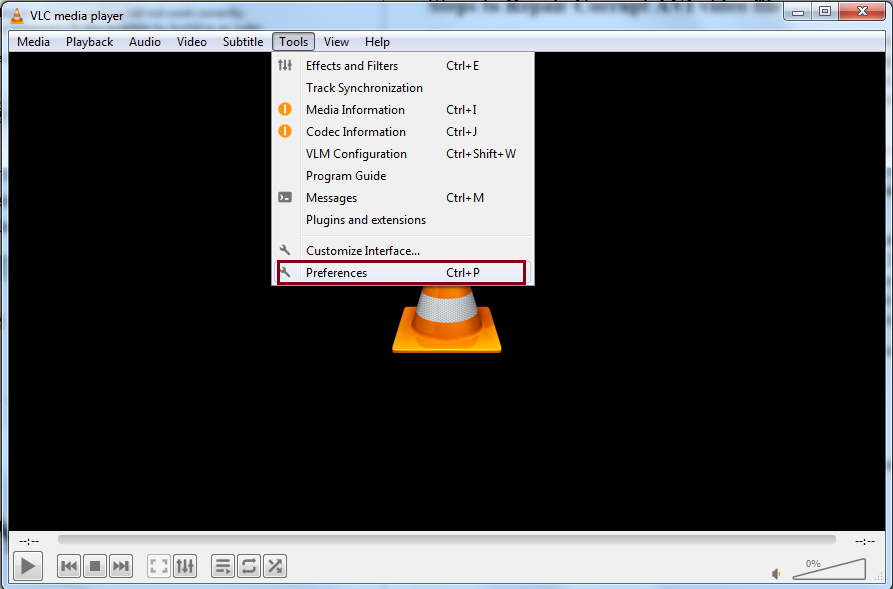
- Open VLC Media Player in your system. Click Tools and go to Preferences.
- Tap on the Input/Codecs tab, and in Damaged or incomplete AVI file, select Always fix and then click on the Save button.
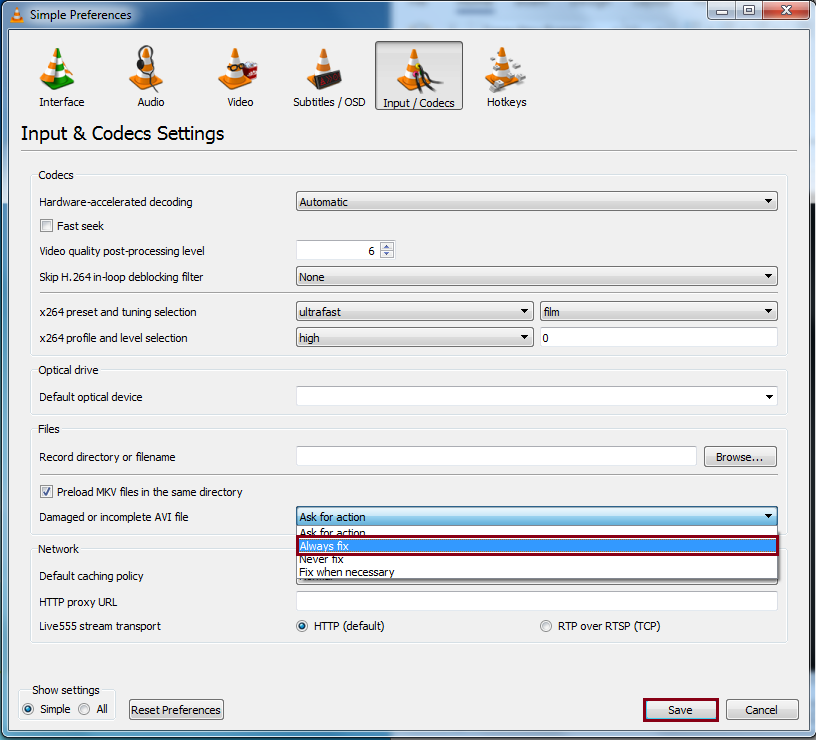
Now, if you open any damaged or corrupt AVI file through VLC, the application will automatically fix AVI files’ index and play the file for you.
Note: VLC media player doesn’t provide a permanent solution to repair AVI file index; instead, it only fixes the issue while playing the video.
Method 3. Change the File Extension
In some cases, the AVI file might have a wrong or broken extension. Changing it could help to fix corrupted AVI files effectively. Here are the steps to follow:
- Locate your AVI file, right-click on it, and select Rename.
- Change the extension from .avi to .mp4 (or another compatible format).
- Press Enter and try opening the file again.
Note: Problems with the computer driver may also be the culprit for AVI file corruption. To fix AVI files, try to check and update the System Video Driver. For this, go to Start, then Device Manager, then expand the Video/Audio driver.
Method 4. Convert AVI File Format to Different One
Sometimes, the extension (.avi) becomes incompatible with the system. In such a case, you can convert a video format to another one to fix AVI files. For this, you can use the VLC Media Player application. Here is how to do so:
- Open VLC Media Player and click on File. Select Convert and Save.

- Click Add and select your AVI video file. Click Convert/Save.

- In Profile, choose a reliable format from the dropdown. Click Browse and specify the saving location. Click Start.

Wait for a few minutes, and your video file will be converted into the preferred one. Now, try to play the video.
Method 5. Use Command Prompt to Repair AVI file
If you’re a Windows user and have some familiarity with command prompt, then you can use this method to fix corrupted AVI files. Here is how:
- Press Windows + R, type cmd, and hit Enter.
- Type chkdsk [drive letter]: /f (e.g., chkdsk C: /f) and press Enter.
This checks the disk for errors and attempts to fix any issues with the file system.
Conclusion
This article aims to assist users looking for practical solutions to fix AVI file problems. However, VLC is useful, and you can use this media player to convert and resolve low-level corruption concerns. Even VLC appears to be useless if your .avi format videos are severely damaged.
In short, the manual methods come with limitations that may bother you when repairing AVI files. But the Kernel Video Repair tool makes the AVI video repair process efficient and hassle-free. Download the free trial version and test its efficiency!
Frequently Asked Questions
Ans. Yes, you can fix a corrupted AVI file online, but there is a risk of quality loss and data theft. So, it is not recommended to use online tools to repair AVI files that are confidential.
Ans. You can fix corrupted AVI files with a free media player like VLC. But if the outcomes aren’t satisfying, choose a professional AVI repair tool.
Ans. Just install and open VLC Media Player. Tap on the Tool tab and select Preferences. Go to the Input/Codecs menu, click the dropdown menu beside Damaged or Incomplete AVI Files, and select Always fix. After these steps, open your AVI files in the VLC Media Player.