Read time: 6 minutes
Nothing’s as frustrating as discovering that the video you recorded a while ago was too blurry to use. Out of focus videos generally lack definition and sharp visuals. Usually, due to poor lighting or resolution, this issue can ruin a near-perfect shot.
In this blog, you’ll get to know the best ways to fix out of focus video and in-depth reasons why this issue occurs. First, let’s get to the reasons why users face this issue.
Common Reasons Behind the Out of Focus Video Error
You need to understand the root cause of this error to choose the perfect method to repair blurry videos. Some common reasons why this error occurs are:
- Camera movement: Shaking of the camera or making videos while moving can result in blurry/out of focus videos.
- Poor lighting: Cameras can’t focus properly on objects in areas with poor lighting. The camera’s sensor takes longer to detect and focus, which is why the video comes out unfocused.
- Incorrect focus mode: Shooting with single-shot focus setting while in motion can lead to the wrong focus plane, resulting in blurry videos in the output.
- Dirty camera lens: Dust or fingerprints, or even oil stains, can dirty the camera lens, affecting video quality.
- Incorrect camera settings: Using a wide aperture setting on your camera (f/1.8 or f/2.0) makes it easy for the subject to fall out of focus while recording a video or clicking an image.
Methods to Fix Out of Focus Videos
Now that we understand the reasons why videos come out unfocused, let’s learn about the best methods to fix unfocused video footage.
Important note: Do note that the given methods can repair out of focus videos up to a certain extent. If the distortion is too high, full video recovery may not be possible. Also, remember, a perfectly focused video would always look way better than a video that’s been sharpened manually.
Method 1. How to Fix Unfocused Video in Adobe Premiere Pro?
Adobe Premiere Pro is a professional video editing utility used by Industry professionals to edit and enhance videos of several formats. With the Unsharp Mask feature of this professional software, users can try to repair their out of focus videos.
- Open Adobe Premiere Pro and import the video you want to repair.
- Move the clip to the timeline and go to the Effects tab.
- Search for the Unsharp Mask effect in the search bar and drag it onto your video’s layer.
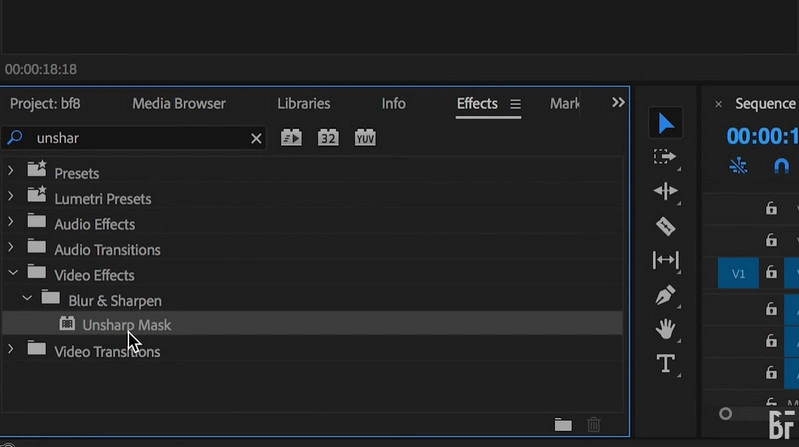
- Move and adjust the Amount slider as per your need to sharpen the blurry video. Be careful, increasing the amount too high can introduce unwanted noise in the video.
- Also, adjust Radius and Threshold to refine the sharpening effect in the video.
- You can also apply additional features like Sharpen and Wrap Stabilizer to refine the output video file.
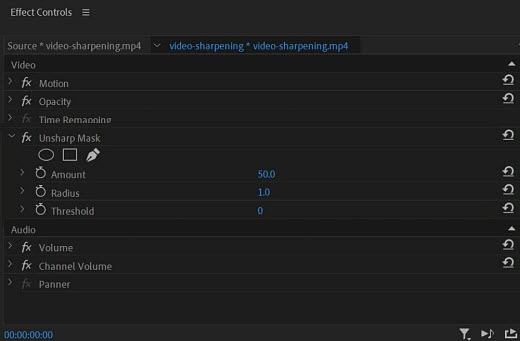
- Preview the video footage to see if the added effects worked well or not.
- Export the final output video once satisfied with the results.
Method 2. How to Fix Out of Focus Video in After Effects?
Adobe After Effects is a known tool for individuals familiar with post-production video editing. This utility offers several features and effects to improve video quality. Follow the steps below to use this tool:
- Open Adobe After Effects on your system, create a brand-new composition, and import the blurry video into it.
- Go to the Effects tab and click on the Blur & Sharpen option.
- Then select the Unsharp Mask effect and apply it to your video file.
- Adjust the Amount, Radius, and Threshold settings as per your requirements carefully.
- Go back to the Effects tab and choose the Distort effect. Click on the Detail-preserving Upscale option to enlarge the video and improve its sharpness.
- Preview all the adjustments that you’ve made to your video and adjust wherever needed.
- Finally, export the final output video to the location of your choice.
Limitations of the Given Methods
The main limitations of the above methods include:
- Users having no knowledge of video editing may find these methods too tricky to perform. The given tools are primarily used by professional video editors having considerable knowledge in the field.
- Rendering a large size video or with a lot of effects takes a lot of time.
- Videos that are too blurry can’t be recovered fully with these tools.
- There’s a chance of data loss and process failure while working with these tools.
What Precautions Should You Take to Avoid Out of focus Video Issues?
There are several precautions that you must keep in mind to prevent your videos from being blurry in the future. The most essential precautions include:
- Use a camera stabilizer: The most common issue, due to which videos come out blurry, is the shaking of the camera. Place the camera on a steady surface or use a tripod to prevent this in the future.
- Lock focus setting in the camera: Set the aperture setting carefully and make sure you’re not using the Autofocus setting to avoid out of focus videos.
- Avoid poor lighting areas: Avoid shooting in areas with poor lighting and utilize natural and artificial lighting as much as you can.
- Clean camera lens: Often, the camera lens is too dirty when shooting a video; clean it gently with a soft cloth to improve video quality.
How to Fix Out of Focus Video with Kernel Video Repair?
Using a professional Video Repair tool is the best bet for safe and efficient recovery for people who don’t have any knowledge of video editing software. This advanced software fixes the blurriness in the uploaded video files and recovers them without losing the formatting.
Use this tool to repair damaged files of different formats like MP4, MKV, MOV, AVI, etc. Moreover, this tool also addresses other video streaming issues like flickering, glitching, playback issues, audio issues, etc. With advanced algorithms to fix highly damaged media files and an easy-to-use interface, this tool is the perfect choice for individuals and professionals looking to repair their videos with 100% accuracy.
Conclusion
Hope this detailed guide could help you fix unfocused video files without losing their original quality. If the distortion isn’t too much, users can recover the video files using Adobe Premiere Pro and After Effects. But if that seems too tricky for you, give Kernel Video Repair a try. Learn more about this tool on our official website and download its free trial today.
Frequently Asked Questions
A. Yes, there are ways to fix blurry videos with the help of video editing tools like Adobe Premiere Pro and After Effects. However, if these methods seem too complex for you, try using a professional video repair tool like Kernel Video Repair.
A. The reasons can range from a dirty camera lens to poor lighting to incorrect camera settings.
A. Import the unfocused video to the Premiere Pro tool and use the Unsharp Mask effect to fix the unfocused video file.