Read Time: 10 minutes
Disappearing chats from Teams is a common issue that users often face. Microsoft Teams chats can disappear without being intentionally deleted. We can consider that you may not have deleted them. Maybe there is a temporary sync problem, a hidden chat, an account issue, a meeting-chat restriction, or a retention policy that is resulting in the ‘Microsoft Teams chat disappeared’ issue.
Here, Cristin Wilson faced a similar issue when several important Teams chats suddenly disappeared.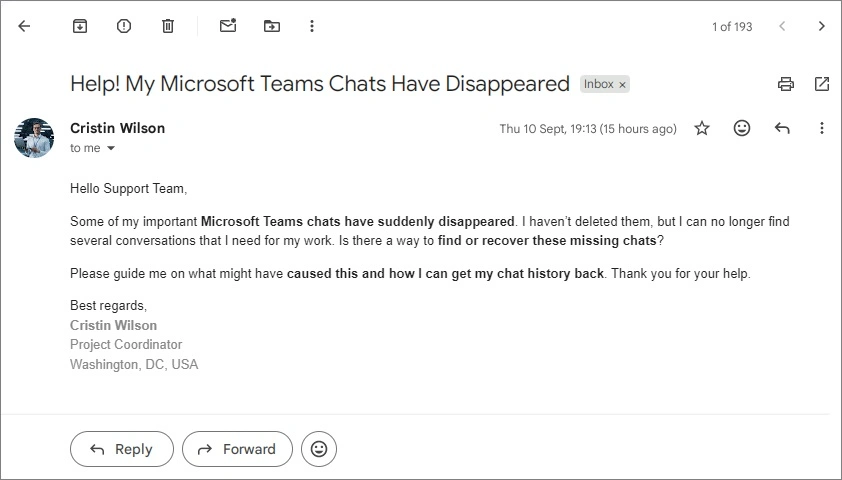
If you are facing the same problem, don’t rush to vague practices. In this article, we’ll guide you through the same steps as we helped Cristin. Let’s identify the cause and what you must do for resolution when your Teams chats disappeared.
Why Did Your Microsoft Teams Chats Disappear?
You can find several reasons for Teams chats disappearing issue. Some common ones are:
- Teams application is outdated
- Teams is not synchronizing correctly
- The desktop or mobile app has old local data
- Your internet connection is unstable
- The chat is hidden or no longer visible in your chat list
- Teams chat history is missing due to problems related to Windows
- You are signed in to a different Microsoft 365 account or organization
- Access to a meeting chat has changed, and Microsoft Teams chat disappeared
- Teams messages disappeared due to the organization’s retention policy
- Chat disappeared from Teams because of an organization-wide Teams or service issue
How to Fix Disappeared Chats in Microsoft Teams Issue?
To fix the disappeared chats in Microsoft Teams problem, you need to follow the given methods in order. The first few steps involve checking common app and synchronization problems, and the later steps cover account, meeting, and retention issues as well.
Check for Microsoft Teams Version
Your Microsoft Teams application might be outdated. To get chats back and improve Teams performance, update or check your Teams app status. Follow the steps below:
- Open Teams, tap on your profile picture, then click Check for updates.
If you’re running the latest stable version, move to the next check. Sometimes users also find their Teams chats have disappeared after an update.
Check Teams on the Web
When your Teams chat disappeared, open the Teams web version and sign in with the same Microsoft 365 account and search for the missing conversation.
If the chat appears on the web, your messages are still accessible through Teams. If the chat is also missing on the web, do not assume that clearing the cache will recover it; you’ll need to follow further steps [discussed below].
Restart Microsoft Teams
Usually, a simple restart can refresh the Teams connection and reload messages that did not synchronize correctly. So, immediately close Microsoft Teams and open Teams again. Wait for your chats to load and check the missing chats and conversations once loaded successfully.
If Teams shows a Refresh option because of a synchronization problem, use it. Still Teams chat history missing issue persists, move to the next fix.
Check Your Internet Connection
A stable internet connection is always needed when working in Microsoft Teams to load and synchronize conversations. So, test the device connection status, or run a quick network (Ping) command to check your internet connection. If it is unstable, reconnect to your network and restart Teams.
Sign Out and Sign Back In
Temporary authentication tokens and local cache data become outdated over time, so an old sign-in session can restrict Teams from loading the latest conversations correctly. To refresh your session:
- Open Teams, tap on your profile picture, then click Sign out.
- Close Teams, open it again, and sign in with the correct Microsoft 365 account.
After successful sign-in, check your chat history.
Reset the Microsoft Teams App
After checking Teams on Web, if your chats appear in Teams on the web but not in the desktop app, the local Teams application may be holding old or corrupted data. On Windows, you can clear Teams cache and try the app reset option:
- Open Settings, go to Apps > Installed apps.
- Find Microsoft Teams, tap on the three dots, select Advanced options, then Reset.
Open Teams again and sign in. This refreshes the local application state.
No, resetting Teams won’t delete your chats or important data. However, you can manually delete Teams chats.
Search for the Missing Chat
You can use the Teams’ Search feature to find the specific conversation that you’re supposed to be missing. You can search using:
- The person’s name
- A group member’s name
- A phrase from the conversation
- A message keyword
- The meeting name
If the conversation appears in search, open it and check whether the previous messages are available or the Teams chat history is missing.
Chat Might be Hidden
Teams allows users to hide chat, so missing chat is not always a deleted chat. If you cannot find a conversation in the normal chat list, search for the person or group. If the conversation appears, check whether it has been hidden or removed from your visible chat list. If you can locate the conversation through search, you may not need any recovery method at all.
Login Using the Correct Microsoft 365 Account
Users always overlook this while working with multiple accounts or organizations. So, you must check for:
- The email address currently signed in
- Your Microsoft 365 organization
- Check the type of account: guest, member, or owner
- The missing conversation belongs to another organization
Note: A chat associated with one Microsoft 365 account or tenant may not appear when you are signed in to another.
Check What Type of Chat Has Disappeared
Since Teams handles access and retention differently across these types of conversations, you just check the affected conversation. Before troubleshooting further, visit Teams chat location to identify the affected conversation. It may be a one-to-one chat, a group chat, a meeting chat, or a channel conversation.
Check Your Access to a Meeting Chat
Meeting-chat availability can depend on factors such as how you were invited, whether you joined as an external or anonymous participant, and the meeting’s configuration. So, if an old meeting conversation is missing, ask:
- Was I part of the original meeting invitation?
- Did I join using a meeting link?
- Was I added to the meeting later?
- Was I an external or anonymous participant?
- Can the meeting organizer or another participant still see the chat?
Note: Do not assume that missing meeting-chat history means the messages were deleted.
Test Teams on a New Windows User Profile
Sometimes user-specific Windows settings cause sync issues. However, you can create a new Windows user profile and test Teams to find the missing chats. Here are the steps to follow:
- Go to Settings in Windows and tap on Accounts.
- Select Other users (Other user / Family & other users) and tap on Add Account (Add someone else to this PC).
- Choose Account Type from: Local Account or Microsoft account for login.
Once logged in successfully, download the Teams app and check for your missing chats.
Additional Methods to Fix Microsoft Teams Chat Disappeared Issue
Even after following the above series of methods, if you’re still facing missing Teams chat history problem, then retention policy or organization issues can be the real cause:
Check Retention Policy That Deleted the Messages
Microsoft 365 admins can create retention policies that make decisions to retain, delete, or retain for a period and then delete Microsoft Teams chats. Current Microsoft documentation covers retention for Teams chats and channel messages, including different Teams content locations. These policies can affect:
- One-to-one chats
- Group chats
- Meeting chats
- Channel messages
- Shared-channel messages
- Private-channel messages
The exact policy depends on how your organization has configured Microsoft Purview.
Scenario: Suppose your organization has a policy that keeps certain Teams messages for a defined period and then deletes them. Once the retention period expires, affected messages can be removed from the Teams interface. As per Microsoft, messages deleted by a retention policy cannot be recovered by the end user through Teams. So now, what should you do?
If messages are missing from both the desktop and web versions of Teams, contact your Microsoft 365 administrator and ask them to check:
- Teams retention policy applies to the affected chat
- The retention period
- The missing messages are within that period
- Another policy or compliance setting applies
- The conversation is subject to an eDiscovery or retention hold
Contact Your Microsoft 365 Admin
If the chat is missing from both Teams web and the desktop app, and the basic troubleshooting steps have failed, it is time to involve your IT admin. Admins are the first support resource for many organizational Teams problems because admins manage Teams settings and policies. Ask the administrator to investigate:
- Retention policies
- Teams and meeting policies
- Account or tenant configuration
- Administrative deletion
- Compliance settings
- Organization-wide Teams issues
If the issue cannot be explained by your organization’s configuration, the admin can contact Microsoft Support.
Quick Overview: How Can You Recover Permanently Deleted Teams Chats?
Depending on why the chats disappeared, you can recover permanently deleted Teams chats. The table below includes situations and what you should do to recover deleted Teams chats.
| Situation Where You’re Stuck | What You Can Do to Get Rid Of |
|---|---|
| Chats appear on Teams web | Fix the desktop/mobile app |
| Local synchronization problem | Restart, sign out/in, or reset the app |
| Chat is hidden | Search for and reopen the conversation |
| Wrong account/tenant | Sign in with the correct account/credentials |
| Meeting-chat access issue | Check meeting invitation and chat access |
| Retention policy deleted messages | Contact the Microsoft 365 admin |
| Organization-wide issue | Ask the admin to check policies |
| Permanently deleted content | Recovery may not be possible without backup |
How to Prevent Important Teams Chats From Becoming Difficult to Recover
Team conversations can contain important data from customer discussions to project decisions, approvals, instructions, and other business records. To reduce the risk of losing access to important information:
- Understand your organization’s Teams retention policy
- Do not assume that the Teams message is kept indefinitely
- Have an admin guide on how Teams data is retained and handled
- Plan Teams data backup before a Microsoft 365 tenant migration or organizational change
- Get an appropriate backup, export, or migration solution accordingly to manage your Teams data.
Need to Move Teams data between Microsoft 365 Tenants?
If your missing chats are related to a Microsoft 365 tenant change or organizational migration, troubleshooting Teams may not be enough. In such cases, the Kernel Microsoft Teams Migration tool can help organizations move important Teams data to a new environment. It provides a practical way to migrate chats in Microsoft Teams when preserving conversations is part of a planned migration.
Key Takeaways
We hope you now understand all about the Microsoft Teams chat disappeared issues. When such issues occur, start by checking the Teams version and internet connection. If they are updated and stable, log in to Teams for the web with the same account and check for Teams chats that have disappeared. If they are shown in Teams for the web, fix the application by resetting it, clearing the cache, signing out, and signing in, etc. If the issues still persist, check the retention policy, contact your IT admin, or contact Microsoft support.
Frequently Asked Questions
A: Microsoft Teams chat history is stored in a hidden TeamsMessagesData folder inside each user’s cloud-based Exchange Online mailbox.
A: Teams chats can disappear from view because of a synchronization issue, outdated local app data, a hidden conversation, account or access changes, meeting-chat restrictions, or a retention policy.
A: This mainly occurs when your desktop app has problems. To fix it, restart Teams, sign out and back in, and reset the Teams app if needed.
A: Older messages may be missing by an organization’s retention policy.
A: Meeting-chat access depends on the meeting type, your relationship to the organization, how you joined or were invited, and the meeting’s chat settings.
A: If multiple users cannot see the same conversations on both Teams desktop and web, contact your Microsoft 365 admin. Check retention policies, administrative actions, meeting/chat policies, and, if possible, contact Microsoft support.