


Read time: 6 minutes
User Query: “I have a lot of deleted files lying in the Recycle Bin of my Windows PC. I want to delete them permanently to claim the available space. I have followed multiple methods but none of them are allowing me to select all the files to delete them permanently in one go. There must be a sure shot way to do this. Can you please help me find the best suitable solution for this?”
It is well known fact that when Windows users delete files or folders from any location on their systems, they move to the Recycle Bin. It is a desktop folder in which all the soft-deleted (simple deletion with Delete key) system drive files are stored. This temporary allows you to restore the files if they are deleted mistakenly. But these files remain accumulated in the Recycle Bin folder and consume the storage space on your system. Some users delete or empty the Recycle Bin folder to get some storage space, but they are unaware that the original saving location is still occupied. During the deletion, Windows doesn’t delete the data permanently but only flags the space as available for storage. This space will be used or overwritten only when new data is available for storage.
Let us ponder over this topic more and how to permanently delete files from recycle bin.
Why delete files permanently from the recycle bin?
Simply deleting files from the system removes them from the NTFS and moves the file to the Recycle Bin, where they are stored until you permanently delete them. Learn some concrete reasons to delete them from the bin:
Makes the storage resourceful
Files deleted from the system may become invisible to a general user and aren’t accessible, but they still consume space on the disk. Such files slow down the system’s performance rather than directly interfering with your work. Remove these files to recover this unnecessarily occupied space.
Perform actual deletion
Remove the deleted file from recycle bin to make the confidential files become irrecoverable under all circumstances.
De-clutter the storage
Files stored within the system, whether visible or hidden within the Recycle Bin, can cause an unorganized file system. Unnecessary file and folders accumulation on your system creates a messy environment, making it difficult for you to manage. Delete files permanently from Recycle Bin and make the NTFS clutter-free.
Safeguard sensitive data
Prevent identity theft and cyber breaches by deleting files permanently from recycle bin before selling or donating your PC to other users.
How to delete files from recycle bin permanently?
If you want to delete data permanently from your Recycle Bin folder, then try these methods.
Method 1: Use Shift + Delete Key Combination
To delete files permanently from their original location, select the files and then press the Shift and Delete keys together to delete files and folders permanently.
Method 2: Empty the Recycle Bin
Go to your Recycle Bin folder on your Windows system, right-click on it, and select Empty Recycle Bin. Alternatively, you can open the Empty Recycle Bin, select the required files, and then press the Delete key.
Method 3: Using File Explorer
With the File Explorer ribbon menu, you can permanently delete files from Recycle Bin. Let’s begin the process:
- Open File Explorer, select all or the desired files to delete permanently.
- From the top ribbon, go to the Delete option.
- Select Permanently delete from the dropdown.
This will bypass the Recycle Bin’s role and remove files from there.
Method 4: Modify Recycle Bin Properties
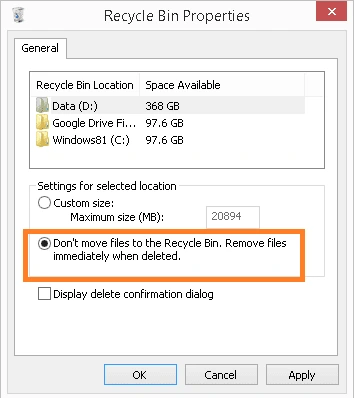
The Recycle Bin Properties can be modified to ensure the permanent deletion of files and folders, bypassing the Recycle Bin. After enabling this, you won’t see the deleted files and folders in the Recycle Bin. Follow these steps.
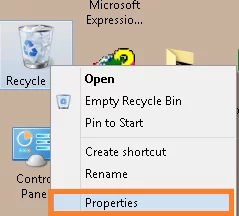
- Go to the Recycle Bin folder on your system. Right-click on the folder and then select the Properties option.
- On the Recycle Bin Properties dialogue box, select the checkbox saying Don’t move files to the Recycle Bin. Remove files immediately when deleted. Click OK.
Method 5: Set Recycle Bin to delete files automatically at a custom time
You can set a specific time period by adjusting the settings to automatically delete files from the Recycle Bin after a particular time period. Here is how:
- On your computer, open Settings and go to System.
- Select Storage and then turn on the Storage Sense.
- Under Storage Sense, adjust schedule to ”Delete files in my recycle bin if they have been there for over:”
This will delete the files from the bin after the set days, providing you an empty recycle bin.
What happens if unintended files are deleted?
Sometimes, when you’re deleting unwanted or unused files from the system, you accidentally remove the important data that needed to be preserved. In such case, you might get panic and try to look for every possible solution you can implement to recover from the situation. The best bet to get your data under such circumstances is using a reliable Windows data recovery tool that allows effortless data restoration.
Use Kernel Windows Data Recovery to recover even the hard-deleted data from the Windows system drives with 100% accuracy. It also allows you to recover data from corrupt of damaged hard drives, SSDs, NTFS partition, and data lost after a factory reset.
Automating secure deletion: Delete files permanently from the Recycle Bin
A one-stop automated solution to remove files from the Recycle Bin or locations on a Windows system is Kernel File Shredder. It shreds files and folders permanently from all system locations, including the Recycle Bin, without leaving any scope for recovery. The tool uses world-class shredding algorithms to ensure the complete removal of data from the system. Also, even non-technical users can erase data using this tool.
What does Kernel File Shredder offer?
We are listing some important features of this advanced tool for our users.
- Shredding Files and Folders from system drive locations
- Shredding Recycle Bin files and folders
- Shredding System Files – Windows objects (Windows Temporary Files), Internet objects (Temporary Internet Files, Internet Cookies)
- Shredding Free Disk Space
- Shredding useless files from the system folder or drive
- Full support for all of the Windows versions
- Log files for shredded file items process
The perfect way to understand this software’s capabilities is to go through its working steps. For that, you can download its free version from the website.
The software is easy to use and can be operated by anyone. It securely deletes files on Windows 10 and other Windows versions. So, if you have to ensure that nobody can access your deleted Windows data, trust this software.
Final Words
Even permanently deleted data (deleted using the “Shift + Delete” action or using folder property settings) from system locations is recoverable using Windows Data Recovery solutions. To erase data permanently, you can use the Empty recycle bin method, adjust the bin settings, or use a complete and reliable data shredding tool. Kernel File Shredder will shred the data completely from the system before selling it or abandoning it. Get the free trial version today and analyze the tool’s amazing functionalities.
Frequently Asked Questions
A. Yes, with the Sift+ Delete, you can delete a file permanently by bypassing the Recycle Bin. However, the experts can still recover the files using file recovery solutions until the it is overwritten by the new data.
A. Physical destruction of the storage media (crushing hard drive, drilling holes, etc.) is the most secure way to dispose of old computers and PCs without losing the data to others.
A. To delete files permanently from Windows PC, encrypt the entire drive (to make the file unreadable even after recovery), perform factory reset on your computer, or use Kernel File Shredder.


![Does Formatting a Hard Drive Delete All Data? [Explained]](https://www.nucleustechnologies.com/blog/wp-content/uploads/2022/06/900x416-8-16.jpg)