Read time: 8 minutes
Several organizations use SharePoint Sites to store, organize, and access information. They implement SharePoint to enjoy a productive data flow, allowing several individuals to collaborate. Creating a SharePoint Site is so easy and quick that teams often overuse it. Creating a collection of several inactive sites causes chaos and confusion. It is important to remove all such Sites to maintain information and minimize threats to data and its security.
Site Owners delete a SharePoint site once the project is over, and the data is no more required. But the question is, how to delete a SharePoint Site? The process is simple but varies depending on whether you want to delete a single or multiple sites or have the Admin or Owner role in the site.
Important factors before deleting a site
Deleting any item is a big step, and here we are discussing the deletion of a SharePoint Site, which is the storage space of all documents. Before removing it, you must consider all the following factors and only then hit that delete button:
- Removal of all content: Once you delete a Site, it deletes all the data it contains, including document libraries, files, subsites, lists, and all the other content.
- Delete the Subsite first: If the Site contains Subsites, then the Subsites need to be deleted first. Otherwise, you will receive this error message, preventing Site deletion: “Sites with subsites or certain apps can’t be deleted. Please try again after deleting all subsites and removing the apps.”
- Check Site usage: Before deleting the Site, it is necessary to be 100% sure that no user is currently working on it. You must check SharePoint usage report to ensure it is inactive. Also, go through the last activity and page visits columns in the Active Sites section in the SharePoint admin center.
- Migrate all essential data beforehand: Once you delete a SharePoint Site, there is no looking back. You need to migrate all the crucial data to a different SharePoint version. You can rely on the Kernel Migration for SharePoint to transfer the whole or selective data between SharePoint versions accurately and securely. This SharePoint data migration tool supports SharePoint site backup, migrate Sites, Lists, Teams, metadata, and more.
- Restore the deleted Site: Even after deletion, you can restore deleted SharePoint Sites only if they lie under the retention period. The retention period depends on the type of Site being deleted. For Modern Sites, it is for 30 days, while Classic Sites have 93 retention days. Once this period is over, the Site gets deleted permanently.
What are the required permissions before SharePoint site deletion?
Before you actually start to delete a SharePoint site, make sure you have the necessary permissions as explained:
- To delete a site in SharePoint tenant, you need to have the Site Owner permissions. This means any user who is a part of the Owners group gets Full Control and can delete the site.
- Any user who is recognized as the SharePoint/ Microsoft 365 tenant administrator can delete any SharePoint site, even those with a Microsoft 365 group.
However, you must also have the Site Admin role to delete a communication site.
Deleting a SharePoint Site
A Site in SharePoint can be deleted using PowerShell, Site Settings, or the admin center. The latter two are more accessible manual methods that a novice user can conduct smoothly.
Also, now there are Classic and Modern Sites in SharePoint. Classic Sites are standalone and can be deleted only by a Site Owner, while Modern Sites are Microsoft 365 Groups managed by their Admins.
How to delete a SharePoint Site as a Site Owner?
Only a Site Owner can delete a Modern or Classic Site individually. These methods differ slightly; you can follow the exact steps to delete the Site.
- Delete a Modern SharePoint Site:
- Open the required SharePoint Site.
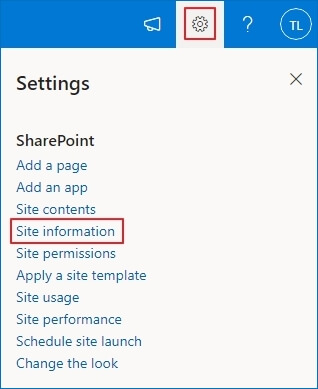
- Click the Settings gear icon on the top right and select Site information.
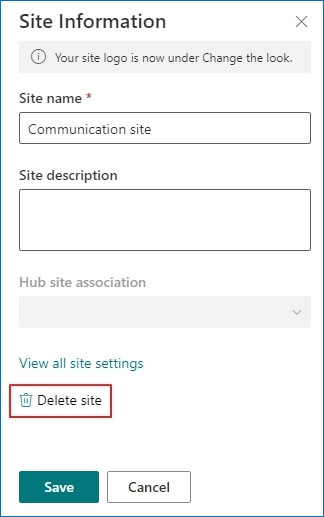
- Click on Delete Site.
- Tick the ‘Yes, delete this group and all its associated resources’ option and select Delete.
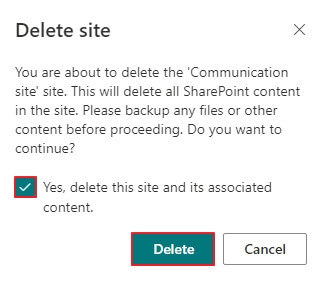
Note: If the Delete Site option doesn’t appear, you are not the Site Owner.
- Delete a Classic SharePoint Site:
- Open the SharePoint Site.
- Click on the Settings icon and select Site settings.
- Under the Site Actions section, select Delete this Site.
- A deletion warning will appear. Click on Delete and OK.
How to delete a SharePoint Site as an Admin?
A Global or SharePoint Administrator can delete a single or multiple Sites from the SharePoint admin center.
Follow these steps to delete Sites through the admin center:
- Launch the SharePoint admin center.
- Expand the Sites tab and select Active Sites.
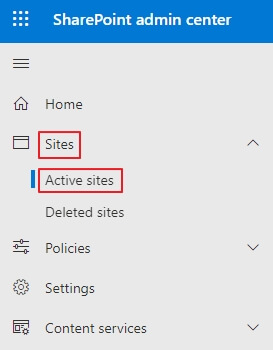
Deleting a single SharePoint Site-
Select the Site and click the Delete option. Again, click on Delete to confirm the action.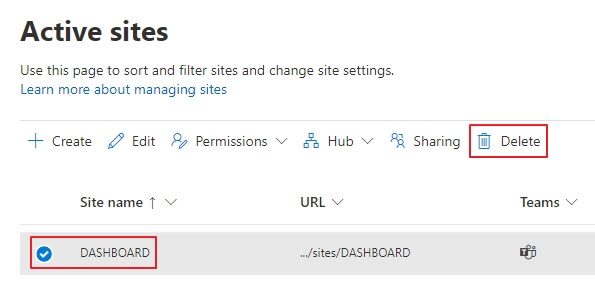
Deleting multiple SharePoint Sites
Select all the required Sites, click the Bulk edit option in the top bar, and select Delete. On the confirmation message, select Delete.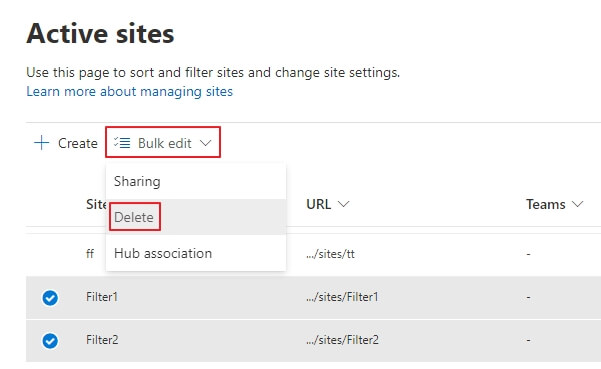
Once you delete a Modern SharePoint Site, it goes directly to the Recycle Bin and stays there for 30 days. You can remove the Site from there, which will be permanently deleted.
Steps to delete a Modern SharePoint Site permanently:
- Open the SharePoint admin center.
- Expand Sites and click on Deleted Sites.
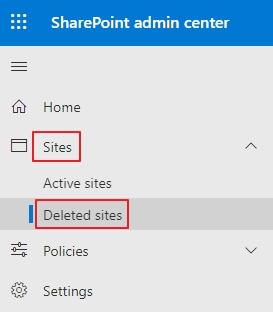
- Select the deleted Site and click on the Permanently delete option.
Note: This is a permanent Site deletion; you cannot restore the Site’s data afterward.
Obstacles in deleting a SharePoint site
Deleting a SharePoint site is not as easy as it seems. There are a lot of obstacles and complications during the process, which can create chaos. Let’s check out these challenges:
- When a site has compliance policies enabled to block the deletion action, you can face issues in deleting the site.
- Users who do not have the owner or administrator role assigned cannot delete a site from SharePoint.
- You cannot delete sites associated to Microsoft 365 Group or subsites, without first deleting the group or the subsite.
- Deleting the root site can cause you to lose all the SharePoint sites within the tenant.
- Files that are checked out to another SharePoint site user can often result in blocking the SharePoint site deletion.
Conclusion
We covered every aspect in this article to explain to you “How to delete a SharePoint Site?” However, the methods vary depending on whether you are deleting as a Site Owner or Administrator. An Owner can delete a single Classic or Modern Site from the Site Settings option. In contrast, admins can attempt a single or multiple Modern Sites deletion from the admin center. You need to arrange all the required permissions and the prerequisites as explained before proceeding with the deletion to avoid possible errors. It is suggested to migrate SharePoint documents, at least the vital ones, to a different SharePoint account using a reliable, professional utility like Kernel Migration for SharePoint. Additionally, you can use this tool to back up essential documents and files from the SharePoint site to avoid losing data during the process.
Frequently Asked Questions
A. You cannot delete a root site collection from SharePoint Online using the SharePoint admin center. However, you can use PowerShell commands to do so, but it will wipe out all the data from the tenant. You won’t be able to access other site collections and OneDrive without restoring or creating a new site.
A. Yes, deleting a SharePoint site will also delete the associated Microsoft 365 group and all the connected resources, such as calendar, planner, and group mailbox.
A. To delete a subsite in SharePoint, go to Site Settings, then Site Administration and click Site Content and Structure. Next, select the subsites and choose Delete from the Actions dropdown.
A. Yes, SharePoint allows you to restore a deleted SharePoint site from the SharePoint admin center if it hasn’t passed the duration of 93 days of site deletion. The only condition for this is that you should not permanently delete the site.