Read time: 6 minutes
Fastmail email service is known for its assured data privacy, ad-free experience, custom domain support, and fast & modern interface. While its key features make it stand out, it lacks end-to-end encryption and a free trial version for its users. Being available in the online world, Fastmail makes a business or individual’s data always vulnerable to cyber breaches, accidental/ deliberate deletion, and phishing attacks. The end result of such unexpected situations is data loss (which can often be permanent).
No one wants to be in a position where it’s just impossible to access the emails and related data. That’s where Fastmail email backup becomes important for users. Read the blog to understand why and how to backup Fastmail emails.
Fastmail Backup: Why Do You Need to Back up Your Emails?
Scroll down to learn why you should save emails from Fastmail:
- Get offline access: Saving emails from Fastmail provides an easy offline access to emails, attachments, and other data.
- Platform independence: If you ever decide to migrate from Fastmail to Office 365, Zoho Mail, etc., data backup will help in a smooth transfer.
- Data prevention: Backup keeps your data secure even in the event of accidental deletion or unauthorized access.
- Reduce downtime: During maintenance and service outages, backup makes sure that you still have access to your data.
- Save on costs: Fastmail is a paid service. More data means more storage requirements and an increase in cost. Backup and data cleanup make more space.
How to Backup Fastmail Emails?
Check out the three listed methods to backup Fastmail emails, so that you can save your data offline:
- Built-in Fastmail export utility
- Backup Fastmail using email client
- Professional IMAP backup tool
Solution 1: Backup Emails Using Built-In Export Utility
Fastmail is incorporated with a built-in utility that helps in downloading your email data. Follow the steps:
- Open your Fastmail email application and sign into your account.
- Go to the Settings option and select Migration.
- Now, click on the Export tab and select New mail export.
- Follow the instructions and click Download to save.
This process will download a .zip file containing the email backup. You can extract the .zip file to EML format and use them accordingly.
Solution 2: Save Fastmail Backup Using Desktop Email Client
With IMAP enabled, you can backup emails from Fastmail email service using Outlook or Thunderbird. The steps to do that are as follows:
Note: Here we are using Outlook as email client.
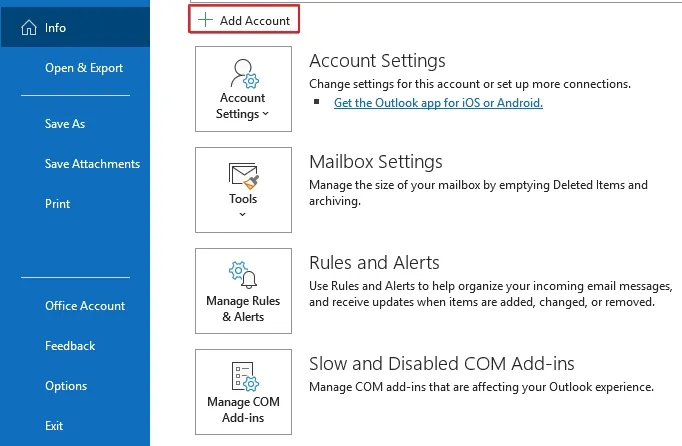
- Open Outlook and click on the File tab.
- Select Add Account to login to your Fastmail account.
- Enter email address and then click Connect.
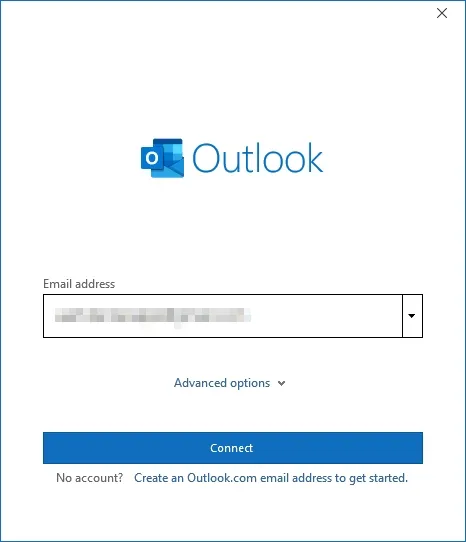
- Enter the password to your account. click Connect.
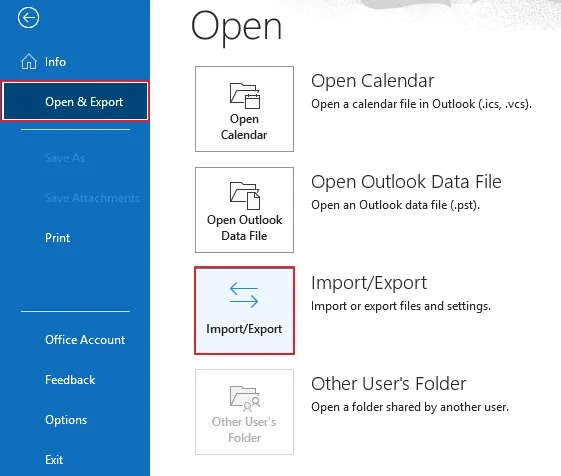
- Now, go to File then Open & Export > Import/Export.
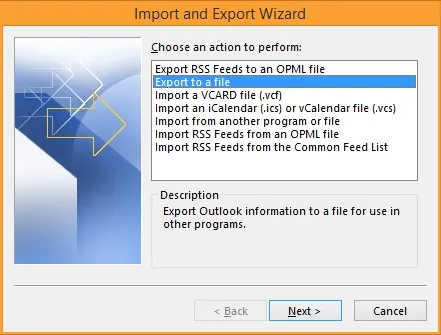
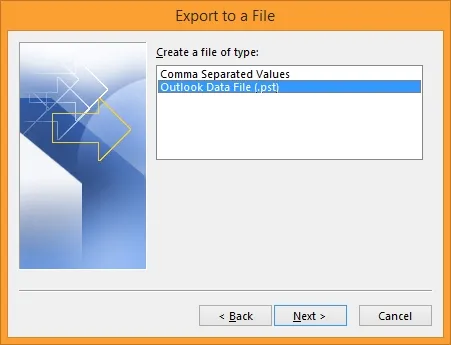
- Select Export to a file option. Click Next.
- Choose Outlook Data File (.pst) as output type. Click Next.
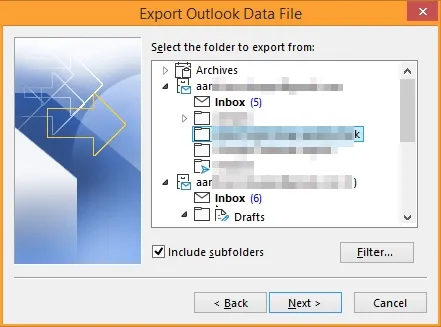
- Select the mailbox folder and then provide destination to save the file.
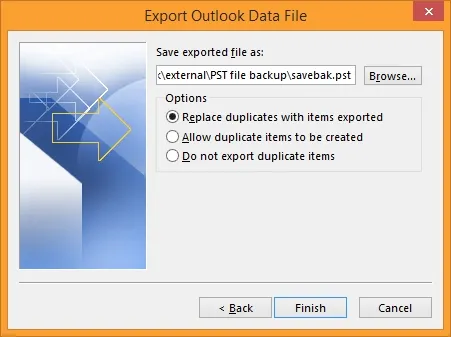
- Apply your saving preferences and your data will be backed up to a PST file.
Limitations of Manual Method
- Export utility saves only one mailbox folder in one go.
- The Export feature saves emails with a limit of 4 GB.
- Using email client method requires password generation first.
- The process involving Outlook can take several hours or days.
How to Backup Fastmail Emails in Bulk? {Best Approach}
While the manual methods have their storage and process duration limitations, using them to backup Fastmail email account does not assure a complete backup. You can use the Kernel IMAP Backup and Restore software to back up emails from a Fastmail account that allows you to save emails directly to your local or network-attached storage in PST, EML, MSG, and other file formats.
It allows you the liberty to select the data you want to backup rather than securing the complete user account. Moreover, you can save multiple mailboxes’ data at once, which will save you a lot of time and effort when you’re a business looking to secure critical data.
Conclusion
Manual methods will help you backup Fastmail emails. However, you can’t use these solutions to save bulk mailboxes. If you have a large amount of data, you will need to perform the methods multiple times, which is not feasible, especially if you’re a large enterprise. For bulk Fastmail backup, use the recommended IMAP backup tool, which will simplify the process for you.
Frequently Asked Questions
A. Follow the steps to save Fastmail attachments:
1. Open the desired email and scroll down to reach the end.
2. Mark the checkbox adjacent to attachment.
3. Select Download .zip file from the options.
A. For accounts containing sensitive business data, it is suggested to backup weekly or monthly to avoid any fallouts. For regular accounts, quarterly or annually backup practices are suitable.


![How to Export Yahoo Contacts to Outlook? [Easy Steps]](https://www.nucleustechnologies.com/blog/wp-content/uploads/2026/06/yahoo-mail-contacts-to-outlook-featured.webp)