User Query: “We had a client in the past with whom we had some disputes. Due to this, we need to take legal actions, and for that, we need the email conversation as proof. To serve the purpose, we’re finding ways to save emails to PDF file format. Do you know how to do this? For your reference, the email account is configured with the IMAP server settings.”
Converting emails to a universally accessible file format like PDF is a smart move from all perspectives. However, you need to know some effective methods for this. Let’s learn together how to access your IMAP emails in a PDF file with a step-by-step process.
How Does IMAP to PDF Conversion Help?
Here are some benefits of converting your emails to a PDF file format:
- Widely acceptable format: PDF is a universally acceptable and accessible file format that works with all devices and operating systems, without any email client.
- Offline access: PDF files saved to your local storage provide easy access to your email data even without an internet connection.
- Email security: PDF files can be encrypted, password-protected, and digitally signed to restrict unauthorized access by users.
- Impenetrable email archives: Since the PDF files save data in a format that preserves original formatting, structure, text, images, and headers, penetration or modification is impossible.
- Save storage: Helps to save storage space on the server by saving the emails locally.
Ways to Convert IMAP Emails to PDF: Comprehensive Guide
Follow the methods using different email clients, including Outlook, Gmail, and Thunderbird, to convert IMAP emails to PDF format easily. Let’s discuss each one of them step-by-step:
Method 1: Use Outlook to save IMAP emails as PDF
To backup IMAP emails using Outlook to PDF file, open your Outlook application, configure an IMAP account, and go to the email you want to save to a PDF file:
- Go to File and then click on the Save As option.
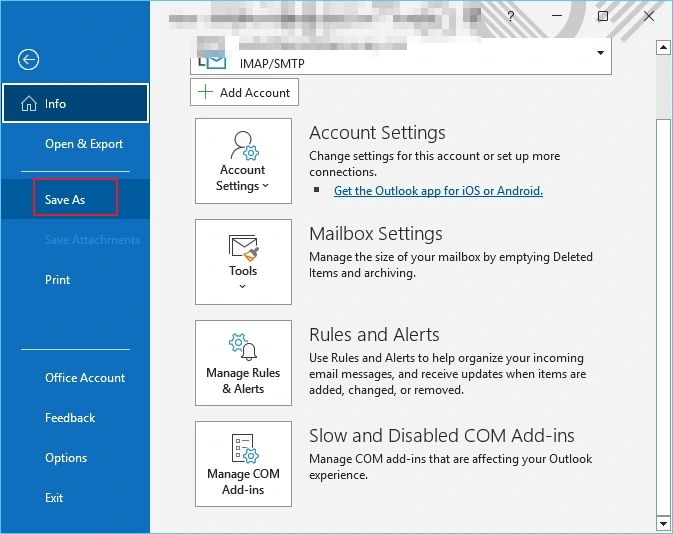
- Open a folder on your local drive to save the file.
- Select Portable Document Format (.pdf) from Save as type.
- Click Save to save the PDF file.
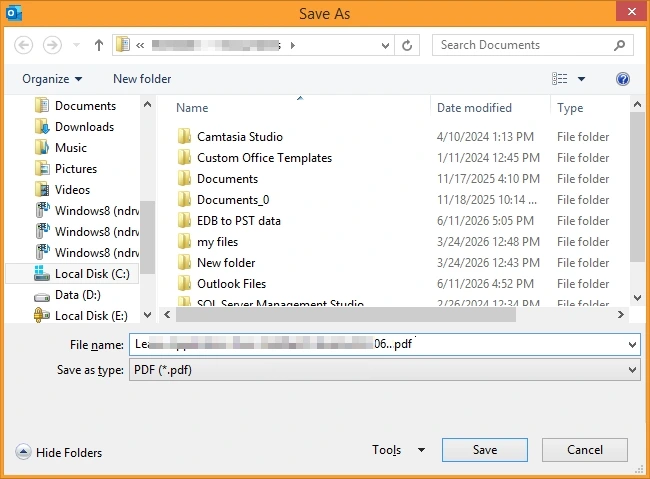
Alternate method: You can also use the Microsoft Print as PDF (File > Print) option in Outlook and save it to your device for future use.
Method 2: Convert IMAP emails to PDF using Gmail
Open your Gmail account and follow the steps mentioned below to convert your Gmail emails to PDF:
- Sign in to your IMAP account and open the email for conversion.
- Click on the printer icon on the top right corner.
- Select Save as PDF in the Destination and tap on Save.
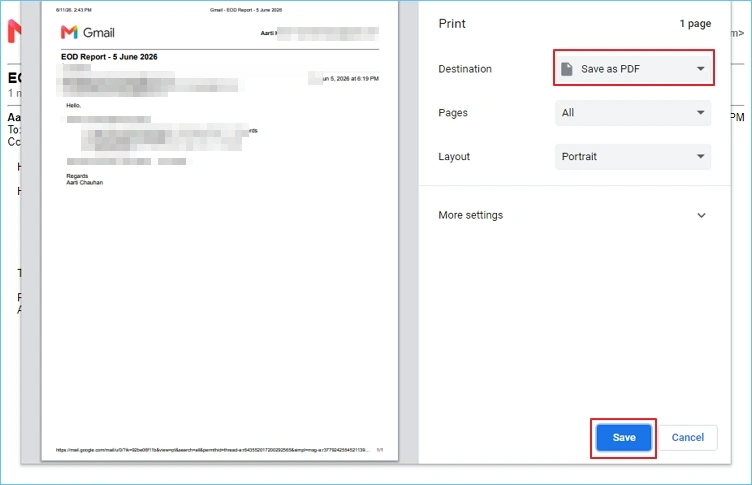
- Select PDF in the Save as type dropdown and click Save.
Method 3: Using Thunderbird for IMAP to PDF Conversion
Start by configuring your IMAP account in Thunderbird and use the steps as described to convert Thunderbird emails to PDF:
- Install the add-in ImportExportTools in Thunderbird.
- Right-click on the email folder in your mailbox to export.
- Click ImportExportTools NG > Export all messages and select PDF format as output to convert with all the attachments.
- Provide the saving location and click Save.
Limitations of manual solutions
The manual methods available are free to use simply via the email clients; however, they have certain limitations. Check out what makes them less suitable:
- Requires you to perform repeating steps for each email you want to export.
- You must have an active profile to use the Outlook saving method.
- You need to be cautious to avoid losing crucial emails.
- Some methods do not save attachments from emails.
A Suitable Choice: Professional Solution to Convert IMAP Server Emails to PDF
Using the above solutions is a wise choice only when you have a small data set to convert to PDF. However, if you need to export a large number of emails, you need a reliable solution. One such alternative is the Kernel IMAP Backup tool, which allows you to back up emails from IMAP-based user accounts to PST, MSG, EML, and PDF file formats.
This IMAP Backup tool simplifies the conversion of single or multiple mailboxes with bulk email messages to PDF or other desired formats. It supports Thunderbird, Gmail, Yahoo, Outlook, AOL, and other IMAP server-based email clients.
Easy Steps to Convert Emails from IMAP to PDF Using the Tool
- Launch the tool and click on the Backup tab.
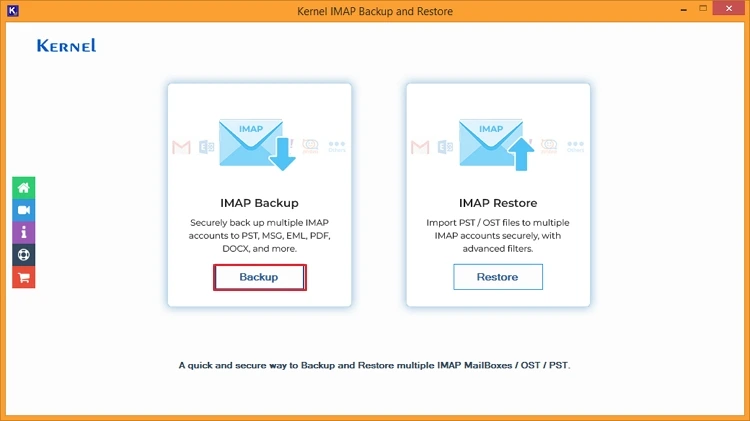
- Click Add to connect the IMAP account.
- Enter the required credentials to login IMAP account.
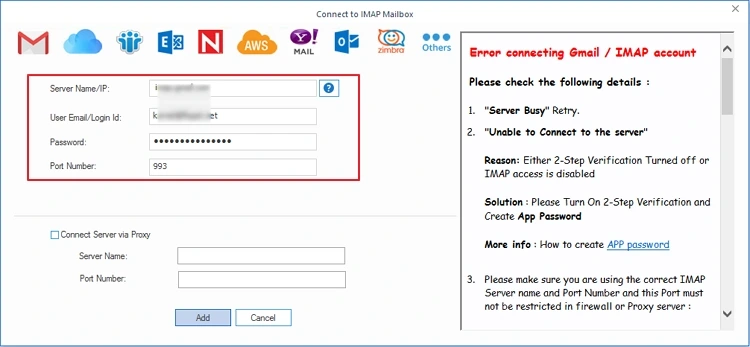
- Proceed ahead and select Set Filter and Migrate.
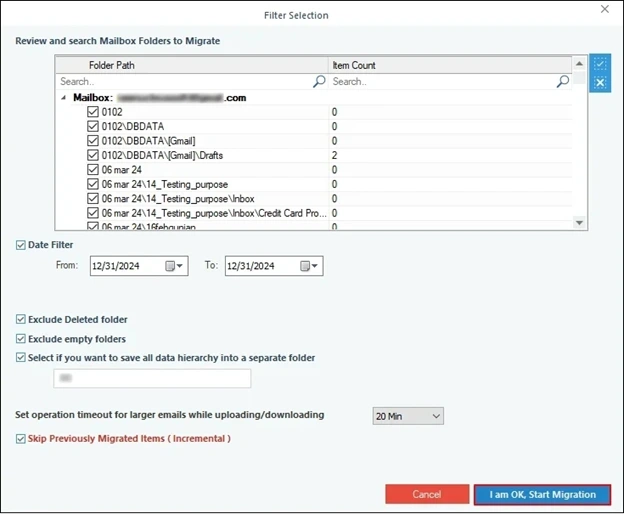
- Review the folders to migrate, apply the data filters as required, and start Export.
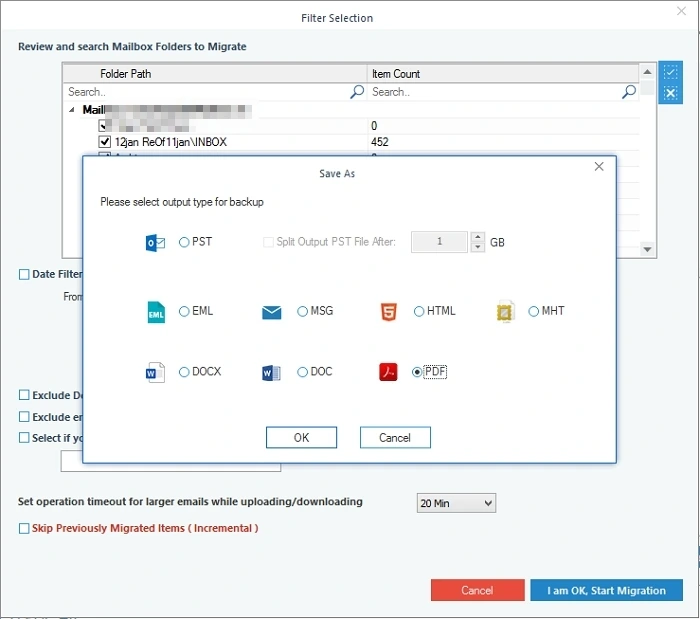
- Select PDF as the output format and click OK.
- Provide the saving destination and click OK.
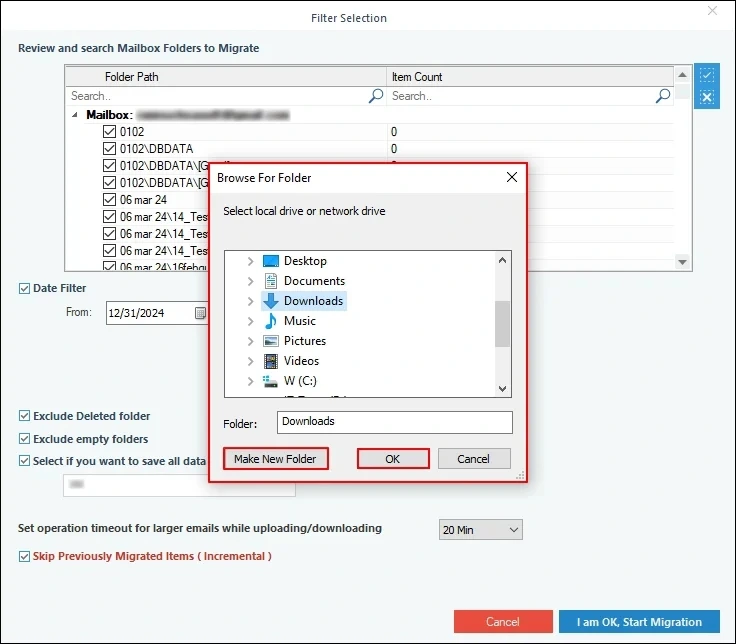
The software will start converting your IMAP emails into PDF format and save them locally at the selected destination, from where you can easily access them.
Conclusion
You can export IMAP emails to PDF using the methods as explained. However, the issue arises when the number of emails increases, or you need to retain your emails with attachments. In that scenario, use the suggested IMAP backup solution. It will help in easy IMAP to PDF conversion, irrespective of the email or the dataset size. Download the tool today and explore how it helps you save your emails.
Frequently Asked Questions
A. No, manual methods do not help in securing the email attachments. Rather, it only helps you save the email text message and formatting.
A. Exporting emails to PDF format is a great practice to share and store them, as it preserves the email formatting, layout, and text.


![How to Export Rackspace Email to PST? [Reliable Solutions]](https://www.nucleustechnologies.com/blog/wp-content/uploads/2025/12/export-rackspace-email.webp)