Read time: 6 minutes
User Query: I want to transfer my Yahoo contacts to Outlook, but the file exported from Yahoo Mail is not supported by Outlook. Can you help me with a solution that allows me to move the contacts easily and without losing even a single contact detail?
Many users face a similar challenge when they try to migrate their contact information from Yahoo Mail to Outlook. Although Yahoo allows users to export contacts, situations like compatibility issues, incorrect field mapping, or unsupported file formats can prevent a successful import, and users end up with missing contact details.
Fortunately, you can use CSV files, Outlook.com, and vCard options to export Yahoo contacts to Outlook with all details preserved. We will discuss all these methods step-by-step in this guide. However, before that checkout the reasons and prerequisites to make sure successful export of contacts.
Why Export Yahoo Contacts to Outlook?
Understanding the need to export contacts from Yahoo Mail will help you choose the right solution. Here are some reasons:
- Outlook allows users to group, categorize, and label contacts better than Yahoo Mail.
- Outlook works as a centralized address book and helps you keep all business and personal contacts in one place.
- Safeguard your critical mailbox contacts to continue communicating with them.
- Allow you easy access to the contact lists even when offline within Outlook.
- Smoothly integrate your mailbox with other Microsoft tools with an Outlook account.
- Outlook supports better anti-spam services than Yahoo Mail.
- Outlook provides better performance than the slow loading Yahoo Mail.
Prerequisites to Transfer Yahoo contacts to Outlook
Here are some prerequisites to know before starting the export of contacts from Yahoo Mail to Outlook:
- Your Yahoo Mail account should be accessible.
- Email contacts are in sync with Yahoo.
- Install Outlook and configure it properly.
- Create a backup of Yahoo email and contacts.
- Use the Classic Outlook Desktop version for easy export.
- A strong internet connection is necessary.
Best Solutions: Ways to Transfer Yahoo Contacts to Outlook
This section helps you explore some effective solutions to export contacts, delivering the best results. Don’t forget to create a Yahoo Mail Backup before starting the contact transfer process.
Method 1: Export Yahoo contacts using CSV file
The process includes two phases, where you first need to export contacts from Yahoo and then import them into Outlook.
Part 1 – Take out Yahoo contacts to CSV
- Open your Yahoo Mail account and go to Contacts.
- Click on More contact options (three dots…).
- Choose the Export to CSV file option.
- Download the Yahoo CSV file containing Yahoo contacts.
Part 2 – Import CSV file to Outlook
- Launch Outlook and go to File.
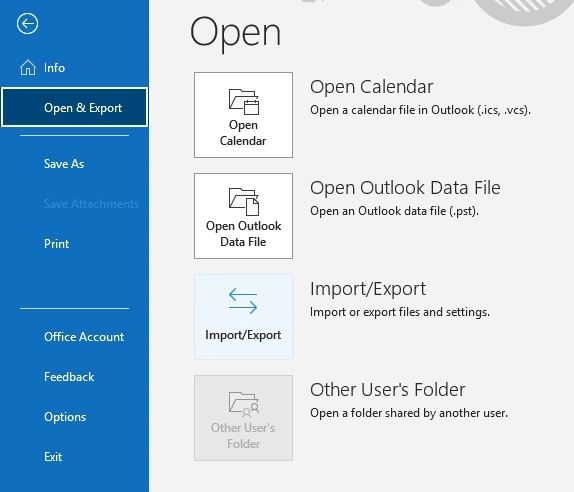
- Tap on to choose Import from another program or file.
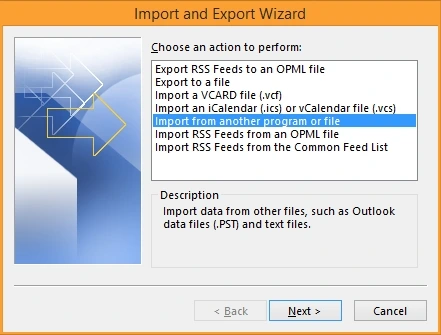
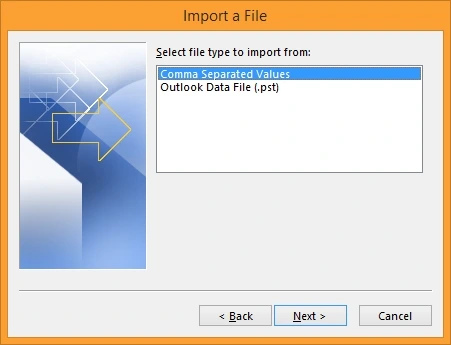
- Click on Comma Separated Values (.csv).
- Click Browse to provide location from where you want to import the CSV file.
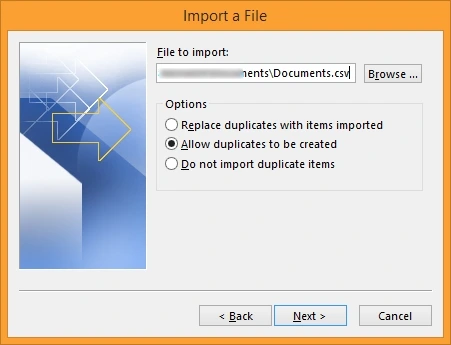
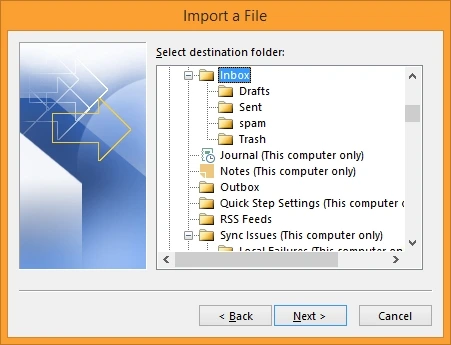
- Select required options and finish the CSV file import.
Method 2: Export Yahoo contacts to Outlook using Outlook.com
If you are working with the browser version of Outlook, i.e., Outlook web or Outlook.com, here’s how you can transfer Yahoo Contacts to Outlook.
Important Point: First, make sure to export contacts from Yahoo Mail using the steps of Method 1 (Part 1). After that, use the steps below to import them into Outlook:
- Go to Outlook.com and then click People.
- Click Manage and select Import Contacts.
- Click Browse, select the CSV, and click Import.
Method 3: Export Contacts to Outlook using vCard
To select and export specific contacts, use this method. Here are the steps for it:
Part 1 – Export contacts from Yahoo
- Login to your Yahoo Mail and go to Contacts.
- Now, select all the desired Yahoo contacts.
- Click More contact options (three dots) and choose the Export option from the dropdown.
- Tap on the radio button vCard, Zip of .vcf files. Click Export Now.
It will begin the download after a few seconds. The downloaded vCard file will be accessible in your Downloads menu.
Part 2 – Import the vCard into Outlook
- Now, go to Outlook and click File > Open & Export > Import/ Export.
- Select Import a VCARD file (.vcf). Click Next.
- Browse the file destination and select the vCard file, and click Open.
Best Practices for Managing Contacts After Transfer
After transferring your contacts, it is important to manage them properly to keep your contact list accessible. Make sure to follow these practices to maintain contact information and avoid issue sin future.
- Get rid of duplicate contacts to minimize confusion.
- Validate that there are no special characters in the contact name or email address.
- Make sure you take regular backups of your Outlook’s Offline Address Book.
- Organize your contacts by categorizing them using color codes or names.
Final Verdict: Protect Your Yahoo Emails Before Migration
With this detailed article, it is clear how to transfer Yahoo contacts to Outlook. Follow the step-by-step process of the given methods to simplify the export. However, exporting contacts transfers only your address book. If you also need to preserve your Yahoo emails, folders, attachments, and mailbox structure, you can use a professional IMAP Backup tool. It creates a local backup of your Yahoo Mail account and makes sure your important email data remains accessible.
Frequently Asked Questions
A. Yes, with the vCard method, you can easily select and export Yahoo contacts to Outlook.
A. No, the entire data and contacts will remain there even after the export, as the process will only copy contacts from Yahoo.