

If your PC crashed with a blue screen error with the error code “EVENT_TRACING_FATAL_ERROR (0X0000011D)”, then you are not alone. It is very confusing, as it doesn’t refer to any specific application or drive. Instead, it means a critical error has occurred in a Windows core system.
This article will explain what this error means, why it occurs, how to fix it, and how to prevent it from happening in the future.
What Does Event Tracing Fatal Error Mean?
If Windows encounters an unrecoverable issue within its kernel, it will display a bug check (stop error/blue screen) to avoid corrupting any data. The EVENT_TRACING_FATAL_ERROR (0X0000011D) indicates that there has been an unexpected fatal error with the Event Tracing subsystem. Event Tracing for Windows (ETW) is the event logging functionality used within Windows and drivers.
Methods to Fix Event Tracing Fatal Error
There are a few methods that you can try to get rid of the Event Tracing Fatal Error in a Windows system. We will discuss each method in detail for a better understanding. You can choose any method that fits your requirements to fix this issue.
- Back up important files if you can still reach them.
- If Windows won’t start, then hold Shift while clicking Restart or force three failed boots to reach the recovery environment. Now, select Troubleshoot >Advanced Options >Startup Settings >Restart and press 4 or F4 for Safe Mode.
- Try to reboot your system hard.
- Run Windows Update, including Optional updates.
Method 1. Repair System Files
Damaged or missing Windows components can disrupt the ETW subsystem and cause a Blue Screen of Death. Repairing corrupted system files may fix this issue.
-
- In the Search menu, type Command Prompt, then right-click on it and select Run as administrator.
- Run the command below for DISM (Deployment Image Servicing and Management tool).
-
-
- Now, execute the System File Checker command:
-
-
-
- Once both scans finish, restart your PC.
-
Method 2. Install Updates & Refresh Drivers
Corrupt or incompatible drivers (mainly network, chipset, audio, and storage controller) often trigger Event Tracing for Windows (ETW) crashes. To fix it, follow the steps below:
-
-
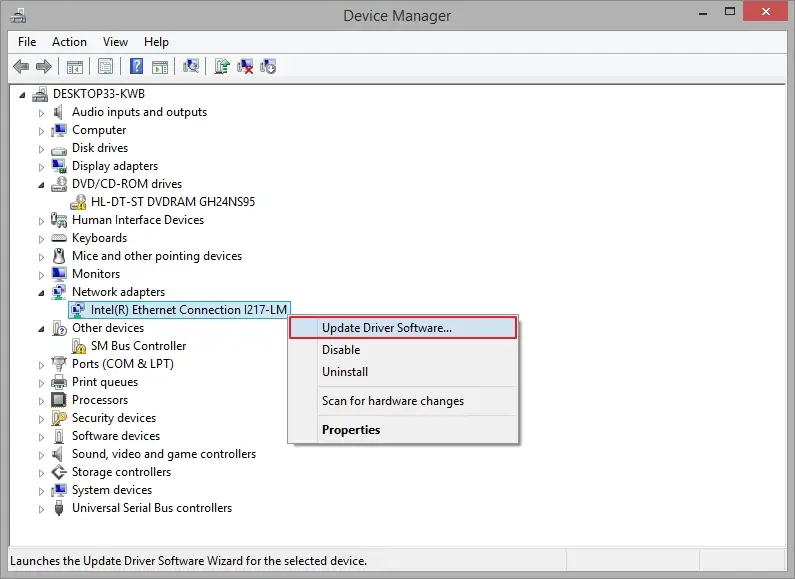
- Open Device Manager and look for devices with warning icons or scroll down to Network Adapters.
- Right-click on it and click Update Driver Software.
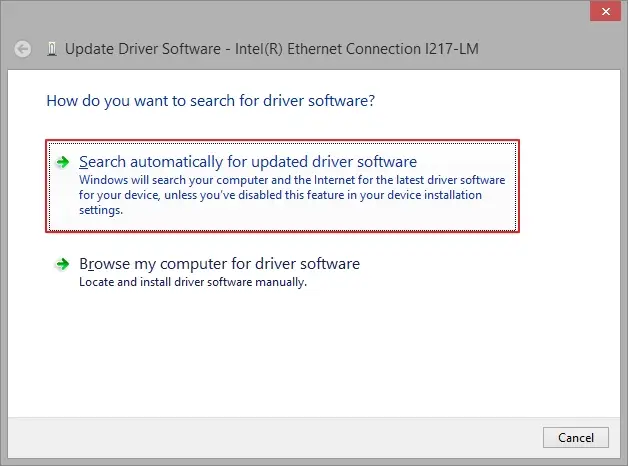
- On the next screen, click on Search automatically for updated driver software.
-
If the crash started after an update or driver change, then follow the steps below:
-
-
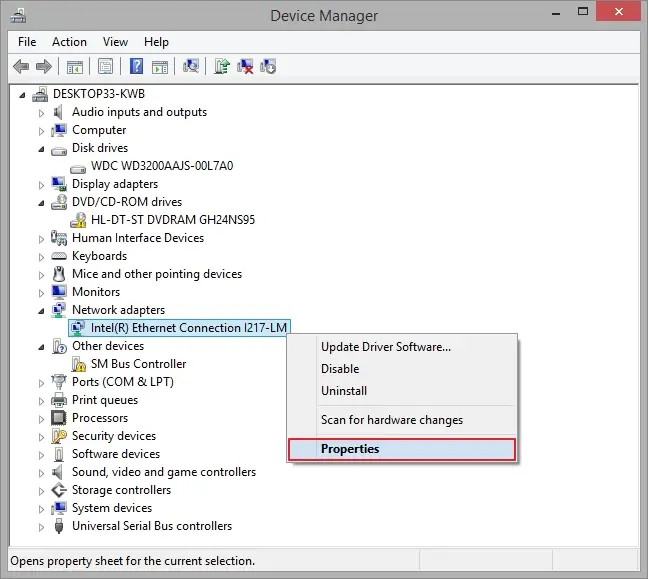
- Right-click on the device, then go to Properties.
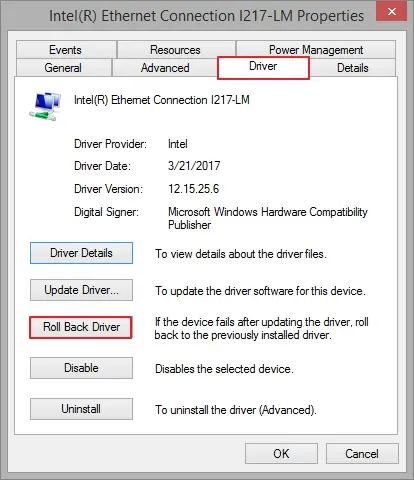
- Go to Driver and select Roll Back Driver or uninstall the update from the update history.
- Right-click on the device, then go to Properties.
-
Method 3. Check the Disk
Another method is to execute the chkdsk command to fix file system errors. Here are the steps for it:
-
-
- Open Command Prompt as administrator and enter the following command:
-
-
-
- Use /r to scan for bad sectors, which takes much longer. In the recovery environment, the drive letter can differ, so confirm it with diskpart and list volume.
-
If it keeps finding new errors, then the drive may be failing and needs to be replaced.
Method 4. Test the Memory
Memory errors look random, but they can cause different crashes at different times, so a test is the only reliable way to rule them out. Test the memory to reset or replace the RAM. The following are the steps for it:
-
-
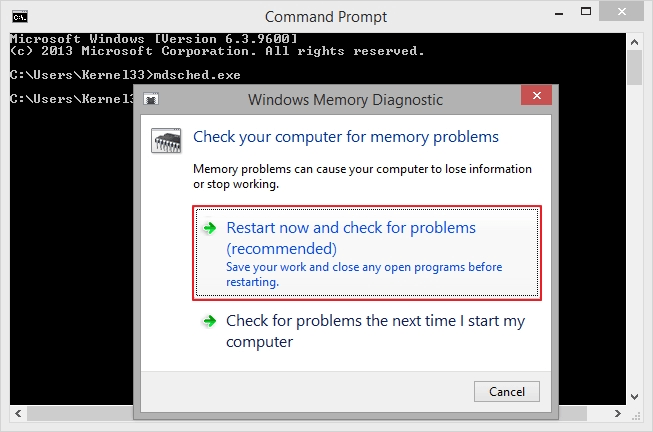
- Press Windows+R to open the Run dialog.
- Type mdsched.exe and hit Enter.
- Select Restart now and check for problems.
-
Method 5. Clear Corrupted ETW AutoLogger Files
A corrupted trace file can stop Windows from starting its tracing sessions. Deleting them will make Windows recreate them at startup. Here are the steps:
-
-
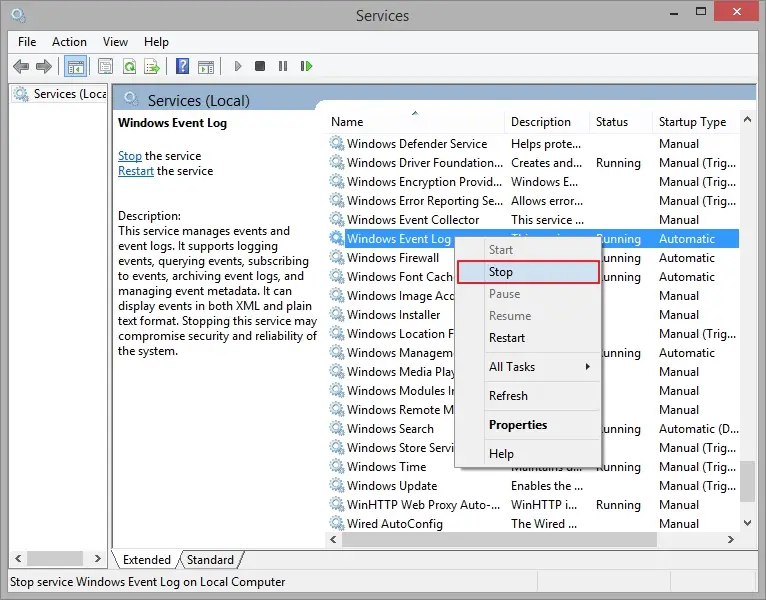
- Press Windows+R, type service.msc, and hit Enter.
- Right-click on Windows Event Log and Connected User Experiences and Telemetry and select Stop.
- In File Explorer, open C:\ProgramData\Microsoft\Diagnosis\ETLLogs\AutoLogger.
- Delete the .etl files inside it (not the folder), then restart.
-
If you are unable to do it normally, then try to do it in Safe Mode.
Method 6. Disable Driver Signature Enforcement
This error can occur when a driver fails a security check. You can bypass it temporarily with the below-mentioned steps to identify the issue:
-
-
- Go to Settings >Updates & Security> Recovery> Advanced Startup> Restart now.
- Select Troubleshoot >Advanced options >Startup settings >Restart.
- Press F7 to disable driver signature enforcement.
-
Recovering Data After EVENT_TRACING_FATAL_ERROR
If you repeatedly get EVENT_TRACING_FATAL_ERROR, it may cause issues starting Windows. In this situation, as much as resolving the issue is important, saving the crucial and sensitive data from the drive is also important. If the drive is still detected by the system, data recovery is often possible by connecting the drive to another working computer or by using a bootable recovery environment.
If you fail to recover the data, then using Windows Data Recovery Software is the only ideal option. Kernel for Windows Data Recovery is a reliable tool to recover lost, deleted, or permanently deleted data from 15+ storage devices. You can get its free trial today and see how it works.
Preventing Occurrence of Event Tracing Fatal Error (0X0000011D)
To prevent future occurrences of Event Tracing Fatal Error on your Windows PC, you need to address the underlying instability in the Windows Event Tracing (ETW) subsystem. Moreover, below are some tips which you can follow:
-
-
- Regularly update drivers and Windows
- Avoid installing unsigned drivers or cracked software
- Ensure at least 20 GB of free space on the C: Drive
- Avoid installing multiple antivirus programs
- Run sfc/scannow (and DISM) periodically, for example once a month
- Avoid aggressive overclocking on CPU or RAM
- Create a System Restore Point before making major updates
-
How to Recover Your Files When EVENT_TRACING_FATAL_ERROR Occurs?
If you repeatedly get EVENT_TRACING_FATAL_ERROR, it may cause issues starting Windows. In this situation, as much as resolving the issue is important, saving the crucial and sensitive data from the drive is also important. If the drive is still detected by the system, data recovery is often possible by connecting the drive to another working computer or by using a bootable recovery environment. If you fail to recover the data, then using Windows Data Recovery Software might be the ideal option. Kernel for Windows Data Recovery is a reliable tool to recover lost, deleted, or permanently deleted data from storage devices.
Preventing Occurrence of Event Tracing Fatal Error (0X0000011D)
To prevent future occurrences of Event Tracing Fatal Error on your Windows PC, you need to address the underlying instability in the Windows Event Tracing (ETW) subsystem. Moreover, below are some tips which you can follow:
-
-
- Regularly update drivers and Windows
- Avoid installing unsigned drivers or cracked software
- Ensure at least 20 GB of free space on the C: Drive
- Avoid installing multiple antivirus programs
- Run sfc/scannow (and DISM) periodically, for example once a month
- Avoid aggressive overclocking on CPU or RAM
- Create a System Restore Point before making major updates
-
Conclusion
Although this error seems severe, it can be resolved in most situations. Start with simpler fixes covered in this blog as they are less likely to put your data at risk. And if you do lose any data while fixing this error, restoring it from the recent backup is the safest option. Whichever method you choose, make sure to backup your important files regularly to avoid similar problems in the future.
People Also Ask
A. Yes, faulty or unstable RAM can cause the 0X0000011D error by corrupting memory used by the tracing system. This error may appear randomly when multitasking. Running Windows Memory Diagnostic is a quick way to check.
A. If the error is due to software corruption or bad drivers, then yes. If it is due to faulty RAM or disks, it is likely to occur again and again after reinstalling.
A. The most common solutions to resolve Event Tracing Fatal Error on Windows are updating or rolling back faulty device drivers and repairing corrupted system files using SFC and DISM scans.