

Is AWS WorkMail Shutting Down In 2027?
Yes, Amazon Web Services (AWS) has announced that it will end support for Amazon WorkMail on March 31, 2027.
The sudden change raises several questions for organizations that rely on this service:
- What will happen to existing mailboxes?
- Will users still be able to access their emails after shutdown?
- Which email service should they choose as a replacement?
- How can they back up their business emails before losing access?
Although AWS recommends alternatives, protecting existing emails, calendars, contacts, and other necessary information is the most important part.
To clear things up, the guide explains the AWS WorkMail end of support timeline, backup options, and migration steps to secure your data before the deadline.
- When is AWS WorkMail Deprecation Going to Happen? – Know Important Dates
- What Happens to Your Data After AWS WorkMail End of Life?
- Mailbox Data Checklist: What to Protect Before Amazon WorkMail Shuts Down?
- Amazon WorkMail Alternatives 2027: Where To Move Your Data?
- How to Migrate from Amazon WorkMail to Another Email Client?
- What if You Want to Backup Complete Amazon WorkMail Data?
- Closing Remarks
When is AWS WorkMail Deprecation Going to Happen? – Know Important Dates
AWS will officially end support for Amazon WorkMail on March 31, 2027. Therefore, AWS recommends that existing customers migrate to another email service before the deadline. The table below contains the important dates to remember:
| Important Dates | Events |
| March 31, 2026 | AWS published the end-of-support notice. |
| April 30, 2026 | Amazon WorkMail stopped accepting new customers. |
| March 31, 2027 | AWS will end support for Amazon WorkMail. |
What Happens to Your Data After AWS WorkMail End of Life?
AWS has confirmed that users will no longer be able to access the WorkMail console or its associated services after March 31, 2027. Detailed Information About Your Mailbox Data
- Permanent Deletion: All mailboxes, emails, contacts, calendars, and associated data will be completely wiped out.
- Loss of Access: You will lose access to the WorkMail console, web client, APIs, and IMAP/SMTP endpoints.
- Routing Impact: Your Amazon SES (Amazon Simple Email Service) with routing rules pointing to WorkMail will fail after the discontinuation.
Mailbox Data Checklist: What to Protect Before Amazon WorkMail Shuts Down?
Once you have planned to move from AWS WorkMail, consider protecting the following mailbox data items:
1. Emails and Attachments
Business emails often contain customer conversations, invoices, contracts, project discussions, and other important information. Export mailbox content using an AWS Key Management Service (AWS KMS) customer master key (CMK) before the shutdown. After that, verify the exported files are accessible, and your important folders are available in them.
2. Calendars and Meeting Information
The native mailbox export feature also includes calendar items. Once retrieved, verify the important appointments, meetings, and calendar information are present in the exported data.
3. Contacts and Address Books
Note that the native export service doesn’t include contacts. So, use the appropriate method or compatible email client to preserve important contact names, email addresses, phone numbers, and other details.
4. Tasks and Other Mailbox Items
Besides contacts, the AWS native export also does not include tasks and other supported items. So, identify these items separately and preserve the required data.
5. Email Domains and Routing Settings
You will need to configure the domain and routing settings with the AWS WorkMail replacement provider if you are using a custom domain. This includes DNS records like MX, SPF, DKIM, and DMARC. Make sure to do this manually just after the transition.
Amazon WorkMail Alternatives 2027: Where To Move Your Data?
AWS specifically recommends three alternatives: Kopano Cloud, Zoho Mail, and Zoom Mail. Along with them, Microsoft 365 and Google Workspace are also worth evaluating.
Remember, the right Amazon WorkMail replacement depends on each organization’s requirements. Let’s compare the available options for more clarity.
| Alternatives | Best For | Main Considerations |
| Kopano Cloud | Business email & collaboration. | Hosting, client compatibility, & available features. |
| Zoho Mail | Small & medium-sized businesses. | Zoho ecosystem & migration options. |
| Zoom Mail | Zoom Workplace users. | Plan eligibility & available email capabilities. |
| Microsoft 365 | Microsoft-centric organizations. | Exchange plans & Microsoft integrations. |
| Google Workspace | Google-oriented organizations. | Gmail, Calendar, & Google collaboration tools. |
How to Migrate from Amazon WorkMail to Another Email Client?
The suggested AWS WorkMail replacements (Kopano Cloud, Zoho Mail, or Zoom Mail) support direct migration, and the others (Microsoft 365 or Google Workspace) require AWS WorkMail IMAP settings to configure, export, and import procedures.
So, first compare the items you will be able to migrate from Amazon WorkMail to the required platforms.
| Mailbox Items | Kopano Cloud | Zoho Mail | Zoom Mail | Microsoft 365 | Google Workspace |
| Supported Method | myexchange.rocks | One-Click Amazon WorkMail Migration | Direct AWS WorkMail Migration Tool | IMAP Migration | IMAP Migration or GWMMO |
| Emails & Attachments | Supported | Supported | Supported | Supported | Supported |
| Mailbox Folders | Supported | All or Selected | Folders & Subfolders | Folder Mapping May Vary | Folders with Labels |
| Contacts | N/A | Supported | N/A | CSV/PST import. | CSV/VCF import or GWMMO |
| Calendar Events | N/A | Supported | Supported | PST/ICS import. | ICS import or GWMMO. |
| Tasks | N/A | N/A | N/A | N/A | N/A |
Here, we are migrating Amazon WorkMail to Zoho Mail, as it supports direct migration as well as several mailbox items. To do so, follow the given steps:
Section 1. Authorize Zoho Mail Access to Amazon WorkMail
Step 1. Sign in to Amazon WorkMail Root account.
Step 2. Navigate to Identity and Access Management (IAM) and expand Access Management.
Step 3. Click on the IAM users option to Create user.
Step 4. Provide the User name as per the instructions and click Next.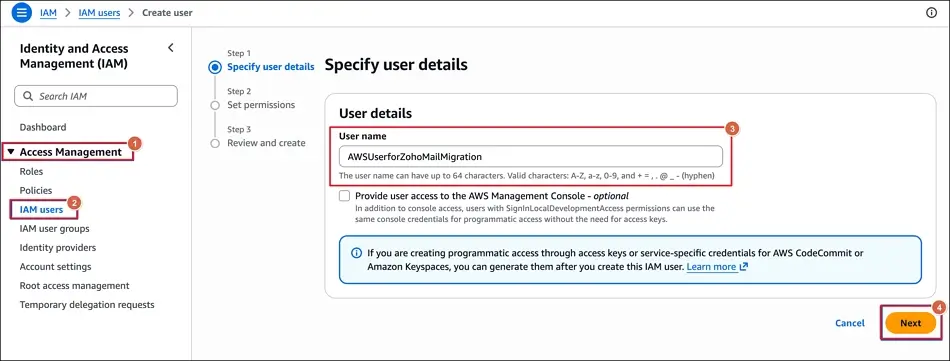
Step 5. Choose the Attach policies directly under the Permissions options.
Step 6. Find and select the AmazonWorkMailFullAccess option under the Permissions policies section.
Step 7. Then, complete the user creation process.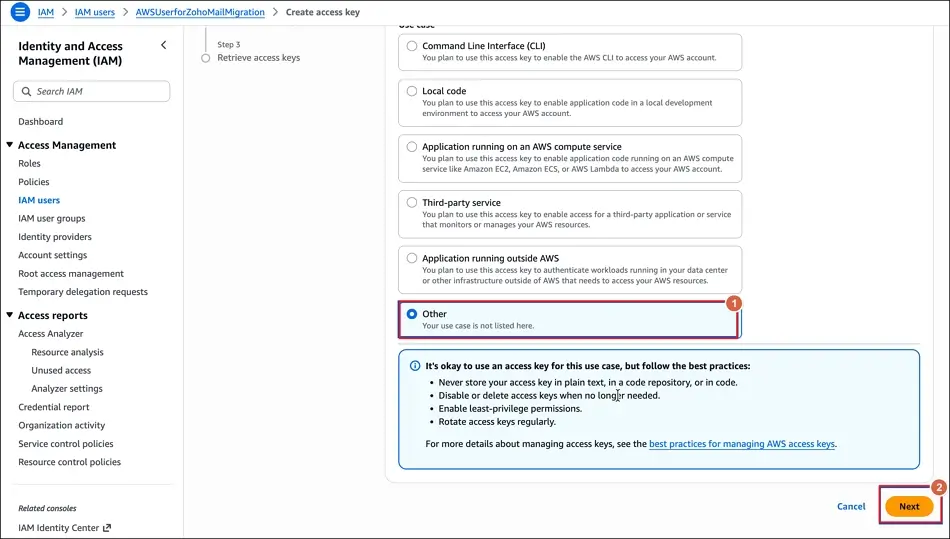
Step 8. After creation, go to the User section to choose the created user.
Step 9. Tap on Create access key in the Summary section.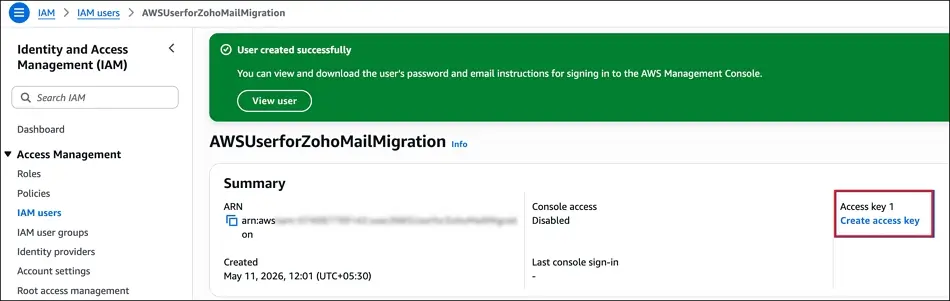
Step 10. Select Other as the use case and proceed to Next.
Step 11. Type the Description tag value and click Create access key.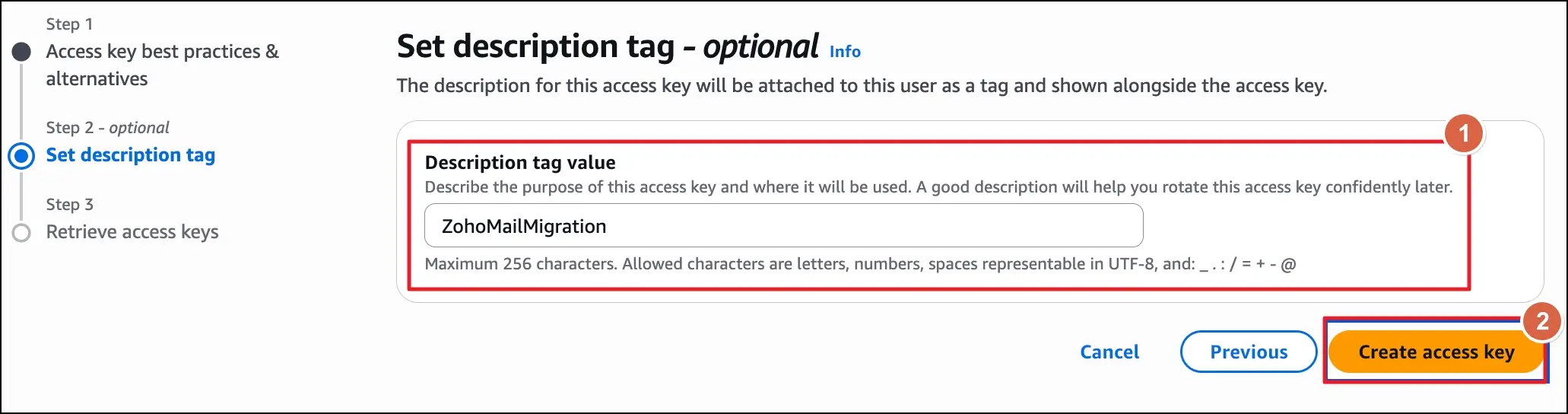
Step 12. It will generate the Access Key ID and Secret Access Key.
Step 13. Download .csv file and store it in a safe location.
Section 2. Add the Amazon WorkMail Details for Migration
- You must have Super Admin access in Zoho Mail.
- A previously downloaded CSV file that contains the Access Key ID and Secret Access Key is required.
- For calendar migration, all the Amazon WorkMail users must be created in Zoho Mail.
- Also, the Amazon WorkMail domain name will be the same in Zoho Mail.
I. Add Server Details in Zoho Mail
Step 1. Sign in to the Zoho Mail Admin Console and proceed to Data Migration.
Step 2. Start data migration for the first migration and +Create for subsequent migrations.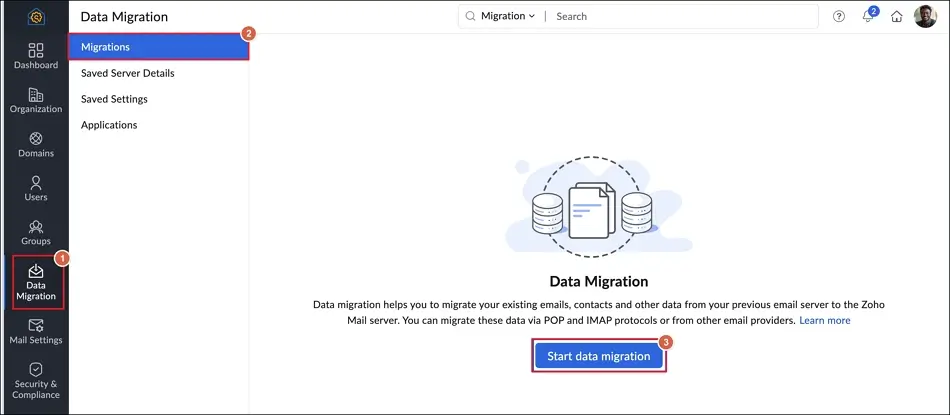
Step 3. Provide the Name for the server configurations.
Step 4. Select Add new server details from the Select saved server details dropdown.
Step 5. Choose Amazon WorkMail from the Select Protocol/Application dropdown.
Step 6. Type the Access Key ID and Secret Access Key in the respective fields.
Step 7. Select the Region of your Amazon WorkMail service and proceed to Authenticate.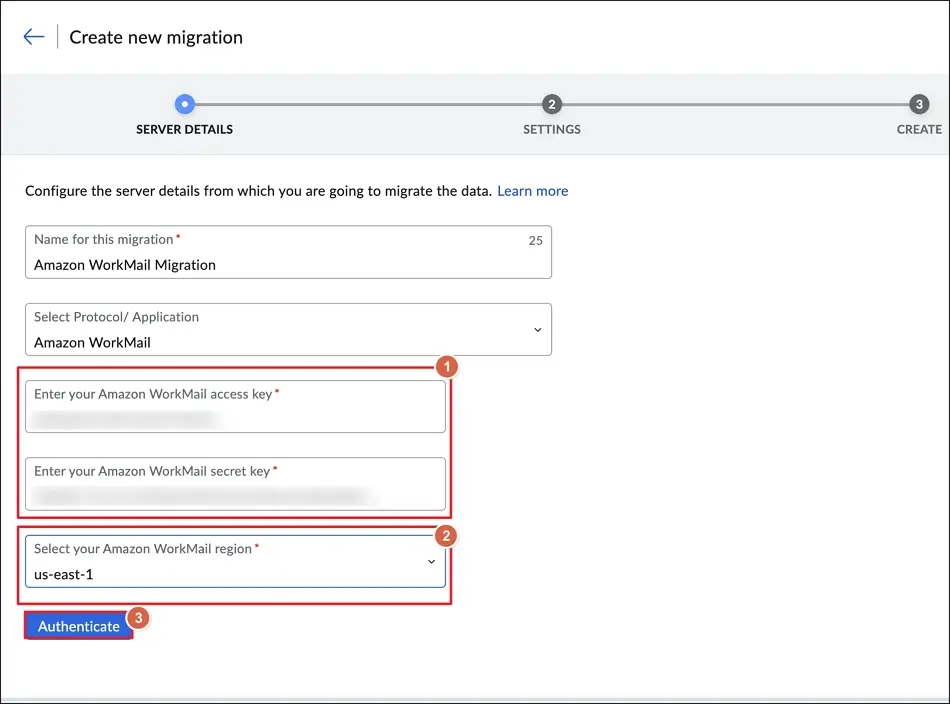
II. Provide Server Settings For Amazon WorkMail Migration
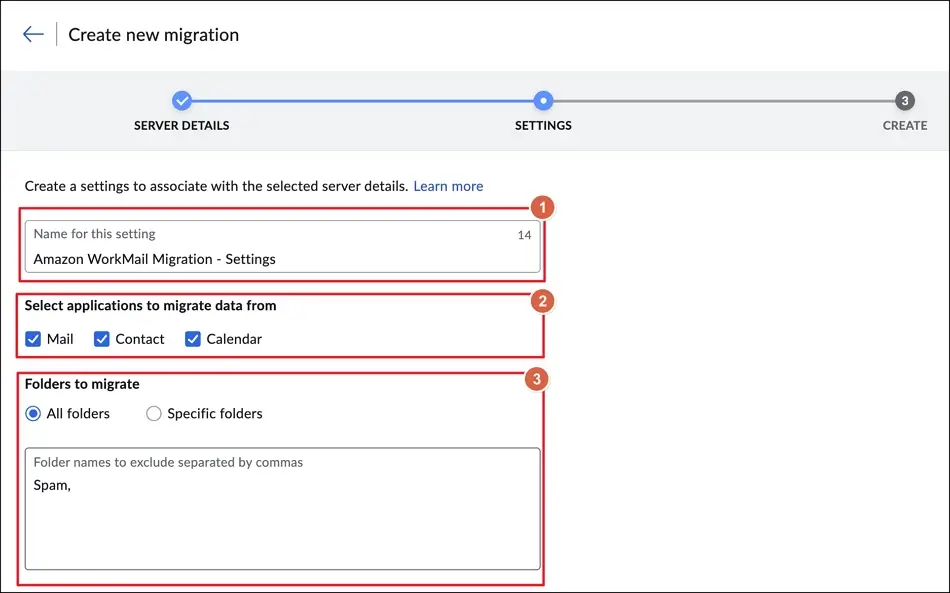
Step 1. Type the Name for the setting to begin.
Step 2.Check the required boxes to migrate data for Mail, Contacts, or Calendars.
Step 3. Choose the All folders or Specific folders option to proceed.
Step 4.Select the organization to migrate from the dropdown. For migrating multiple organizations, create separate server settings for each one.
Step 5. Choose All emails or Emails in a specific date range option as needed.
Step 6. Then, Enable POP access for the migrated emails if required.
Step 7. Select the applicable option for migration status notification and click Add.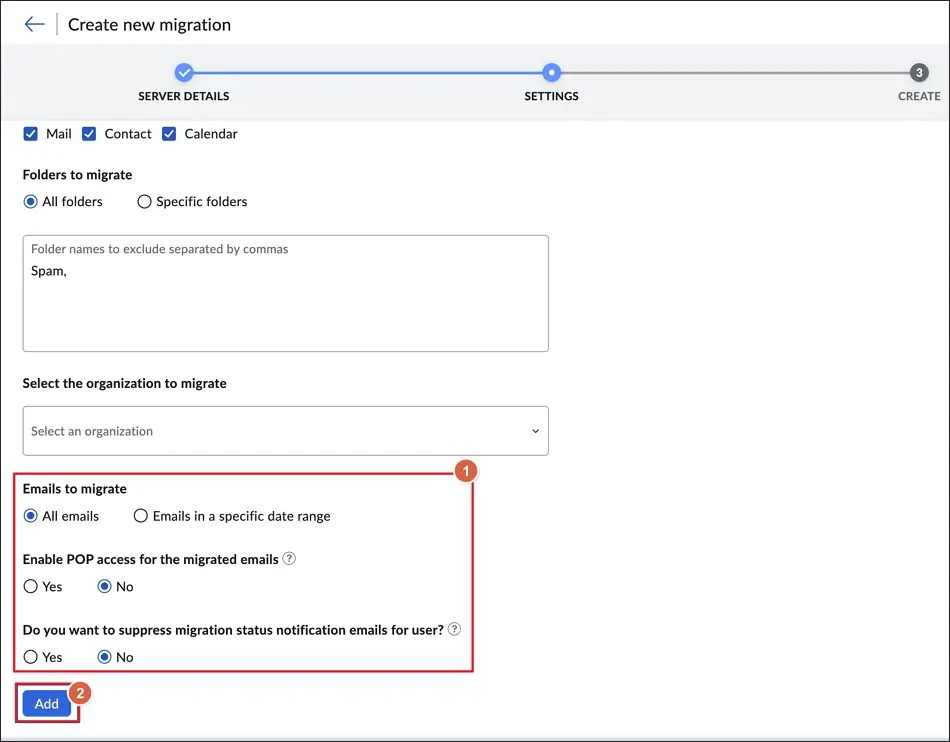
III. Create A New Migration
Step 1. Provide the Maximum Connection Limit to begin.
Step 2. Select Pause migration when storage reaches: 80% or 95%
Step 3. Then, proceed to the Create option.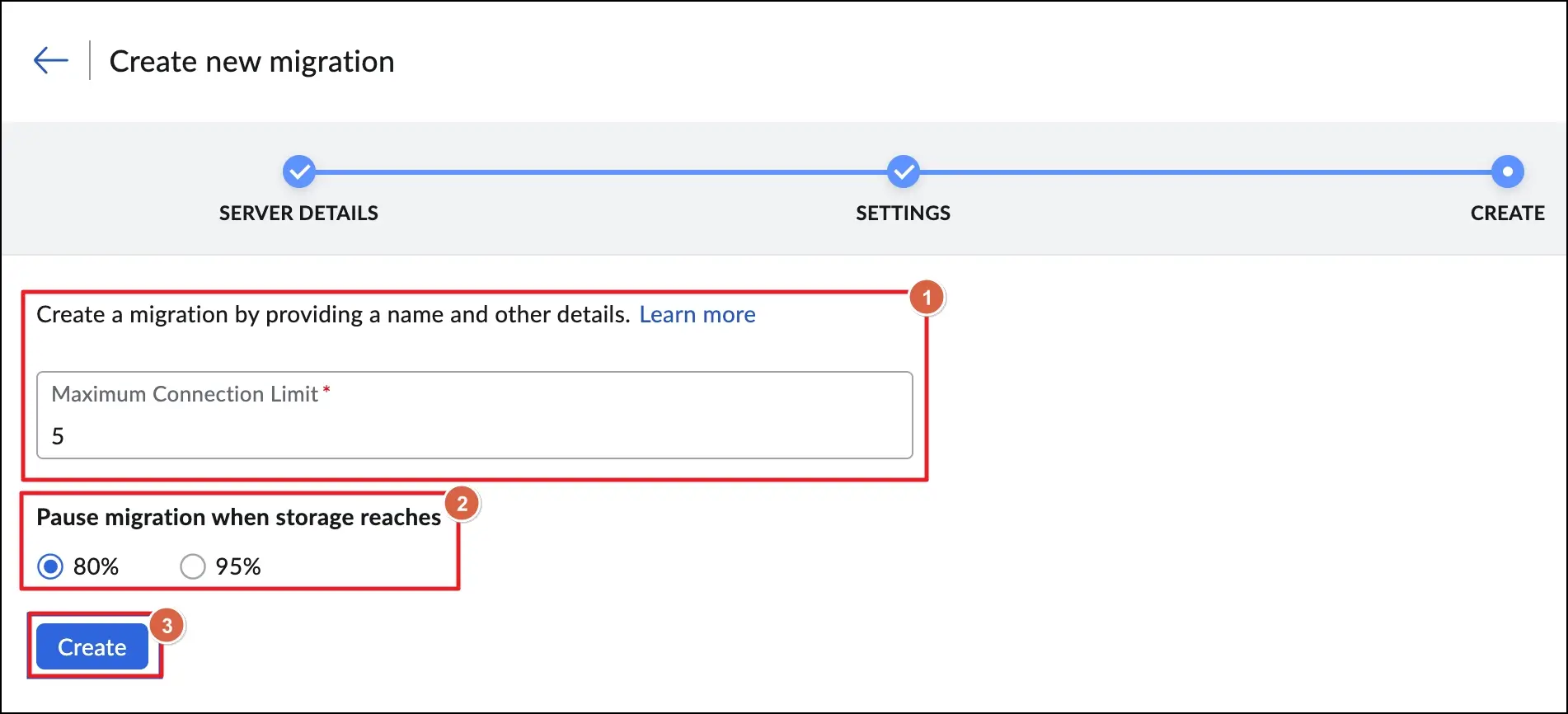
IV. Add User Details In Zoho Mail
User details can be added to Zoho Mail either manually one by one or in bulk through a CSV file, as explained below.
Steps For Manual Addition
Step 1. Go to the Migration list in which you want to map the source and destination users.
Step 2. Then, tap the Add option to enter user details manually.
Step 3. Enter the following details in the respective fields:
- Amazon WorkMail username or email address
- Destination email address
Step 4. Set the Priority option and click Add.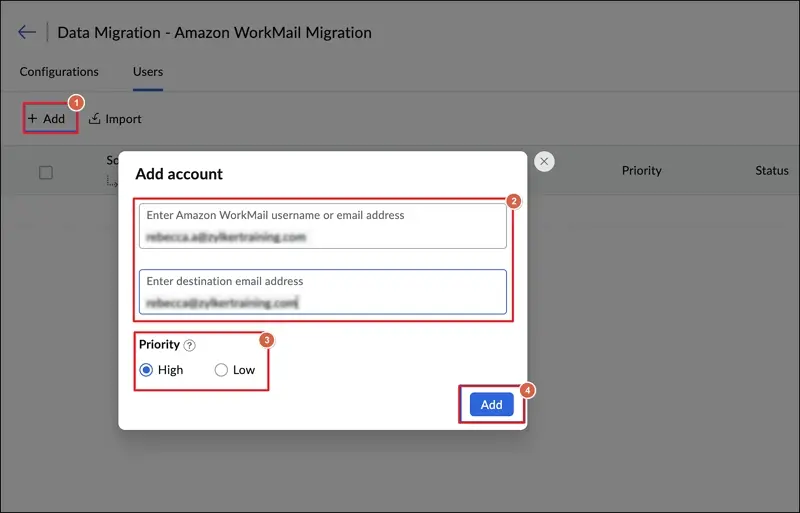
Step 5. Repeat the same process for all the required users.
Steps For Bulk User Addition Via CSV File
Step 1. Click on the Import option from the Migration list.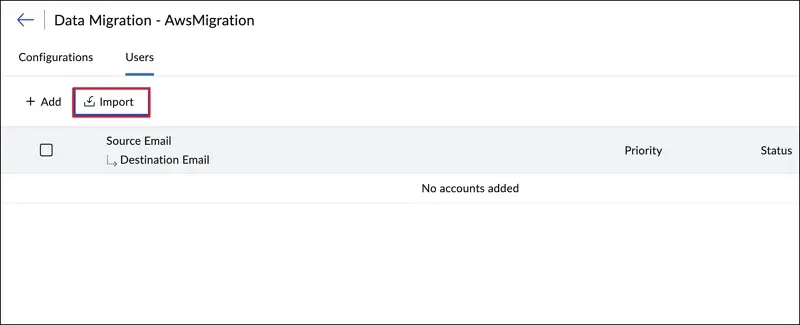
Step 2. Make sure to prepare and match the CSV file formatting as per the sample one.
Step 3. Browse Files to Import the prepared file.
Step 4. After a successful upload, you can preview the CSV file containing users along with their Priority and Status.
Step 5. Review and edit the user details directly from the preview section.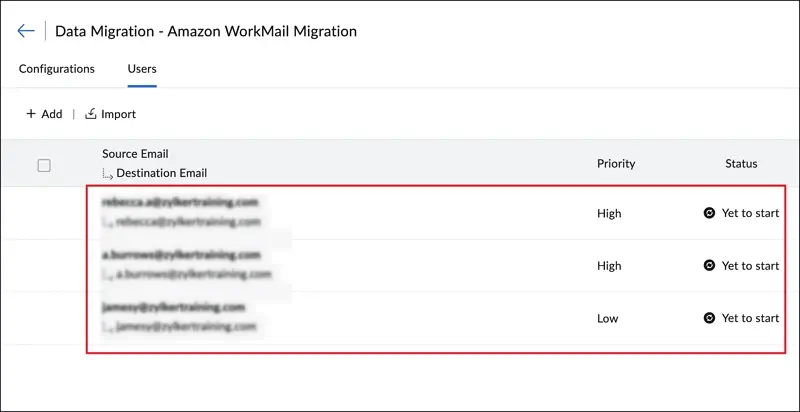
V. Start the Amazon WorkMail to Zoho Mail Migration
Step 1. After adding the users, click Start Migration.
Step 2. Track the current Status of users from the same page.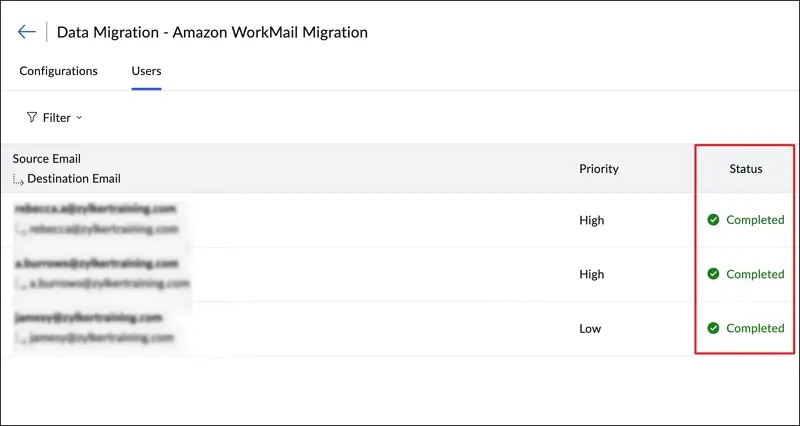
Step 3. Click on any user to view the detailed statistics with Folder Name and Status.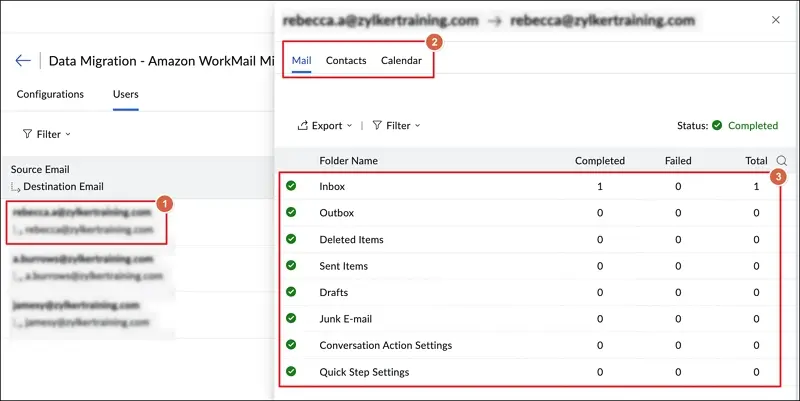
Step 4. Then, go to Mail Failures to view the folder-wise migration details.
Step 5. You can perform the following actions once the migration status is marked as Completed:
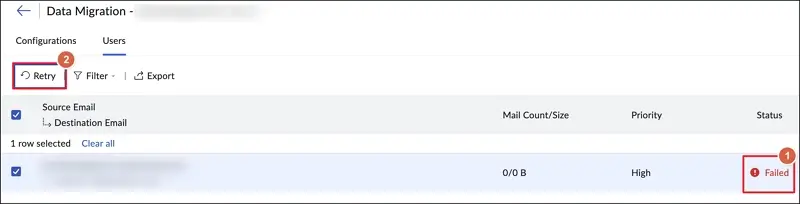
- Retry/Retry All – Choose a user with Failed status and click Retry. Besides that, select all users to Retry All at once.
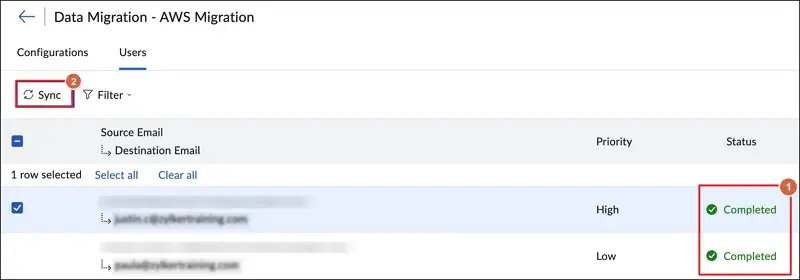
- Sync/Sync All – Choose a user with a Completed status and click Sync. Besides that, select all users to Sync All at once.
Step 6. You can use similar steps to view the statistics for migrated Contacts from the Contacts tab.
Step 7. Also, view the migrated Calendar details from the Calendar tab.
To delete an Amazon WorkMail organization after migration, go to WorkMail console > Organizations > Select the organization > Delete organization > Delete existing user directory > Enter organization name > Delete organization.
What if You Want to Backup Complete Amazon WorkMail Data?
The AWS-recommended solutions migrate data directly from Amazon WorkMail to the selected platforms, but each of them leaves unsupported mailbox items behind such as journals, notes, and tasks.
A complete backup should also cover emails with attachments, contacts, calendar appointments, and other mailbox items. For this, a backup tool can help, you can consider using Kernel Amazon WorkMail Backup and Restore. The Amazon Workmail Backup and Restore tool saves the mailbox data in Outlook PST format so it can be opened in Outlook and restored when needed.
Closing Remarks
Here, we have covered a detailed guide on the discontinuation of Amazon WorkMail. You can use the provided information to migrate your existing mailboxes to the chosen platform. However, the native backup options and suggested migration methods leave some mailbox items behind. To back them up along with the supported ones, choose the method that best suits your requirements. Also, you can use Kernel Amazon WorkMail to Office 365 software to migrate existing data directly.