One of the most common tasks that you will come across is finding duplicate entries in Google Sheets. Duplicates can cause issues with data such as emails, names, product IDs, records, etc. Manually searching for duplicates can be time-consuming if you have hundreds or thousands of rows to check. In this guide, we will show you how to highlight duplicates in Google Sheets using formulas and scripts.
Methods to Highlight Duplicates in Google Sheets
Highlighting duplicates in Google Sheets helps you clean data, keep your records accurate, prevent data entry errors, etc. In this section, we will cover some manual methods that you can use to highlight duplicates in Google Sheets. You can follow any method as per your requirements:
Method 1. Highlight Duplicates in a Single Column
In case you want to see which items from another column (Column B) match the master column (Column A), you only need one rule, which is mentioned below:
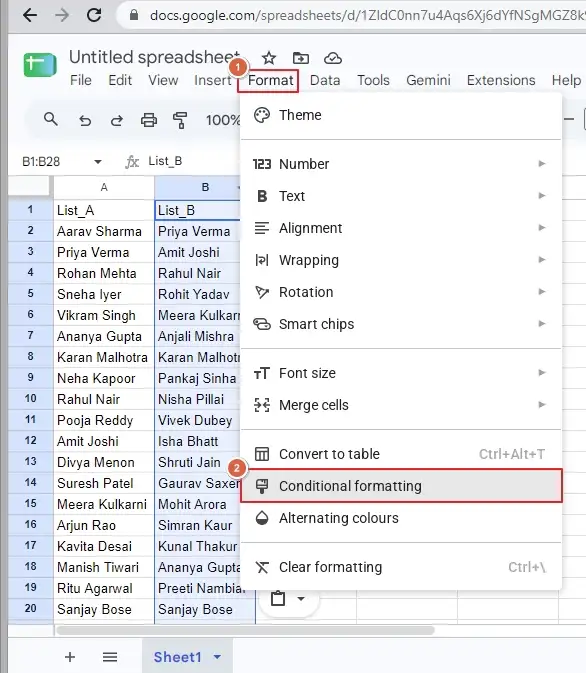
- Select the target column (the list where you want the highlight to appear).
- Click Format >Conditional formatting.
- Under ‘Format rules’ , select ‘Custom formula is’ using the drop-down menu.
- Use the ‘=COUNTIF(A:A, B1)>0’ duplicacy formula in Google Sheets, and click Done.
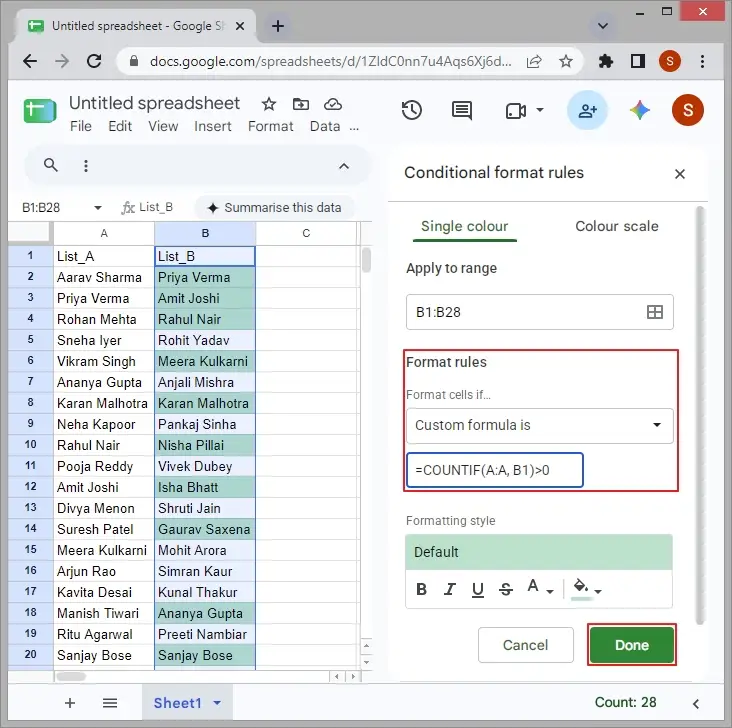
You may see all these duplicate items highlighted in the selected list.
Method 2. Highlight Duplicates in Two Columns
With this method, you can highlight duplicates in Google Sheets between two columns. Follow the steps to do so:
- Select both columns and click Format >Conditional formatting.
- Select ‘Custom formula is’ under ‘Format rules’ using the drop-down menu.
- Enter ‘=COUNTIF(A:A,$B2)>0’ duplicacy formula in Google Sheets, and click Done.
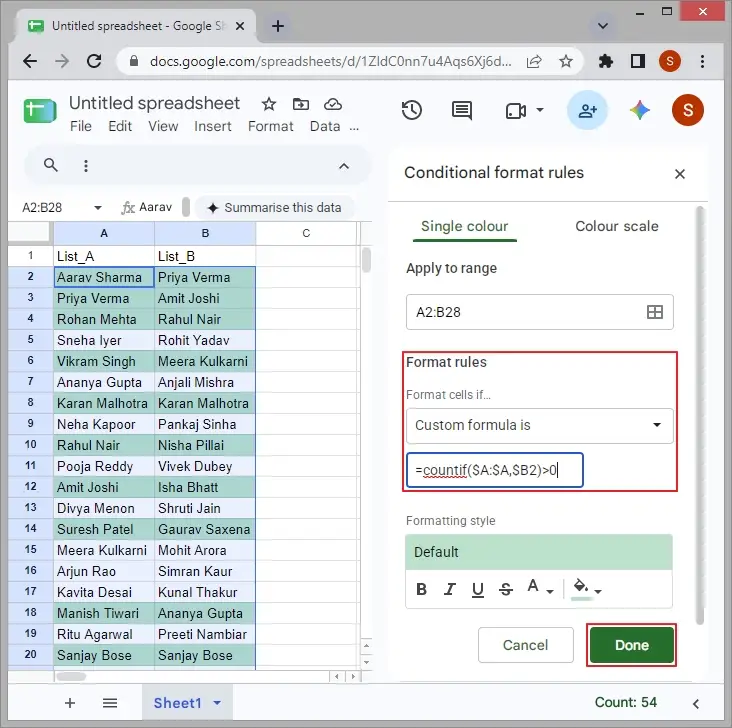
All the duplicate items across both columns will be highlighted.
Method 3. Automating Duplicate Highlighting Using Apps Script
You can use the Apps Script extension to highlight duplicates in Google Sheets. This complete script adds a custom menu to your sheet and highlights duplicate values (skipping the header value) in the current data. Here are the steps to add the extension and automate the duplicate highlighting in Google Sheets:
- Open your desired Google Sheet document and click on Extensions >Apps Script.
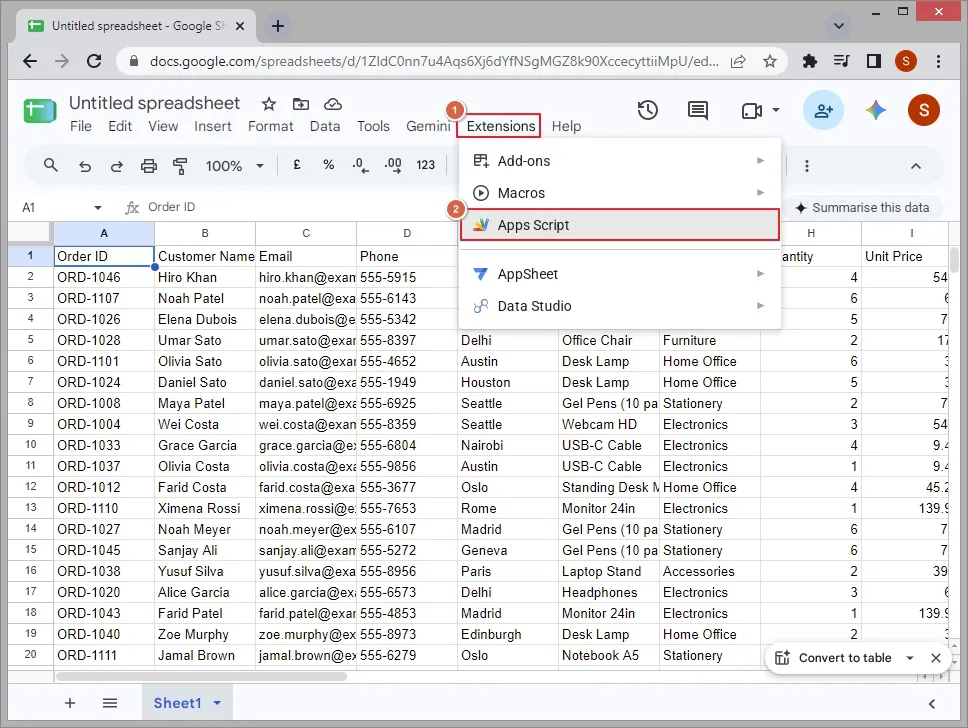
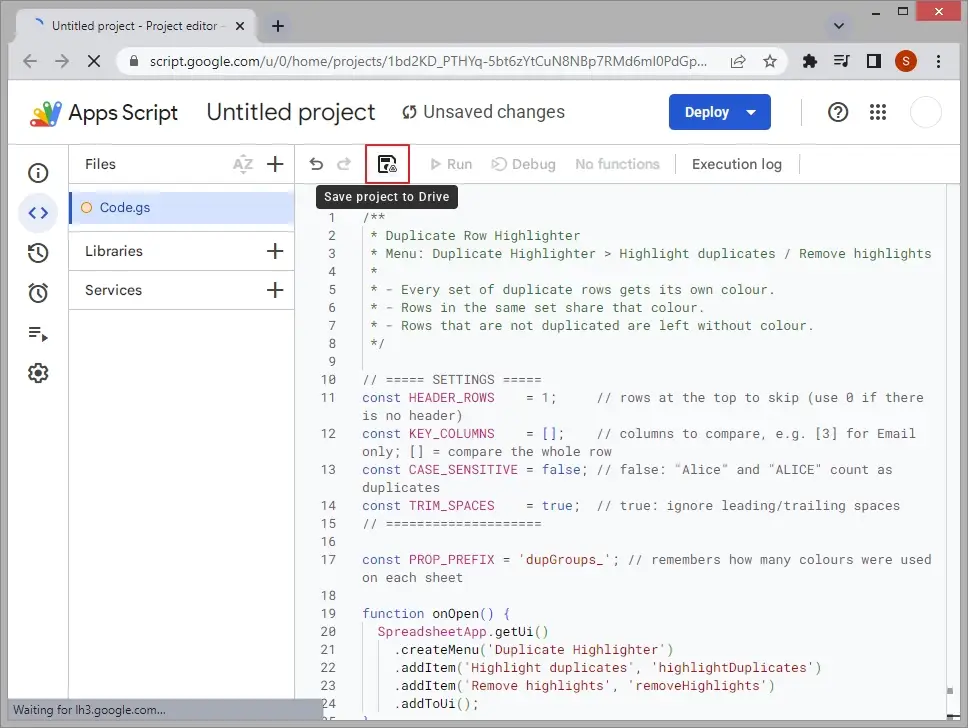
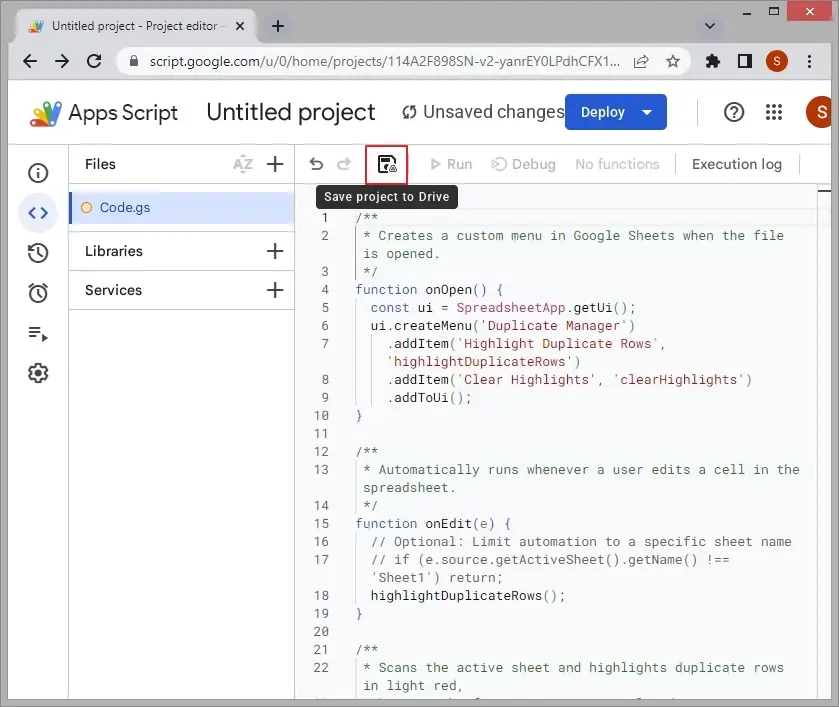
- Now, delete any existing myfunction code, paste the code below into the editor, and click the Save button (floppy disk icon).
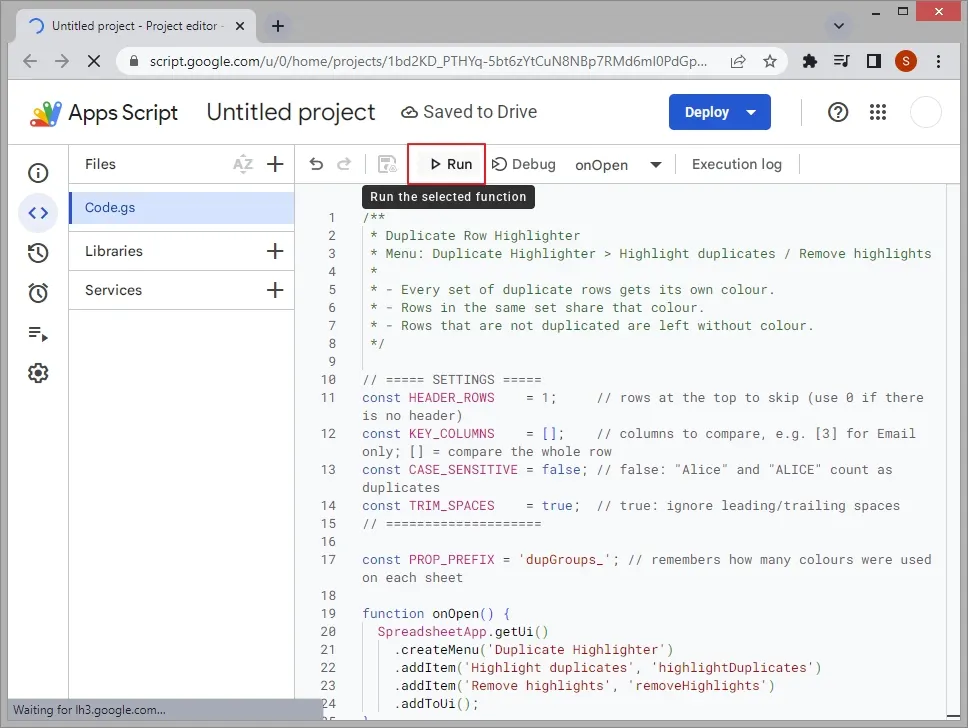
- Once saved, click on the Run button.
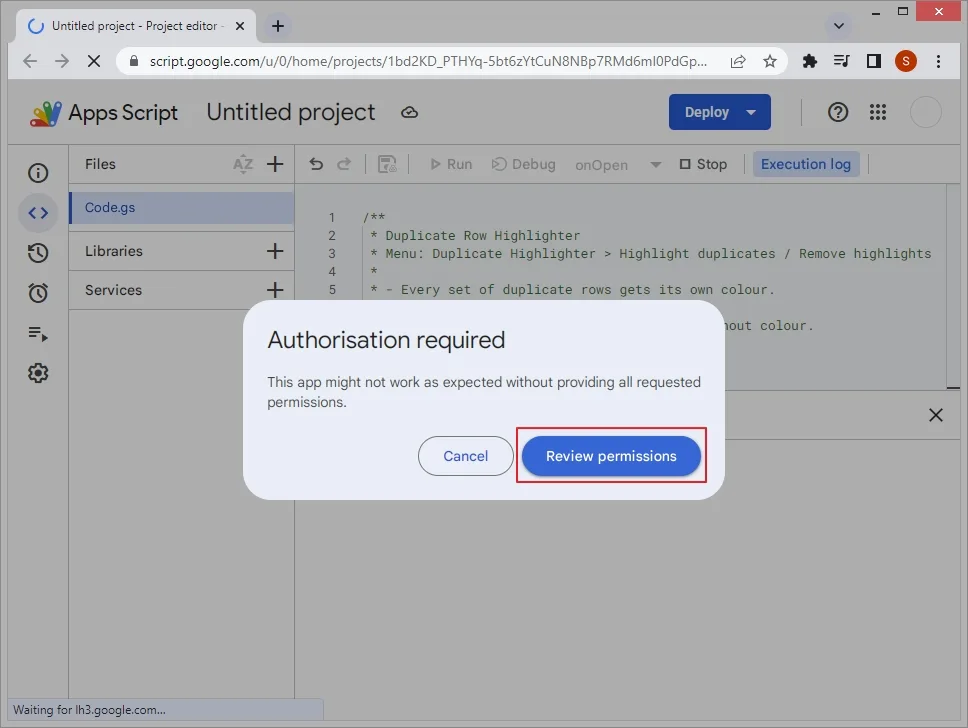
- An Authorization required window will appear on your screen; click on the Review permissions option.
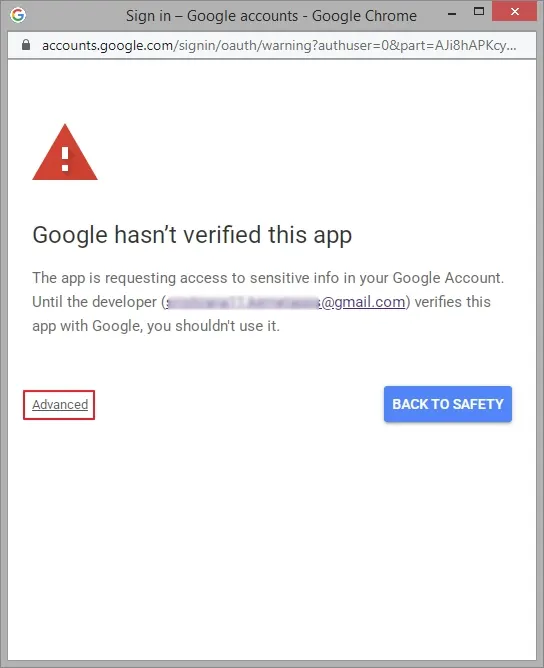
- Click on Advanced >Go to XX project (unsafe).
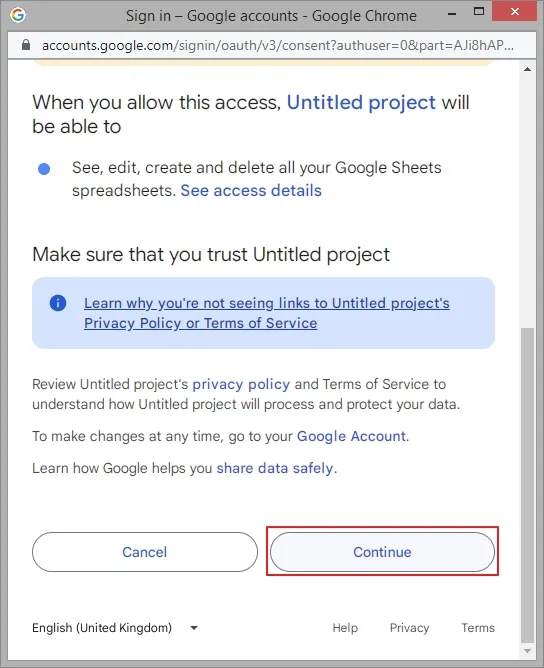
- Click Continue to allow the script to access your spreadsheet.
- Go back to your spreadsheet and reload it.
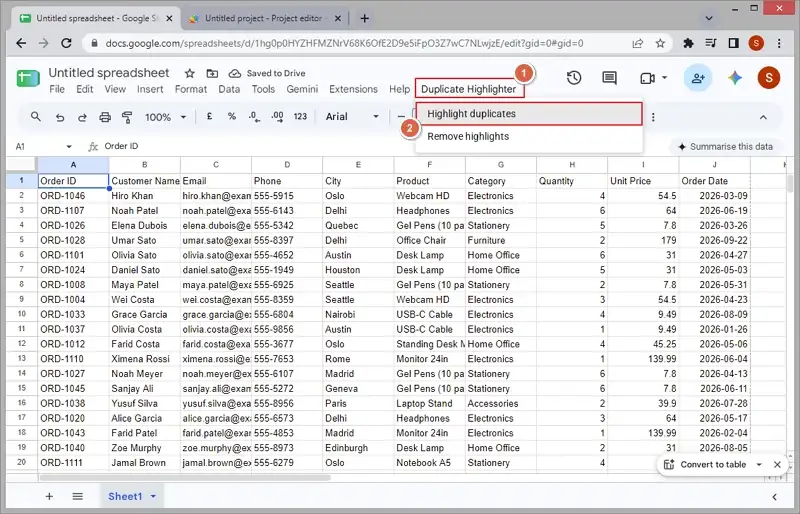
- Click on the Duplicate Highlighter option, then click Highlight duplicates.
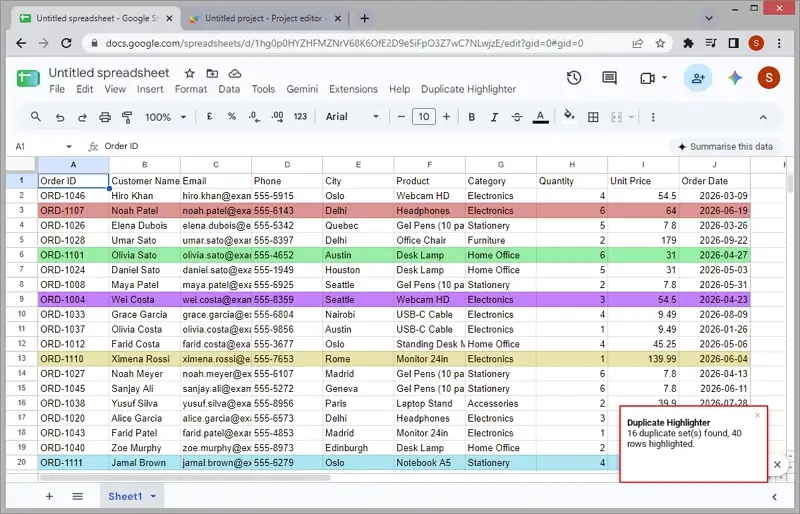
- All the duplicate items will be highlighted with different colors.
// ===== SETTINGS =====const HEADER_ROWS = 1; // rows at the top to skip (use 0 if there is no header)const KEY_COLUMNS = []; // columns to compare, e.g. [3] for Email only; [] = compare the whole rowconst CASE_SENSITIVE = false; // false: “Alice” and “ALICE” count as duplicatesconst TRIM_SPACES = true; // true: ignore leading/trailing spaces// ====================
const PROP_PREFIX = ‘dupGroups_’; // remembers how many colours were used on each sheet
function onOpen() {SpreadsheetApp.getUi().createMenu(‘Duplicate Highlighter’).addItem(‘Highlight duplicates’, ‘highlightDuplicates’).addItem(‘Remove highlights’, ‘removeHighlights’).addToUi();}
function highlightDuplicates() {const ss = SpreadsheetApp.getActive();const sheet = ss.getActiveSheet();const firstRow = HEADER_ROWS + 1;const lastRow = sheet.getLastRow();const lastCol = sheet.getLastColumn();
if (lastRow <= firstRow) { ss.toast(‘Not enough data rows to compare.’, ‘Duplicate Highlighter’, 5); return; } // Remove colours from an earlier run so old highlights don’t linger clearOwnHighlights_(sheet); const range = sheet.getRange(firstRow, 1, lastRow – HEADER_ROWS, lastCol); const values = range.getDisplayValues(); // Group row positions by their comparison key const groups = new Map(); values.forEach((row, i) => {const key = makeKey_(row);if (key === null) return; // skip empty rowsif (!groups.has(key)) groups.set(key, []);groups.get(key).push(i);});
// Keep existing fills; turn “no fill” (#ffffff) back into null so cells stay colourlessconst backgrounds = range.getBackgrounds().map(row => row.map(c => (c === ‘#ffffff’ ? null : c)));
let setCount = 0;let rowCount = 0;groups.forEach(rowIdx => {if (rowIdx.length < 2) return; // not a duplicate const colour = colourForGroup_(setCount++); // one colour per set rowIdx.forEach(i => {backgrounds[i] = new Array(lastCol).fill(colour);rowCount++;});});
range.setBackgrounds(backgrounds);PropertiesService.getDocumentProperties().setProperty(PROP_PREFIX + sheet.getSheetId(), String(setCount));
ss.toast(setCount ? setCount + ‘ duplicate set(s) found, ‘ + rowCount + ‘ rows highlighted.’: ‘No duplicate rows found.’,’Duplicate Highlighter’, 5);}
function removeHighlights() {const ss = SpreadsheetApp.getActive();const cleared = clearOwnHighlights_(ss.getActiveSheet());ss.toast(cleared ? ‘Highlights removed.’ : ‘No highlights from this script found on this sheet.’,’Duplicate Highlighter’, 5);}
/** Resets only the colours this script applied. Returns the number of cells cleared. */function clearOwnHighlights_(sheet) {const props = PropertiesService.getDocumentProperties();const propKey = PROP_PREFIX + sheet.getSheetId();const setCount = Number(props.getProperty(propKey) || 0);if (!setCount) return 0;
const firstRow = HEADER_ROWS + 1;const numRows = sheet.getMaxRows() – HEADER_ROWS;if (numRows < 1) return 0; const ours = new Set(); for (let i = 0; i < setCount; i++) ours.add(colourForGroup_(i)); const range = sheet.getRange(firstRow, 1, numRows, sheet.getMaxColumns()); let cleared = 0; const backgrounds = range.getBackgrounds().map(row => row.map(c => {if (ours.has(c.toLowerCase())) { cleared++; return null; } // null resets the fillreturn c === ‘#ffffff’ ? null : c; // other fills stay as they are}));range.setBackgrounds(backgrounds);props.deleteProperty(propKey);return cleared;}
/** Builds the text used to decide whether two rows are duplicates. */function makeKey_(row) {const cells = KEY_COLUMNS.length ? KEY_COLUMNS.map(c => row[c – 1] || ”) : row;const parts = cells.map(v => {let s = String(v);if (TRIM_SPACES) s = s.trim();if (!CASE_SENSITIVE) s = s.toLowerCase();return s;});if (parts.every(p => p === ”)) return null; // blank rowreturn parts.join(‘\u001F’); // separator that won’t appear in data}
/** Returns a distinct, light colour for each set (same index = same colour every time). */function colourForGroup_(i) {const hue = (i * 137.508) % 360; // golden-angle steps keep neighbours apartconst sat = 60 + (i % 3) * 15; // 60, 75, 90const light = 74 + (Math.floor(i / 3) % 3) * 6; // 74, 80, 86 (light enough to read text)return hslToHex_(hue, sat, light);}
function hslToHex_(h, s, l) {s /= 100; l /= 100;const k = n => (n + h / 30) % 12;const a = s * Math.min(l, 1 – l);const f = n => l – a * Math.max(-1, Math.min(k(n) – 3, Math.min(9 – k(n), 1)));const hex = x => Math.round(255 * x).toString(16).padStart(2, ‘0’);return ‘#’ + hex(f(0)) + hex(f(8)) + hex(f(4));}
Avoid Google Sheets Data Duplication in the Future (Automated Script)
Automating duplicate highlighting in Google Sheets with an onEdit trigger or custom menu helps you automatically identify duplicates every time you edit the spreadsheet. Here are the steps to automate the process and make your workflow easy and hassle-free:
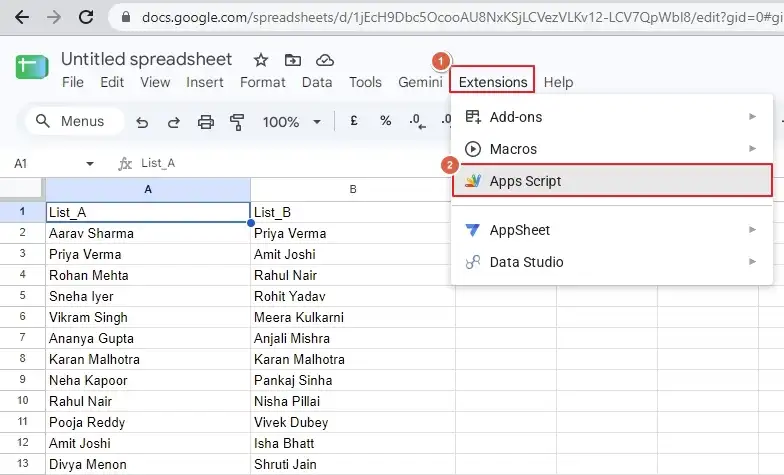
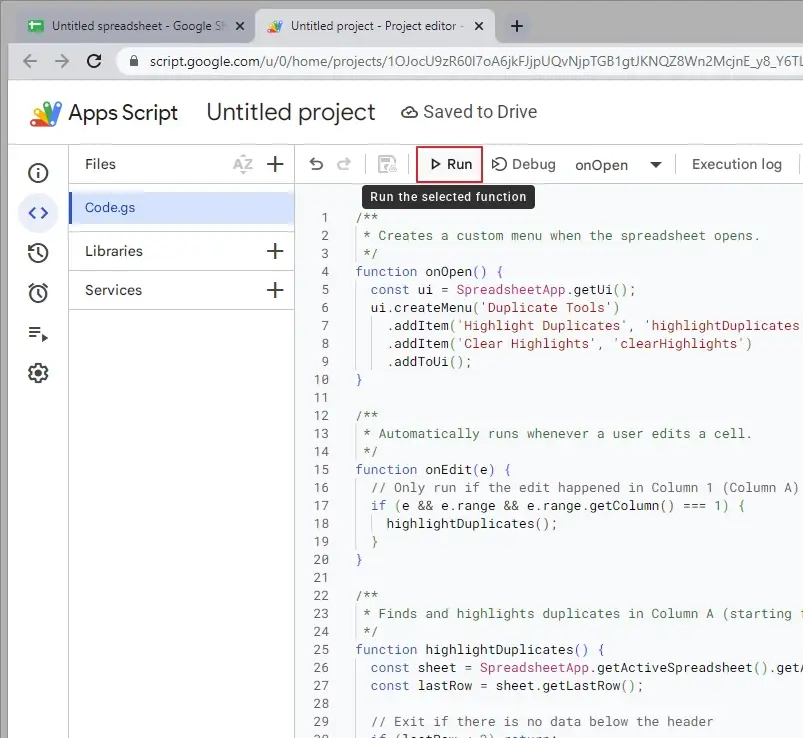
- Open any spreadsheet and click on Extensions >Apps Script.
- In the editor, delete any existing code, paste the code below, and click on the Save icon.
- Click on Run, then follow the Google prompt to review permissions.
- Reload your spreadsheet and continue working.
/*** Automatically runs whenever a user edits a cell.*/function onEdit(e) {// Only run if the edit happened in Column 1 (Column A)if (e && e.range && e.range.getColumn() === 1) {highlightDuplicates();}}
/*** Finds and highlights duplicates in Column A (starting from Row 2).*/function highlightDuplicates() {const sheet = SpreadsheetApp.getActiveSpreadsheet().getActiveSheet();const lastRow = sheet.getLastRow();
// Exit if there is no data below the headerif (lastRow < 2) return; const range = sheet.getRange(2, 1, lastRow – 1, 1); // Column A, Row 2 to end const values = range.getValues(); const counts = {}; const colors = []; // First pass: Count occurrences of each non-empty value for (let i = 0; i < values.length; i++) { const val = String(values[i][0]).trim(); if (val !== ”) { counts[val] = (counts[val] || 0) + 1; } } // Second pass: Build an array of background colors for (let i = 0; i < values.length; i++) { const val = String(values[i][0]).trim(); if (val !== ” && counts[val] > 1) {colors.push([‘#f4cccc’]); // Light red highlight for duplicates} else {colors.push([null]); // Reset to default/transparent background}}
// Apply all colors in a single batch operation for high speedrange.setBackgrounds(colors);}
/*** Removes all background colors from Column A.*/function clearHighlights() {const sheet = SpreadsheetApp.getActiveSpreadsheet().getActiveSheet();const lastRow = sheet.getLastRow();if (lastRow < 2) return; sheet.getRange(2, 1, lastRow – 1, 1).setBackground(null); }
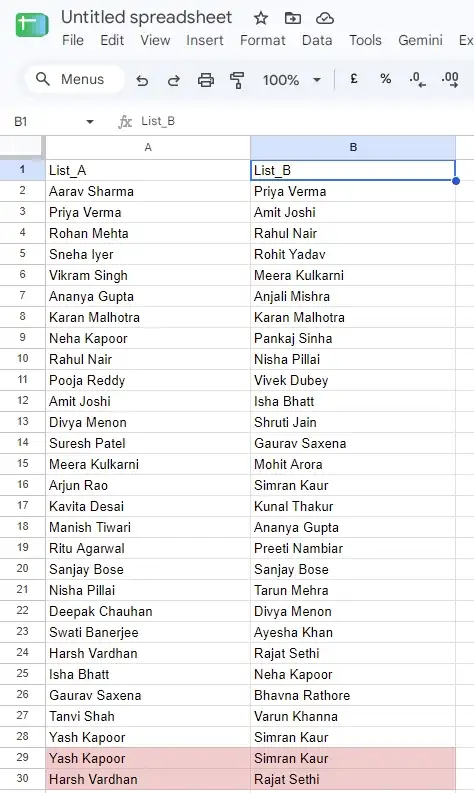
As you enter any duplicate data, it will automatically be highlighted in the spreadsheet.
Ending Note
Highlighting duplicates in Google Sheets is very easy. All you need to do is know the correct formula. Most of the time, you can use Conditional formatting with COUNTIF to quickly identify duplicates. Or you can use Apps Script to automatically highlight duplicates in Google Sheets between two columns and a single column.
Frequently Asked Questions
Ans. Not really. You’ll have to use Conditional formatting with a Custom formula.
Ans. Yes, COUNTIF will work for text, numbers, emails, dates, and IDs. Just make sure you have the same format in both columns.
Ans. To remove duplicates after they have been highlighted, go to Data >Data clean-up >Remove duplicates.