

Every email client has its own email file format to save emails. EML and MHT are two different email file formats used by email clients. EML files are email message files that store a single email with all the details, like sender, receiver, subject, date, attachments, and message body. Many email apps, such as Outlook, Thunderbird, and Apple Mail, support EML files. Although it is good to store individual emails, hundreds or thousands of EML files are not easy to handle.
On the other hand, the MHT file (MIME HTML Archive) is a single-file format that bundles an entire web page that contains HTML code, images, stylesheets, scripts, and other media. The key benefit of using MHT is that it can be opened in browsers directly, and there is no need to install an email client. So, what is the need or reason to convert EML to MHT?
Why Convert EML to MHT Format? Common Reasons
Check out all the prominent reasons to convert EML files to MHT format for accessing your email content.
- Universal Browser Access: MHT files can be opened directly in web browsers such as Chrome, Edge, and Opera.
- Better Content Layout: MHT files keep the original email design and structure. You will get your email content exactly as it appears in the email.
- Archive Old Emails: You can choose MHT files to save email files for long-term email records, audits, and legal use. The MHT file format offers better accessibility and reliability.
- Simple Share Process: You can quickly share MHT files across teams and devices. You do not need any special tools to view the content.
Now you know why you should switch to the MHT file. It’s time to convert EML to MHT files using free methods.
How to Convert EML to MHT Using Manual Solutions?
There are a few manual methods available to convert EML file into MHT. We will discuss each method in detail. You can choose any method as per your requirements:
Method 1: Convert EML files into MHT Using Outlook
Outlook is a robust email client that can open EML files and convert them into MHT files. This method works in two parts. Let’s understand each part one-by-one.
Part 1: Import EML to Outlook
Step 1: Right-click on EML files > Open With > Outlook.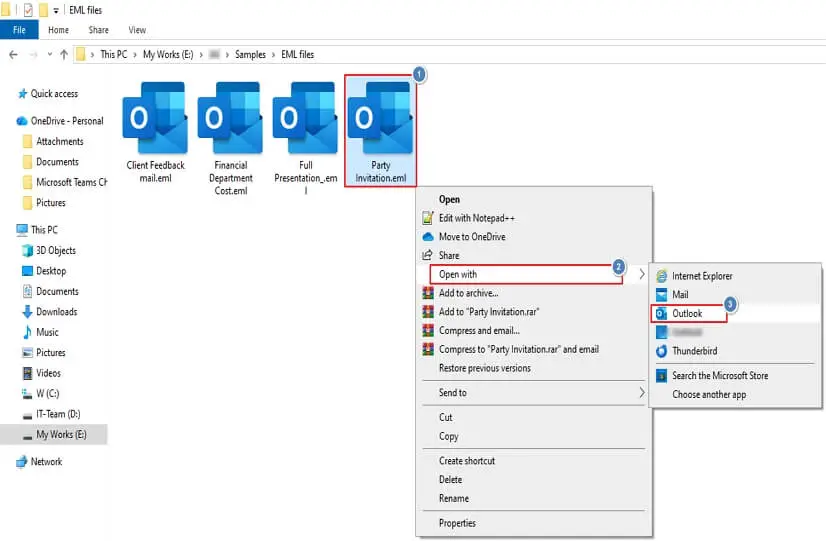
Part 2: Convert EML files to MHT
Step 1: Now open your email file (EML) in Outlook and click File.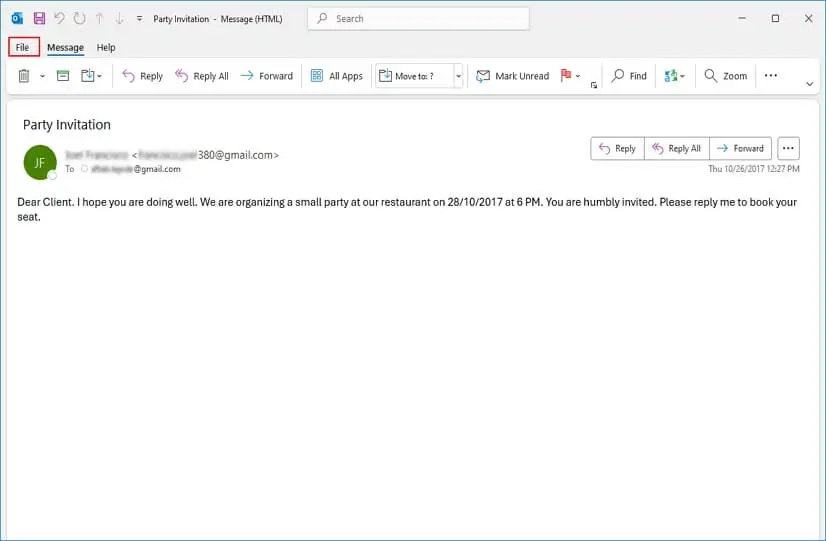
Step 2: Click on Save As in the left panel.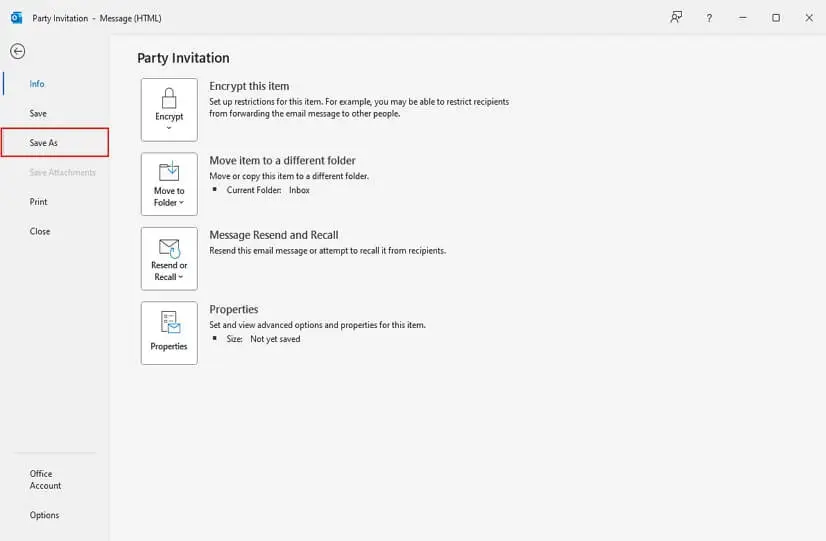
Step 3: Select saving location, and MHT as output format. Click Save.
Step 4: Your EML file is saved in MHT in your selected location.
Method 2: Use Microsoft Word to save EML file as MHT
You can easily convert EML file into MHT using Microsoft Word. Follow this step-by-step guide to convert EML to MHT:
Step 1: Launch Microsoft Word and click Open > Browse.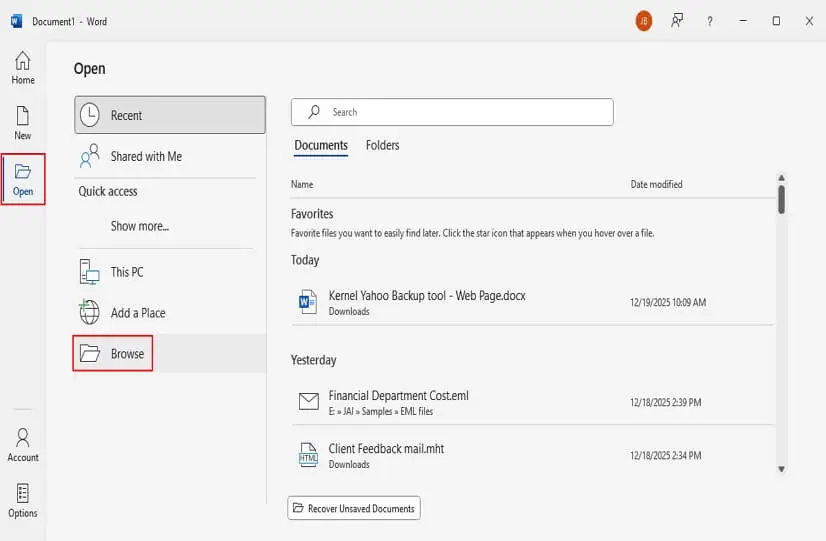
Step 2: Select EML file from your local drive and click Open.
Step 3: Word will display all content of the EML file and click File.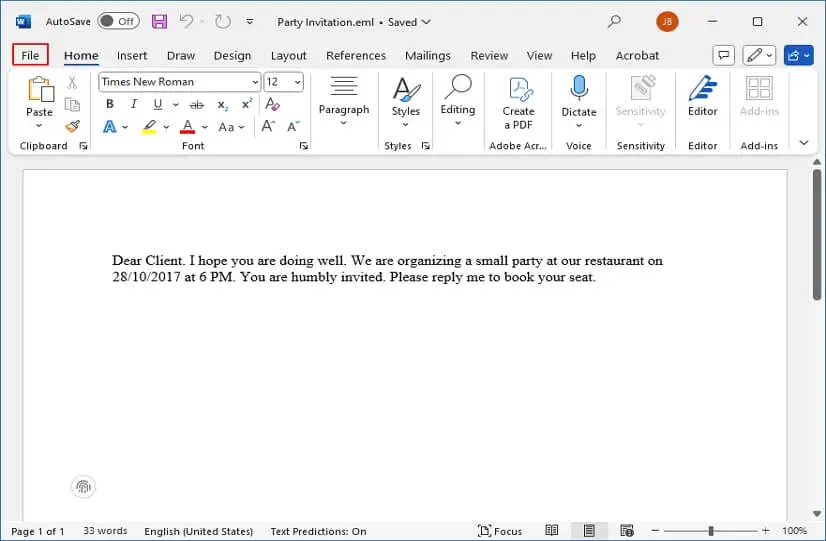
Step 4: Now, click on Save as and Browse.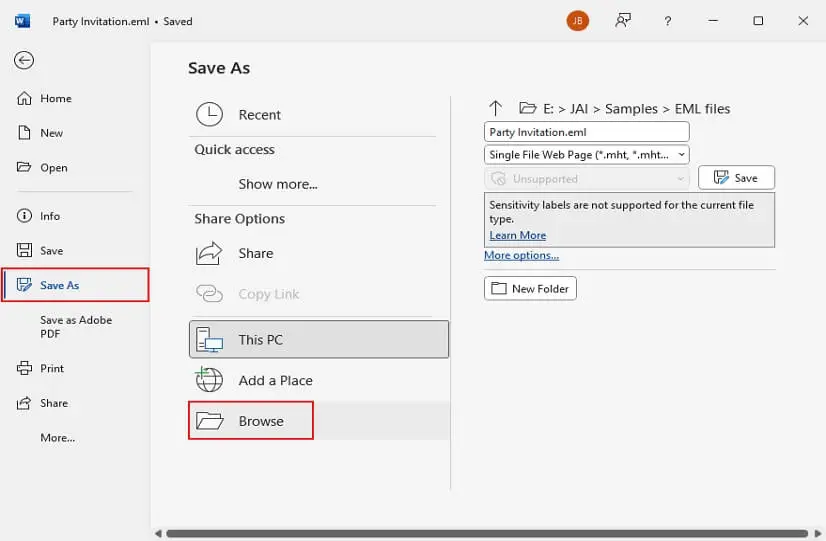
Step 5: Select saving folder, output option as MHT or .mht, and click Save.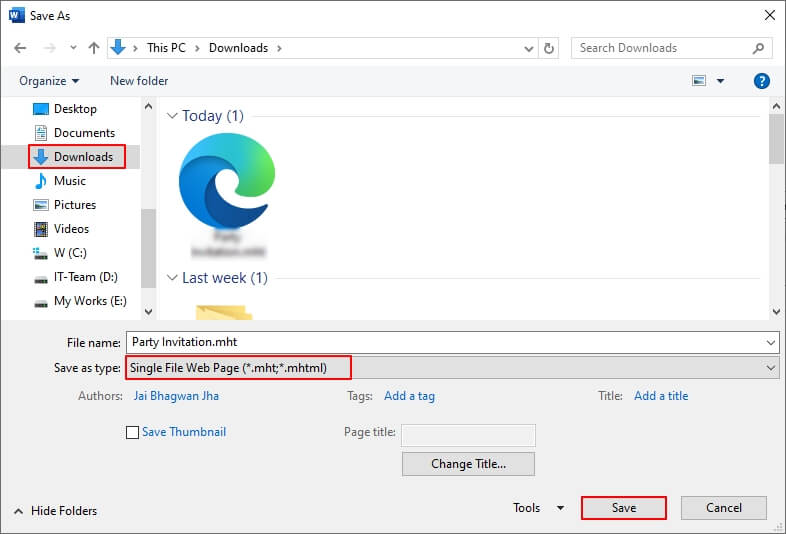
Method 3. Convert EML File into MHT using Thunderbird
In Thunderbird, there is an add-on known as ImportExportTools NG, which allows users to export EML to MHT. Add this extension in your Thunderbird and follow the below steps:
Step 1. Create a new folder in Thunderbird or use the existing folder, then drag-and-drop EML files into it.
Step 2. Right-click on the EML folder or select and right-click on EML messages you want to convert.
Step 3. Select Export Messages As >HTML Format.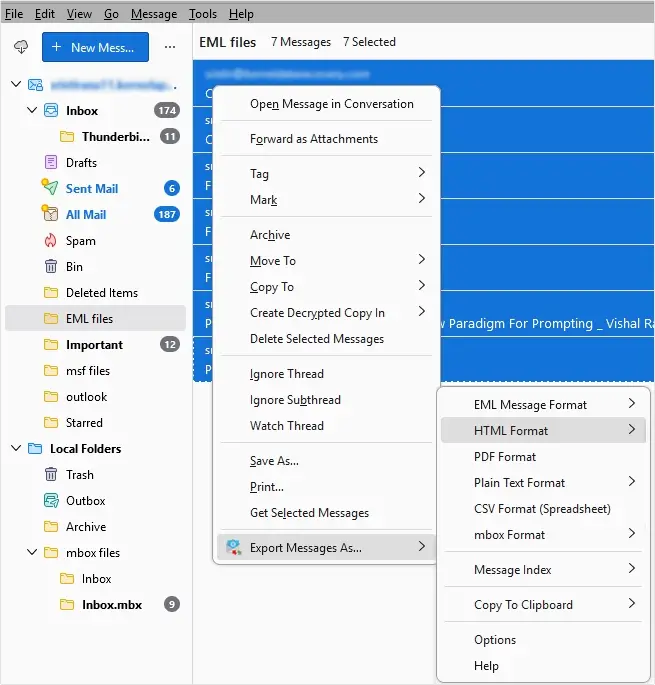
Step 4. Later, open the exported HTML files into the web browser, and press CTRL+S keys, then select MHT/MHTML format and click Save.
Limitations of manual methods
Manual methods are free, but they hold some limitations, such as:
- You cannot initiate bulk EML to MHT conversion using Word and Outlook.
- These methods will take much time in case of large EML files.
- You can lose your data, like images, links, or formatting.
- MS Word will alter your EML file’s original layout.
- Not suitable for business or enterprise needs due to lack of batch processing.
With these drawbacks, a question comes to mind: are manual methods reliable for EML to MHT conversion? The answer is no as you cannot convert bulk files at once. Thus, this is the right moment to rely on a specialized EML converter tool that ensures a smooth and secure conversion process.
Convert EML to MHT in Fast and Secure Way
Kernel EML Converter tool is a reliable solution that allows you to convert your EML files to MHT. This software converts bulk EML files to MHT file format without data loss. It keeps email structure, headers, attachments, and layout intact.
Advanced features of our EML to MHT Converter tool
- Convert bulk EML files to HTML, MHT, and multiple other formats.
- Preview full email content with To, CC, BCC, Subject, Body content intact.
- Apply advanced filters to export only specific email content.
- Extract all email attachments and save them to local folders.
- Extract email addresses and save them in CSV or XLSX formats.
- Auto-locate EML files from selected drives for fast EML access.
- Support both Windows and Mac operating systems without limitations.
- Utilize our trial version to convert 25 items per folder for free.
Step-by-Step Process to Convert EML to MHT Format Using Tool
Step 1: Download, install, and launch the tool.
Step 2: On the software’s home screen, click on Add Source.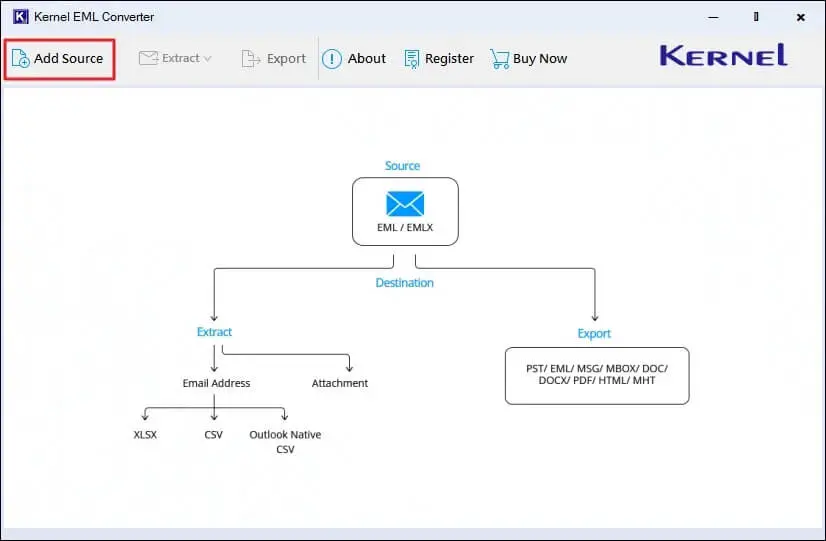
Step 3: Browse and add EML files to the software and click Add Files.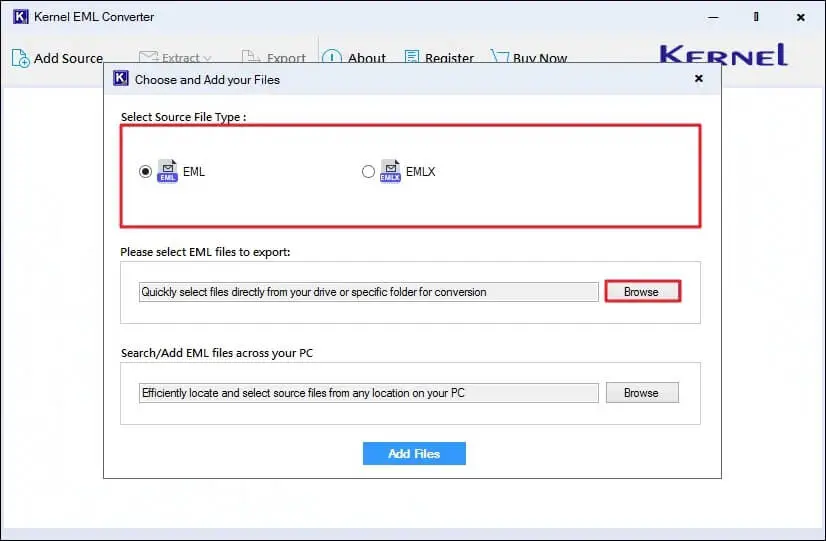
Step 4: The software will list all the EML files, select any EML file, view its content, and click Export.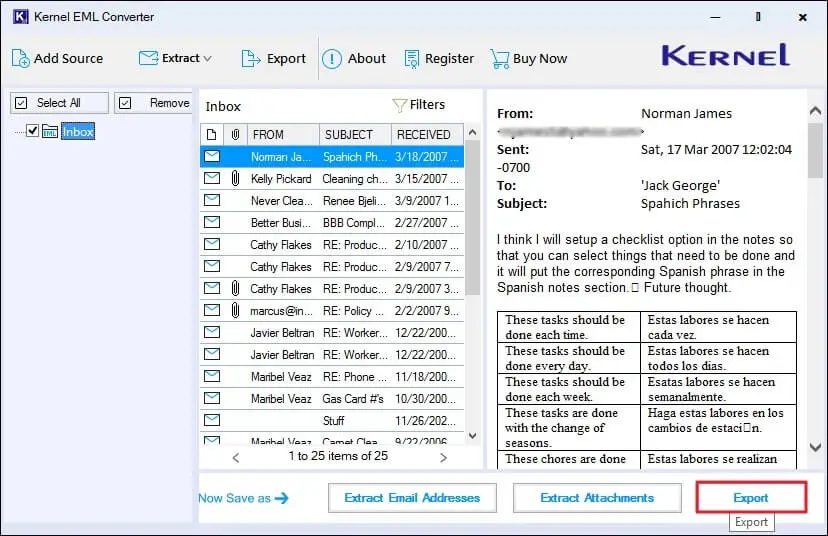
Step 5: In the following window, select output format as MHT, apply filters, and click on Browse to select a preferred saving location. Finally, click Export to start converting EML files to MHT.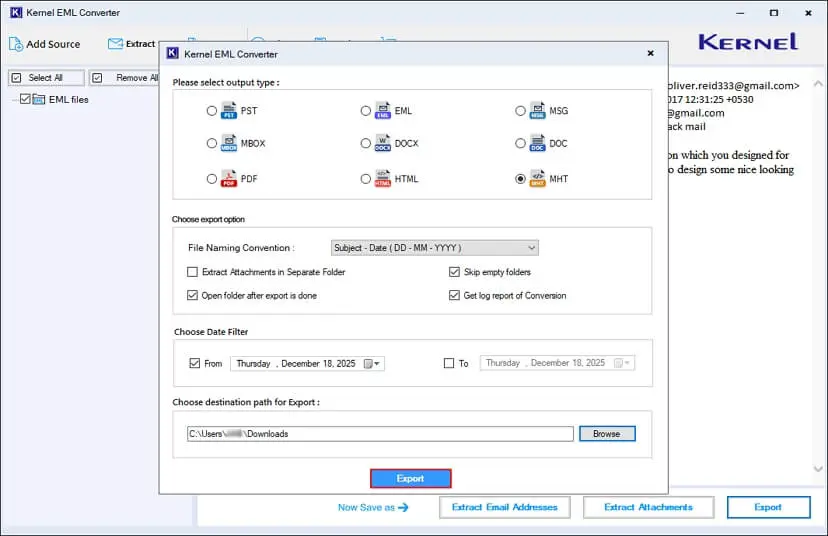
Step 6: After a successful export process, the software will pop up “Export Completed” message, click Done.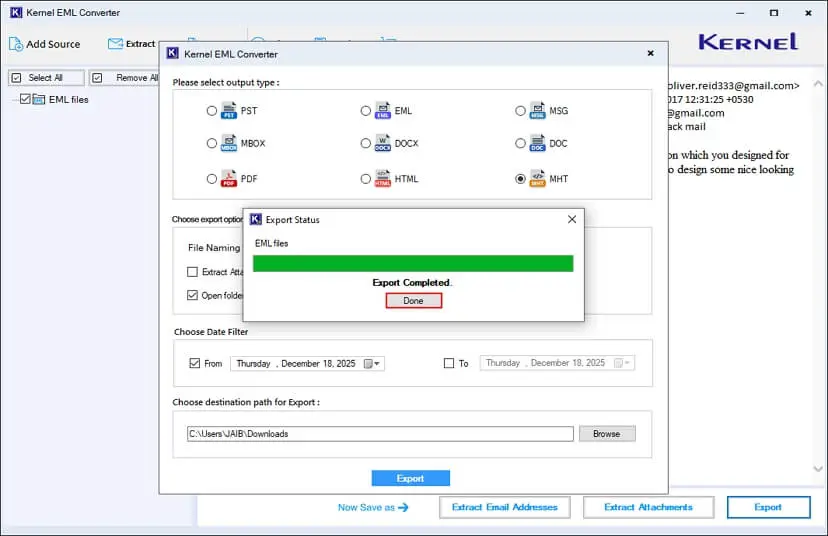
Congrats, you have successfully converted all your EML files to MHT with complete email integrity.
Conclusion
As we discussed, EML and MHT are different file formats and offer distinct functionalities. An EML file is excellent, but you cannot handle hundreds of files. To overcome such limitations, users export from EML to MHT. There are some manual methods available, but they lack bulk conversion needs. To convert multiple EML files to MHT, opting for a reliable tool is recommended.
Frequently asked questions
A. MHT files offer better layout, easy browser access, and are easily accessible without an internet connection.
A. Yes, but manual methods require Outlook or Word and often cause data issues. That’s why EML to MHT Converter is required to safeguard your email data.
A. No, manual methods do not support bulk file conversion. For that, you must utilize an advanced EML to MHT converter tool.
A. Yes, MHT files keep attachments, fonts, links, and other data in a single package.
A. No, you do not need Microsoft Outlook to convert EML files to MHT because there are some other ways available for the conversion.
A. Yes, you can convert EML files straight into MHT format using Thunderbird’s ImportExportTools NG extension.
A. Yes, you can easily convert Windows Mail EML files to MHT format using our software.