Here is the step-by-step guide to access corrupt or damaged MDB or ACCDB files with ease.
Step 1: Download, install, and launch the Kernel for Access tool.
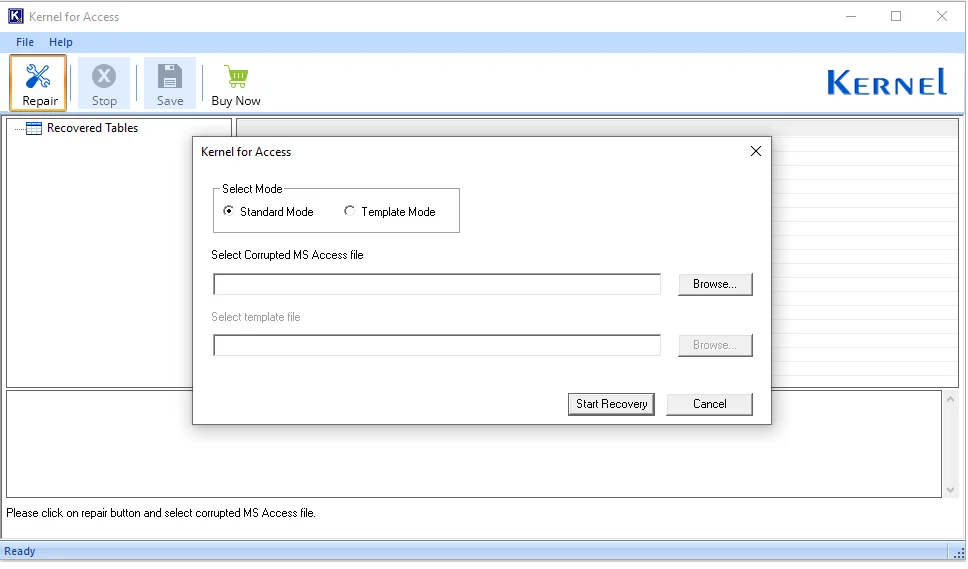
Select View Modes
The software offers two different Modes, such as Standard Mode and Template Mode to view MDB or ACCDB files.
Let’s dive into both modes and understand why these modes are important for your MDB or ACCDB files.
View MDB and ACCDB file content using Standard Mode
Standard Mode: If your MDB or ACCDB file is minor corrupted and you can't view its content or metadata. then use Standard Mode. it will easily fix minor corruptions and view its entire data with complete data integrity.
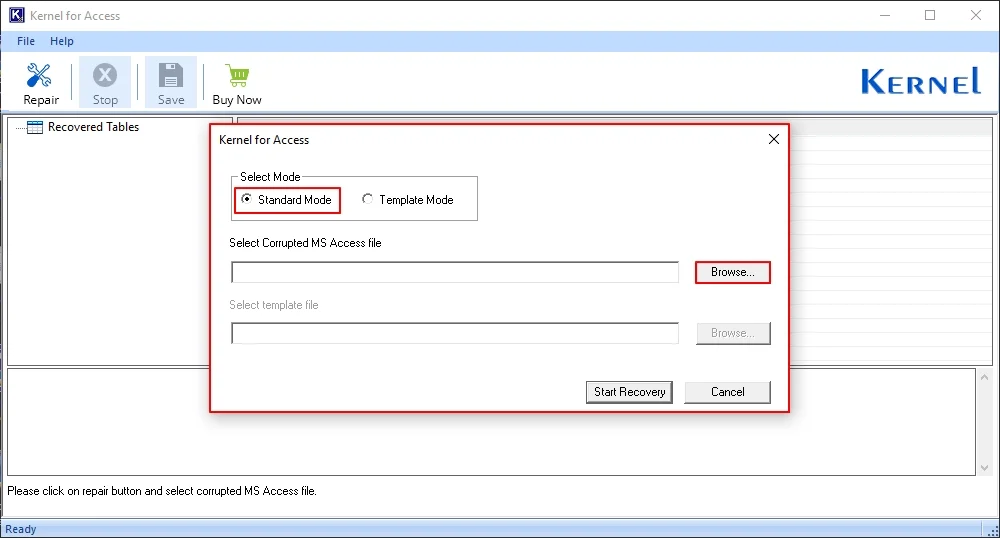
Step 2: Let’s start with Standard Mode, click on Browse to add files.
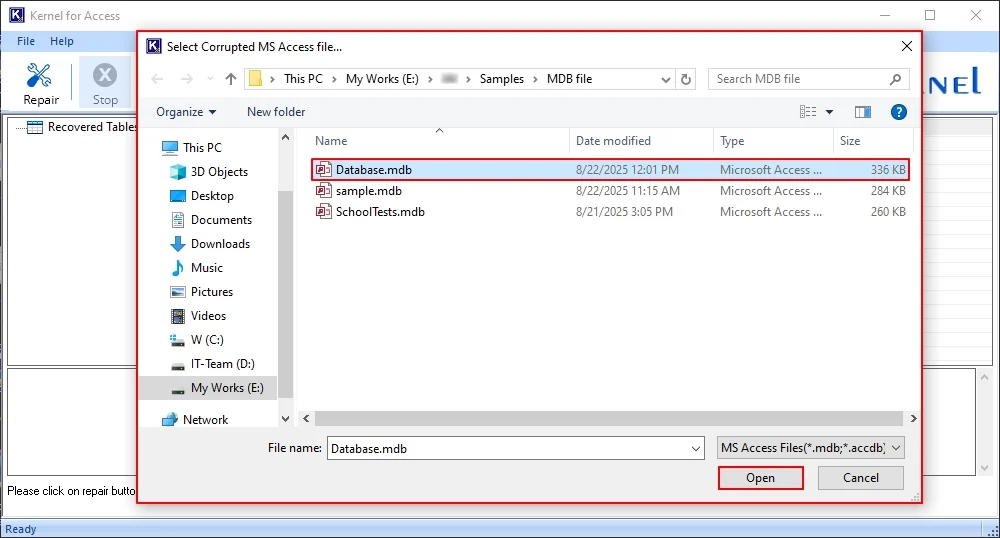
Step 3: Select corrupt MDB or ACCDB files from your local storage to preview and click Open.
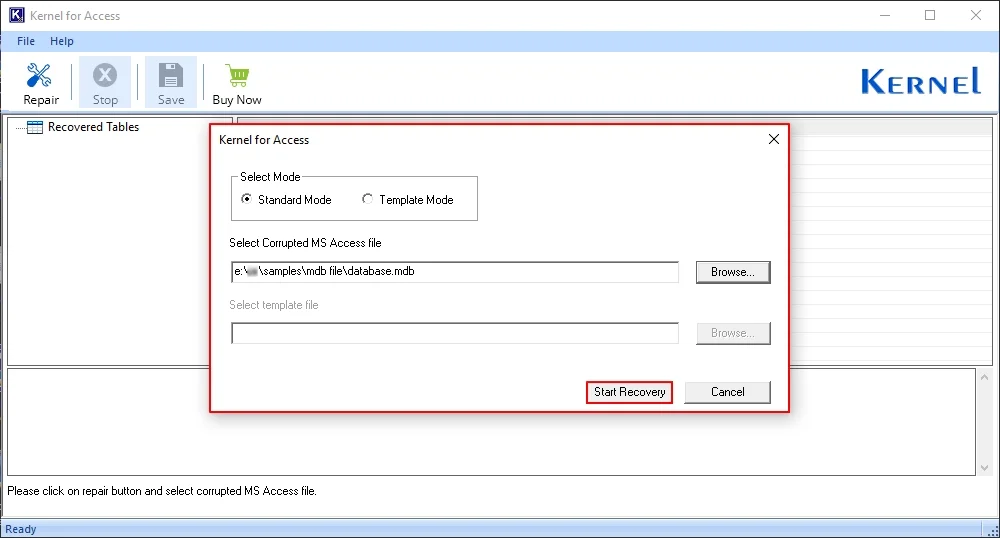
Step 4: In the following window, click the Start Recovery option.
Step 5: The software will start repairing and scanning the entire database file and show the live scanning process.
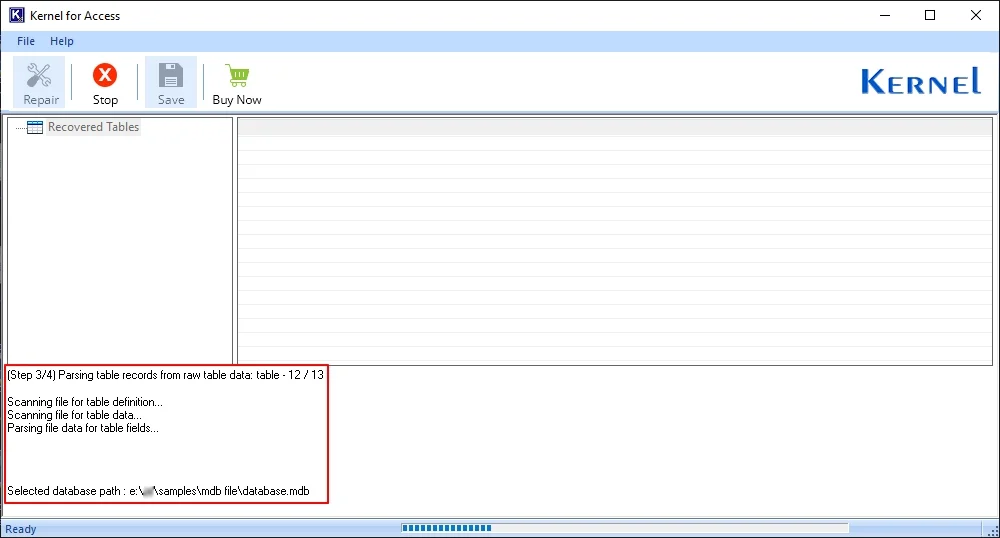
Step 6: Once completed, the software will preview the entire database content with tables and columns intact.
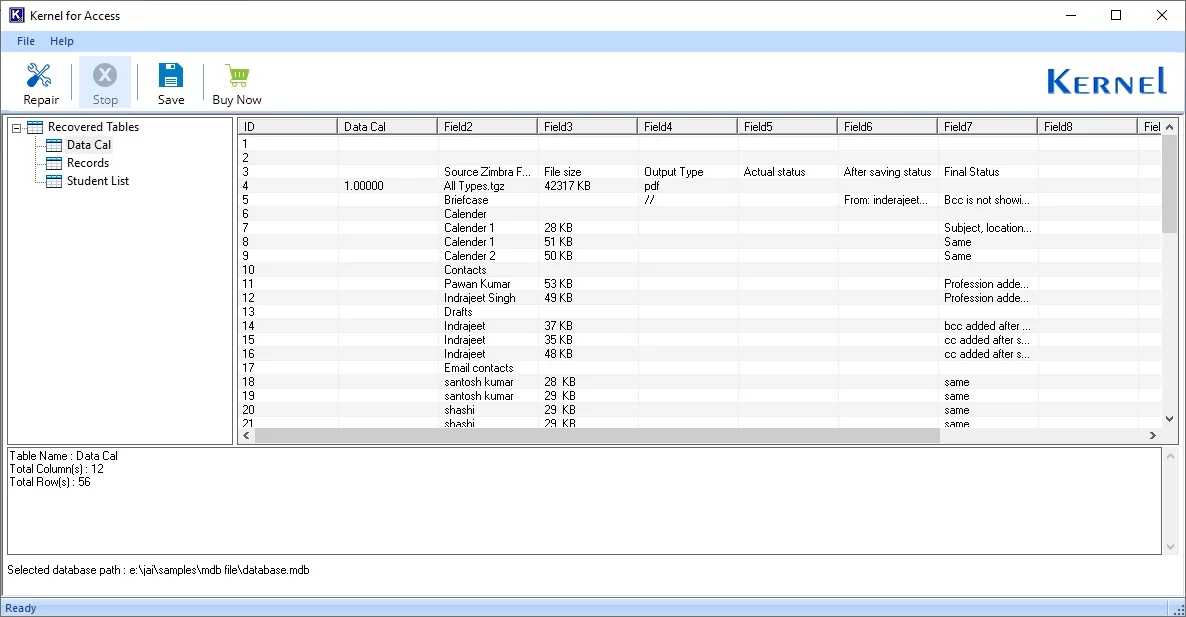
Step 7: To save the entire database in a healthy state, upgrade to licensed version.
Use Template Mode to repair highly corrupted Access database:
Template Mode: A Template Mode is like a Database File that contains all the templates, just as your Database file does. To repair a highly corrupted database, you need a Template File that includes the same structure as the source file.
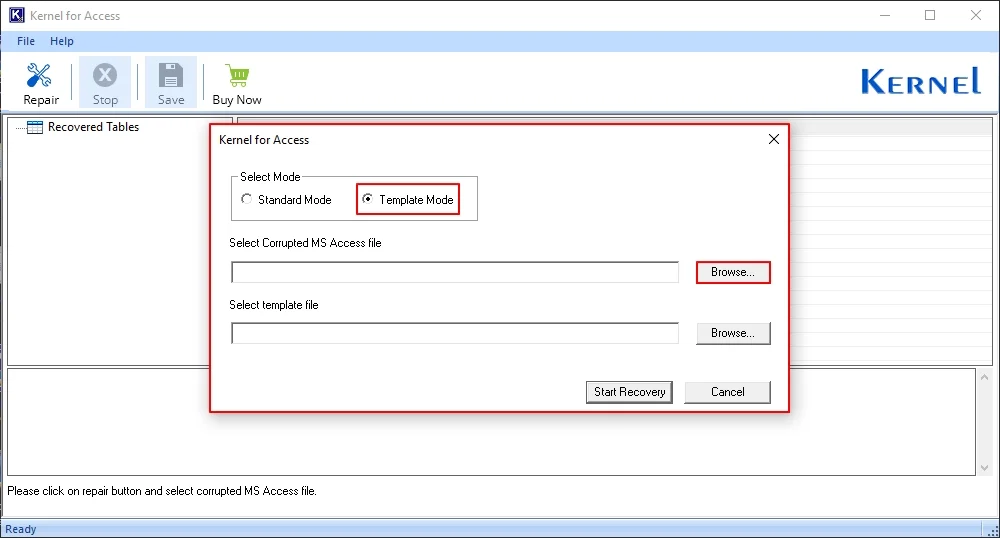
Step 2: Launch the tool, Select Template Mode, and click Browse.
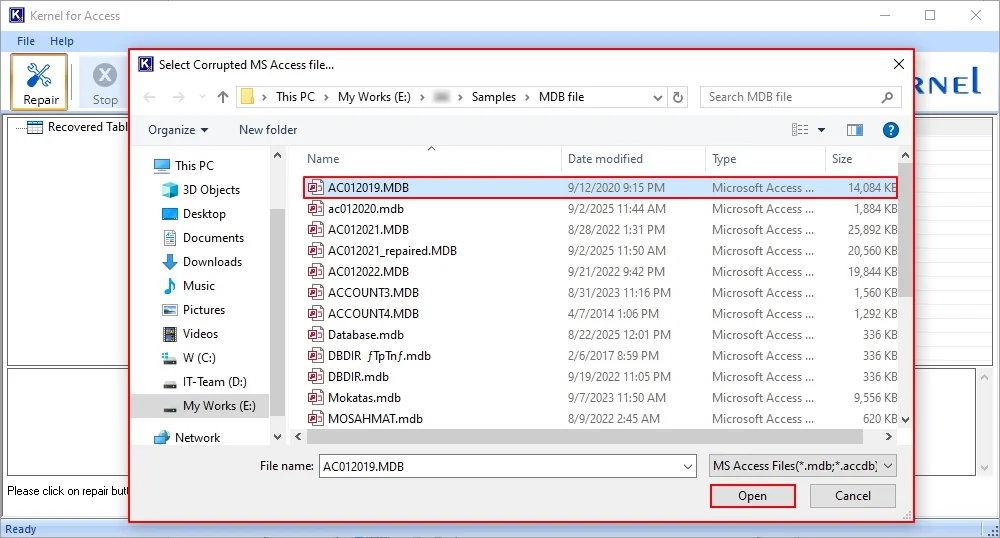
Step 3: Select database files from your system and click Open.
Step 4: Now, in the Select template file option, click Browse.
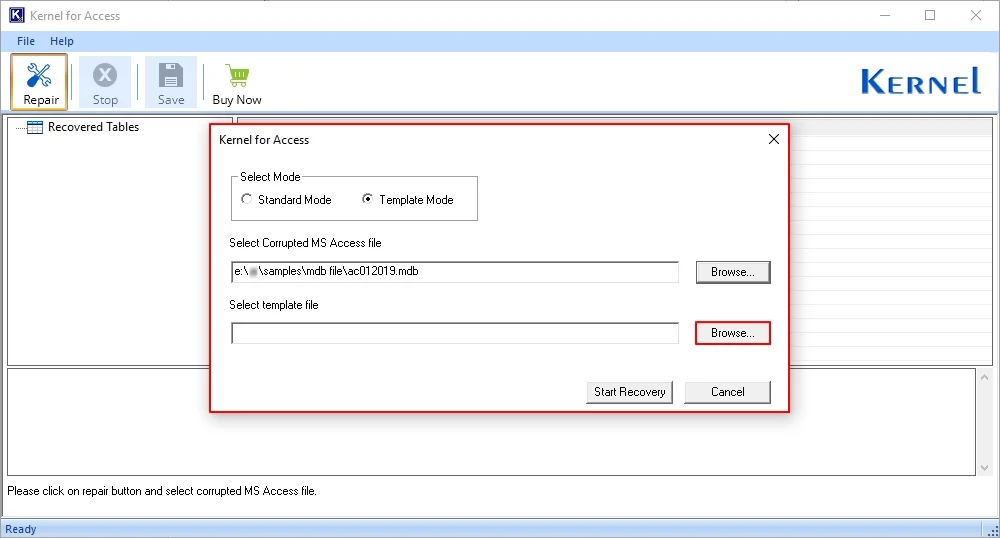
Step 5: Select Template file from your system and click Open.
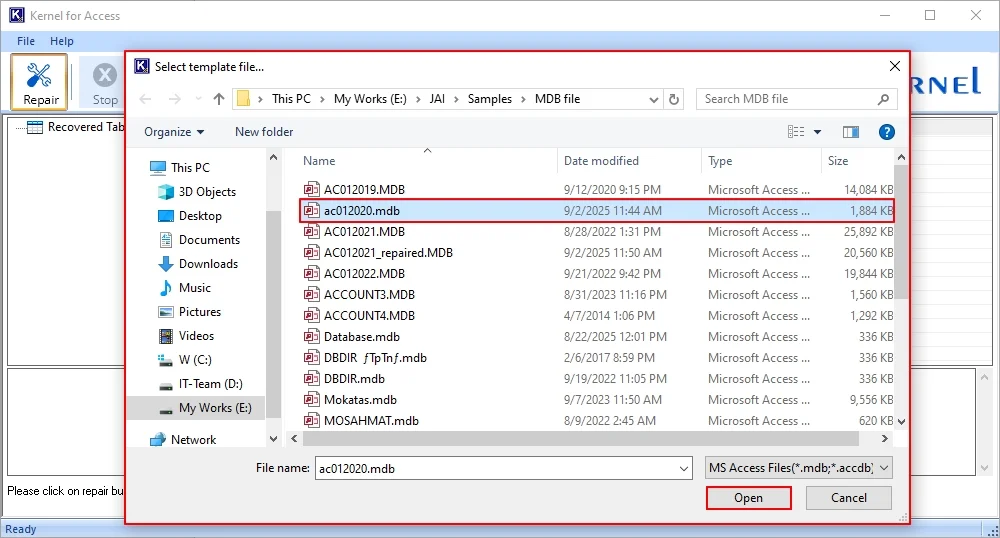
Step 6: Now, click on Start Recovery to repair a severely corrupted database file.
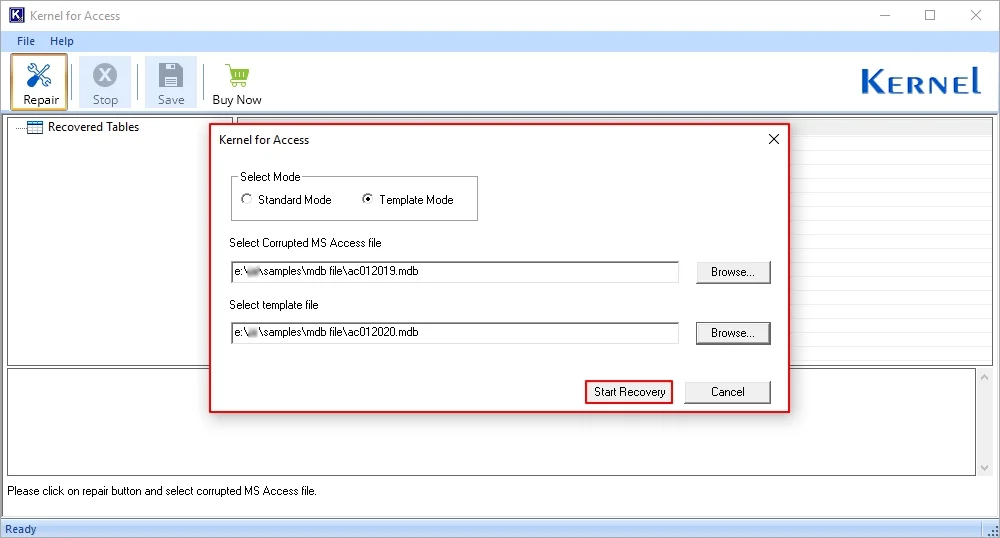
Step 7: The software will start a deep scan to repair and recover data from a corrupted database file.
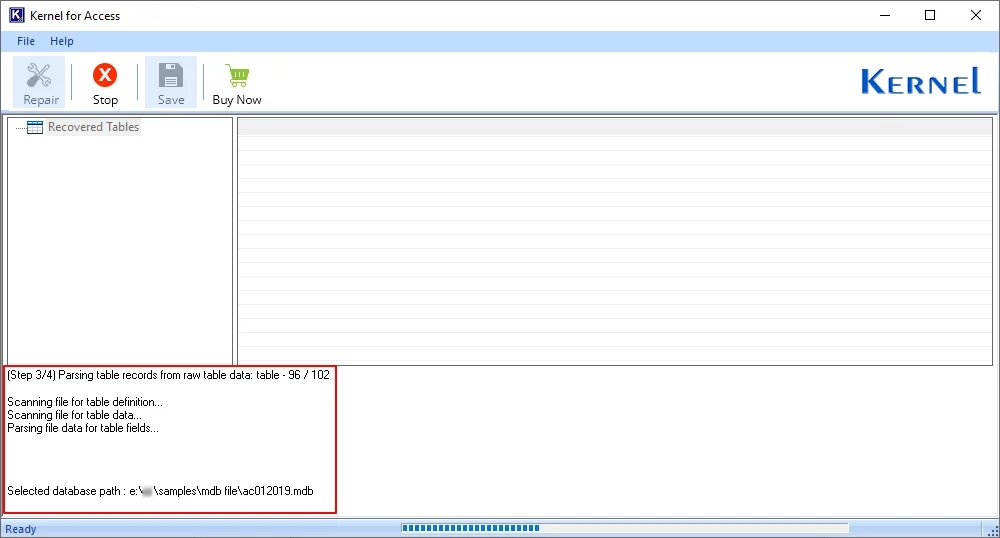
Step 8: The software will recover and list all your objects from that database. Select any specific object and view all its data in the original hierarchy.
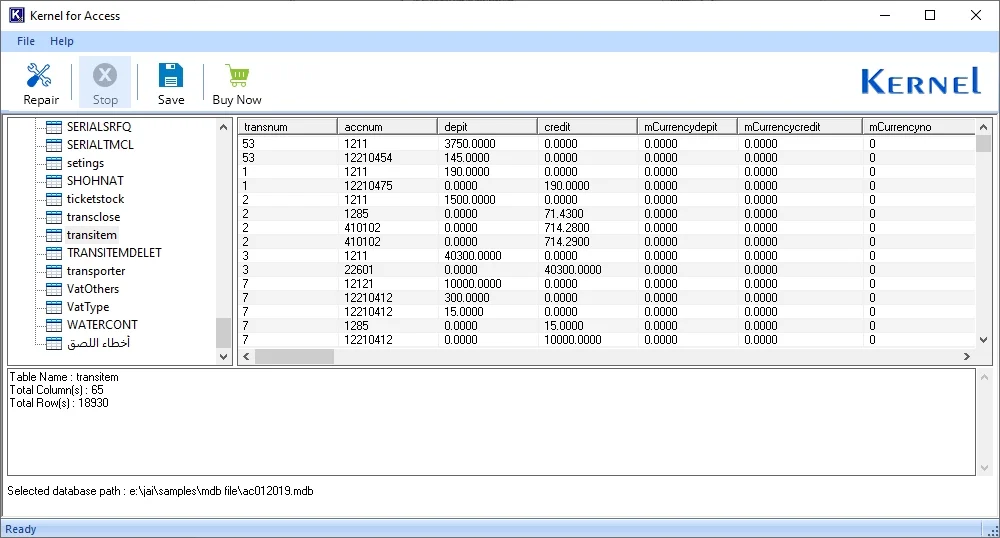
Step 9: Upgrade your free license to save your database in a new database file quickly.