The G Suite to Office 365 migration tool enables you to directly migrate all your mailbox items, including emails, to various Office 365 destinations such as the primary mailbox, Office 365 Groups, Archive Mailbox, Shared Mailbox, and Public folders. In addition to this, the tool also allows users to migrate Google Chat effortlessly. This tool ensures a smooth and trouble-free transition, making it the ideal choice for organizations switching platforms.
Migrate from G Suite to Office 365 without hampering your team's communication. The G Suite to Office 365 migration tool can migrate Google Chat direct messages (1:1 chats), Groups Chats & Spaces to Microsoft Teams Chats with their respective thread, attachments, files, metadata, hyperlinks, mentions, emojis, GIFs, etc. Preserve members of Groups chats & Spaces after migration in destination. The G Suite migration tool makes sure to keep the message state intact in the destination.
G Suite to Office 365 software provides an advanced Incremental Migration (Sync) feature to enable smooth migration from G Suite to Office 365. This function allows you to move or update data in an Office 365 account while skipping any previously migrated data to avoid duplicity. The tool integrates one more advanced feature that allows users to select & migrate G Suite data only from a specific time duration according to their requirements.
Check out the concise 3-step guide for an effortless migration process from G Suite to Office 365 with complete data integrity.


Utilization of top-notch algorithms in the G Suite to Office 365 migration provides quick and accurate results. Users can effortlessly migrate G Suite mailbox data to single/multiple Office 365 mailboxes with exceptional accuracy in a very minimum time duration.
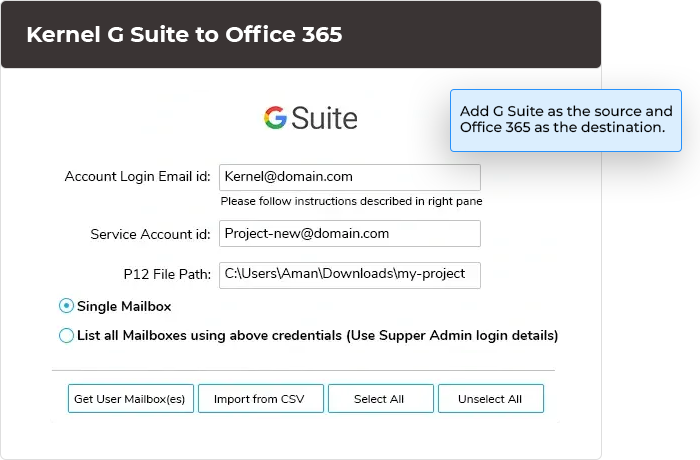
Quick login mechanism to add source & target accounts while initializing the migration of G Suite mailboxes to Office 365 mailboxes and Google Chat to Microsoft Teams Chat. Contemporary dynamics of the software allow for an uninterrupted workflow during migration.
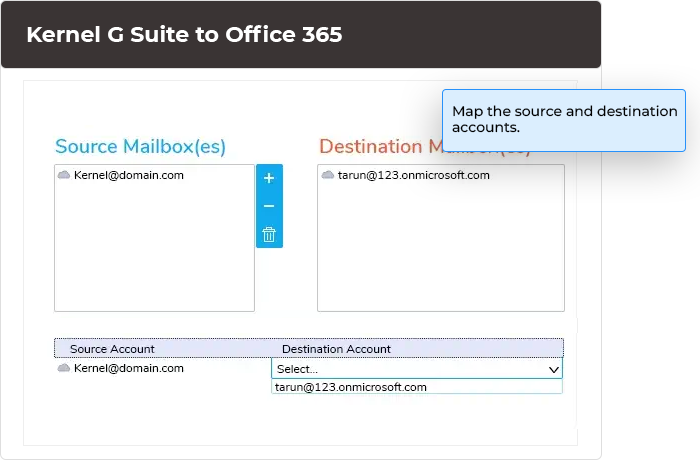
The tool lets users map Google mailboxes with the respective Office 365 mailboxes. This helps in migrating data items like Inbox, Calendar, Contacts, Tasks, etc., to the desired destination as per needs. The G Suite to Microsoft 365 migration tool also retains the read/unread status of emails.
Migrate G Suite to Microsoft 365 in a structured manner. The tool can handle the migration of multiple mailboxes at once. Every mailbox is securely transferred in a proper sequence without affecting any other mailbox in the migration queue. Furthermore, you can monitor the entire G Suite migration live.
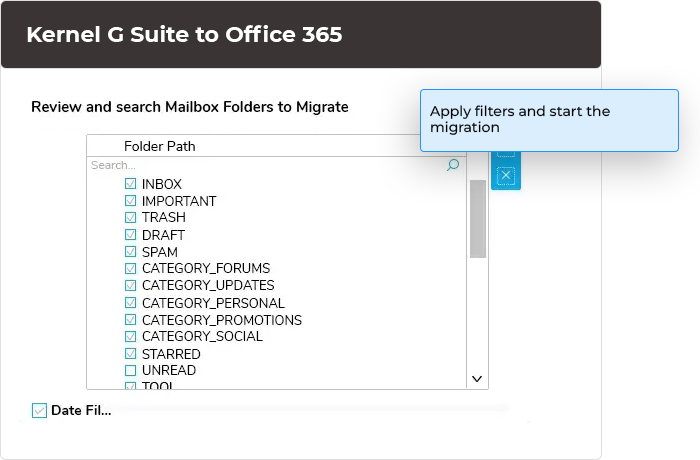
Our tool simplifies the G Suite migration to Microsoft 365. The software features an easy-to-understand interface designed to guide users through a hassle-free migration. The user can effortlessly add source & destination, map mailboxes, and set up filters for migration with just a few clicks.
Upon completion of the G Suite to Microsoft 365 migration, all data will be readily accessible in the destination account without requiring any further actions. Users can find the migrated data with their preserved status in the destination mailbox, same as in the source mailbox, after the successful migration.
Explore the versatile features of G Suite to Office 365 migration software that allows for quick and efficient data transfer.
Migrate Google Apps data to Office 365, including Gmail, contacts, calendar/appointments, tasks, and Google Chat. Easily migrate multiple G Suite mailboxes to your desired Microsoft account without any data size limitation. Transfer your Google users' chat, direct messages, Group Chat, and Spaces to Microsoft Teams.
The software allows you to migrate G Suite data to Primary, Shared, and Archive Mailbox or Public Folder of the Office 365 account. Users can select the destination for every mailbox before starting the migration. The G Suite to Office 365 migration tool also transfers original folders and labels of your Gmail account.
The Google Apps to Office 365 migration software moves all folders (with sub-folders) in the way they were created. The entire multi-folder hierarchy is maintained during the migration. You will get all your folders with their name, size, and items intact in Office 365. This feature saves time by eliminating folder reorganization.
Migrate multiple large-sized Google mailboxes to Exchange Online. Perform an easy bulk G Suite to Office 365 migration by adding and mapping mailboxes quickly with CSV files with the necessary credentials, and import that CSV file into the software. The G Suite migration tool automatically reads and processes the file.
Migrate from G Suite to Office 365 with only the essential data. Include/exclude specific folders or migrate data of a particular day, week, month, or year with the Date Filter. Use Item Type filter to move specific items to Office 365. You can also customize the migration to only move Google Drive data.
The G Suite to Office 365 software lets you avoid data duplicity by using the incremental feature. Migrate from the same Google account multiple times without having any unnecessary copies. The feature allows migrating only newly added data to Office 365 destination by skipping any previously migrated data during migration.
Quick migration of Google Groups to Microsoft 365 Groups along with emails, notes, calendars, appointments, and attachments. The G Suite to Microsoft 365 migration software easily fetches all Google Groups and Office 365 Groups so that you can easily identify and migrate group data.
The G Suite to Office 365 software allows users to track their migration status in the toolbar. In the Summary window, you can view mailbox email address, folder name, status (Successful, Processing, and Pending), item counts, and remarks (display failed reason if any item didn’t migrate due to any reason) in the toolbar.
The G Suite migration tool generates a detailed CSV report post-migration to check and verify the correct migration of each item. Migration reports provide useful insights, such as status or special remarks of data items that were migrated. The report provides folder-level verification after the transition from G Suite to Office 365.
Migrate your entire Google Chat components, including messages, emojis, images, videos, PDFs, GIFs, mentions, hyperlinks, metadata, attachments, meeting links, and shared drive links, to Microsoft Teams. The G Suite migration to Office 365 tool moves your messages with complete data integrity.
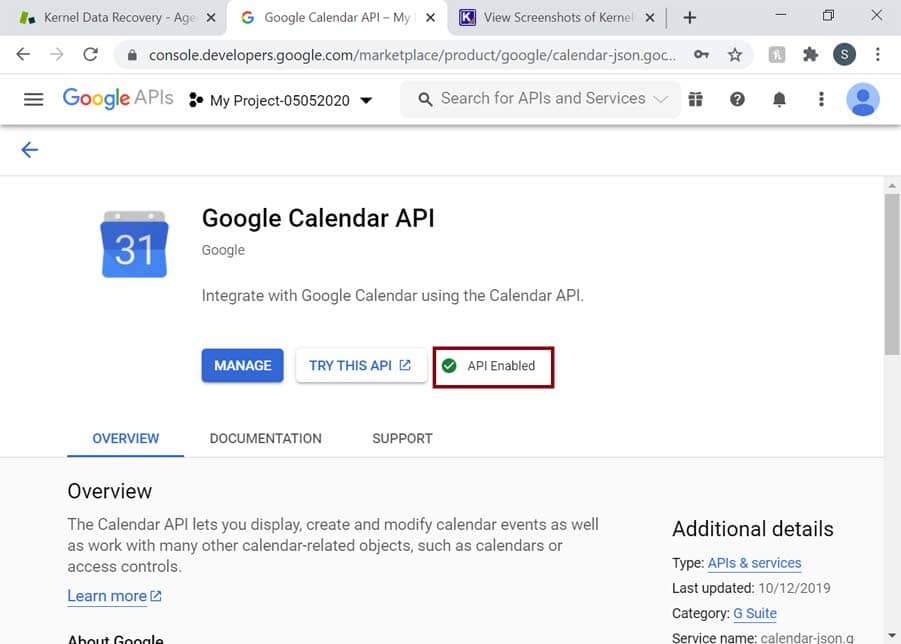
Migrate G Suite to Office 365 risk-free, as our tool follows modern authentication practices to connect source & destination. Configure the source G Suite account with Super Admin Email Address, Service account, and p12 key. Safely add the Office 365 account with Tenant ID, Client ID, and Client Secret Value.
The G Suite to Office 365 migration tool integrates an inbuilt salient feature to migrate Google Spaces to different modules, such as Microsoft Teams Chat and Microsoft Teams. It lets you securely migrate Google Spaces of All Organizations or Only Selected Users to different Microsoft Teams modules.
The Google Chat migration module facilitates an advanced Search option in User mapping, effective for a window, where you can easily search specific Google users and map them with a selective Microsoft Teams account. After that, in the Google Chat Spaces Mapping window, you can search for particular Google Spaces by their name.
The software provides a robust filter feature in the Google Chat Migration module that allows users to migrate specific data from Google Chat and Spaces into Microsoft Teams Chat or Microsoft Teams. You can choose to migrate or skip files & shared drive files from your Google Chats during G Suite to Office 365 migration.
The software facilitates a Split spaces into batches option that allows you to migrate multiple Google Spaces (in numerous instances) into Microsoft Teams. This approach helps in reducing the load on resources, saves time, and enables a quick Google Chat Spaces migration, especially for large-scale transfers.
| Source | Destination |
|---|---|
| Google Chat (1:1 Direct Messages) | Microsoft Teams Chat |
| Google Chat (Group without Name) | Microsoft Teams Chat |
| Google Spaces | Microsoft Teams |
| Google Spaces | Microsoft Teams Chat as Group Chats |
| Migrate attachments or files of Google Chat and Spaces | Microsoft Teams |
| Migrate attachments or files of Google Chat and Spaces | Microsoft Teams Chat as Group Chats |
| Migrate Google Chat and Space Shared Drive files/hyperlinks | Microsoft Teams |
| Migrate Google Chat and Space Shared Drive files/hyperlinks | Microsoft Teams Chat as Group Chats |
| Migrate Google Spaces data in the original hierarchy | Retain Google Space data in original hierarchy in Microsoft Teams |
Yes, It is required to have a valid Office 365 license with a Teams subscription for the Admin (Global ) user , whose credentials are being used to connect to the destination Microsoft Teams.
Process of the migration will be executed through this Global Admin user on behalf of all users.
In case OneDrive is not provisioned for the users, their files will be saved to the Global Admin’s OneDrive.
The Global Admin user's license must remain active even after migration, as all chat migration activities are performed using this account.
Version: 24.2
Release Date: June 2024
License Type: Mailbox wise
Office 365 (Microsoft 365): All plans, including Office 365 (Microsoft 365) Enterprise E1, E3, E5 & Exchange Online Plan 1, 2, Microsoft 365 Business Premium, Office 365 A1, Office 365 A3, Office 365 A5, Office 365 F1, and Office 365 Business Essentials.
Google Workspace: All plans and subscriptions for G Suite, Business, Enterprise, Essentials, Frontline, Individual, and Education.
Hard Disk: 500 MB of disk space
Memory: 8 GB Minimum
Processor: Minimum 4 Core Processor
Operating System: Windows 365, 11, 10, 8.1, and older versions. Windows Server 2022, 2019, 2016, 2012, 2008 R2, 2008, 2003 R2, 2003
In my opinion, this tool stands out as the optimal choice for migrating from G Suite to Cloud. Additionally, it aids in efficiently reducing duplicate data within G Suite, enhancing the overall effectiveness of data management.