Read time: 7 minutes
Connect your Hostinger account to Outlook using IMAP to migrate Hostinger to Outlook. Access all your Hostinger emails with attachments directly in Microsoft Outlook.
Whether you use Outlook to manage your emails or access them without an internet connection, this guide will help you export Hostinger to Outlook with complete mailbox data.
Why Do Users Migrate Hostinger to Outlook?
Here are some common reasons that describe the benefits of moving to Microsoft Outlook:
- You can easily access emails even without an internet connection.
- Securely manage your multiple email accounts in one place.
- Allows you to create a local backup of your mailbox data.
- Offers better email organization with folders and rules.
- Integrates with Microsoft Office 365 built-in applications.
- Improve your productivity with Outlook’s advanced features.
Prerequisites Before You Export Hostinger to Outlook
Before you start exporting Hostinger Emails to Outlook, make sure to go through the following:
| Requirement | Details |
|---|---|
| Hostinger email address | Example: abc@domain.com |
| Email password | Active mailbox password |
| IMAP server | imap.hostinger.com |
| SMTP server | smtp.hostinger.com |
| Stable internet connection | Required throughout migration |
| Microsoft Outlook | Installed on Windows |
How to Migrate Hostinger to Outlook Manually?
Hostinger doesn’t provide any built-in method to export Hostinger emails to Outlook. Thus, you need to go through a manual IMAP-based account synchronization method to access all your Hostinger mailbox data in Outlook.
Note: Hostinger creates, by default, an IMAP-based account.
As you know, the Hostinger account is created using the IMAP method, you can easily synchronize it with any IMAP-enabled email Client. Try to add your Hostinger account to Outlook.
Things to Remember Before Migration
- Verify Hostinger mailbox password before setting up.
- Keep enough free storage in Outlook.
- Do not close Outlook during mailbox synchronization.
- Make sure to connect your PC to a stable internet connection.
- Verify IMAP access from Hostinger settings.
How to Setup Hostinger Account in Outlook?
Here is the step-by-step process to add a Hostinger account in Outlook:
Step 1: Open your Outlook and click on File.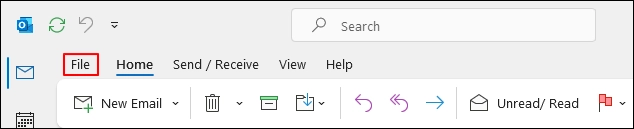
Step 2: Under the Account Information tab, click on Add Account.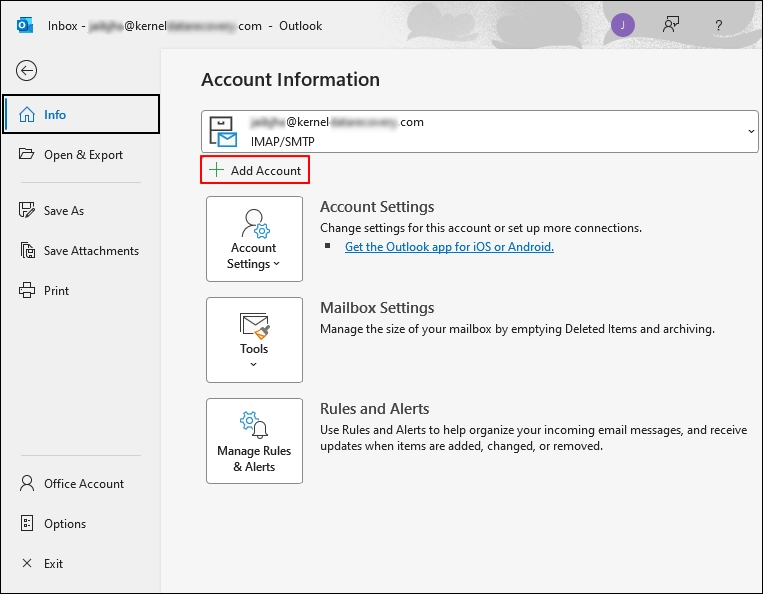
Step 3: In the following tab, enter your Hostinger Email Address, and check Let me set up my account manually under Advanced options. Click Connect.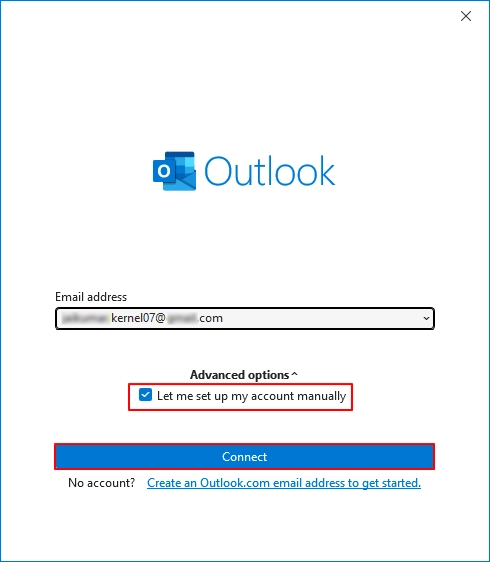
Step 4: Select IMAP in the Advanced setup wizard.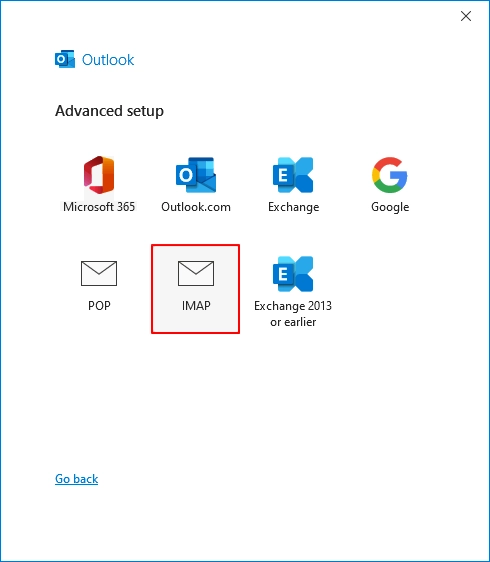
Bonus Tips for IMAP Settings
Follow these configuration settings to add your Hostinger account successfully:
| Setting | Value |
|---|---|
| Incoming Server | imap.hostinger.com |
| Port | 993 |
| Encryption | SSL/TLS |
| Outgoing Server | smtp.hostinger.com |
| Port | 465 |
| Encryption | SSL/TLS |
Step 5: Enter your Password in the following wizard and complete your account setup.
Outlook will take some time to add and sync all your Hostinger emails. Once synchronization is completed, access all your emails and other mailbox data instantly.
Limitations of the Manual Method
This IMAP-based manual approach is reliable and can allow you to access your emails in Outlook, but it has multiple drawbacks. Some of them are:
- Large Hostinger mailboxes may take hours or even days to sync completely.
- Any network connection interruption can delay and harm your data.
- For bulk Hostinger account setup, users need to setup single account at a time in Outlook.
- You need deep knowledge of IMAP and SMTP server details.
- Organizations that manage dozens or hundreds of mailboxes manually find it time-consuming.
These limitations become more noticeable for organizations with multiple user accounts. Thus, relying on a professional’s recommended IMAP Backup tool to is the perfect approach to get a secure backup file of the Hostinger account.
Professional Way to Export Hostinger Emails to Outlook
If you and your organization deal with multiple mailboxes and email accounts, then you need an expert solution to export Hostinger emails to Outlook. Kernel IMAP Backup Tool helps you easily export IMAP-based mailboxes (Hostinger) to Outlook-compatible PST format, without any manual configuration.
Advanced features of the IMAP Backup tool
- Backup single or multiple Hostinger account data in Outlook PST file format.
- Allows you to initiate selective Hostinger email backup using the Date Filter.
- Offers an incremental backup to save only newly added data in following backup tasks.
- Split large-sized Hostinger mailboxes into multiple PST files.
- Save your Hostinger mailboxes on local, network, flash, and external hard drives.
Quick Steps to Export Hostinger Emails to Outlook-Compatible PST format
Step 1: Launch the software and select IMAP Backup tile.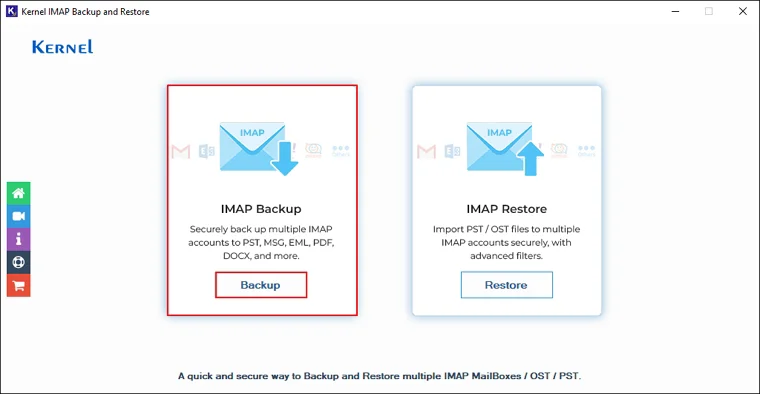
Step 2: Provide the required credentials to connect your Hostinger account and click Add.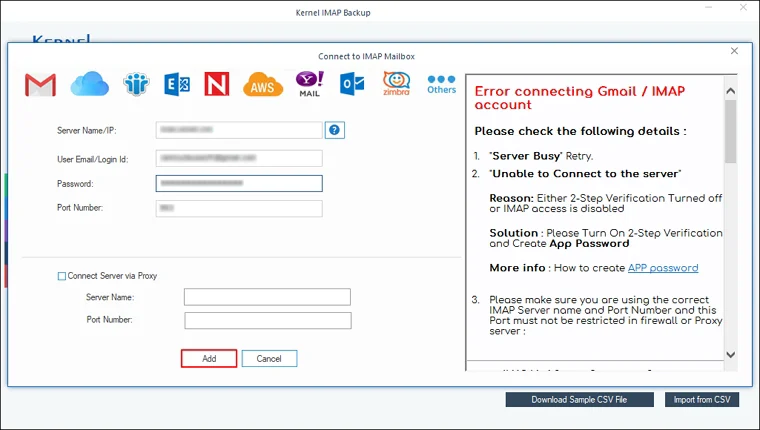
Step 3: Review the added mailbox data and apply needed filters for selective data export. Click Ok to proceed.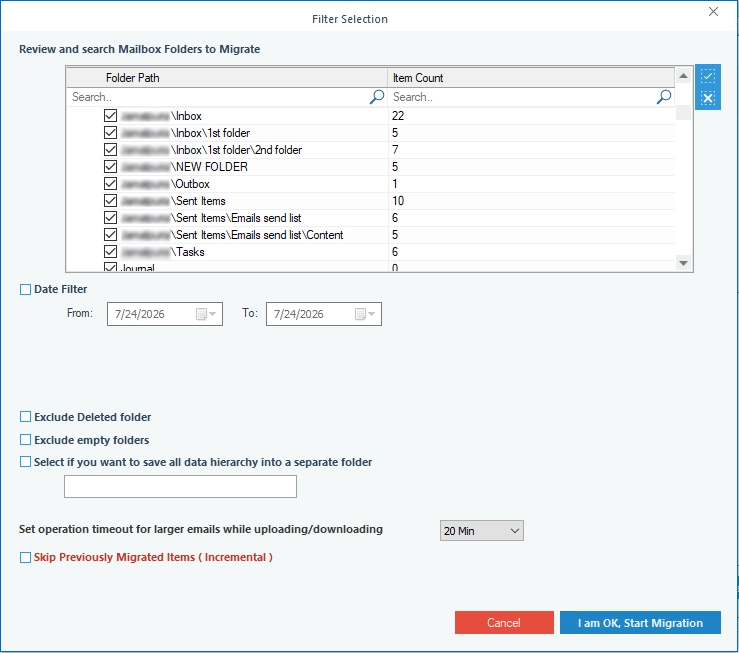
Step 4: Select PST as output type and check Split Output PST File After to manage large Hostinger mailboxes into multiple smaller PST files.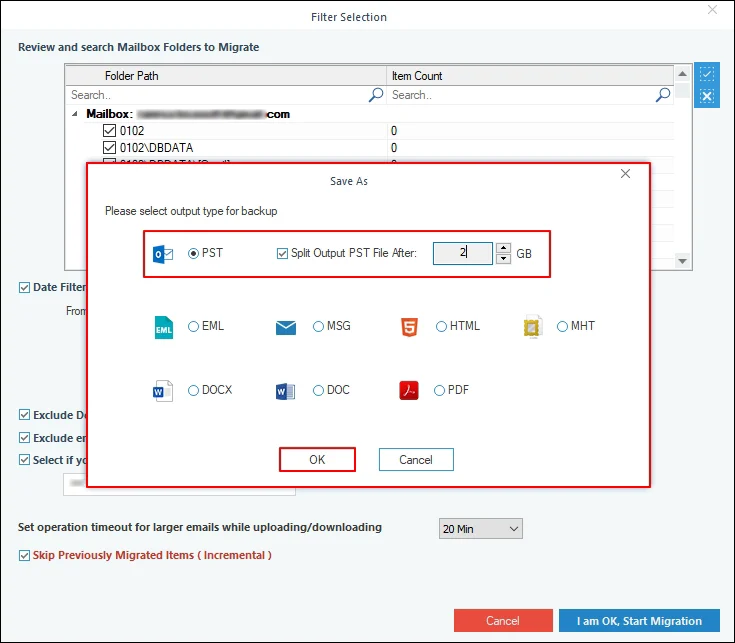
Step 5: Select the preferred saving location to save the output file and click OK.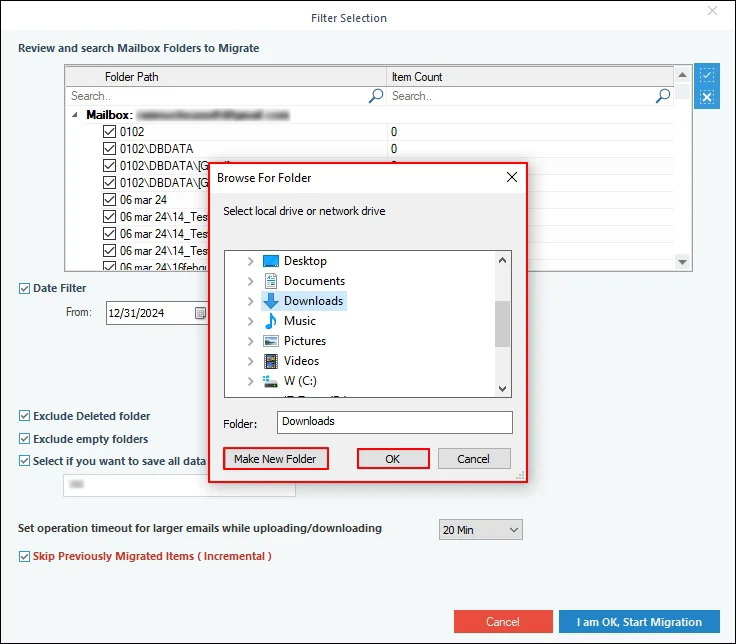
Step 6: The software will start exporting Hostinger emails to PST format.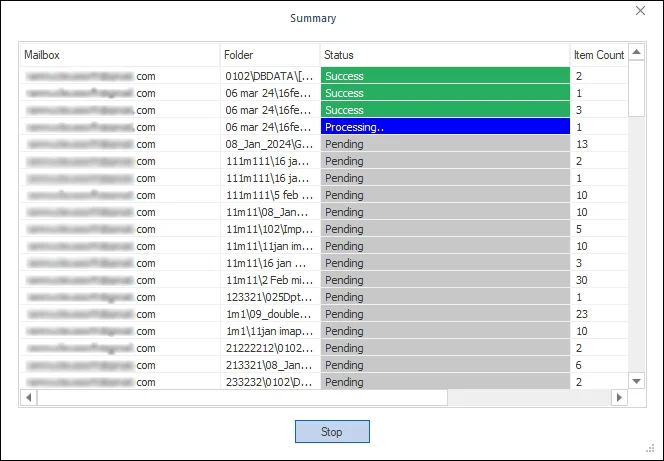
After a successful backup in PST, you can easily import the file into Microsoft Outlook.
Conclusion
To migrate Hostinger to Outlook [single mailbox], you can rely on the IMAP configuration. But always remember that a weak internet connection can interrupt the export process. Also, manual methods are not very helpful when you are exporting bulk Hostinger emails.
To cope with the limitations of manual methods and export Hostinger to Outlook in bulk, the recommended IMAP Backup Tool is a faster and more efficient solution for you.
Frequently Asked Questions
A. Yes, Outlook fully supports IMAP email accounts, including Hostinger mailboxes.
A. Yes, manually, you can export Hostinger emails to PST using the Outlook built-in Import/Export tool. However, a professional IMAP backup tool allows you to save Hostinger mailbox data directly into PST format for Outlook.
A. Yes, IMAP synchronizes emails across multiple devices and keeps mailbox folders updated automatically.



![How to Export Yahoo Contacts to Outlook? [Easy Steps]](https://www.nucleustechnologies.com/blog/wp-content/uploads/2026/06/yahoo-mail-contacts-to-outlook-featured.webp)