Read time: 7 minutes
User query: I saw multiple copies of the same event in my Google Calendar. I don’t know why the same event appears two or three times in my Google Calendar, and how do I delete the extra copies?
Direct Answer by Author: Open Google Calendar on your system, select the extra copies of your Google Calendar, and click the Trash icon. Run a Google Script to delete bulk Google Calendar events in a simple process.
Most of us open Google Calendar to check a call or an appointment, and sometimes the same event shows up more than once. When you see the same title and time repeated three times in a row, it is hard to tell which copy is real and which one needs your action. That is why it is helpful to remove duplicate Google Calendar events and keep your schedule neat and clean. This guide covers all the free manual methods to delete duplicate events in Google Calendar.
Why Do You Need to Delete Duplicate Google Calendar Events?
Duplicate events look harmless, but they might cause real-life trouble. Here is why you need to delete duplicate events in Google Calendar:
- You cannot tell which copy is the real one, so you may act on the wrong entry.
- One copy may hold a back-dated link, and you may join the wrong meeting or call.
- Extra copies crowd the screen and make a free hour look busy.
- Each copy sends its own reminder, so you get the same alert two or three times.
- On a shared calendar, copies confuse every person who checks it.
- A clean calendar is easy to scan and quick to search.
Prerequisites before deleting duplicate Google Calendar events
- A Google account with edit rights on the calendar. On a shared calendar, you need the “Make changes to events” permission.
- A computer browser. The web version gives the clearest view of all calendars.
- The name of the calendar that holds the extra copies. Check the color of each event and the list on the left side.
- A backup, if the calendar is important. Click the gear icon, open Import & export, and choose Export. Backup Google Calendar events for future restoration.
Why Duplicate Events Appear in my Google Calendar?
- Sometimes you import the same .ics or .csv file into your account.
- Same Google account added twice on a phone or Outlook.
- Invite sent to two email addresses linked to one calendar.
- Mistakenly subscribed to a calendar you already own.
- Zoom, Slack, CRM, or booking apps add events and also send invites.
- Birthday entered by hand and also held in the Birthdays calendar.
- Google Calendar has no built-in tool to find or merge duplicates.
- Deleted events stay in Trash for 30 days, so a wrong delete is easy to reverse.
- Deleting a calendar you own removes all its events for every person who can see it.
- Unsubscribing from a calendar owned by someone else does not delete their events.
- Events imported into a separate calendar can be wiped in one go. Events imported into your main calendar must be deleted one by one.
- If you are the organizer, Google asks if you want to notify guests when you delete an event.
Top Working Methods to Remove Duplicate Google Calendar Events
Take a look at the best methods available to remove duplicate Google Calendar events easily.
Method 1: Delete a Single Duplicate Event
It is one of the easiest methods to remove duplicate Google Calendar events. You can use this method to delete a single duplicate event.
Step 1: Open Google Calendar on the web.
Step 2: Click the extra copy and hit the Trash icon.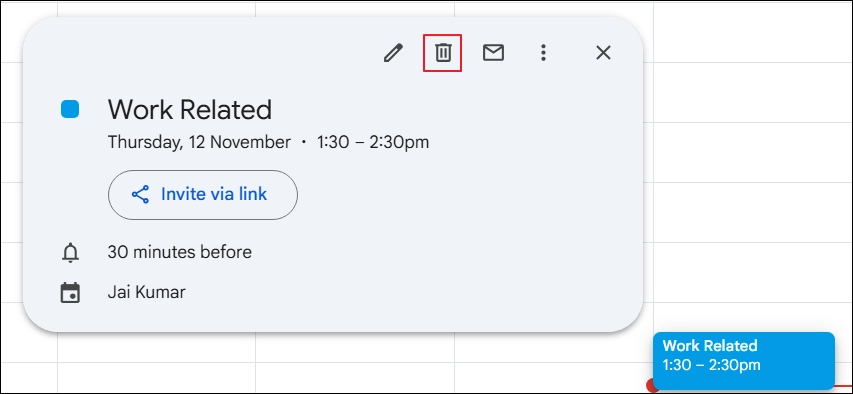
Step 3: Confirm your action.
Method 2: Search and Delete Many Copies
With this method, you can remove duplicate Google Calendar events that share the same title.
Step 1: Click the search icon at the top right.
Step 2: Type the event title, such as “Team Sync”.
Step 3: Scan the result list for entries with the same date and time.
Step 4: Click each extra copy and select the trash icon.
Method 3: Delete the Calendar That Holds the Copies
If you have done the wrong import process and, for that reason, you saw multiple copies of the same events. Go through the steps below to delete duplicate events in Google Calendar after an incorrect import.
Step 1: On the left panel, find the calendar under “My calendars”.
Step 2: Hover on it, click the three-dot menu, and open the calendar’s options page.
Step 3: Scroll to the bottom, choose “Delete” for a calendar you own, or “Unsubscribe” for a calendar owned by someone else, and click Confirm.
Method 4: Utilize Google Apps Script to Delete Duplicates in Bulk
If you have hundreds of copies, a Google Apps Script can find and delete them in one run. It is the only manual method that works in bulk on your main calendar. The script below first lists the copies it finds and deletes nothing. Make sure to delete events only after you check the list.
Step 1: Go to script.google.com and click “New project”.
Step 2:Delete the sample code in the editor, then paste the script given below.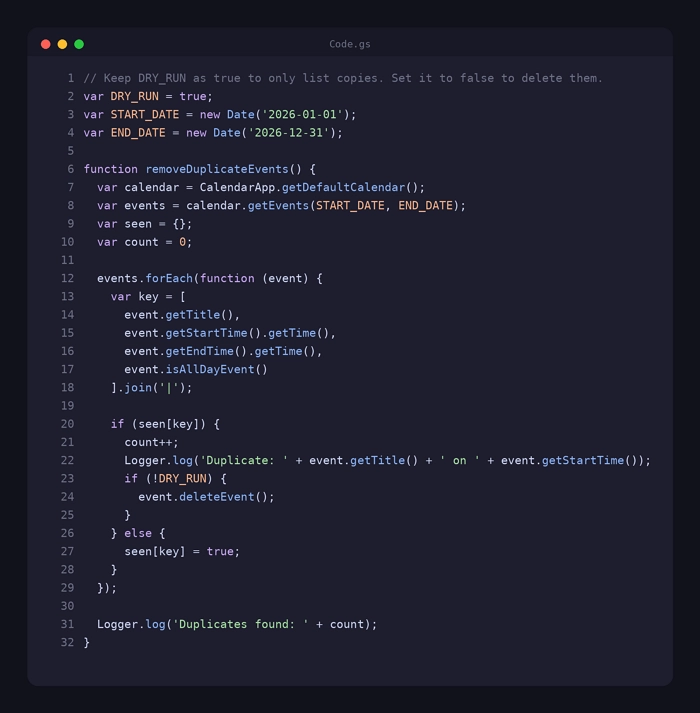
Step 3: Change START_DATE and END_DATE to the range you want to check. Start with a small range, such as one month.
Step 4: Click Save, pick “removeDuplicateEvents” in the function list, and click Run.
Step 5: On the first run, Google asks for permission. Read the request and approve it.
Step 6: Open the Execution log. It lists every copy the script found.
Step 7: If the list is correct, change DRY_RUN from true to false, save, and run the script again.
Step 8: Open Google Calendar and check the result.
Method 5: Remove a Second Synced Account
When the same events appear twice on a phone or desktop app, the account is probably added two times.
- iPhone: Open the iPhone preferences app, go to Calendar, then Accounts, and delete the extra Google account.
- Android: Open the Google Calendar app, tap the menu, and untick the copy of the calendar you do not need.
- Outlook or Apple Calendar: Remove the second Google connection and keep one.
What if I have deleted an original Google Calendar event?
If you have deleted an original Google Calendar event, then you need to restore that event from the Trash folder.
Step 1: Click the gear icon.
Step 2: Open Trash.
Step 3: Select the event you removed by mistake.
Step 4: Click “Restore”.
Author’s Recommendation: Back Up Your Calendar First Before you delete a single copy, save a backup of your Google Calendar on your own computer. A backup can save your essential data from any kind of deletion or data loss. It is very helpful when you try to delete bulk events from your Google Calendar using a script. Always make sure to use a Google Workspace Backup tool to save all your Google Workspace data, including calendars, to your system for accuracy. As per our recommendation, opt for Kernel Google Workspace Backup tool as it offers the ideal features needed for such a scenario.
Conclusion
Duplicate events waste time and cause confusion, but you can fix them. You can recover duplicate Google Calendar events by running the above-mentioned methods. But before removing any duplicate events, make sure to use the Google Workspace Backup tool to back up all your Google Calendar events in your system to avoid any event deletion.
Frequently Asked Questions
A. No, you need to search by title and delete extra copies by hand or delete the whole calendar that holds them.
A. Delete the calendar the file was imported into. If you had imported into your main calendar, search by title and delete each extra copy.
A. Yes, you can restore a deleted event from your Google Calendar. Simply, open Google Calendar, go to the Trash folder, right click on the event, and click on Restore. Google Calendar will move the event from Trash to its original event.