Read time: 9 minutes
User Query: I have been using Lycos Mail for more than a decade and have a deep, nested folder structure in it. Now, I am planning to permanently shift to Gmail. What options do I have to transfer emails from Lycos Mail to Gmail without losing the original folder structure?
Solution: To migrate Lycos emails to Gmail with original folder structure, you must use the Google Workspace Data Import tool from the admin console. In case you don’t have an admin account, use a professional IMAP migration tool.
Lycos Mail is even older than Gmail itself and has been helping a vast number of users with day-to-day emailing. But from the past few years, their services have been nothing short of a nightmare. Even at the time of writing this article, the official help desk of Lycos is unreachable.
All this, even after I pay them a monthly subscription fee. Seeing all these downsides, last month I moved away and became a Gmail user. If you are in a similar situation and want to move from Lycos to Gmail, whatever your reason may be, then this guide is just what you need at this moment. I will tell you how to migrate your emails (with folder hierarchy) from Lycos to Gmail. But before that, let me show you the factors that pushed me for the migration.
Why Migrate Lycos Emails to Gmail?
At first, I thought the only difference I would feel would be in the interface. But, after using Gmail myself, I can honestly tell you what you can expect with the transition from Lycos Mail to Gmail.
Reliability: Gmail is an app from Google Workspace, and Google’s reliability is world-renowned. You can depend on their services any time; they work without fail.
Modern App Interface: Unlike Lycos, the developers at Google have designed Gmail (application and web interface) in a very easy-to-use manner.
Better Searching: Finding an email you received 3 years back can get really frustrating in Lycos. But with Gmail, it is super easy. You can instantly look up decade-old emails.
Still Offers a Free Version: You can use Gmail’s free version for a lifetime with a 15 GB mailbox storage limit. And whenever you need, you can compare G Suite pricing & features and upgrade to a better plan.
Advanced Features: From spam filtering to smart work management, Google offers everything. Moreover, with Gmail, you can enjoy the AI-integrated features to boost your productivity.
Different Ways to Migrate Lycos Emails to Gmail
Depending upon your requirements, there are different methods you can try.
Fastest way to move your new emails from Lycos to Gmail is:
- Go to the Lycos Mail account’s forward email settings.
- Provide your Gmail address and start email forwarding.
Note: Before you try any method, make sure to back up your Lycos emails either using a native feature or a dedicated IMAP backup tool.
Method 1: Use Gmail Import Feature
Gmail has its own import function to move emails from various Webmails like Yahoo, Hotmail, etc. To move Lycos to Gmail, use the following steps:
Step 1. Go to Gmail.com and login. (Create a Gmail account if you don’t have one.)
Step 2. Click the Settings icon at the top-right and select the option See all settings.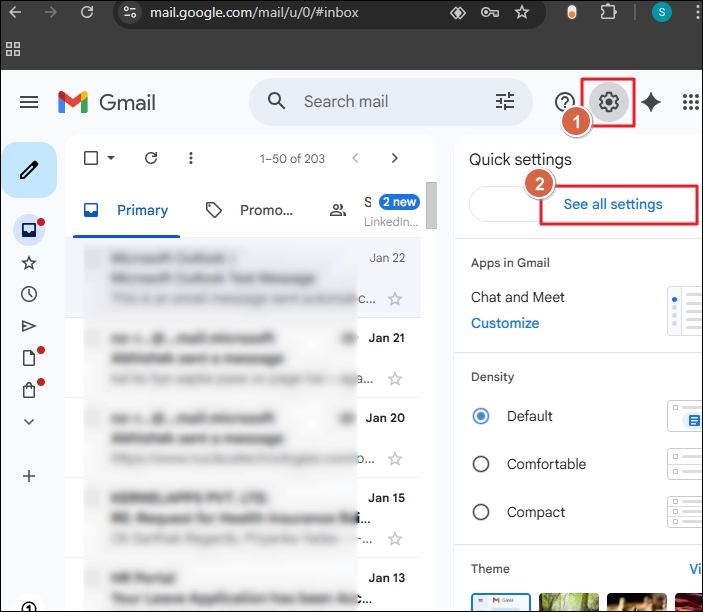
Step 3. Go to the Accounts and Import tab and click on the Import mail and contacts option.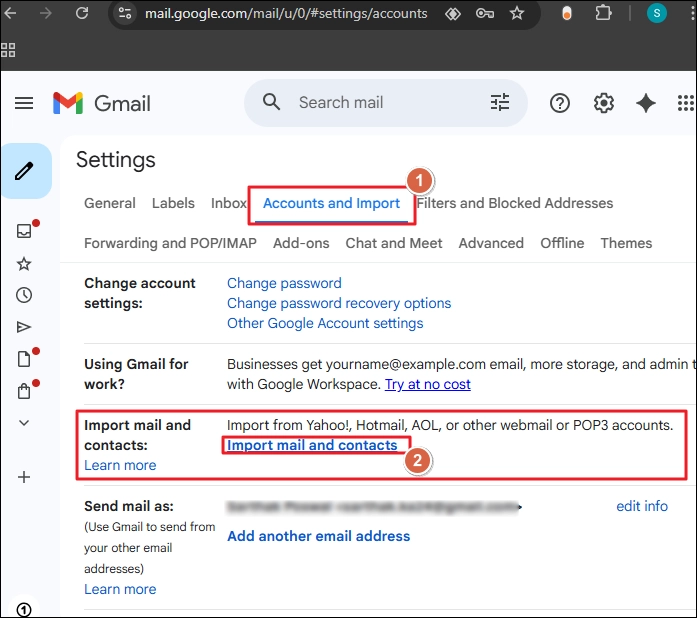
Step 4. Provide your Lycos email and click Continue.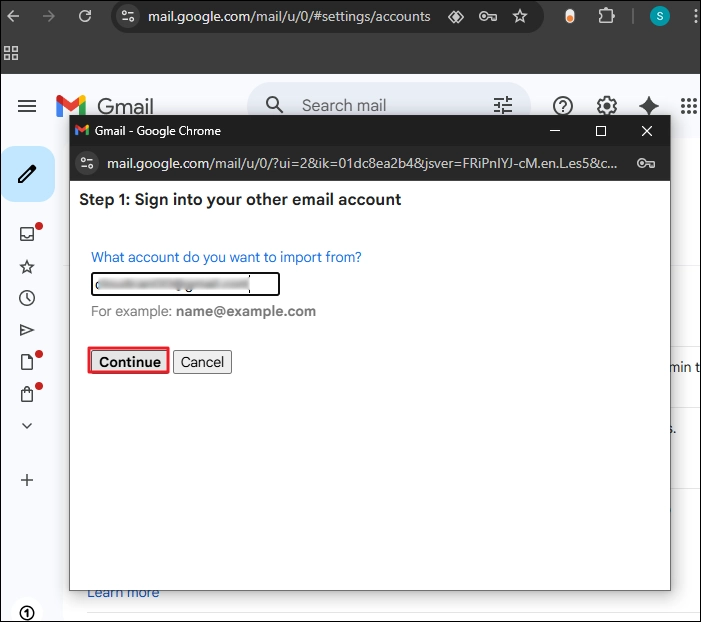
Step 5. Now, go to your Lycos account and check your Inbox. There will be a confirmation email from Gmail. Open it and confirm the import request. Then, come back to Gmail and complete the import process.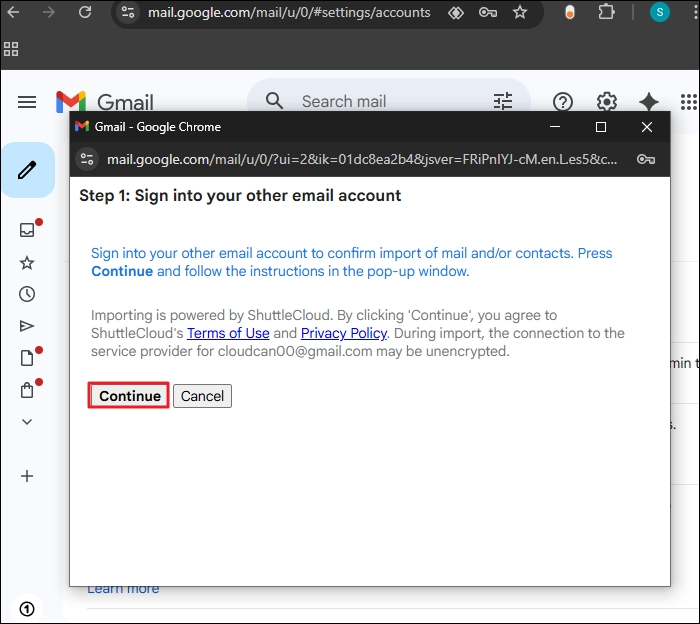
Method 2. Selective Email Migration
When you do not want to import all the emails from Lycos to Gmail but only selected emails or folders, you can use Outlook. Follow these steps to transfer emails from Lycos Mail to Gmail:
Step 1. Download Outlook. Configure Gmail in Outlook along with the Lycos Mail account.
Step 2. Go to the Lycos Mail folder in Outlook. Select the email folder you want to move. Right-click on it and select Copy Folder.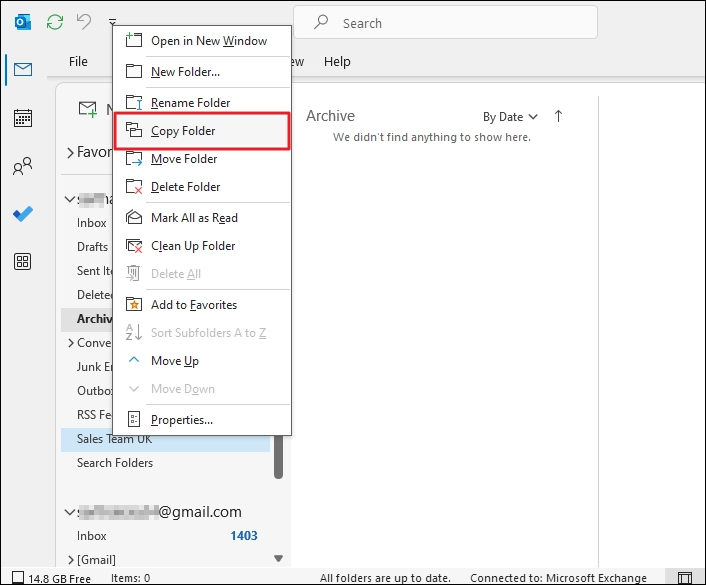
Step 3. Now, choose the folder in Gmail where you want to move emails and click OK.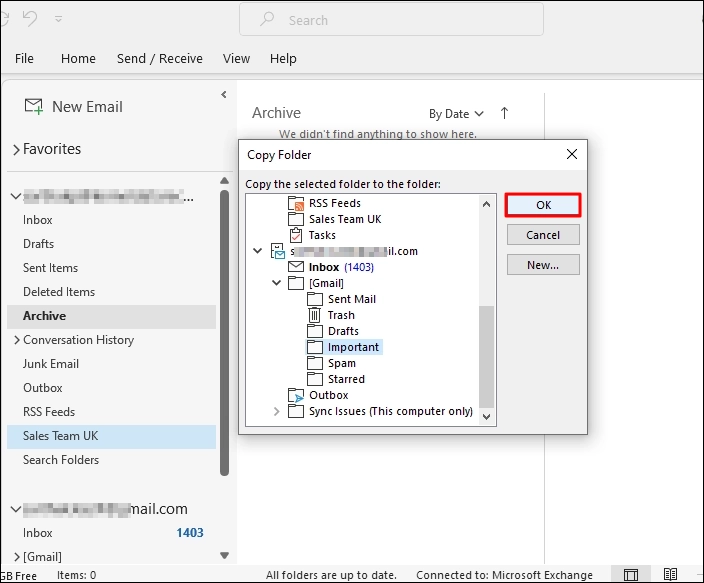
Method 3: Google Workspace Data Import Tool
This method is best if you want to migrate Lycos Mail to Google Workspace (any plan). Follow these steps to bulk transfer emails to Google Workspace.
Step 1. Go to admin.google.com and sign in with your administrator’s credentials.
Note: Use super admin credentials for login.
Step 2. Click on the navigation button (3-dot icon). Go to Data > Data import and export > Data migration (new).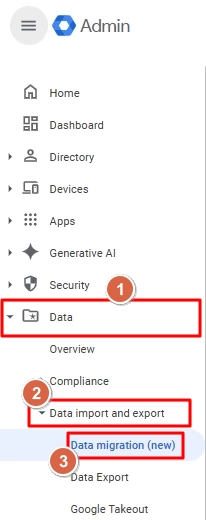
Step 3. On your right-side window, scroll down and find the IMAP tile. Then, click Migrate.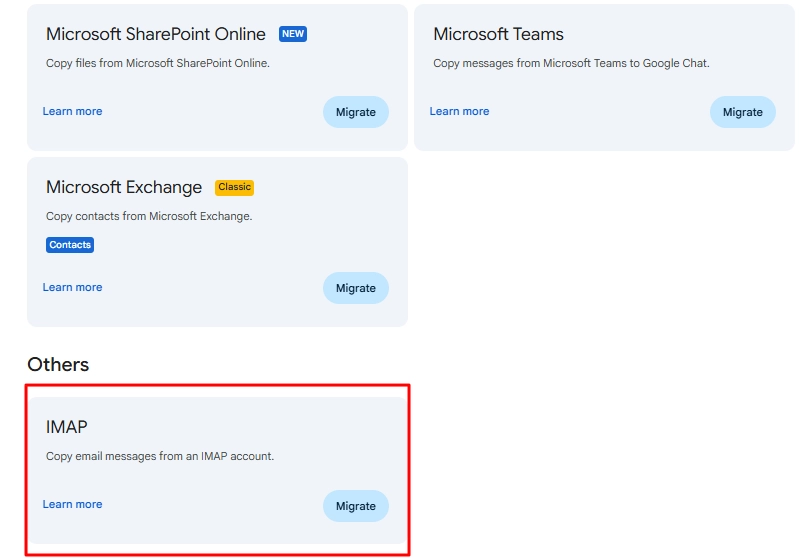
Step 4. Enter the source Lycos Mail server name and click Test connection.
Step 5. Click on the Download sample CSV file. In the downloaded CSV, enter the details of your source email accounts. Then, upload the same CSV file by clicking on the Upload CSV button.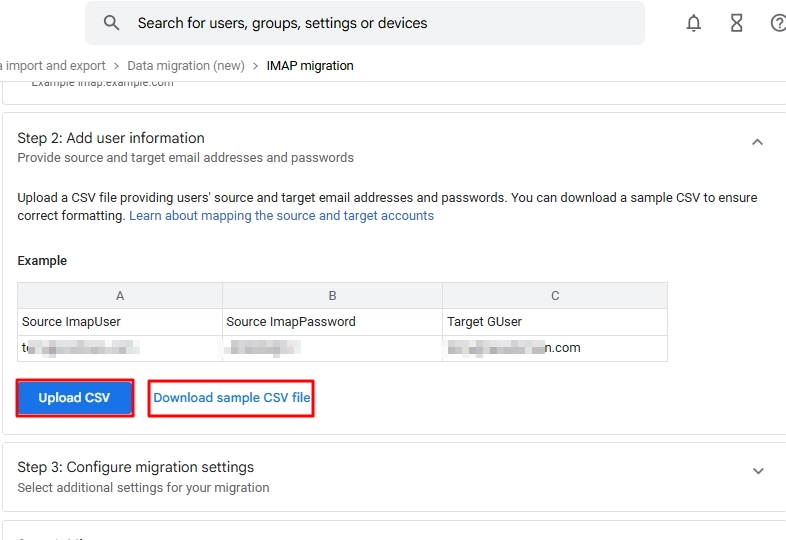
Step 6. Configure the migration settings as per your needs. After applying the settings, click Save.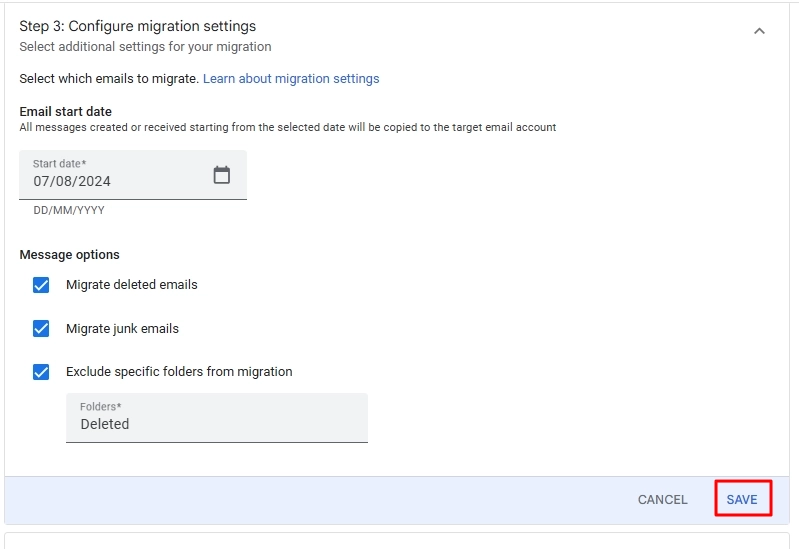
Step 7. Finally, click Start Migration.
Issues With Manually Migrating Lycos Emails to Gmail
The manual methods have a few limitations that you must know.
- Your folder hierarchy will be gone if you use Method 1. And in Method 2, you must manually recreate the folder structure.
- If you use Outlook to copy/paste the emails, the operation often fails if you move 100+ emails simultaneously.
- The Google Workspace import tool will not work if you want to move to a standard free Gmail account.
Recommended Solution to Migrate Lycos Emails to Gmail
I recommend using a professional IMAP migration tool when data integrity is the top priority. When your source email environment, Lycos or any other, has a deep nested folder structure, the manual methods have the risk of either skipping the entire hierarchy or flattening the folder structure.
To move your Lycos emails to Gmail while retaining all its metadata along with the original folder hierarchy, you must use Kernel Migration for IMAP. It features a user-friendly interface. Even if it’s your first time using a specialized migration tool, you will be able to set up the migration in a few minutes.
Prominent features of this IMAP migration tool are:
- Risk-free Lycos to Gmail migration. The tool makes no changes to your emails.
- Offers a free trial version to test the tool. If satisfied with its capabilities, you can buy a license for unlimited migration with no limits.
- The tool auto-generates a migration report that helps you find any failed or skipped folders during the transfer.
- With high data security, the tool migrates Lycos emails to Gmail directly without running the data through its own server.
- Allows you to migrate bulk users from Lycos to Google Workspace with mailbox mapping.
It’s High Time to Upgrade from a Legacy Email Service Provider
Lycos Mail was great, but Gmail is what you need in 2026. Move all or selective emails from Lycos to Gmail with the methods discussed above. Remember, the native methods are free but come with restrictions.
To transfer bulk users while keeping every data item and folder as it is, I recommend using the Kernel Migration for IMAP. You can easily execute direct IMAP to IMAP data migration using it. Whether you need to move to a standard Gmail account or migrate Lycos to Google Workspace, the tool works in both cases.
Frequently Asked Questions
A. Yes, you can do it like this:
1. Go to the Gmail Settings window and select the Accounts and Import tab.
2. Here, click on the option Send mail as and add your Lycos email address.
A. No, the native import function only transfers emails from Lycos to Gmail and groups them all under a single label. Your source folder structure will not be copied to Gmail.