Ziggo Mail is the largest communication and entertainment provider in the Netherlands, offering secure email access, organization tools, and online storage. It is offered as a complimentary perk to Ziggo Internet subscribers.
Users get up to 6 free email addresses with 15 GB of free storage space (5 GB for emails and 10 GB for personal files storage) per subscription plan. But Ziggo Mail is often tied to an active subscription plan, making it a little difficult to access. Moreover, it lacks advanced features, which is why users are looking to transfer their emails from Ziggo Mail to Gmail Account.
Instant Solution : Transferring Ziggo Mail to a Gmail Account
- Step 1. Install and open Kernel Migration for IMAP.
- Step 2. Add Ziggo Mail account in Source and Gmail Account in Destination.
- Step 3. Select what data to migrate and click Start Migration to begin the process.
In this way, you can easily transfer Ziggo Mail emails to Gmail in 3 simple steps.
Features of Gmail That Ziggo Mail Lacks
Gmail offers wide range of advanced features that Ziggo Mail lacks, such as:
- Gmail uses AI powered smart compose and reply to suggest sentence completion as you type while Ziggo Mail offers strict text-based editing experience.
- Gmail allows users to snooze incoming emails and schedules them to pop up at a convenient time.
- Gmail gives users a lifesaver option to undo send emails within 30 seconds to fix typing mistakes and missing attachments.
- Gmail comes with confidential mode to protect sensitive information by setting up a certain expiry date.
Necessary Preparations Before Transferring Emails
Before transferring Ziggo Mail to a Gmail account, users must make sure both their accounts are well prepared for the data transfer. Here are some basic tips:
- Clean up your Ziggo mail account by deleting junk, spam, unnecessary, and promotional emails.
- Backup all your important Ziggo Mail emails and other data to your local system to prevent any data disaster.
- Check Gmail storage limit (free Gmail account has 15GB storage limits) to make sure your account has enough space for Ziggo mails.
- Make sure you have correct credentials for both Ziggo Mail and Gmail accounts.
How Professionals Transfer Ziggo Mail to Gmail Account?
Since there is no native method to transfer emails from Ziggo Mail to Gmail, the only reliable way is to use a specialized tool. Kernel Migration for IMAP is one of the trusted software to easily move emails from one account to another. This IMAP migration tool offers top benefits to users, such as:
- Migrate single or multiple mailboxes at a time from one IMAP account to another.
- Smart filtering options to transfer selective data in the destination account.
- Generate and save a detailed migration report in CSV format on your local system.
- Move entire mailbox data like contacts, calendars, emails, tasks, attachments, etc.
- Perform incremental migration to skip previously migrated data, preventing data duplicity.
Steps to Switch From Ziggo Mail to Gmail Account
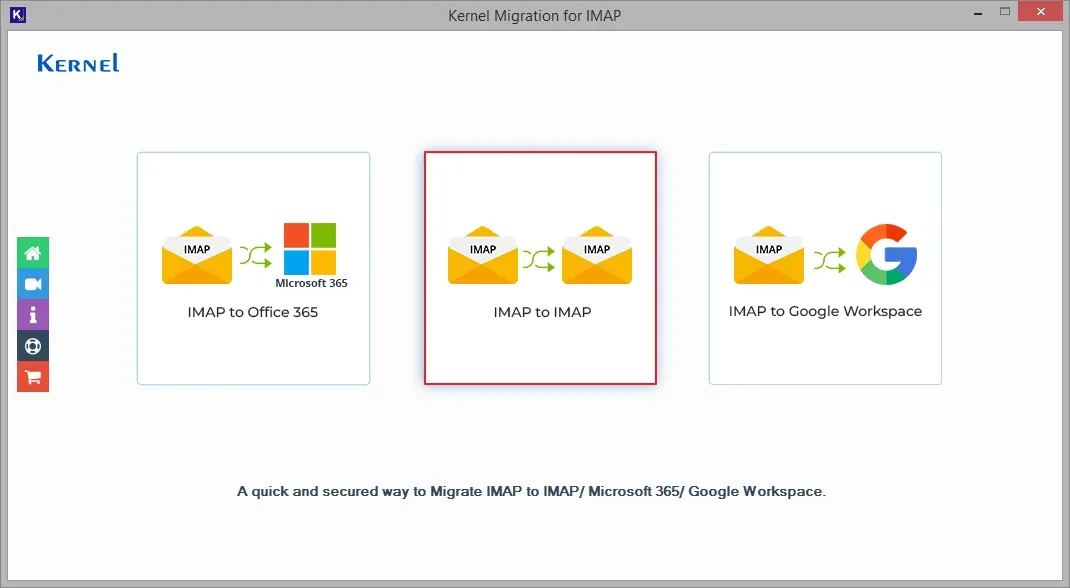
- Download and launch the software on your system, and click IMAP to IMAP option.
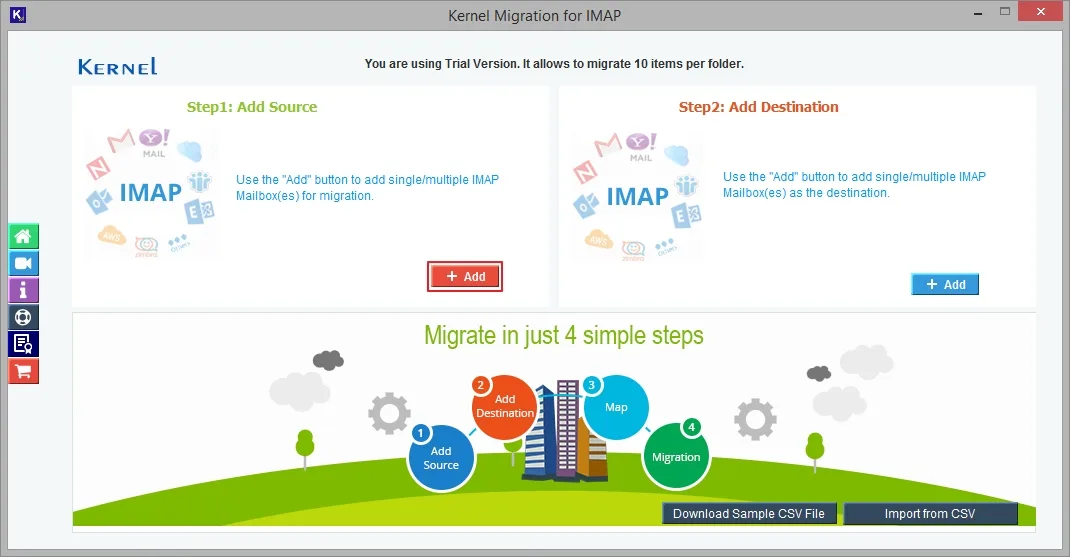
- Click on the Add button under Add Source.
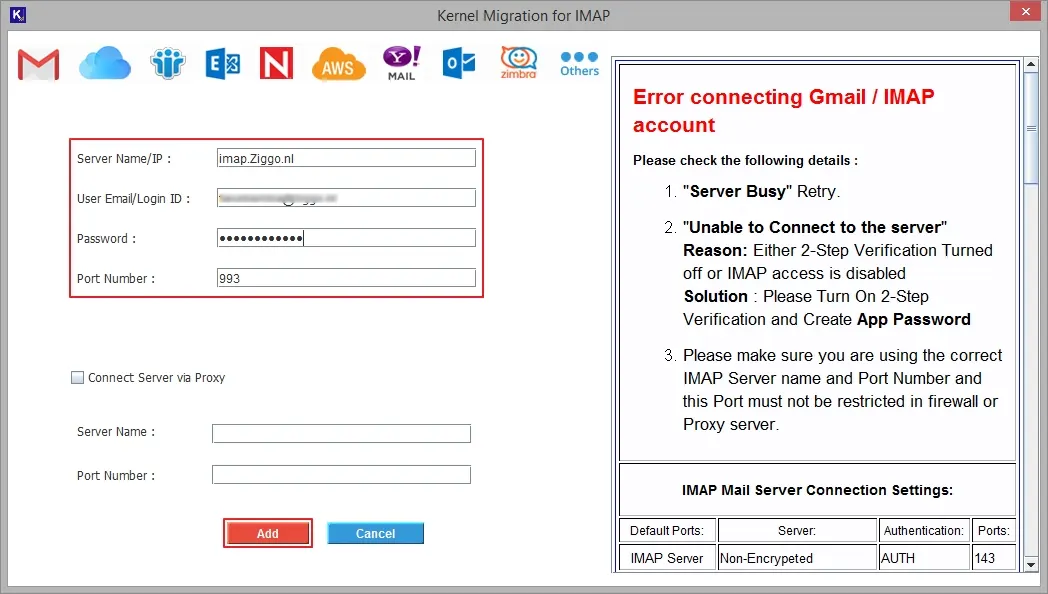
- Provide Server name, User Email/Login ID, Password, and Port Number, then click Add.
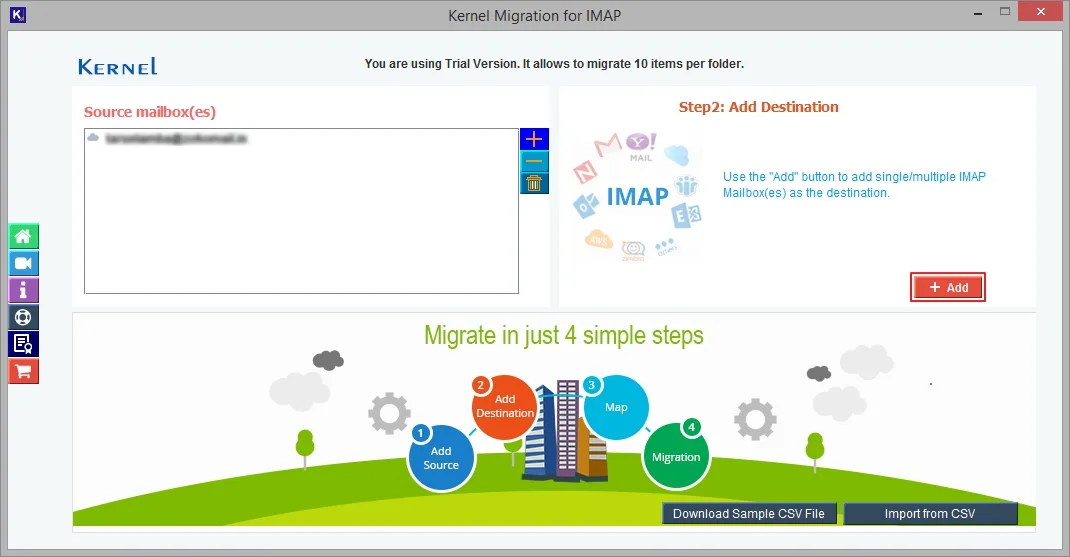
- Click on the Add button under Add Destination.
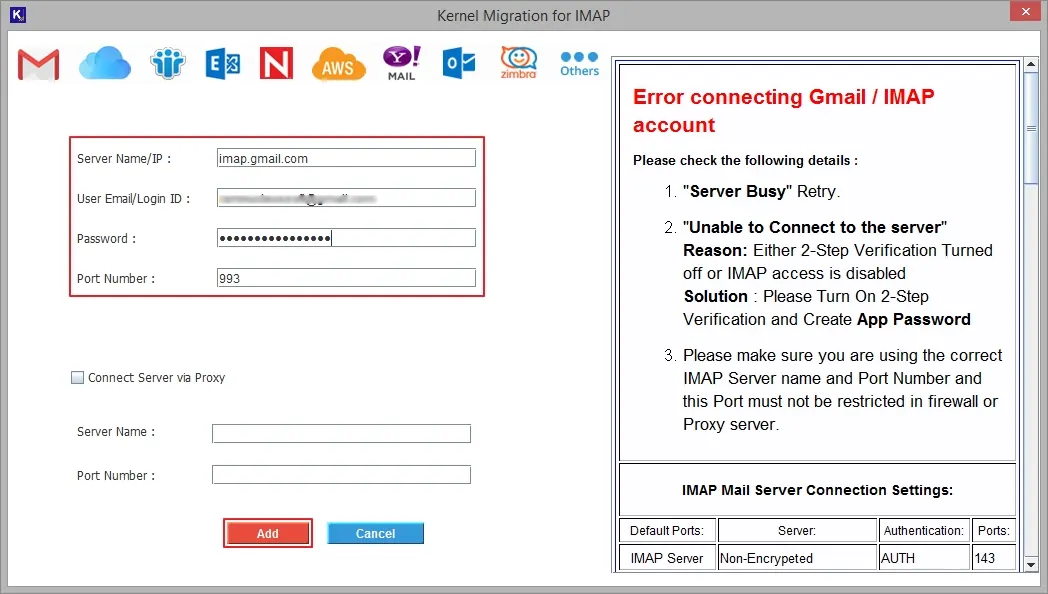
- Enter Server name, User Email/Login ID, Password, and Port Number, then click Add.
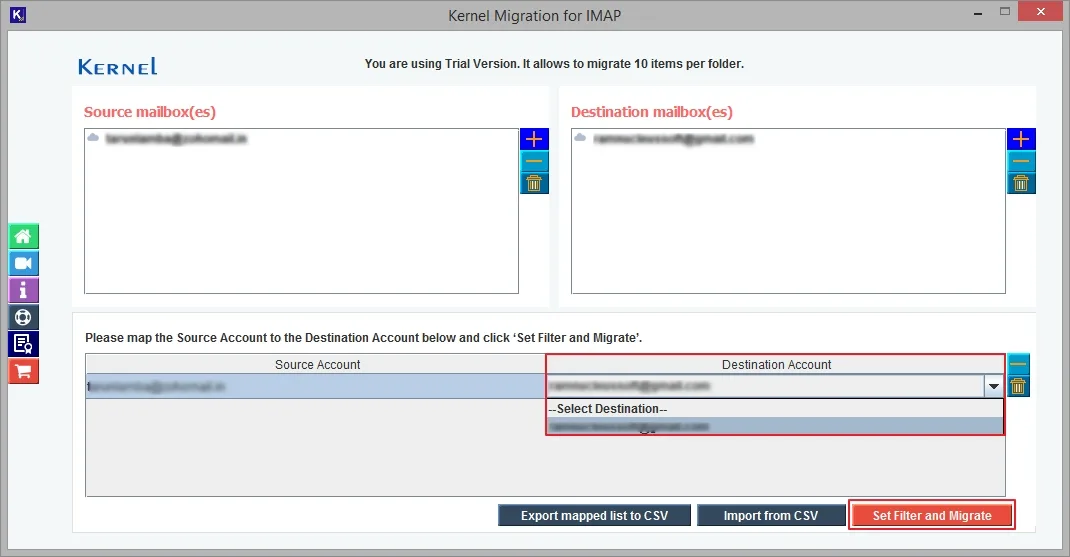
- Map source and destination account, then click Set Filter and Migrate.
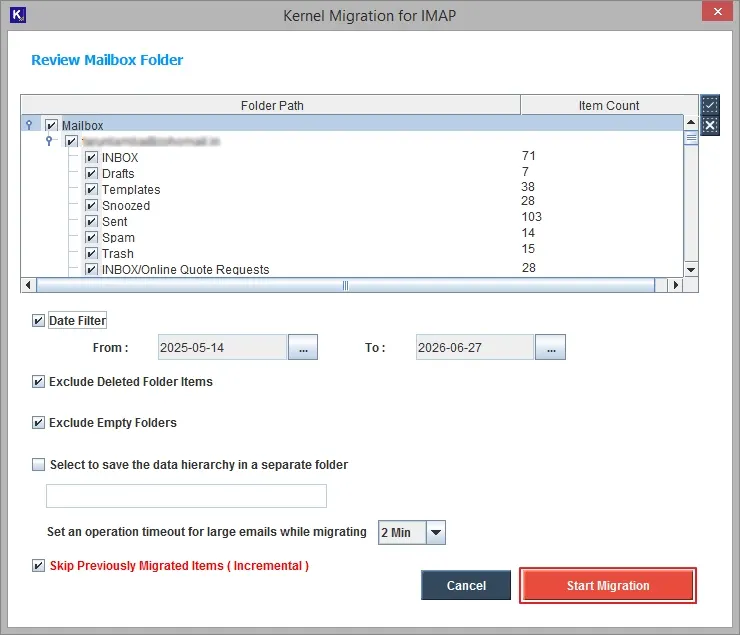
- Apply all the necessary filters (described below), then click Start Migration.
- Date Filter: Select From and To date to migrate specific data based on date.
- Exclude Deleted Folder Items: Choose this option to skip deleted folders from being migrated.
- Exclude Empty Folders: Choose this option to let go of all the empty and unnecessary space in destination.
- Select to save the data hierarchy in a separate folder: Organize your data precisely with this option.
- Set an operation timeout for large emails while migrating: Set a time from 2 minutes to 20 minutes to allow continuity in migration.
- Skip Previously Migrated Items (Incremental): Skip already migrated data.
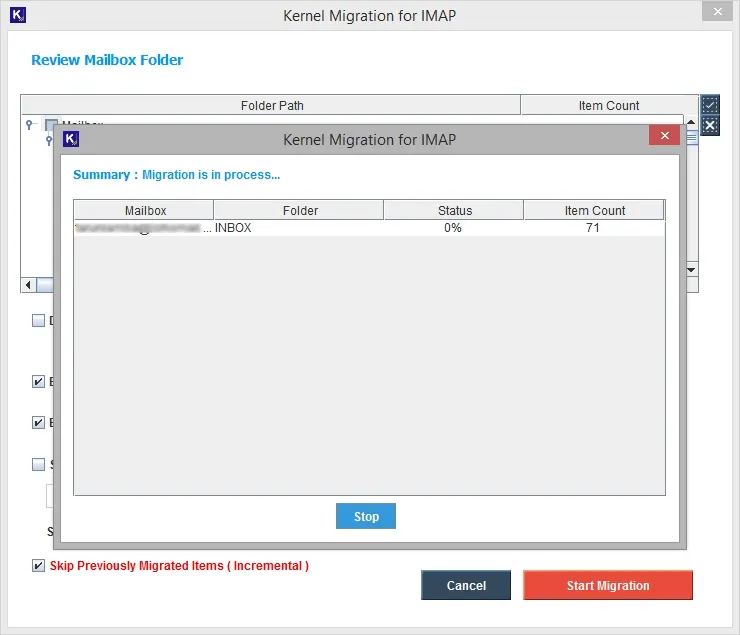
- Wait till the process completes. You can see the live progress.
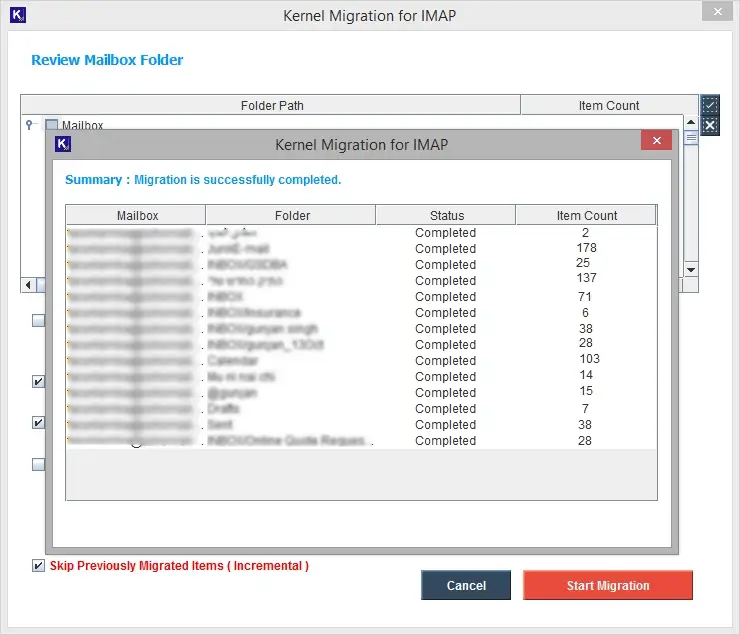
- Ziggo Mail to Gmail account migration will be completed.
Ending Note
Transferring Ziggo Mail to a Gmail account centralizes your account, secures your emails, and gives you smooth access to Google’s productivity suite. Due to unavailability of free methods, users get confused about the transfer. The only solution for this is using software specially developed to perform this task. Get the free trial today.