Google Workspace offers business email, Google Drive, Google Meet, Calendar, and other productivity tools. However, you may want to cancel your subscription if your business has changed its email platform, your team no longer needs its services, or the monthly cost no longer fits your budget. This guide explains how to cancel Google Workspace subscription, how to delete your account, and different ways to protect your valuable data.
Why Do You Need to Cancel Google Workspace Subscription?
Businesses and individuals may decide to cancel their Google Workspace subscription for several reasons:
- High subscription costs: Your current plan may exceed your budget or business needs.
- Business closure: You may no longer need a business email account or other Workspace services.
- Email platform change: Your company may plan to move its email service to Microsoft 365 or another provider.
- Fewer users: Your team may have fewer employees and no longer need the current number of licenses.
- Limited-service requirements: You may need only basic email or document tools rather than the full Workspace suite.
Note: Before you cancel, check whether a lower-cost plan or a reduction in user licenses can solve your problem. If you no longer need Google Workspace at all, follow the cancellation steps below.
What Should You Know Before You Cancel Google Workspace Subscription?
Before you cancel your Google Workspace subscription, review these important points.
- Data loss: Google warns that user data associated with Workspace services may be deleted after cancellation and cannot be restored. Export all your organization’s data before you proceed.
- Billing commitments: A Flexible Plan and an Annual or Fixed-Term Plan may have different billing consequences. An annual commitment may leave a balance due after cancellation.
- Email access: Your users may lose access to business Gmail and other core Workspace services.
- Domain ownership: Canceling Workspace does not automatically cancel a separately managed domain registration.
- Third-party apps: Check apps that use your Google account for sign-in. You may need another sign-in method before cancellation.
- Administrator access: You need the appropriate administrator privileges to cancel a subscription through the admin console.
Things to Do Before Canceling Google Workspace Subscription
There are several ways to protect your Google Workspace data, like the Google Workspace Export tool and the Google Takeout tool. These tools can easily download G Suite emails and other data. But not everyone provides a fully guaranteed data back up. Thus, you need to rely on a professional Google Workspace Backup tool to save all the Google Workspace data to your local system
Back up Google Workspace Data
It is one of the safest and best ways to protect data after your Google Workspace subscription process. As I told you previously, you can easily back up your Google Workspace data using built-in tools, but they don’t provide 100% data back up assurance. Thus, using a professional, advanced Kernel Google Workspace Backup and Restore tool is a must for every user to back up their data.
How to Cancel Google Workspace Subscription: Step-by-Step Guide
Follow the step-by-step guide to cancel your Google Workspace subscription through the Google Admin console.
Step 1: Open the Google admin login webpage, enter your username, and click Next.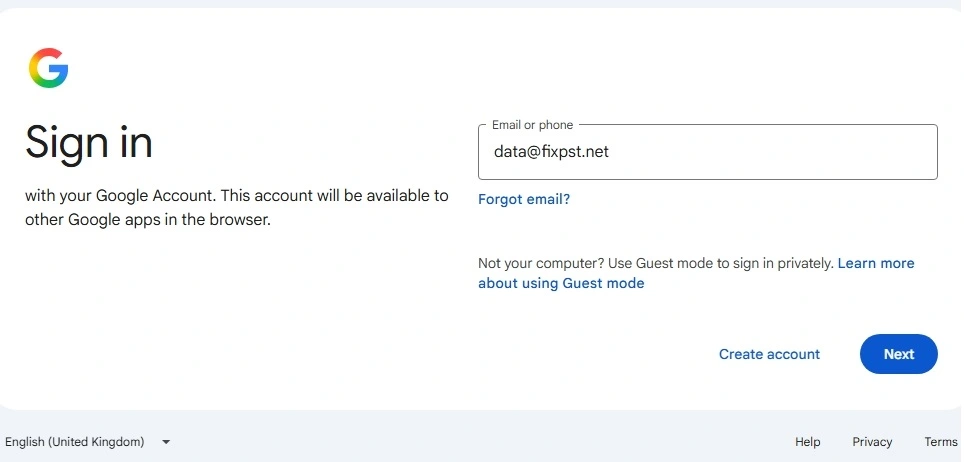
Step 2: Now enter your password and click Next.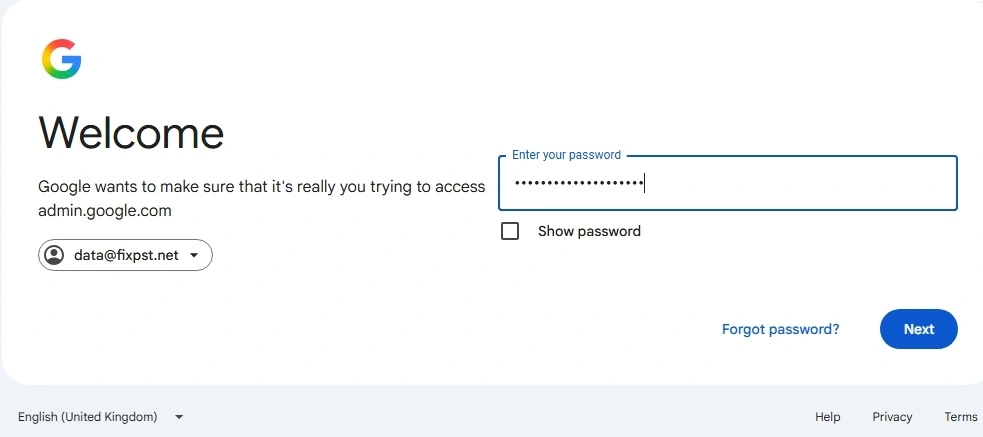
Step 3: In the Admin console, go to Billing, and click on Subscription.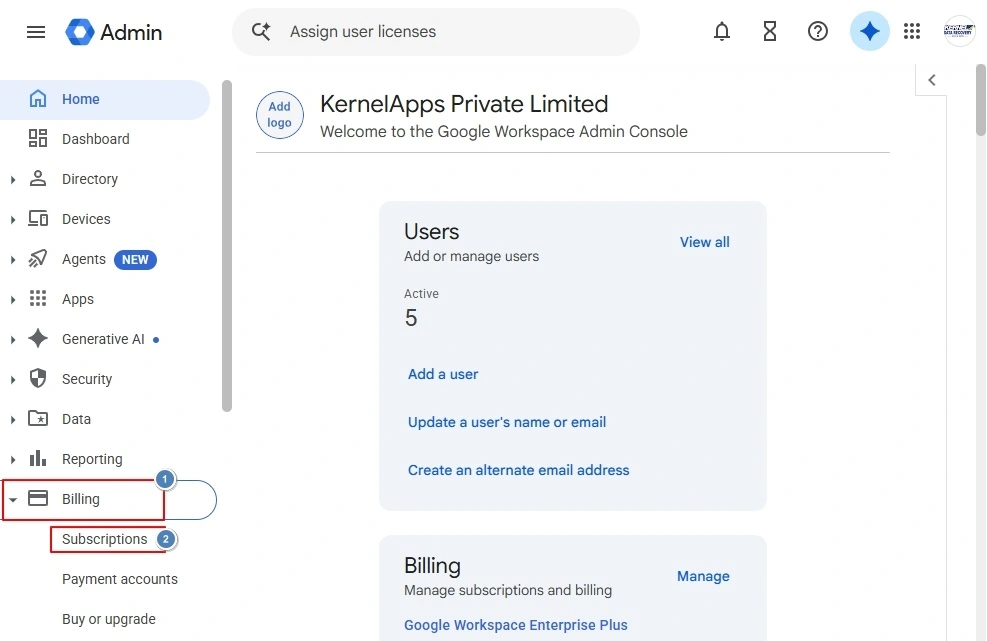
Step 4: Click your active Google Workspace account.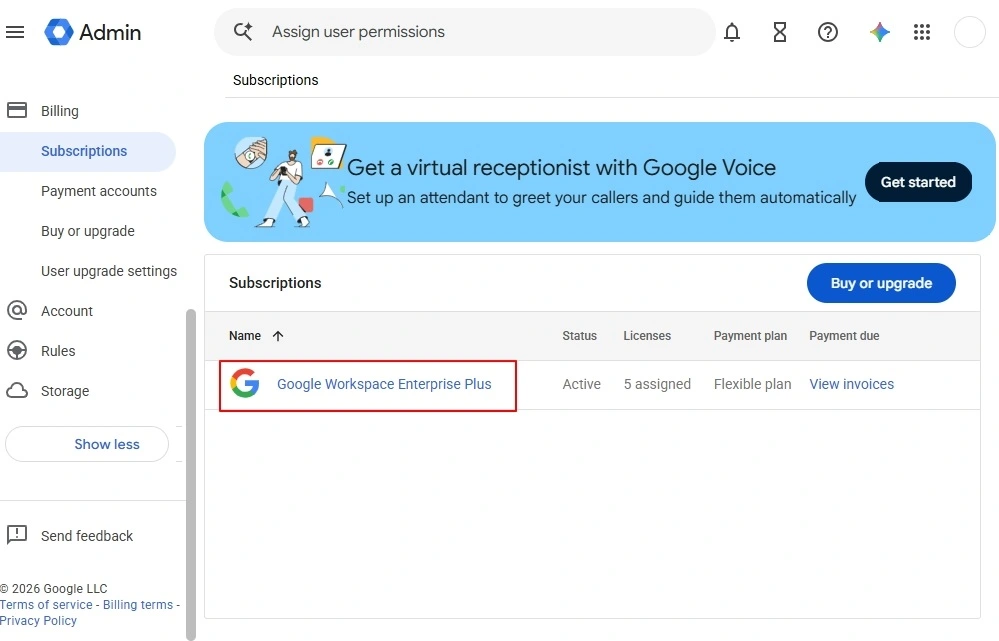
Step 6: Now, click on Cancel Subscription.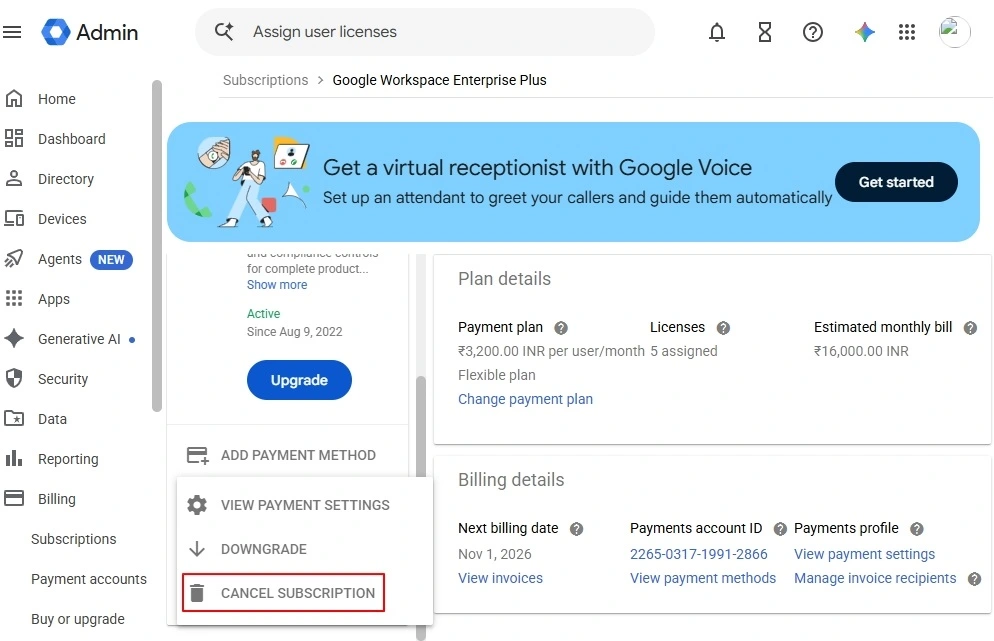
Step 7: Now, give your final consent by clicking on the Continue to cancel option.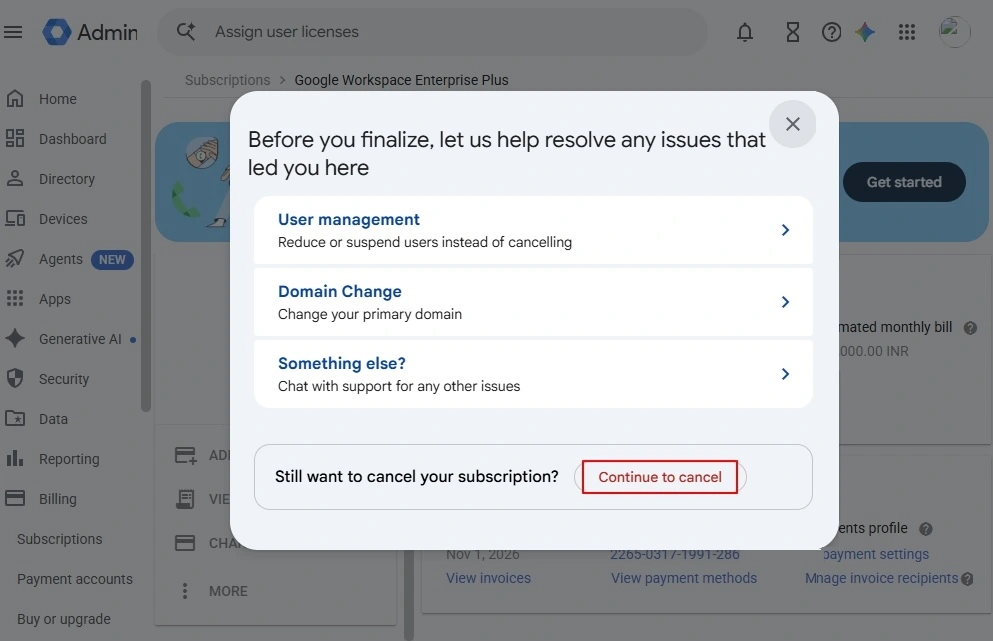
Finally, you have successfully cancelled your Google Workspace subscription. Now what is next? After canceling the subscription, many users are looking to delete their account for permanent removal.
How to Delete a Google Workspace Account Permanently?
Check out the detailed step-by-step guide to delete your Google Workspace account:
Step 1: Go to the Google Workspace Admin console dashboard and click on Account > Account Settings.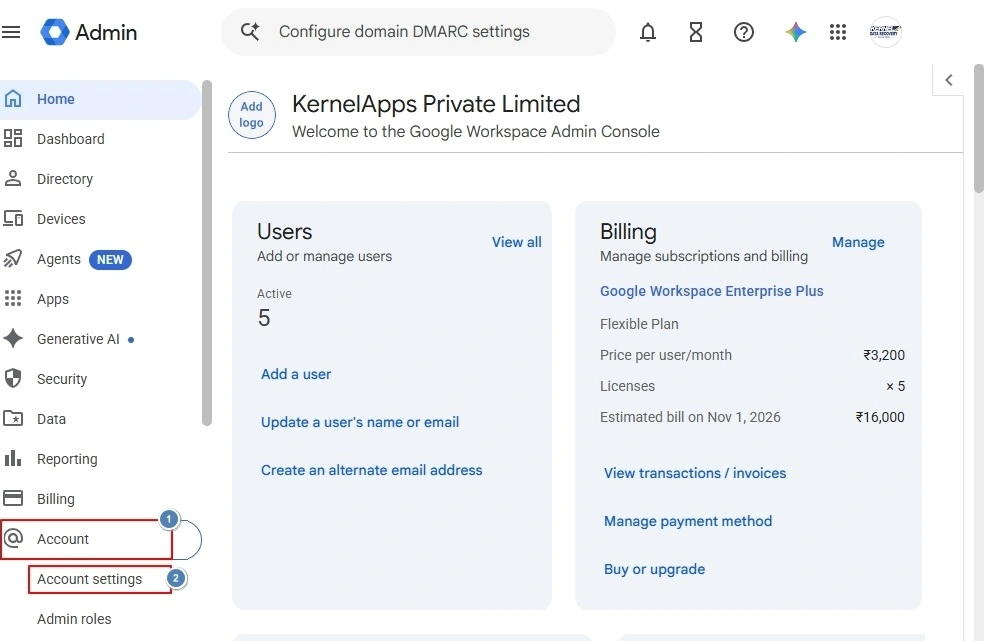
Step 2: Click on Account management to open its options.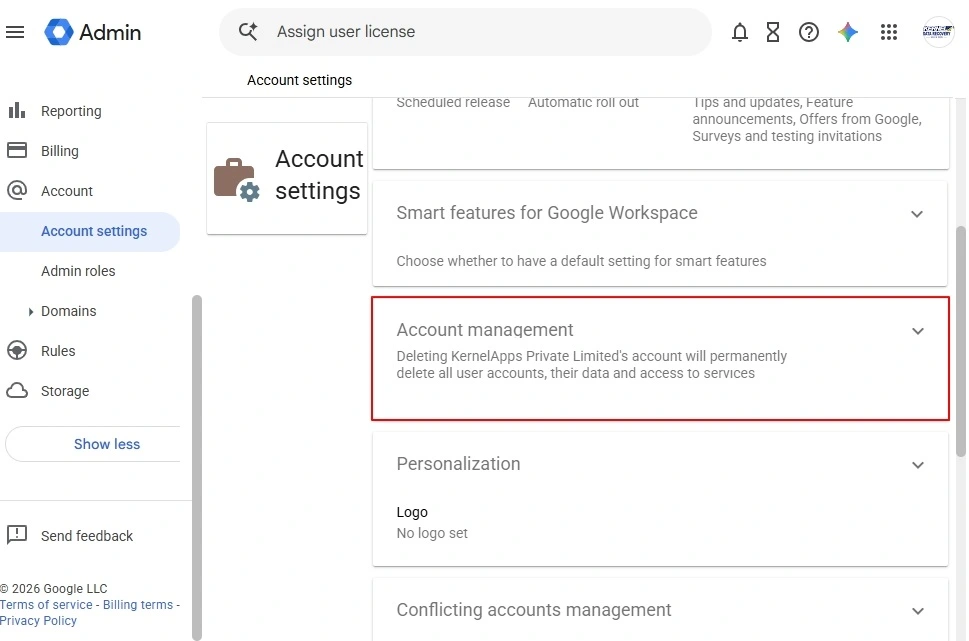
Step 3: Click on Delete account.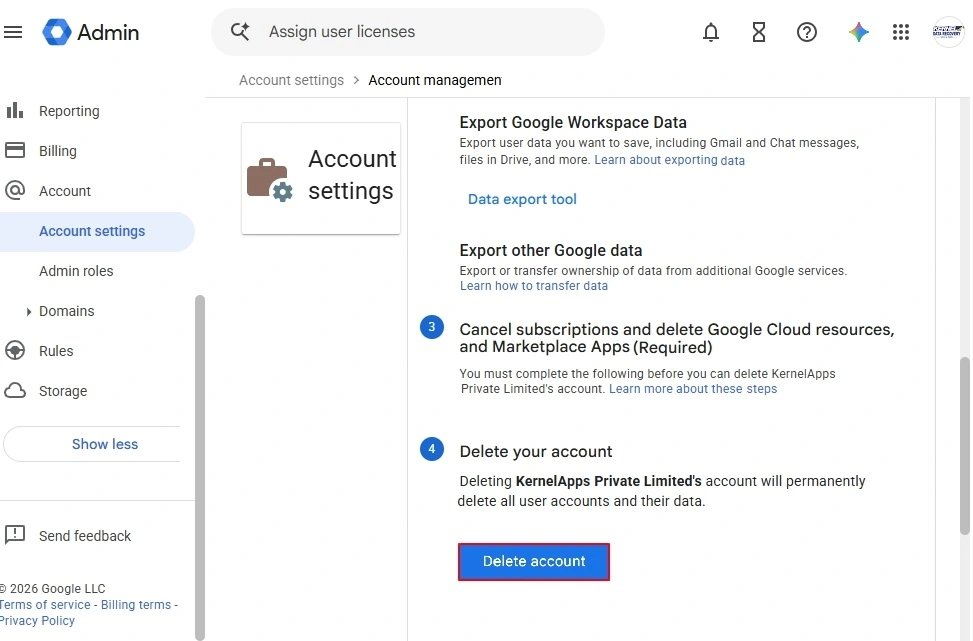
Step 4: Finally, give your consent by clicking on DELETE ACCOUNT to permanently remove your Google Workspace account.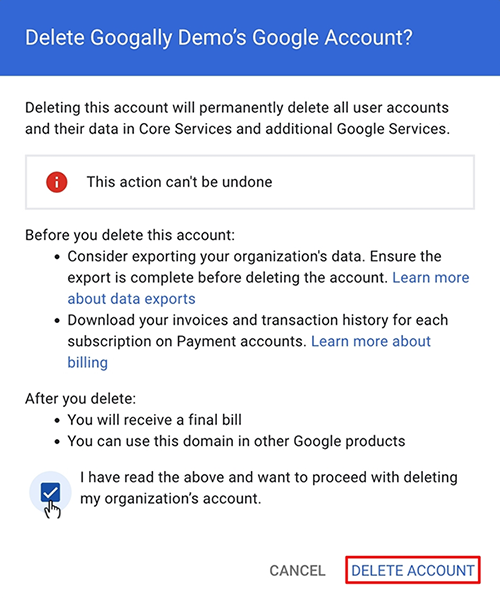
Author Advice: Migrate Google Workspace Data to Office 365
Before canceling your Google Workspace account, make sure to migrate your Google data to Office 365 and other cloud services. This option is suitable for users or businesses who are looking to change their cloud service platform from Google Workspace to Office 365. It gives you the freedom to access your Google data in Office 365 without losing any cloud services. To simplify this task, you can use the Kernel Google Workspace to Microsoft 365 Migration tool.
Conclusion
Canceling Google Workspace can be a good choice if your business no longer needs its services, or you plan to move to another email platform. Before Google Workspace cancel subscription, save your important emails, contacts, and files, and check for any unpaid charges or contract terms. If you plan to switch to Microsoft 365, make sure your data is ready for the move. These simple checks can help you avoid data loss and keep your business work on track.
Frequently Asked Questions
Answer: You may lose access to your business Gmail and other Workspace data. Thus, Google warns every users to back up their data before cancelling or deleting their accounts.
Answer: No, canceling your Workspace subscription does not automatically cancel a separately managed domain registration.
Answer: Yes, canceling a Workspace subscription and deleting your organization’s Google Account are separate actions in supported account setups. However, to delete an account, you need to cancel their subscription first.