Read time: 8 minutes
Quick solution to analyze a Gmail email header
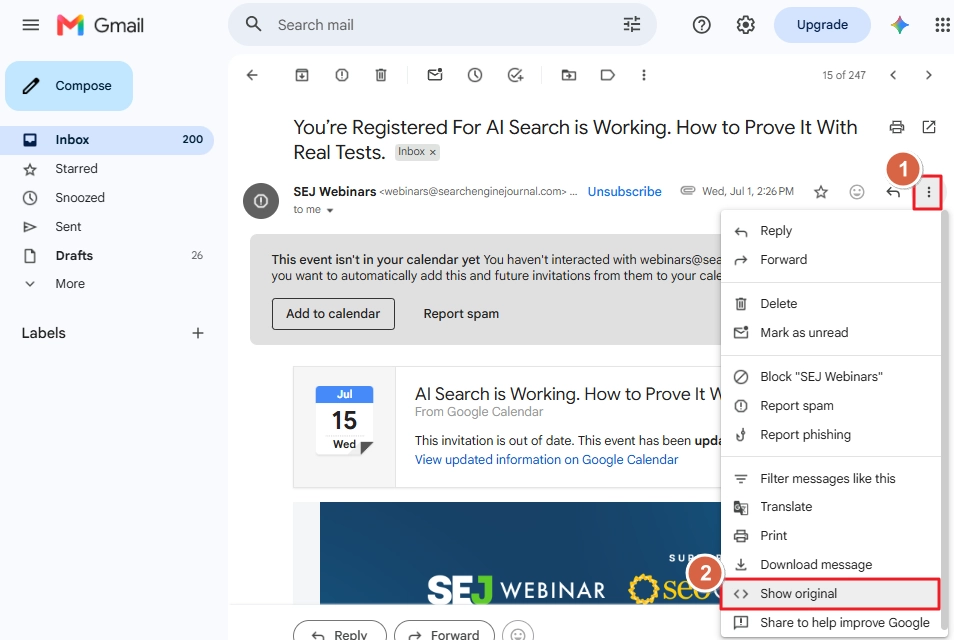
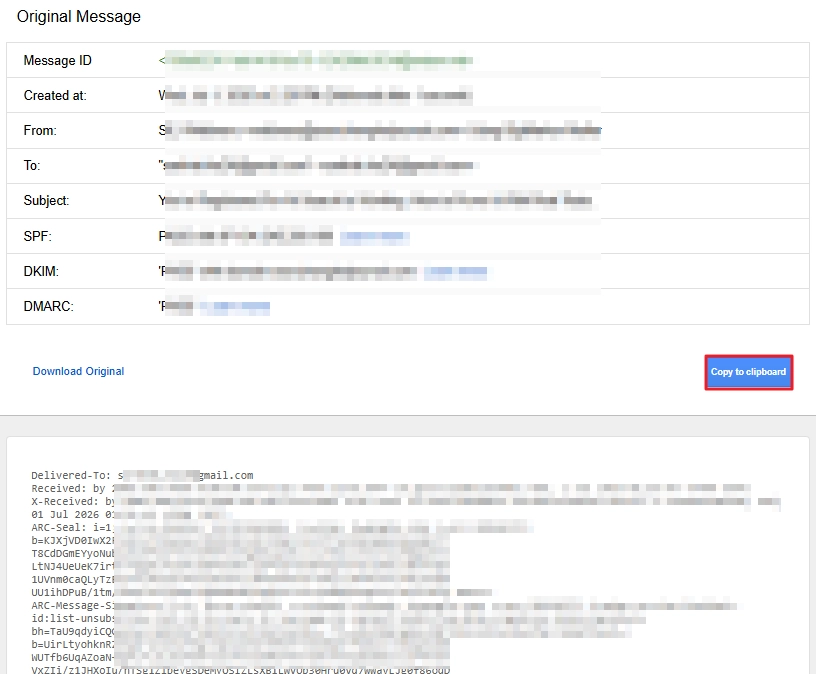
- Open the email > click on the three-dot icon > select Show original > click Copy to clipboard.
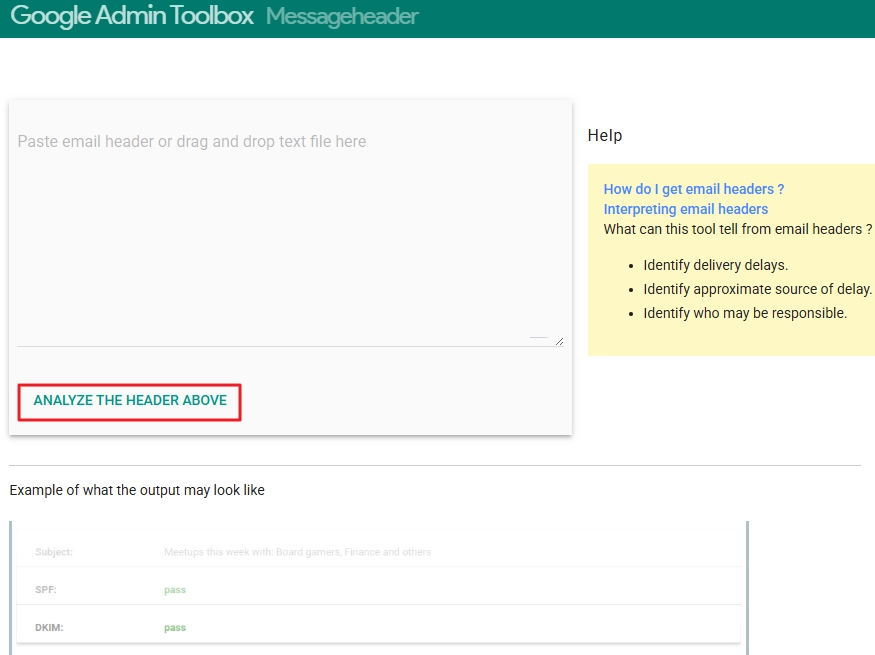
- Go to the Google Admin Toolbox Messageheader page, paste the copied email header, and click the button ANALYZE THE HEADER ABOVE.
Most Gmail users think of an email as a simple message that travels from their inbox to someone else’s mailbox over the internet. However, every email contains information hidden in the email header. You can inspect the origin, security settings, travel history, and other attributes of an email with its header.
However, header data is not something you can read like plain text. It’s a combination of abrupt characters and uses a formatting structure that a non-technical user will avoid 100%. Therefore, to analyze the header of any email, Gmail users, IT admins, investigators, or security analysts use the Google Admin Toolbox.
What is Google Admin Toolbox Message Header Analyzer?
It is a web utility provided directly by Google that allows users to transform the raw email header data into understandable information. After the analysis, the tool returns data like, sender’s true IP, every email agent the email passed through, a unique message ID, etc. Anyone can access the tool with or without a Gmail account, and it is one of the most reliable email header analyzer tools because:
- It’s free to use by anyone for an unlimited number of times.
- Secure header analysis as it’s Google’s own native tool.
- Run directly in the browser. No installation required.
- Universal email header. Works with emails from Gmail, Outlook, Thunderbird, Apple Mail, etc.
Why Analyze an Email Header?
As I said above, the header is filled with information. Analyzing the header gives you access to undisclosed information about the email that allows you to:
Find the real owner: An attacker mostly uses a fake From address to look authentic. Analyzing the email header will give you the originating IP and Return-Path that help to verify if the email is safe.
Verify Email Security: The Google message header will scan and tell if the email has SPF, DKIM, or DMARC authentication. Google depends on these checks to know if a message is safe to receive.
Decode Email Header: The header contains a lot of unstructured data that a human fails to understand. Email analyzers help to transform it into easy-to-read tables.
View Email Travel Journey: Information you get from the email header analysis will list all the email servers the email has passed through before landing in your inbox.
Troubleshoot Email Delays: The header contains information about every message transfer agent (MTA) the email passed through and also lists delays in seconds. This helps to identify and solve the lag in email delivery.
What Are the Components of a Gmail Email Header?
When you click the Show original button in your email, you will see a lot of elements. The most crucial ones are:
- From: Shows the sender’s email address.
- Return-Path: Used to send non-delivery reports.
- Reply-To: Destination address for the reply option.
- Received: Tells about the message journey.
- Message-ID: A unique ID of the sending server.
- Authentication-Results: Shows if SPF, DKIM, and DMARC checks passed.
- ARC-Seal: Helps to verify if the email was legitimate before being forwarded.
- Content-Type: Specifies email format (HTML, plain text, etc.)
- MIME-Version: Shows compliance with standard internet email formatting.
Step-by-Step Process to Analyze a Gmail Header Using Google Message Header Analyzer
It’s an easy-to-follow process that anyone can do by following these steps:
- Go to Gmail. Open the email you want to analyze. Click on the 3-dot icon and select the Show original option.
- Click Copy to clipboard.
- Go to the Google Admin Toolbox Messageheader page.
- Paste the copied header data into the text box and click ANALYZE THE HEADER ABOVE.
- View the information.
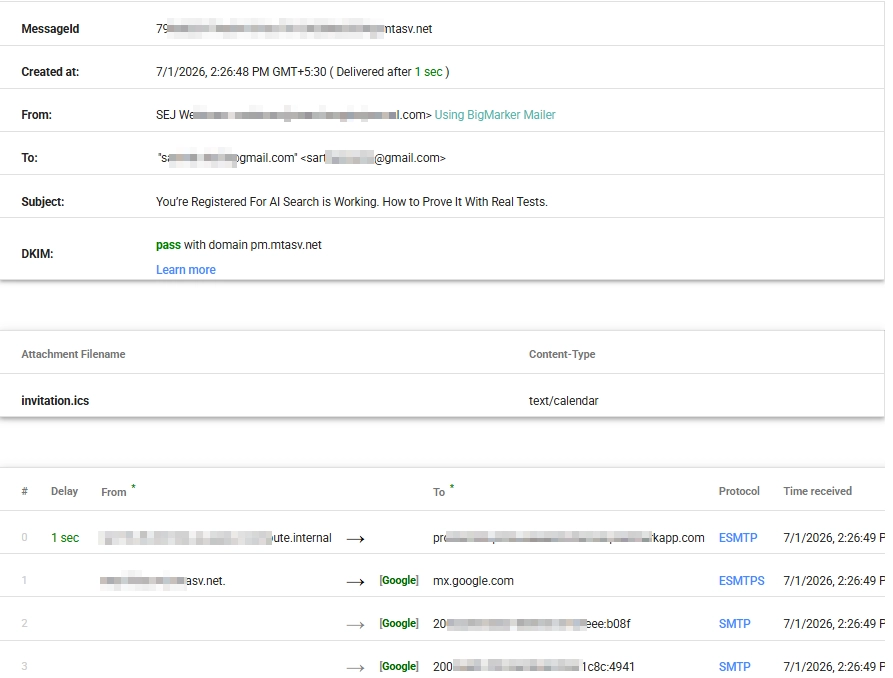
What to Look for in the Analyzer Result?
After getting the result of the Google Messageheader tool, you must look for the following pointers:
- Security Details
Check out the status of SPF, DKIM, and DMARC protocols. Refer to the table below to know what the value of these protocols means: - Identify and Match Sender
Look for these elements: From, Return-Path, and Reply-To. Match and see if they all point to the same domain. Compare the From and Return-Path, if they are not the same, it means the visible sender in your inbox is not the original sender. This doesn’t mean the email is 100% spoofed, but it’s enough to double-check everything. - Delivery Delays
View the table at the end containing the columns Delay, From, To, Protocol, and Time received. This shows the email hopping trail and also tells you how much delay the email had at every message transfer agent.
Read the table from top to bottom. If there are no large delays and the email journey shows a direct travel from the sender server to your inbox, it means no alteration or message forwarding occurred during the message travel. - Message ID and Originating IP Address
Note the originating IP address of the sender. Check this IP address on an online checker like MXToolbox to see if the IP is blacklisted or not. Additionally, check if the unique message ID is familiar. A completely unknown message ID calls for suspicion. - Other Things to Look for In the Original Email Header
A few other elements to look for are information related to ARC (Authenticated Received Chain), like ARC-Seal and ARC-Authentication-Results. They verify that the entire message forwarding trail (if the email was forwarded) is safe. - Legit Emails Go to Spam
When emails from your known senders do not land in the inbox, but are saved in the Spam label, you need to analyze the email header and look for:- Authentication-results: If SPF, DKIM, or DMARC are marked as fail, Google will not trust the sender.
- SCL: Spam confidence level (SCL) value greater than 5 is considered spam.
- Sender Name is OK, But Domain is Not
This symptom is most common in phishing and impersonation attacks. What to check:- Click on the reply option. If a completely new email address (different from the sender’s ID) came up, it means something is not right.
- Compare the From address and the Return-Path from the email header. If they are from a valid source, they will use matching domain names.
- Unusual Email Delays
When an email from a specific sender starts to delay without any reason, you can investigate the email journey from the results of the Gmail email analyzer tool to get a better idea of the issue.
Look for the table at the bottom of analyzer result, it will show the travel path of emails between different servers along with delays.
| Value | What it means | What to do now |
|---|---|---|
| Pass | All good, the server is authorized. | Nothing, the email sender is trustworthy. |
| SoftFail | Not fully authorized but not tampered with either | Analyze deeply to find any real threat. |
| Fail | The sending server was not authorized. | Be cautious, the sender is suspicious. |
| TempError | An issue occurred while checking protocol. | Try again after some time. |
How to Diagnose Common Email Issues?
Most of us do not start by running the Google message analyzer. The first signal that something is off triggers right from your inbox. Let’s see a few common scenarios of email issues and what to look for specifically in the email header to fix them.
Simplify Your Email Diagnostics Today
To find out what is wrong with the email, you do not have to hire experts every time. Using the Google email analyzer tool, anyone can diagnose emails. However, the tool only allows us to identify issues. It will not help if your emails are getting deleted from Gmail because of the high spam scores.
To avoid scenarios like data loss, regularly take a backup of your Gmail mailbox. For manual backup, use Google Takeout. But it takes days to complete and offers limited backup options. A better alternative is the Kernel Gmail Backup tool; it immediately starts backing up emails, offers multiple output formats to save emails, and provides several email filters so you can back up only what you need.
Frequently Asked Questions
A. Yes. In the email analysis report, look for authentication results and domain name mismatch to know if the email is safe.
A. As long as you are using Google’s official email header analyzer, your messages are safe.
A. You can use any email header analyzer. However, as a precaution, do not paste the message in the analyzer. Only use the header part.
A. Yes, the email header is part of the email. So, deleting the email will delete the header also.
A. Attackers can easily fake data like From, Subject, etc. However, faking authentication protocols is hard.


![How to Increase Gmail Account Storage for Free? [Quick Guide]](https://www.nucleustechnologies.com/blog/wp-content/uploads/2026/07/increase-gmail-account-storage.webp)