Read time: 11 minutes
It is a fresh Monday morning. You are sitting with your coffee while launching Thunderbird to view emails. But there are no emails; you either get a frustrating pop-up stating, “IMAP Authentication Failed“, or you get a prompt (repetitively) to enter the correct password (even though you are entering it correctly).
If this sounds familiar, take a deep breath. You are not alone, your account hasn’t been hacked, and Thunderbird isn’t broken.
Recently, many Thunderbird users have reported the issue “Thunderbird not working with Gmail”. For some reason, their Gmail account suddenly stopped working with the Thunderbird email client. Fixing this issue does not require a computer science degree. Moving forward in this article, I will show you various methods to restart your Gmail email communication in Mozilla Thunderbird, along with the reason why this issue occurred.
Why Thunderbird Does Not Work with Gmail?
Before you begin with the fixes in the next section, it will help you to know why the issue started in the first place. When I was investigating the root cause of the connection breaking down, I was surprised. The root cause is not a bug or a virus attack; it actually happened because Google is trying to make sure you are safe (your emails, to be specific).
You must know that for many years, email programs like Thunderbird have used a username and password to connect to your Gmail account. However, looking at the modern way of online cyberattacks, Google thinks that solely relying on just a password is not safe anymore, and users need a better & safer way to log in.
To protect your emails and data, Google has completely changed the login mechanism used by third-party apps like Thunderbird, Apple Mail, and Outlook. The old way, like “Less Secure Apps” is officially dead. You now need to use the new OAuth2.0 (Open Authorization 2.0) method to connect to your Gmail mailbox.
Methods to Fix “Thunderbird Not Working with Gmail” Problem
There are multiple ways to resolve the issue and get back to work. I have arranged these fixes in an orderly fashion, starting from the most common solution.
Fix 1: Switch From Standard Login to Modern (OAuth2.0) Authentication
As I told you earlier the Google’s shift to OAuth2.0 is the number one reason why your Thunderbird stops working with Gmail. Therefore, it makes sense that we start fixing the issues with this solution. Follow these steps to update your authentication mode.
- On your system, launch the Thunderbird email client application.
- In the top-right corner of the screen, click on the three horizontal lines button and click on the Account Settings option.
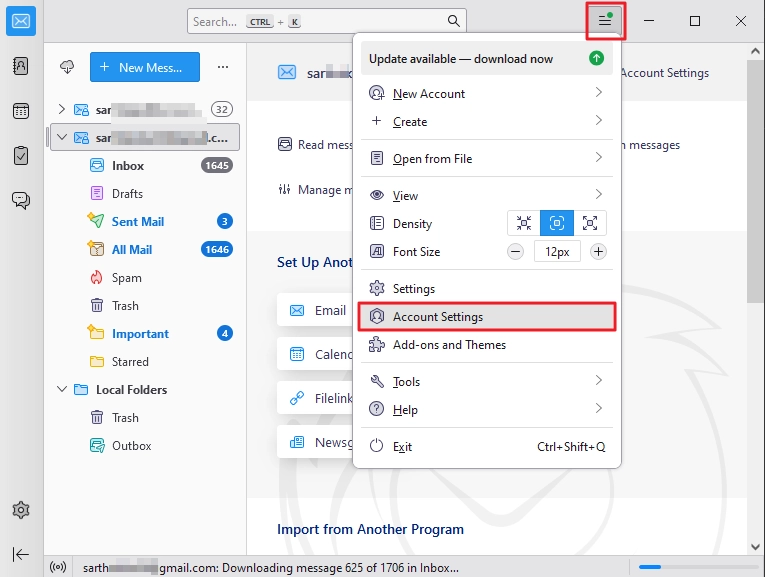
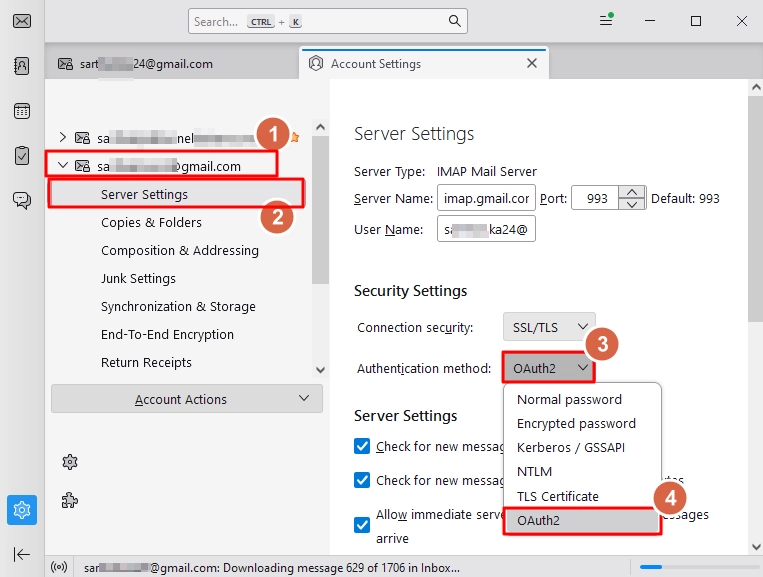
- Select your Gmail account from the left-hand sidebar, then go to Server Settings and change the value of the Authentication method to OAuth2.
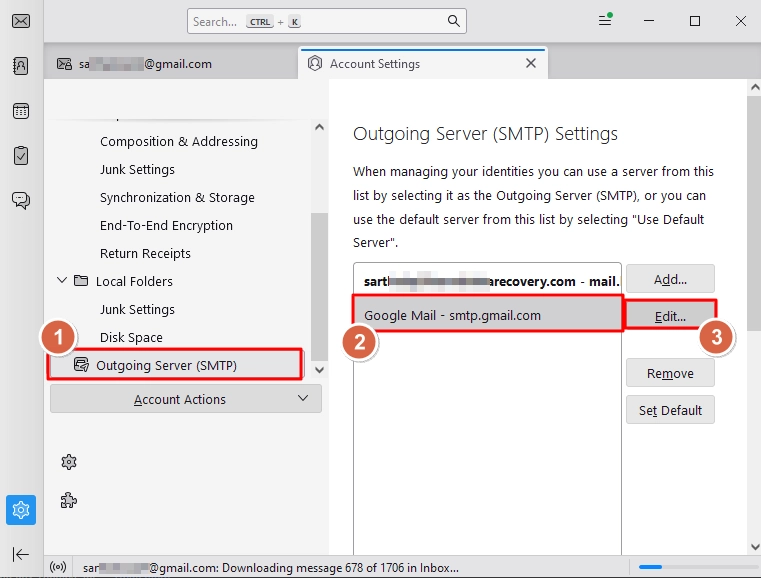
- Now, scroll down the left-hand sidebar and click on Outgoing Server (SMTP). Select your Gmail account and click the Edit button.
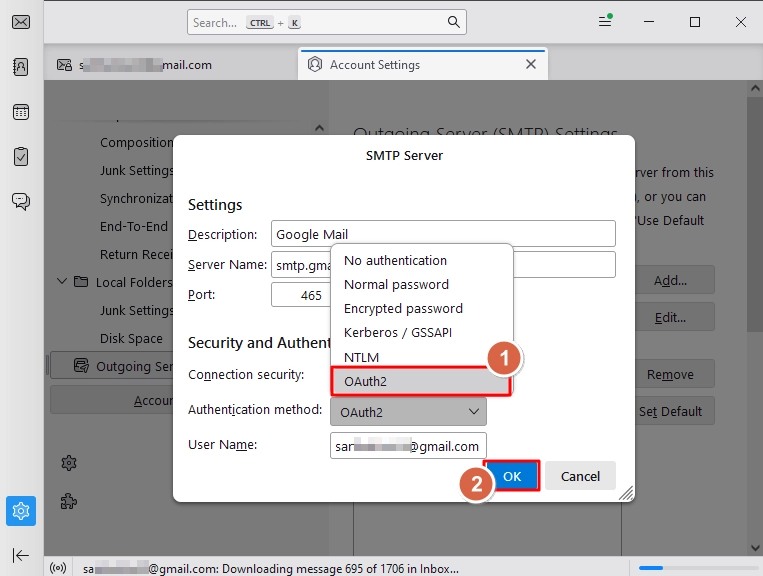
- Again, change the Authentication method value to OAuth2 and click OK to save.
After saving the changes, close the Thunderbird app. I recommend you restart the system. Then, open the email client and when a Google sign-in window pops up, enter your Gmail email and click Next. Then enter the password and confirm the authentication. After doing all this, you should be good to go. If not, proceed to the next fix.
Fix 2: Verify Your IMAP and SMTP Settings
When your Thunderbird is already using the OAuth2.0 method, then you must verify if the Gmail account is configured with the correct IMAP (Incoming) and SMTP (Outgoing) settings. If a recent update accidentally manipulated these settings, communication breaks down, and you get the “Thunderbird not working with Gmail” error. Use these steps to validate the email settings:
- In Thunderbird, click the hamburger menu and select Account Settings
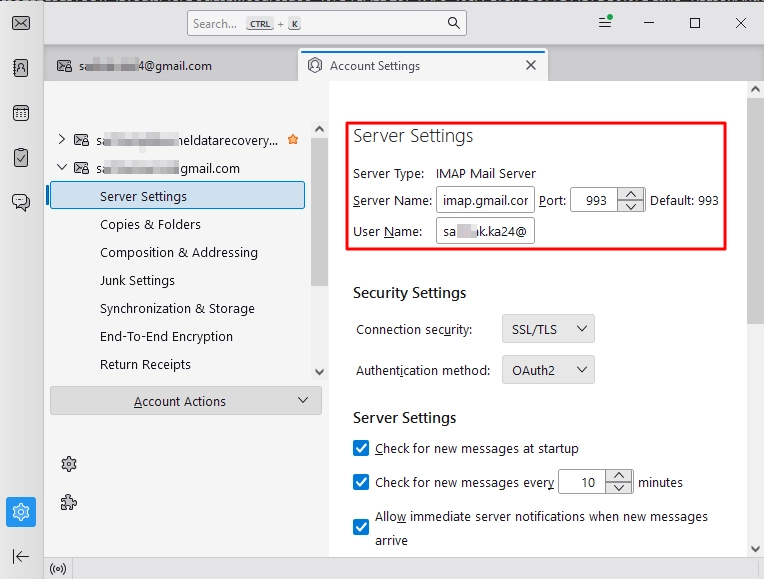
- Click on the Server Settings option for your Gmail account.
- Verify that your settings match the following:
- Server Name: imap.gmail.com
- Port: 993
- Connection Security: SSL/TLS
- User Name: Your full Gmail address (including the @gmail.com)
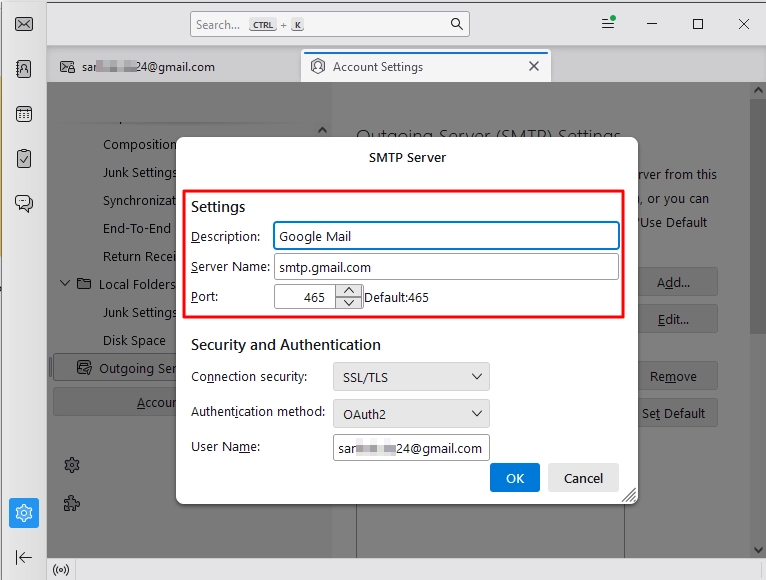
- Now, go to the Outgoing Server (SMTP) option. Select your Gmail account and click Edit.
- Here, make sure the settings match these details:
- Server Name: smtp.gmail.com
- Port: 465
- Connection Security: SSL/TLS
- User Name: Your full Gmail address
Fix 3: Check Your Security Tool
Almost every one of us is using some antivirus software to protect our data and privacy. But some users like to have a tight leash on everything and end up setting up very aggressive rules for their security tool. If Thunderbird still does not connect to Gmail even after trying the above methods, the culprit could be your computer’s security software.
In such instances, the security software will block Thunderbird from connecting to the internet, leading to the “Thunderbird not working with Gmail” issue.
To test if this is the real issue, do this:
- Temporarily pause or disable your third-party antivirus software. Specifically look for features like “Email Shield” or “Web Shield” and turn them off.
- Open Thunderbird and try to refresh your inbox.
- If the issue is resolved and you can see your emails again, you have your culprit.
If the antivirus program is the real culprit, then add Thunderbird to its “Allowed Programs” or “Exceptions” list.
What If Google Login Pop-ups Do Not Come?
In some rare events, like using an older version of Thunderbird (with no OAuth2.0 support), the app may not load the login pop-up. In such a case, try these hacks.
Enable Cookies in Thunderbird
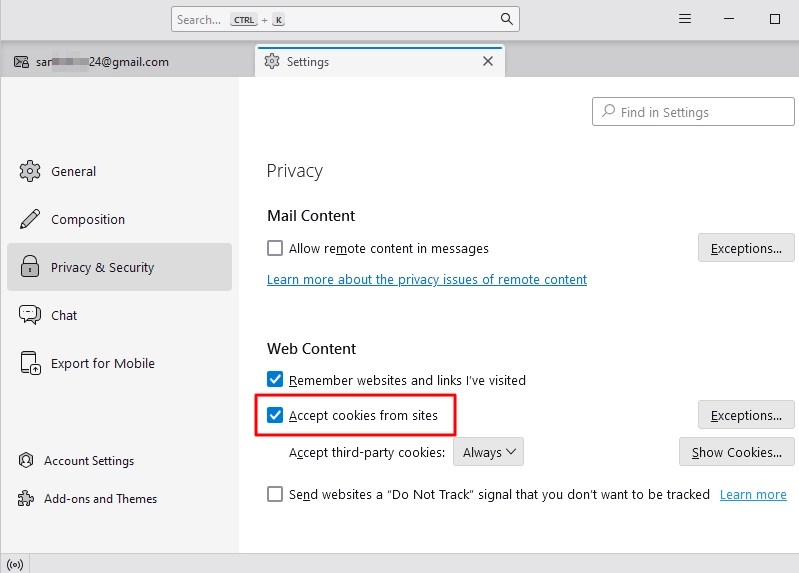
Google’s login screen is a pop-up that requires cookies to function. If, for privacy concerns, you have disabled cookies in Thunderbird, then you will not see any login screen.
To fix this:
- In Thunderbird, go to Settings > Privacy & Security
- Under Web Content, tick the Accept cookies from sites checkbox.
Clear Old Passwords
Sometimes, you must force Thunderbird to ask Google for the new login password by deleting the old one.
- Again, go to Thunderbird’s Settings > Privacy & Security.
- Scroll down and in the Passwords section, click the Saved Passwords button.
- A new window will pop up, select the Gmail account login details and click Remove.
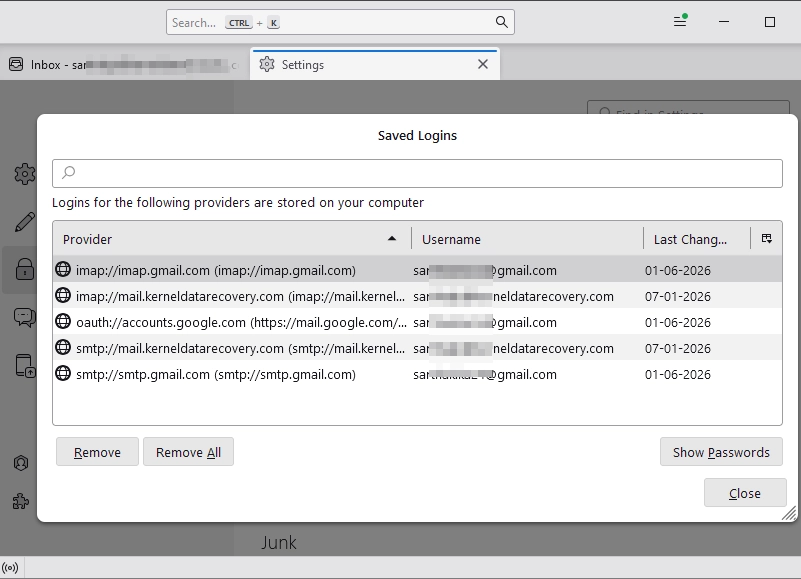
- Repeat the last step for all the entries for your Gmail account.
- Then, restart Thunderbird. Now you will see the login pop-up.
Log In Using Gmail App Password
If there is still no login pop-up, use Google’s 16-digit security code to connect to your Gmail account without a password with these steps.
- Create an app password for Gmail.
- Use the steps in Fix 1 and change the Authentication method to Normal Password. =
- Restart Thunderbird and use the newly created app password to login.
If Nothing Works: Create a New Thunderbird Profile
When no method is working for you, the issue is deep. Now, the best way to get rid of the “Thunderbird not working with Gmail” error is to create a new Thunderbird profile with these steps:
- Close Thunderbird completely.
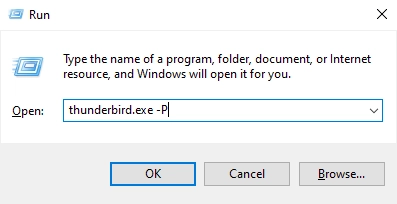
- Press the Windows Key + R to open the “Run” command box. Type thunderbird.exe -P and hit Enter.
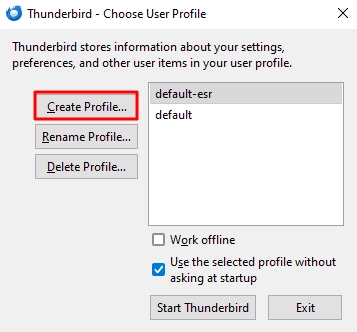
- The Thunderbird profile manager will appear. Click Create Profile.
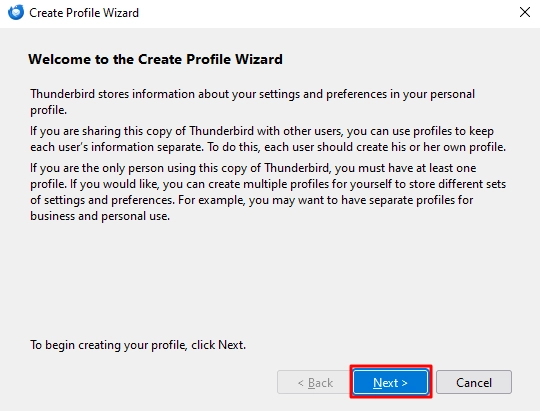
- Click Next.
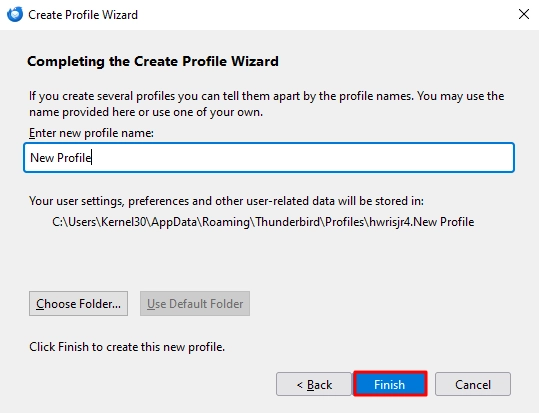
- Give your new profile a name and click Finish.
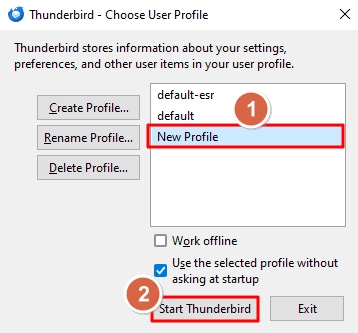
- Select the newly created profile and click Start Thunderbird.
- Thunderbird will prompt you to configure Thunderbird for Gmail. Do that, and your error is fixed.
Back up your data before creating a new profile
Let me remind you that the profile modifications have the risk of losing locally saved drafts or specific folder structures. Therefore, make sure to back up your Gmail mailbox. For backup, you can use the Thunderbird built-in export feature. But if you cannot export manually, use a professional Gmail backup tool.
The Kernel Gmail Backup tool supports modern authentication (OAuth2.0) and allows direct backup of all your emails along with folder structure, bypassing the email client entirely. After backup, you can proceed with the profile reset worry-free.
Author’s Verdict
Google’s intent behind upgrading to OAuth2.0 was to provide a safer emailing platform to its users. But for some users, it became an unpleasant experience due to the “Thunderbird not working with Gmail” issue. Switching to modern authentication will fix the problem in minutes.
To prevent future headaches caused by login errors, you must keep an independent backup of your cloud data. The easiest way to back up Gmail emails every few days without creating duplicate copies is to use the Kernel Gmail Backup Software. The tool automates your email archiving directly from Google’s servers to your local machine.
Frequently Asked Questions
A: No. Before 2025, this was doable. But in 2026, you must use OAuth2 to continue using Gmail on email clients like Thunderbird.
A: Your emails are absolutely safe. Switching your authentication method does not manipulate your emails, only the login method is changed. In fact, after OAuth2.0, your Gmail data is more secure than before.
A: The blank screen issue usually happens when Thunderbird is blocking cookies. To fix this, make sure that “Accept cookies from sites” is checked in your Thunderbird Privacy & Security settings.
A: To fix the issues, do this:
1. Change your Gmail account authentication method to OAuth2.0.
2. Verify if you are using the correct incoming and outgoing server settings.
3. Make sure your antivirus program is not interfering with Thunderbird’s connection.