Read time: 6 minutes
Summary: Even though Gmail stores emails that, in general, do not occupy a large amount of storage, the Google account storage gets full very quickly. This is because it is assigned shared storage. If you want to increase Gmail account storage, you need proper steps to guide you in completing the process. Moreover, getting a Gmail backup tool by your side is a smart move to avoid data loss.
Suppose you’ve just finished drafting an email and as you press send, you saw an error, “Gmail storage is full. You might not be able to send or receive emails.” This can be very frustrating, but don’t worry, we’ve all been there.
Gmail, unlike other email storage, has access to 15 GB of Google storage that is shared across Gmail, Google Photos, and Google Drive. It means the accumulation of large attachments, files, photos, videos, documents, etc. Due to this, the Gmail storage can get filled very quickly, causing issues in sending or receiving emails. This running out of space is very common with Google users and can become a reason for a reduction in productivity.
Don’t panic! We’ve got good news for you! With some minor tweaks, decluttering your account and cleanup of old files can help you create and reclaim storage in Gmail for free.
Quick Tips: How to Increase Gmail Storage?
- Search emails with large attachments and delete unnecessary ones.
- Empty your Trash, Promotions, Social, and Spam email folders.
- Unsubscribe from email and disable social media notifications.
- Remove duplicate, large, and unused files from Google Drive.
- From Photos, delete large or duplicate images and videos.
- Upload compressed images or videos for future processes.
Top Reasons to Increase Your Gmail Storage
Here are some of the major reasons that compel you to increase space within your Gmail storage:
No missing emails: If the mailbox quota is full, you won’t be able to send or receive any new emails. This means there will be missed emails bouncing back to the sender.
Bounce account deletion: Google accounts that exceed the storage quota and remain inactive for a period of 2 years are often deleted by Google.
Handle large attachments: Increase Gmail storage to efficiently send and receive large attachments, including videos, images, and documents.
Easy file creation: When there is maintained storage in the Google Account, you can create files in other Google components like Google Docs, Sheets, etc., without issues.
How to Increase Gmail Storage Without Paying?
As the reasons are clear, here are the three verified native methods to follow for increasing the storage in your Gmail account. Use any one of them or all to get the desired outcome.
Method 1: Delete large emails to create storage
Use the following step-by-step process in your Gmail account opened in the browser:
- Go to Search bar at the top of the Gmail dashboard.
- Enter larger: 10MB in the search bar and hit Enter.
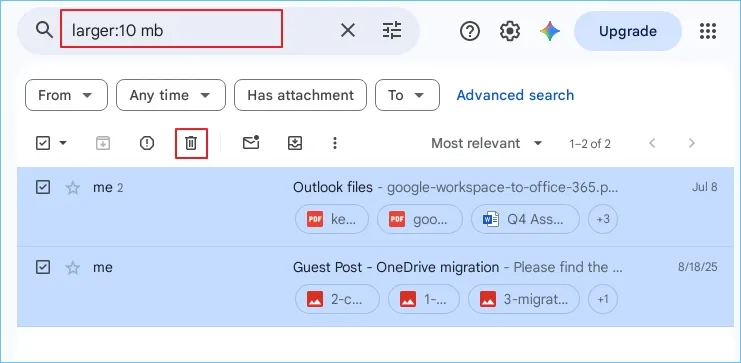
- Mark the checkbox to select the emails you want to delete.
- Click on the Bin icon at the top to delete the selected files.
Method 2: Clear all the clutter
Apart from the primary emails folder, there are several other advertising and spam emails that you can delete to declutter Inbox. Here’s what you need to follow:
- Unsubscribe from the newsletters that you no longer want to receive.
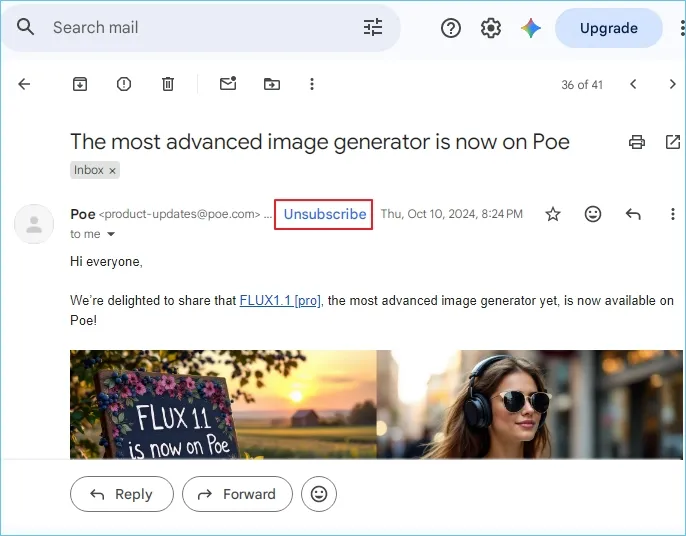
- Delete newsletters and emails from the promotions tab.
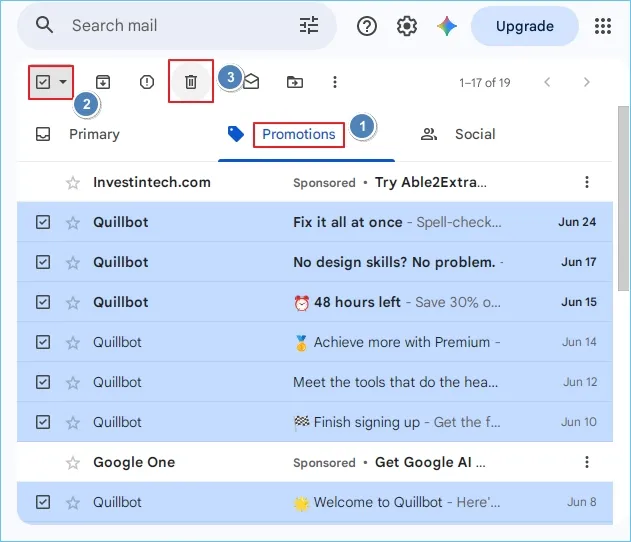
- Remove old emails with large attachments from the Sent folder.
- Empty trash folder manually and spam folder.
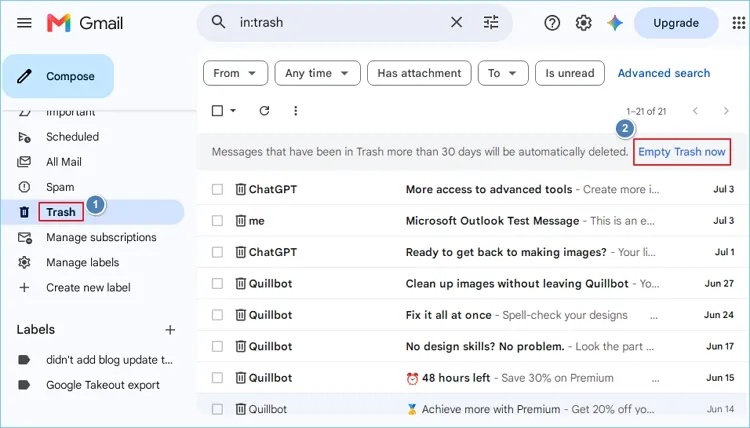
This will provide you with free storage once you complete the cleanup of the Gmail account.
Method 3: Clean your Google Drive and Photos
Google Drive and Google Photos often contain a major volume of data within Google Storage. Go to Google Drive on your browser, click on the Storage tab, and click on Storage Used ñ to sort out the files based on size. Now you can delete large duplicate photos or videos, old files, or unwanted files and folders.
After cleaning up Google Drive, open Google Photos and switch the upload quality to Storage Saver. This is because when you upload photos in their original and high quality, they consume a lot of storage. When images are compressed, they occupy less space than usual.
Don’t want to Delete Data? Use an Expert Solution
Using the methods to delete the files and compress your images and videos, you can create space sometimes. But this can’t always be applicable. Deleting everything can also result in the loss of important data.
Instead of deleting files blatantly to increase Gmail storage, first backup Gmail data using a tool like Kernel Gmail Backup tool. This tool will help you backup Gmail mailbox data to PST, MSG, PDF, and other file formats, saved within the local storage or NAS drive on your computer.
Once the complete data is backed up, you can delete it from Google Storage to create space and reclaim space on your Google account storage.
Wrapping up
The error ‘Gmail storage full’ is very exhausting because it restricts you from continuing with everyday communication. To avoid this, most of the administrators prefer cleaning up and deleting data items to increase Gmail storage for free. However, this is not always a viable option. In such cases, use Kernel Gmail Backup tool that backup Gmail emails to your computer. After which, you can delete the backed-up data from the account.
Frequently Asked Questions
A. No. You can’t access the deleted emails or files once they’re permanently deleted from your account, unless you save Gmail emails with attachments to your desktop.
A. Follow the given measures to increase Gmail storage without paying:
1. Set auto-delete rules on your Gmail inbox to keep the mailbox mess-free.
2. Remove unnecessary data from shared storage to make space.
3. Organize mailboxes using email labels.
4. Empty spam and trash folders to delete emails permanently.