Read time: 12 minutes
Microsoft Outlook provides enough storage space but its mailboxes might get full due to the potential growth of local Outlook data files (PST/OST). There are a range of other combinations of factors, including a large volume of emails and attachments, and unemptied deleted/junk folders that eat up the Outlook storage.
When your email inbox gets too full, it can cause problems, like freezing, crashing, etc. You might see an error message that says, “Mailbox Full: Your mailbox is full; you may not be able to send or receive items.” Therefore, you need to reduce Outlook mailbox size to start receiving and sending emails again.
In this guide, we’ll share simple, necessary information and effective methods that anyone can follow to reduce Outlook mailbox size. Also, we’ll help you out with advanced tools to manage oversized PST files effectively. Let’s get started!

Main Issues with Increased Outlook Mailbox Size
Outlook users face many problems when their mailbox storage is full. Some of the common issues are listed below:
- Low productivity with slow performance of Outlook application.
- Unable to send or receive new email messages, i.e., loss of communication.
- Good chances of corruption in Outlook PST file with oversized data.
- Loss of data due to an increased level of corruption in the PST file.
How to Reduce Outlook Mailbox Size? 100% Working Method
Deleting some emails and attachments would be the easiest way to reduce mailbox size of Outlook. But this alone is not enough to cope with the situation. However, Microsoft has provided some built-in features in Outlook to deal with the ‘Full Mailbox’ situation.

Try an automated tool Kernel for PST Compress & Compact to remove unused and unwanted space from the PST files and reduce the large PST file
A few simple ways to reduce mailbox size are:
- Delete large Outlook emails and attachments.
- Use Outlook Mailbox Cleanup Tool.
- Empty the Deleted Items and Junk Folders.
- Compress the Outlook data file (PST).
- Archive older PST file items.
- Use the Cleanup feature to remove redundant messages.
- Saving and removing attachments.
- Try professional Outlook management tools like Compress PST, Split PST, Remove Duplicates, Attachment Management
Note: It is recommended to backup Outlook PST files in advance before performing the manual solutions to reduce Outlook file size, as some may result in data loss due to manual errors.
Method 1. Delete large Outlook emails and attachments
Deleting large emails, undoubtedly, is the simplest way to reduce Microsoft Outlook mailbox size. Rather than randomly deleting large files, you can follow a systematic approach to manage Outlook attachments. The steps are:
Step 1. Open Outlook. In the folder list, click Search folder, then select New Search folder.
Step 2. Scroll down the list and under Organizing Mail, select Large mail. Click Choose under Customize Search Folder.
Step 3. Specify a size in the ‘Show mail greater than’ box (for example 6000 KB). Click OK to continue.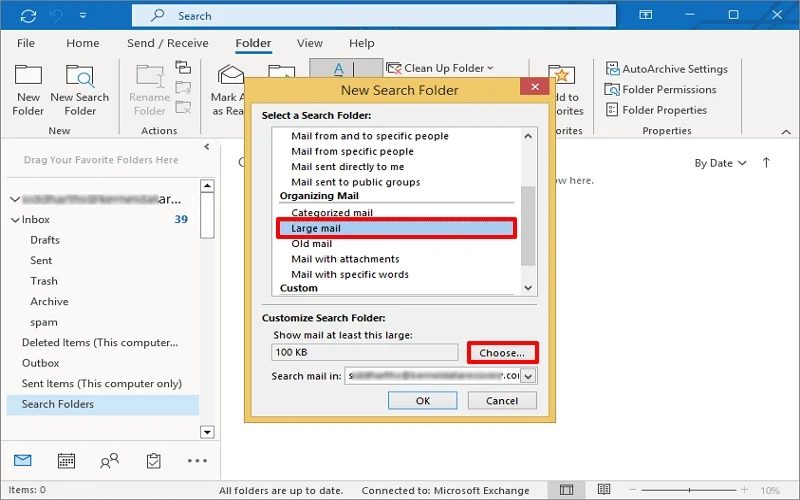
A folder named ‘Larger Than 6000 KB’ is created under Search Folders. This newly created folder will get updated with the mails of size more than 6000 KB automatically.
When you face mailbox size issues, just go to the Search Folders. Click on the newly created folder, and delete your emails that are not so important. Thus, reduce mailbox size in Outlook until it has enough space for new emails.
Note: If you need, you can save the attachments to your drive before deleting them (by right-clicking on the attachment and then clicking ‘Save As’ or ‘Save All’ option).
Method 2. Use Outlook Mailbox Cleanup Tool
You can reduce Microsoft mailbox size via the Outlook Cleanup Tool. You can view your mailbox size/mailbox folder size with this tool. Also, you can find items larger/older than a specified limit. Here are the steps to follow:
Step 1. Open Outlook and go to the File menu. In the Info section, tap on Tools and select Mailbox Cleanup Tool.
Step 2. Find items with specific data and a size range. View your total mailbox size and folder sizes. Additionally, empty the Deleted Items and Junk folders directly from here.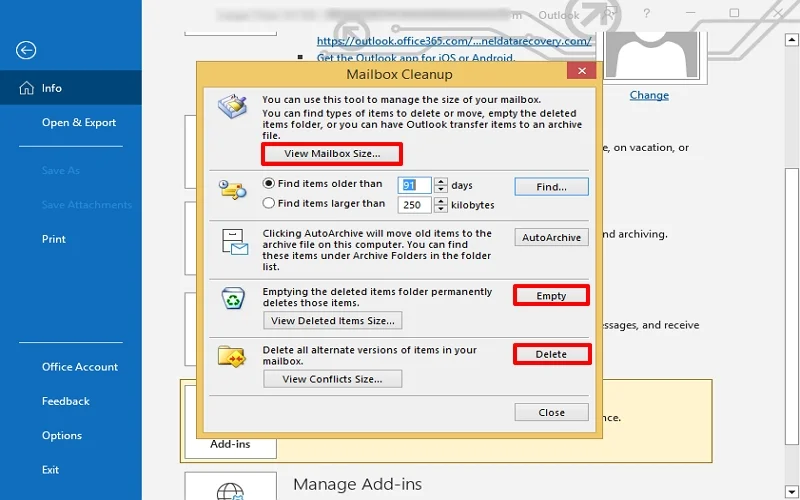
Note: With the Empty option, you can delete all the items present in the Deleted Items folder permanently. Before that, you can view the deleted folders and subfolders (if any) and their sizes.
Method 3. Empty the Deleted Items and Junk Folders
In Outlook, Deleted Items and Junk folders take up a lot of unnecessary space. So, delete them regularly to reduce Outlook mailbox size. Here are the steps to follow:
Step 1. Open Outlook, find the Deleted Items folder, right-click on that, and tap on Empty Folder.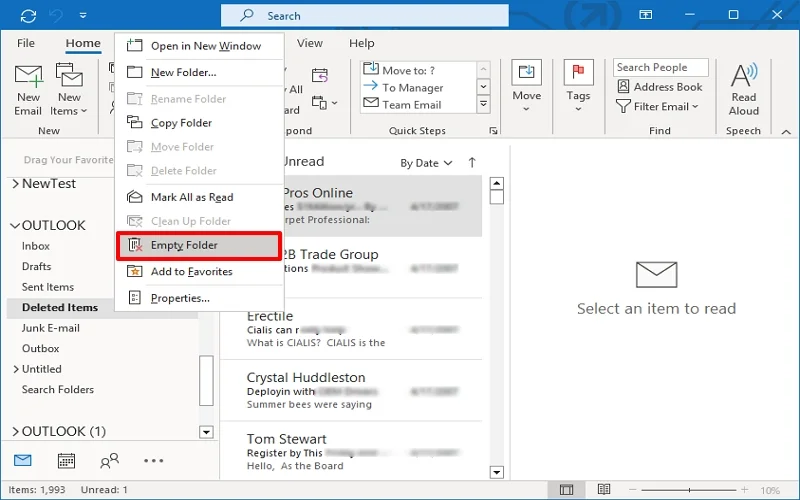
Step 2. Repeat the deletion process for the Junk Email folder to reduce mailbox size of Outlook. Restart Outlook.
Note: You can also set up your Outlook to automatically delete the items in the Deleted Items or Junk folder automatically.
A. Tap on File, choose Options, and click Advanced.
B. Check the ” Checkmark the Deleted Items folder when exiting Outlook option.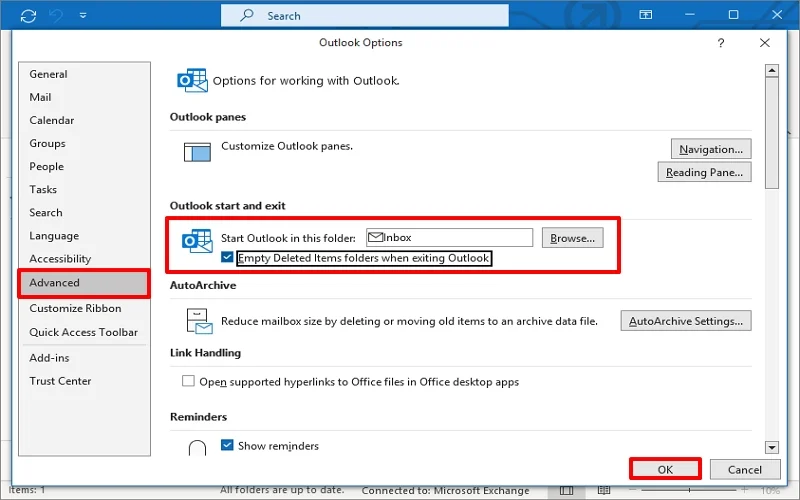
Method 4. Compress the Outlook data file (PST)
Compressing Outlook data files helps to reduce Outlook mailbox size without deleting emails. Before starting the procedure, empty the Deleted Items folder. Then follow the steps given:
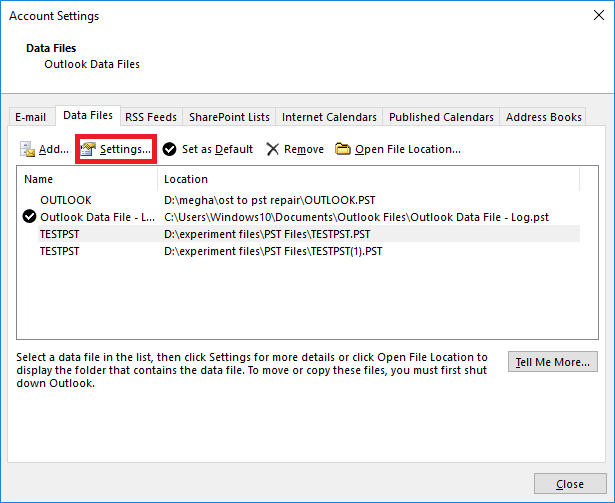
Step 1. Open Outlook. In the File tab, select Account Settings and then click Account Settings.
Step 2. Tap on the Data Files tab, select the PST file to compact, and then click Settings.
Step 3. In the Outlook Data File dialog box, click Compact Now.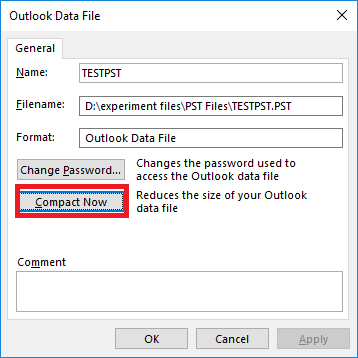
Method 5. Archive older PST file items
Microsoft Outlook includes an AutoArchive feature to archive the old or unnecessary PST file items to a separate PST file on the system hard drive, which users can make use of whenever required. Let us know the steps to perform this.
Step 1. Launch your Microsoft Outlook application and go to Files>Options>Advanced.
Step 2. Navigate to the AutoArchive section on the panel and click AutoArchive Settings under it. 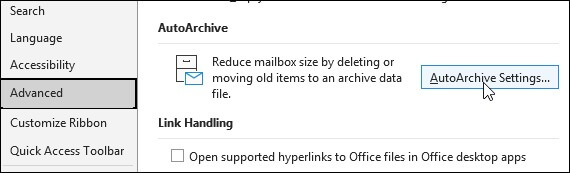
Step 3. Now select the checkbox saying Run AutoArchive every days and provide the number of days as an interval for regular automatic archiving process.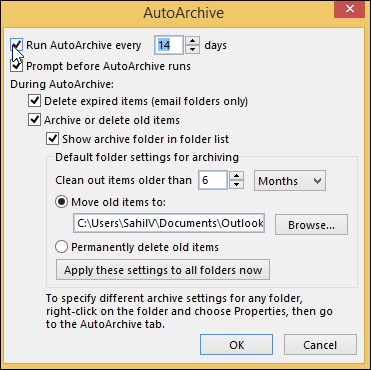
Step 4. Provide other options like deleting old items, etc., and finally click on AutoArchive.
Note: You can archive items manually from PST file mailbox as well.
Method 6. Use the Cleanup feature to remove redundant messages
When we’re discussing a particular subject with someone, we often end up with a long thread of emails. But sometimes, there are several messages containing the same information as in previous messages. This is where the Cleanup feature comes in handy. It automatically removes all those redundant messages.
But before deleting any conversation, Cleanup evaluates each message in it, ensuring that we don’t lose anything important. For example, if someone sends a message to you and someone else, and then both of you respond, Cleanup will only keep the most recent message.
Step 1. Go to Home> Delete tab>Clean Up.
Step 2. Now, use any of the options: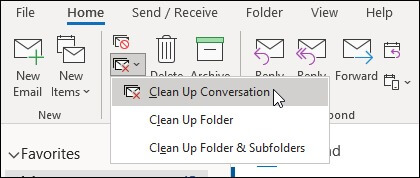
- Clean Up Conversation: This will evaluate the current conversation and delete the redundant messages
- Clean Up Folder: This will evaluate all the conversations in the folder and delete all the redundant messages of conversations contained in this folder
- Clean Up Folder and Sub Folders: This will evaluate all the conversations of the folder and subfolders and delete all the redundant messages of conversations contained in the folder and subfolders.
Note: You can even make a setting for messages to be exempted from Clean up, and where messages shall move when deleted.
Method 7. Saving and removing attachments
One effective way to reduce your mailbox size in Outlook is by saving all the necessary attachments in one place and then delete them. Follow the steps to do so.
Step 1. Open the email and click on the attachment. Click on Save all Attachments.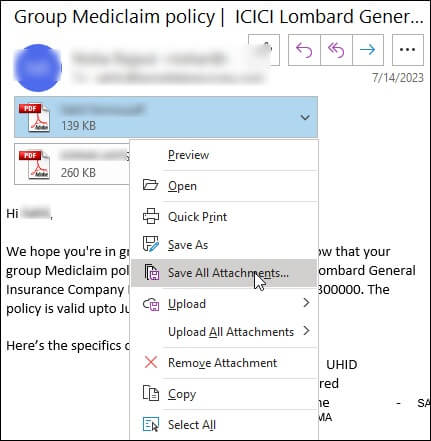
Step 2. Tap on OK to confirm.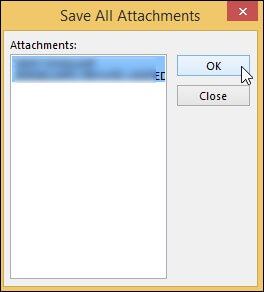
Step 3. Choose a destination to save your attachments.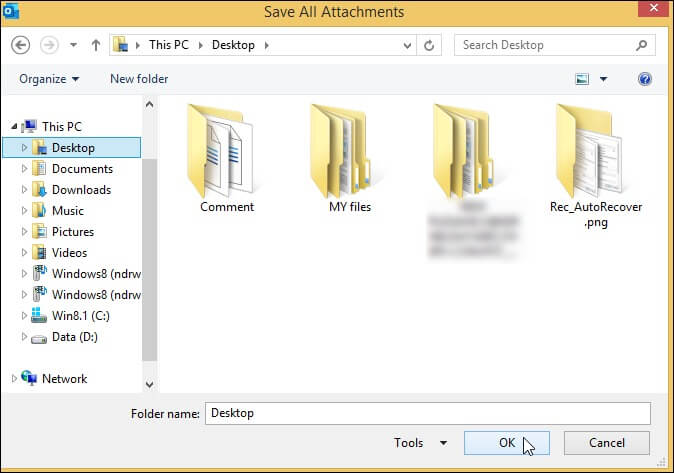
Step 4. Lastly, tap on the attachment and click on Remove Attachment to delete the attachment to reduce Outlook mailbox size.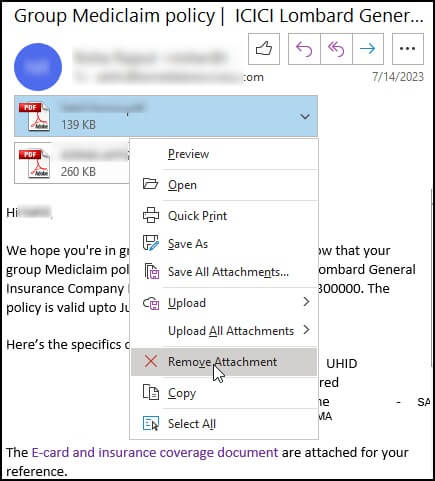
Use Professional Solutions to Reduce Outlook Mailbox Size
While native solutions are bulky and require consecutive steps to reduce the mailbox size of Outlook, professional solutions make it easy with minimal effort. They compress and compact PST files, remove duplicate items from mailboxes, and even split large PST files.
Kernel for PST Compress & Compact
It is the most reliable and recommended tool to compress and compact Outlook PST files, reducing their size. It clears unnecessary space so that new data can be saved. This Compress PST tool also removes attachments from emails and saves them to a separate folder.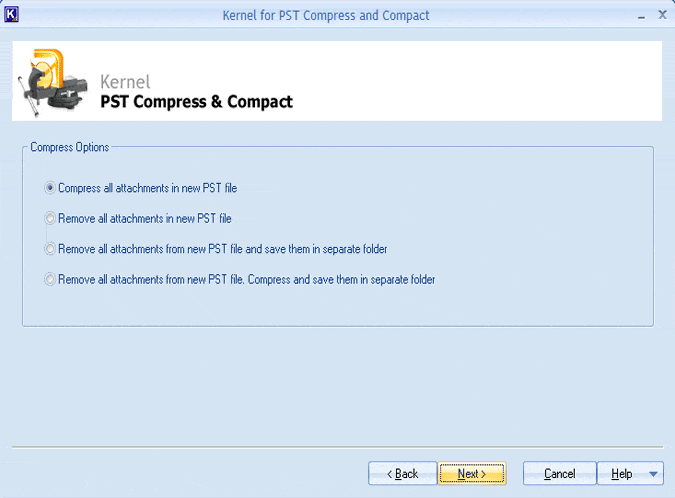
Kernel for Outlook Duplicates Remover
This Outlook duplicate remover tool helps users to remove duplicate Outlook items from mailbox folders. It uses advanced filters to detect duplicate items.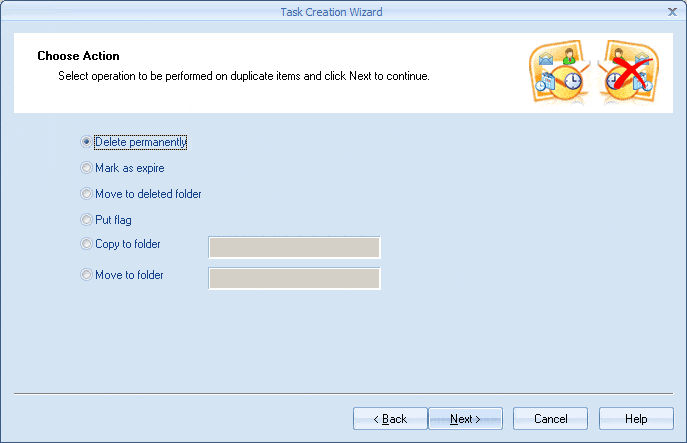
Kernel for PST Split
This automated PST Split tool helps to split large PST files into smaller PST files. It splits files based on criteria like Date, Size, etc. Even password-protected PST files can be split using this split PST tool.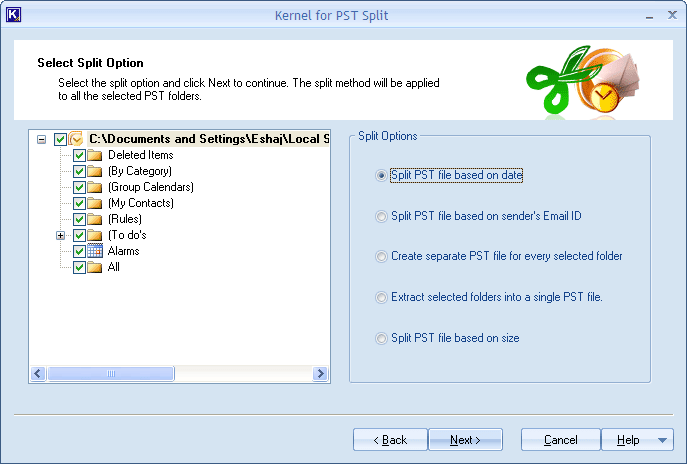
Third-party tools for Outlook management have many advantages over manual methods. They are more reliable, efficient, and fast compared to manual methods.
Professional tools for Outlook management have many advantages over manual methods. They are more reliable, efficient, and fast compared to manual methods.
Conclusion
It is quite difficult to manage our professional and personal lives without using email services like Outlook. Here, we have mentioned simple ways of how to reduce Outlook mailbox size. But if you ask us, we recommend that you use the Kernel for PST Compress & Compact tool, which is an effective solution to overcome the mailbox overflow problem.
By compacting the mailbox, the tool frees up space for smooth functioning of the email service. Try the trial version for free and get a hands-on experience of the tool!