Read time: 8 minutes
Office 365 admin often import PST files to migrate mailboxes or access data from old user mailboxes. Drive shipping and Network Upload are two major methods available to transfer or upload PST files to Office 365. However, due to factors like corrupt Outlook data files, large PST files, and other reasons, the PST import stuck on analysis in progress.
If you’re also a prey to frustration caused due to the sudden occurrence of the error that shows difficulties during the PST import stuck at 0%, you need methods that are a sure-shot solution. But before we check those methods, let’s see what the reasons for hurdles during the process are.
What are the Common Causes of PST Import Stuck at 0% Error?
PST Import stuck on analysis in progress issue can be seen due to a lot of reasons, including:
- Corrupt or damaged PST files created due to improper system shutdowns or malware attacks can freeze the process.
- PST files encrypted using passwords can show import job is stuck or running slowly.
- PST files that exceed their size limit can get stuck during PST import to Office 365 or other platforms.
- Files assigned with the Read-only permissions cannot be successfully imported.
- Due to inefficient network connection and bandwidth, the PST import process may get stuck.
- Incorrect user mapping during the import process results in the PST import stuck on analysis in progress.
Troubleshoot PST Import Stuck on Analysis in Progress Error | Preliminary Fixes
Here are some quick solutions you can try before using the actual methods to resolve Office 365 PST import in progress is stuck:
- Check that you’re working with an internet connection fast enough to not interrupt the process.
- CSV mapping file issues can cause errors during import. Make sure to enter the correct path and map file correctly.
- Quit the current stuck import and run a new PST import job to move items to Office 365.
- Make sure that the target Office 365 tenant mailbox has enough space to store the imported data.
- Split PST file into multiple smaller files to manage the large PST files.
- Do not run multiple PST import jobs at the same time to avoid migration conflicts.
How to Resolve Office 365 PST Import Stuck Error? – Manual Ways
Follow the methods explained step by step in the sections ahead to resolve the error import job is stuck or running slowly:
Method 1: Remove Passwords from PST
Encrypted PST files do not get imported easily to Microsoft 365. Before trying another import, make sure to remove all the passwords from the PST file. Here are the steps to decrypt the file:
Step 1: Firstly, check if Outlook shows a message when you open the targeted PST file.
Step 2: Enter the correct password when prompted.
Step 3: Open Import/Export wizard and go to File.
Step 4: Click Open & Export and then Import/ Export.
Step 5: Select Export to a file and click Next.
Step 6: Select Outlook Data File (.pst). Click Next.
Step 7: Mark the boxes against the desired mailbox folders.
Step 8: Click Browse to provide a path to save the PST file and click Finish.
With this, the PST file will be decrypted. If you’re prompted to provide the password one more time, do not enter it again.
Method 2: Assign Necessary Import Roles
You need a Global administrator account to import PST smoothly. Verify that all the necessary permissions (Mailbox Import Export role) for PST import are assigned in Exchange admin center. Follow the steps:
Step 1: Open Microsoft 365 admin center, login, and open Exchange admin center.
Step 2: From the left pane, go to Roles and tap on Admin roles.
Step 3: Check the box against the Import Export role and follow the prompted instructions.
Following these steps will allow you to assign the required roles to perform upload PST file to Office 365 and eliminate import job is stuck or running slowly error.
Method 3: Use Inbox Repair Tool to Fix Corrupted PSTs
Corrupt PST files often show issues and can cause permanent data loss too. Fix Office 365 PST import stuck and repair the PST files using the Inbox repair tool. Here are the simple steps:
Step 1: Go to the location of scanpst.exe on your PC and launch it.
Step 2: Click Browse and provide the PST file path.
Step 3: Tap on the Start button and then Scan.
Step 4: If an error is found, click Repair.
How PST Size Affects Import Performance?
PST file size plays a significant role during processes like mailbox transfer, data import, etc. Large PST files can slow down the performance, increase timeouts, and increase the chances of data corruption. As per Microsoft guidelines, if you are importing a PST file to Office 365, the ideal size is under 20 GB. This section explains how the PST file size impacts the import performance and shows errors likeOutlook PST import stuck at 0%:
- Higher risk of file corruption and eventually high chances of process failure.
- Large PST files consume extensive resources (CPU and memory usage) during imports, resulting in Outlook crashes or freezes.
- Files that are near to 50 GB in size often experience failure during import due to server and network limitations.
- Manual import processes usually skip items over 150 mb irrespective of the overall PST file size.
How to Resolve Office 365 PST Import Stuck at 0%? Expert-Recommended Way
Corruption or damage in the PST file can cause severe issues in data accessibility like PST import stuck on analysis in progress. To avoid the error and import the PST files successfully, you need tools that simplify the import without causing any data loss.
For best results, use Kernel Import PST to Office 365 tool that simplifies the import of Outlook mailboxes into Office 365 environment. It transfers emails, attachments, contacts, calendars, etc., without compromising the hierarchy. The Import PST to Office 365 tool supports easy mailbox mapping with which helps with accurate data transfers.
Quick steps to import PST files to Office 365:
Step 1: Download and launch the software. From the home screen, click on Add in the Add Source pane.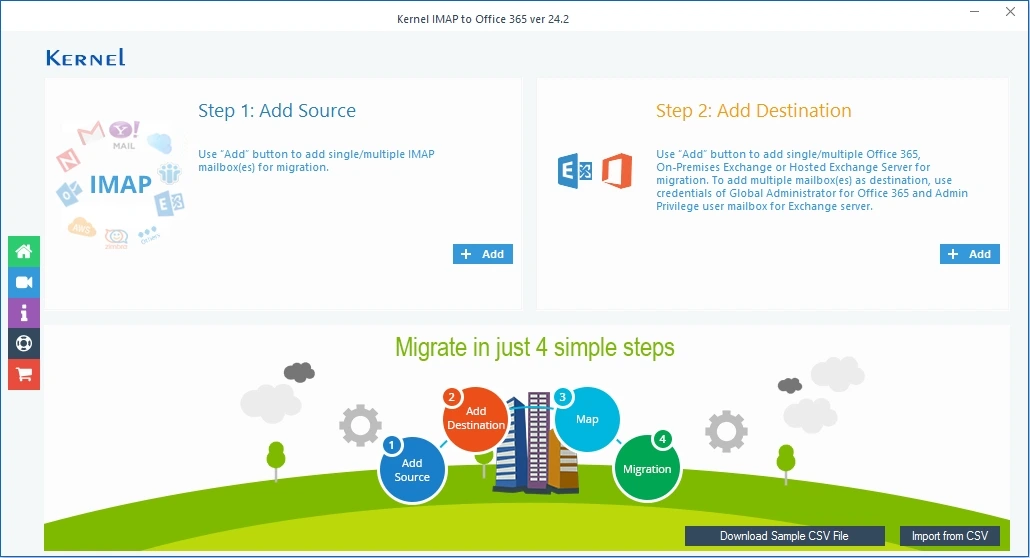
Step 2: Provide the path to the source PST file and click Open to load the PST.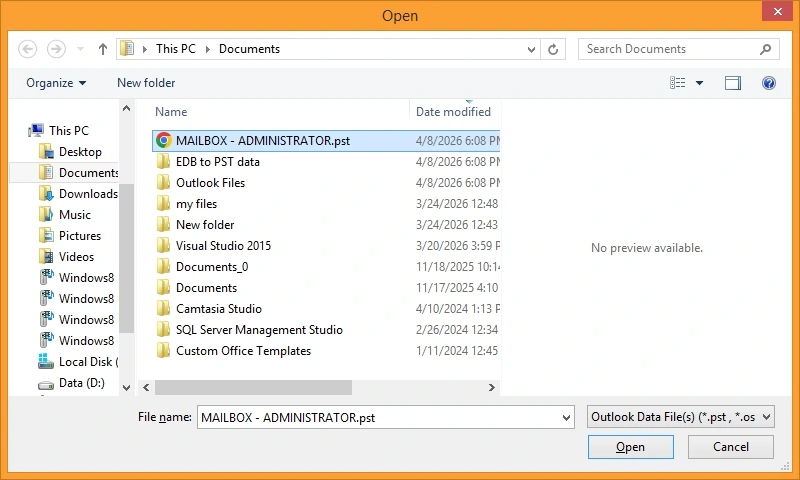
Step 3: Click on Add in the Add Destination pane.
Step 4: Provide the credentials: Tenant ID, Client ID, and Client Secret Value.
Step 5: Select if you want to migrate single or multiple mailboxes and tap on Get User Mailbox (es). Select the mailboxes and click Add.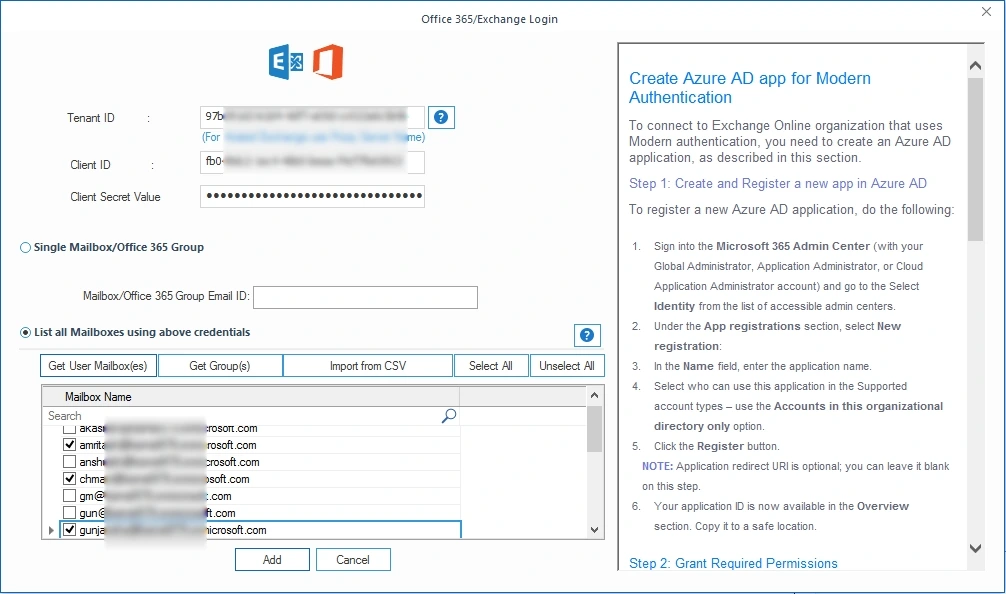
Step 6: Use the dropdown to map the source PST file to the destination mailbox in Office environment. Click Set Filter and Migrate.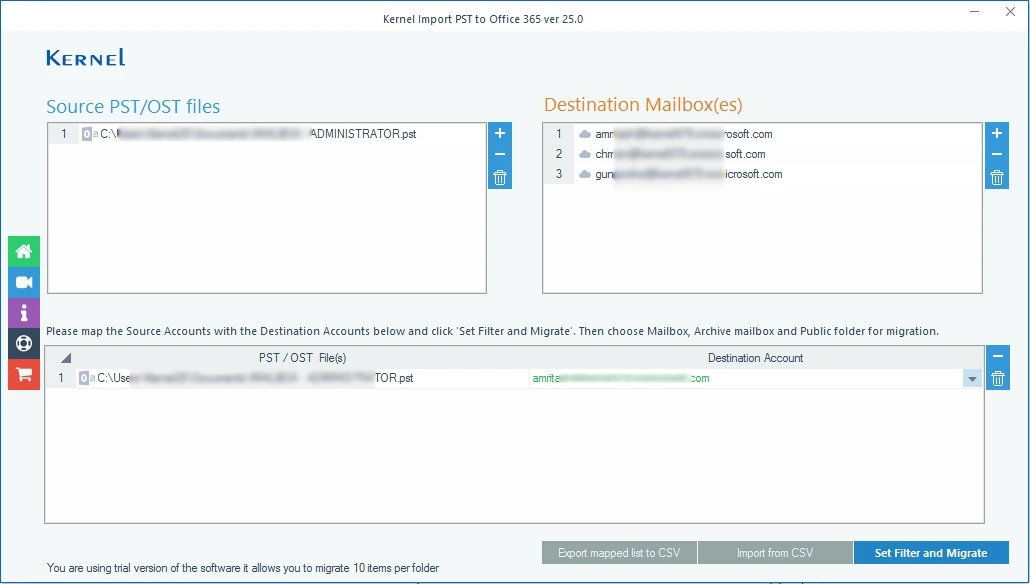
Step 7: Review the folders selection, apply the suitable filters, and tap I am OK, Start Migration.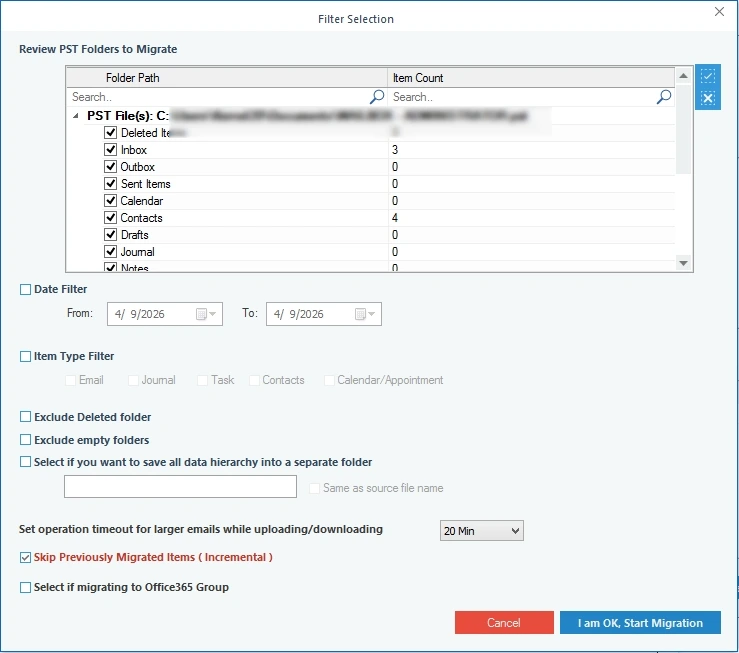
Step 8: The tool will begin processing the import.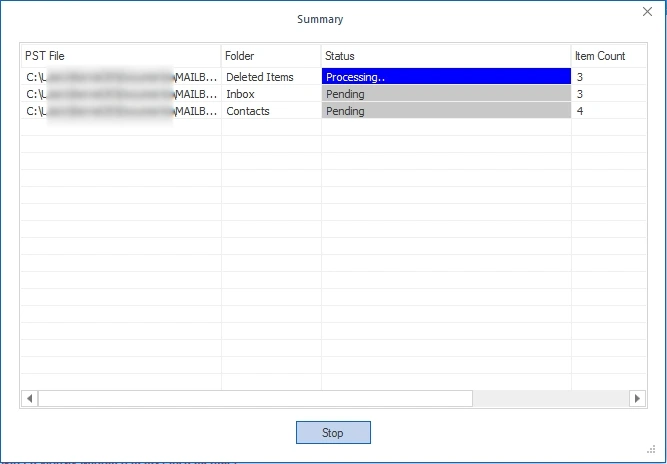
Once it’s done, you can see the status of the migration turn to Success. In the end, you can save the import report using the Save as CSV option.
Final Words: PST Import Stuck on Analysis in Progress
With all the quick fixes and detailed methods we’ve mentioned after trying multiple systems, you can be sure that the PST import stuck at 0% issue will surely be resolved. However, if you’re hesitant to use them due to the risk of data security or want quick import, use recommended Kernel Import PST to Office 365 tool. The advanced algorithms and features of the tool will make sure that none of your data goes missing throughout the process. Download the trial version today and import 10 items per folder for free.
Common User Queries
A: Here is how to identify blockages interfering with the PST file import:
1: Even smaller import processes take a longer duration when running multiple PST files.
2: Go through the log reports to see if there are items skipped from the process.
3: When the import job status is not changed for many days, it may get stuck.
A: ScanPST.exe is ideally designed to repair PST files (small size up to 2 GB) with minor corruption. However, you can use the tool to scan the file but repairing it using the utility will result in an unresponsive process.
To easily repair highly corrupted and large PST files without any size restrictions, you must utilize an advanced Outlook PST Repair.
To avoid the Microsoft Outlook PST import stuck at 0% error, you can try out the following:
1: Work over stable internet
2: Split the large PST file
3: Fix corrupt PST files
4: Use small PST files
5: Run import in batches
6: Restart the import job