Read time: 7 minutes
Undoubtedly, Microsoft Outlook is one of the most prominent applications for email communication. But sometimes, you may find an error “Outlook disconnected from Exchange Server” even when the system is online, and the server is available.
To check if Outlook is connected to the Exchange Server, look at the status bar at the bottom of the Outlook window. If it says “Connected to: Microsoft Exchange,” the connection is successful. If it shows “Trying to connect….,” there is a network problem. A disconnected status indicates that Outlook is not connected to the Exchange Server.
Furthermore, if you try to update or synchronize the mailbox manually, you may encounter Send/Receive error code 0x80040115.
There might be various reasons why Outlook is disconnected from Exchange server, and that’s why it is important to determine the actual cause to resolve it immediately.
Why does the Outlook Disconnected from Exchange Server Error Occur?
The error “Outlook disconnected from Exchange Server” can be caused by various reasons that must be analyzed to determine why Outlook disconnected from Exchange Server:
- Absence of proper internet connectivity.
- Damaged Outlook files.
- Corrupted Outlook profile.
- Faulty add-ins.
- Certificate issue (HTTP/HTTPS).
- The server is down due to maintenance or network issues.
Solutions to Fix Outlook Disconnected from Exchange Server
To resolve the error ‘Outlook disconnected from Exchange Server’, you can follow the solutions listed below:
Solution 1. Check Connectivity and Mailbox Server Status
Before moving to the advanced solutions, you must try the primary solutions to resolve the specific error. First, check your system’s connectivity and the mail server’s status. Ensure that the system is connected to the internet and the mailbox server is online. For the mail server, try to log in to the Exchange Server via OWA (Online Web Access). If you succeed in logging in, it means that the server is online and working correctly. If not, contact the administrator.
Solution 2. Check Work Offline Status
Outlook includes a feature named ‘Work Offline,’ where users can use Outlook without interruptions from incoming emails. Basically, it disconnects Outlook from the Exchange Server so that you can’t get disturbed by the incoming mails. You may encounter Outlook disconnected from the Exchange Server error if this option is enabled in Outlook.
To check the status, click on the Send/Receive tab at the top of the Outlook window. If the displayed Work Offline button is grayed or shaded, it means that the option has been enabled. To re-establish the connection between Outlook and Exchange Server, disable the option by clicking the button.
Solution 3. Restart Outlook in Safe Mode
The faulty and incompatible add-ins can also cause errors, creating inconsistencies in the Outlook data file and damaging the OST file. To resolve the issue and ensure add-ins are not responsible for Outlook disconnection, the following steps need to be taken:
- Close the Outlook application and press Windows + R to open the Run window.
- Type Outlook.exe/safe and press Enter.
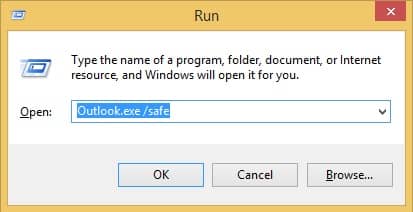
- Enter your login details and check the connectivity status in the status bar. If it is connected to Exchange Server, disable all the add-ins in Outlook and restart the application.
Solution 4. Fix the Certificate Issue
Sometimes, while accessing the on-premises Exchange Server mailbox, you may find that the security certificates have expired, preventing Outlook from connecting to the Exchange Server. So, you may experience Outlook disconnected from Exchange Server error due to security certificate issues. To resolve this issue, you need to contact the administrator.
Solution 5. Create New Outlook Profile
Creating a new Outlook profile for the Exchange Server significantly increases the chances of resolving the error. This action replaces any corrupt files in Outlook, effectively fixing the issue. To create a new profile in Outlook, you need to follow the steps below:
- First, close Outlook and open the Control Panel in your system.
- In the Control Panel window, click on Mail.
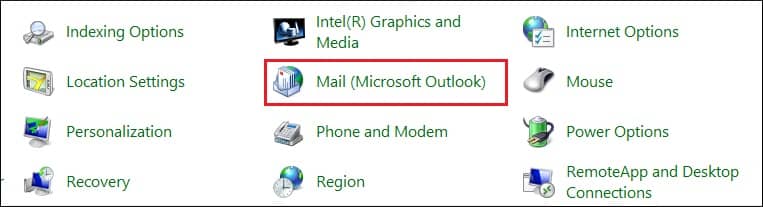
- In the Mail Setup window, click on the Show Profiles option.
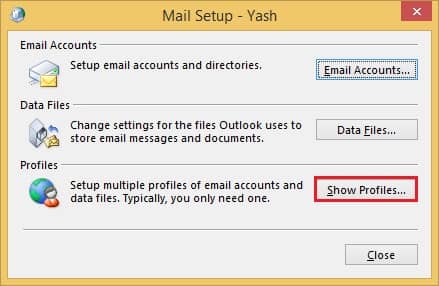
- Now, click on Add, and enter the profile name of Outlook and click OK.
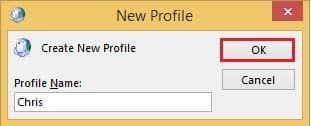
- Follow the instructions displayed on the wizard to configure your email profile.
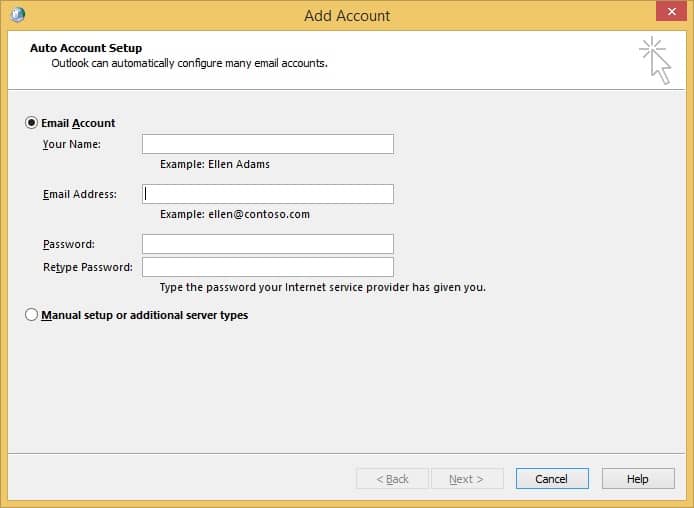
After successful synchronization, restart Outlook and check its connection status. If it remains connected, the issue has been resolved. At this point, it is recommended to remove the corrupted Outlook profile to ensure smooth operation.
Solution 6. Rebuild the Outlook Data File
When all the above solutions fail to resolve the error, rebuilding your Outlook data file (OST) will always be reliable. To rebuild the OST file, you need to follow the steps below:
- In Outlook, right-click on your email profile and click on the Open File Location.
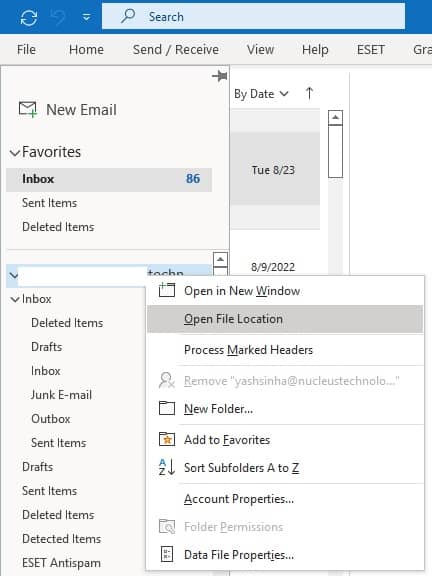
- When you click on it, you will be redirected to the default file location. After that, close Outlook<.
- After keeping the backup in a safe location, delete the default .ost file.
Restart Outlook normally and then wait for a while. Finally, Outlook will connect to the Exchange Server and synchronize the mail items.
Solution 7. Uninstall & Reinstall Outlook
You can also try reinstalling Outlook to resolve Outlook disconnected from Exchange Server issue. To do so, follow the steps below:
- Click on the “Start” menu & select “Control Panel“.
- Choose “Programs and Features” from the list.
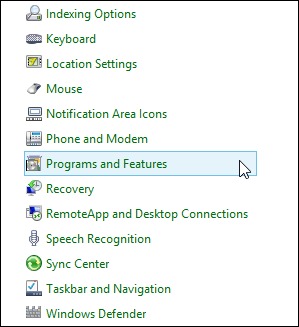
- Scroll down to locate “Microsoft Office Outlook” in the installed programs.
- Select “Uninstall” to remove Outlook completely from your system.
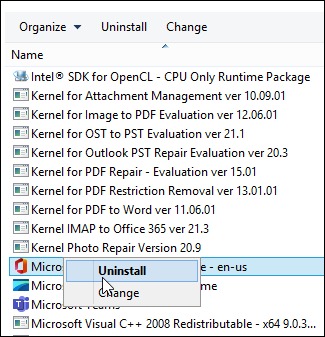
- Wait for the uninstall process to complete & then reboot your computer.
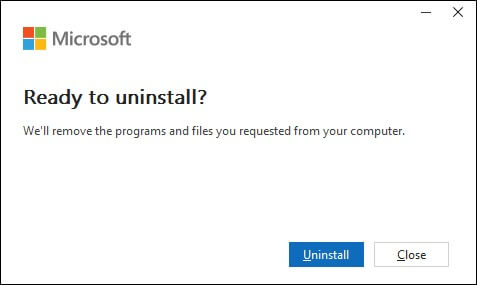
- Follow the on-screen instructions to reinstall Outlook on your system.
- After the installation process is complete, reboot your computer again.
- Launch Outlook & check if it’s connected to the server.
Solution 8. Run the Office Repair tool
You can fix Outlook crashes with the Office repair tool. To fix the disconnected error, try using the Office repair tool if you haven’t been able to update Outlook. Here are the steps to follow.
- Access the Control Panel and go to Programs and Features.
- Look for Microsoft Office and tap on Change.
- Choose the option Quick Repair and tap on Repair.
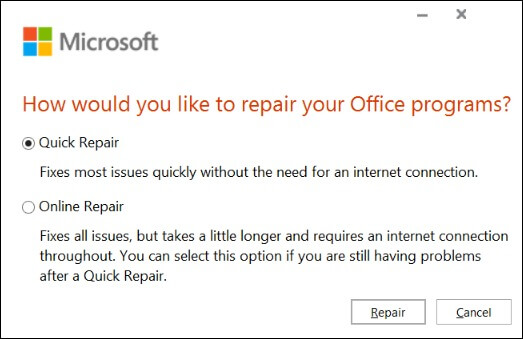
- Follow the further repair process. Once repaired successfully, restart your system and open Outlook.
Solution 9. Using SSL for Connecting to Microsoft Exchange Server
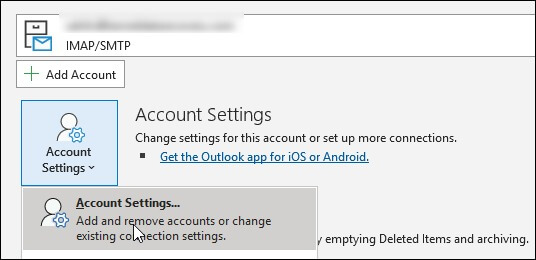
Using SSL to connect to the Microsoft Exchange Server can fix this prevailing error. Follow these steps.
- Access Outlook and go to Account Settings > Account Settings.
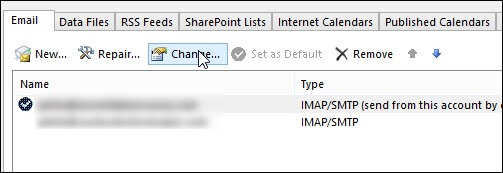
- Choose your email account and click on Change.
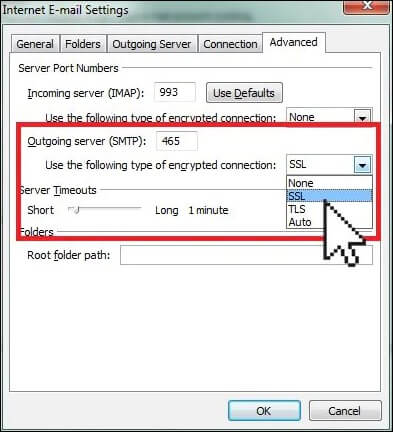
- From the Advanced tab, set SSL as the preferred type of encrypted connection. Tap on OK to finish.
Ultimate Solution | Kernel OST to PST Converter
Sometimes, the above solutions may lead to data loss. In such cases, we recommend you to use professional OST converters available in the market. Kernel for OST to PST Converter is an innovative tool capable of recovering permanently deleted Outlook mailbox items. It supports the OST files of all Exchange/Outlook versions. In addition, you can also migrate OST items to your Exchange or Office 365 mailbox.
Wrapping Up
In this blog, we discussed the possible causes of why Outlook disconnected from Exchange Server and different solutions to resolve the issue. You can follow the above-discussed solutions to reconnect your Outlook to Exchange Server. From the listed solutions, creating a new Outlook profile and rebuilding Outlook Data File are the most capable solutions to resolve the error. But before practicing this, it is recommended to keep a backup of the OST file in a secure location to avoid data loss.
In case manual methods feel insufficient to you or don’t get the desired results, try out the recommended OST recovery solution and get your existing/lost email back in Outlook. The free trial is for you. Download today!!
FAQs
A- Yes, creating a new Outlook profile is often an effective solution for resolving the issue. This action replaces any corrupted or misconfigured settings in the profile, allowing for a fresh start and improved connectivity.
A- Yes, there is a potential threat of data loss while troubleshooting the issue. It is recommended to create a backup of your Outlook data before attempting any troubleshooting steps. Besides, you can use a reliable OST file repair tool to fix issues in the OST file, along with extracting all mailbox data to avoid any data loss during the troubleshooting process.