Read time: 5 minutes
EML file is the standard format of Outlook Express, Windows Live Mail, and other email clients. If you have dozens or hundreds of EML files and want to import them to Thunderbird, you need to know the best practices for doing that.
There is no built-in option to import EML files into Thunderbird. But there are a few ways to do that. In this article, we will look at the manual methods for importing EML to Thunderbird, but first, let’s know the reasons behind doing so.
Why Do Users Need to Import EML Files into Thunderbird?
Here are some reasons why users need to import EML files into Thunderbird:
- Consolidate thousands of scattered emails from multiple sources.
- Access old archives without needing the original email client.
- View emails without opening each file individually.
- Efficient handling of large data.
- Search across all imported emails at once.
- Organize emails into folders and subfolders.
- Reply, forward, or act on old emails directly.
- Preserve attachments and formatting in a readable context.
How to Import EML to Thunderbird? Free Manual Methods
In this section, we will discuss two free manual methods to import EML to Thunderbird. Before you import them, keep all your EML files in one folder or subfolders. Also, make sure that your Thunderbird is up to date.
Method 1. Drag-And-Drop EML Files (For Few EML Files)
This is the most basic and simple method to import EML in Thunderbird. Here are the steps through which you can perform this method:
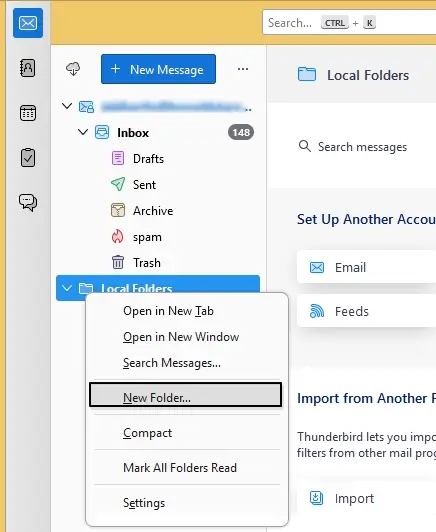
- Open Thunderbird and right-click on the Local Folder, then click on the New Folder option.
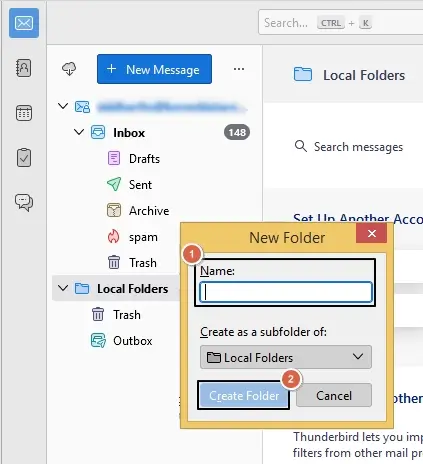
- Enter a Name, then click on the Create Folder button.
- Now, locate the EML files on your system and drag-and-drop them into the newly created folder in Thunderbird.
Limitations: Dragging and dropping a large volume of files can be unreliable, slow, or you may encounter errors in Thunderbird, as Thunderbird processes each file dropped individually.
Method 2. Using ImportExportTools NG Add-on
Another free manual method to import EML files into Thunderbird is by using the ImportExportTools NG add-on.
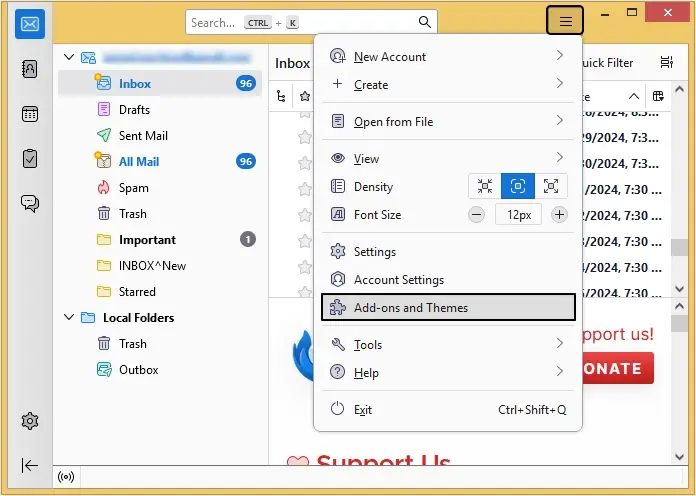
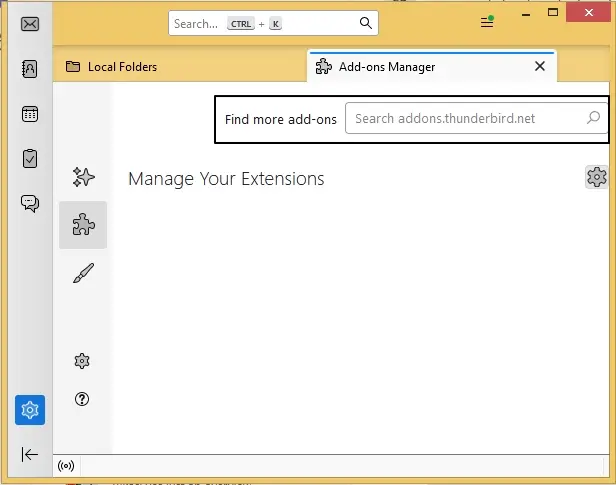
- In Thunderbird, click on the three bars located at the top right corner, then click on the Add-ons and Themes option.
- In the Find more add-ons search bar, type ImportExportTools NG and hit Enter.
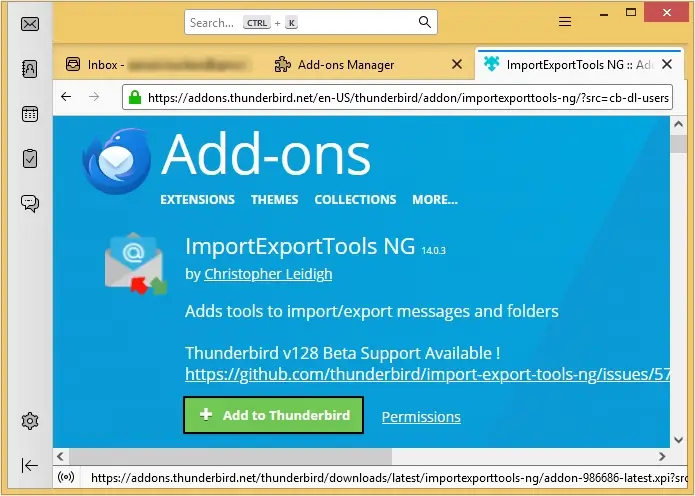
- Click on the Add to Thunderbird button.
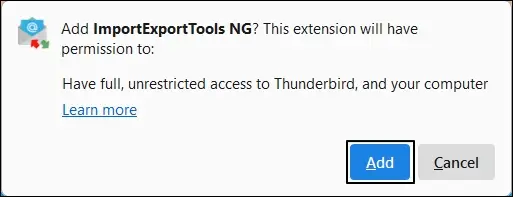
- A pop up window will appear on your screen, click Add, then click OK.
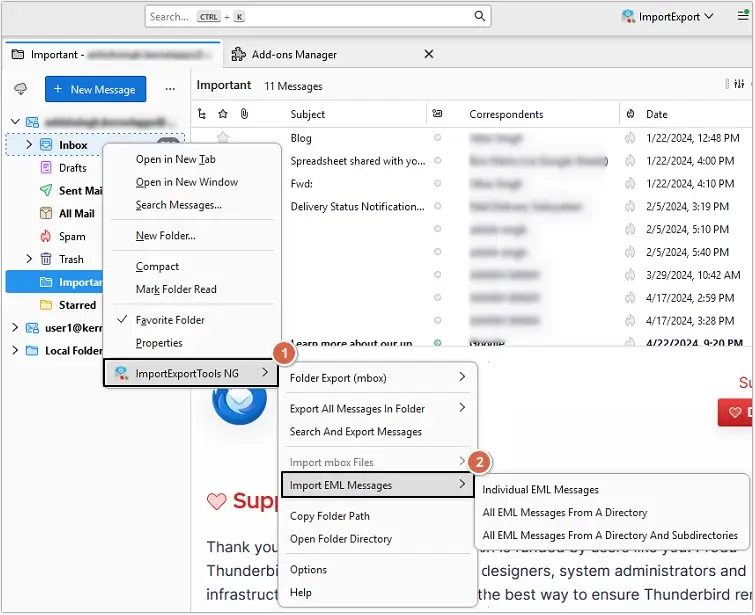
- Right-click on the folder where you want to import EML files.
- Select ImportExportTools NG >Import EML Messages> then select any of the three options as per your choice.
- Moving ahead, select the EML file(s) and click Open.
All your selected EML files will be imported to Thunderbird. You can access them there easily.
Limitations: There is no way to preview content before importing and no error reporting if a file fails to import.
Import EML Files to Thunderbird (For Large Volumes or Complex Needs)
If you have thousands of EML files to import to Thunderbird or want to maintain folder hierarchy or filter emails during import, the previous methods will not work. Bulk EML to Thunderbird transfer should be done using an EML Converter tool. It does not push the converted EML files directly to Thunderbird. Instead, it directly converts your bulk EML files into an MBOX file format which is a native file type of Thunderbird, so that you can import them with ease without hassle. Other than MBOX, you can convert EML to PST, MSG, DOC, PDF, HTML, etc. with this software. Moreover, it comes with a free trial version to test the software before purchasing.
Concluding Words
Importing EML to Thunderbird is easy if you have fewer than 100 files. However, using the drag-and-drop method for hundreds of files can be tedious and error-prone. Similarly, the free add-on ImportExportTools NG may not be suitable to import Windows Live Mail to Thunderbird in bulk, since it can be slow and unstable.
If you deal with EML files regularly or have hundreds or thousands of them, it makes sense to invest in a dedicated tool to save time and avoid errors.
Frequently Asked Questions
A. Yes. You can double-click an EML file and choose Thunderbird to open it.
A. This happens when you try to drag and drop thousands of EML files at once. Thunderbird is not built for bulk file handling via drag-and-drop.
A. Yes. Just select your EML files and drag them directly into any folder in Thunderbird.