Read time: 9 minutes
EML stands for “Electronic Mail” and stores all your email details, such as sender, recipient, subject, message body, hyperlinks, and attachments. It is a widely supported email file type that can easily work with Outlook. But there are many scenarios where a non-Outlook user needs to access EML file content.
We will cover all the working methods to open your EML files without Outlook. But before delving into the manual methods directly, let’s find out why it gets necessary to open an EML file without the Microsoft Outlook.
Why Do You Need to Open EML Files Without Outlook?
Here are some prominent situations where you may need to access your EML file without MS Outlook:
- When you don’t have Outlook pre-installed on your computer.
- Your Outlook does not start or shows configuration issues.
- You just need to open EML file without installing an email client.
- When you want to review email content in another Notepad application.
- You need a quick overview of EML file content without uploading the EML file anywhere.
Best Working Methods to Open EML File Without Outlook
Below, we have mentioned two manual methods to open EML file without Outlook. Let’s have a look at them:
Method 1. Open EML Files Using Notepad
EML files mainly keep email content in characters, fonts, and other elements, making them easily accessible on Notepad application. Go through the stepwise guide below to open your EML file in Notepad.
Step 1: Go to the folder where you have kept all your EML files.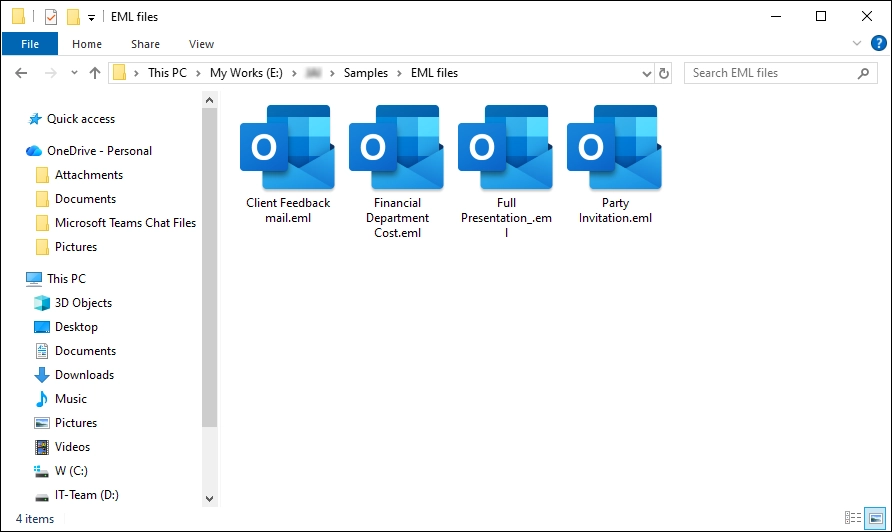
Step 2: Right-click on EML file, select Open With, and click on Notepad.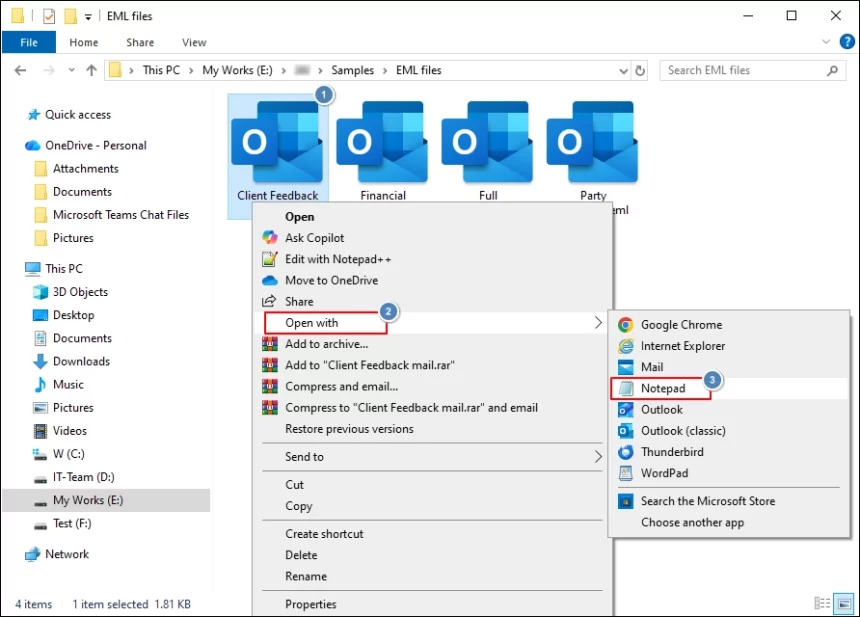
- Locate the EML files on your system.
- Right-click on it and click on Rename option.
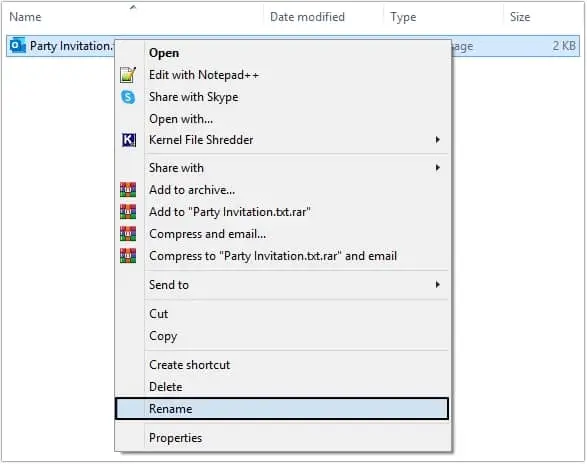
- Change the .eml file extension to .txt.
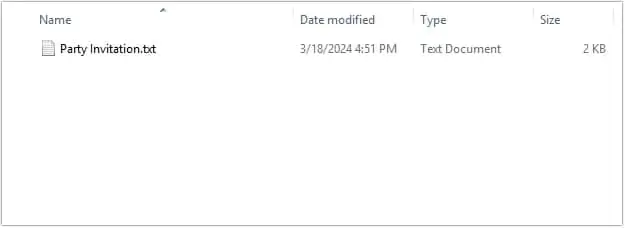
- Double click on the file, it will open with Notepad application.
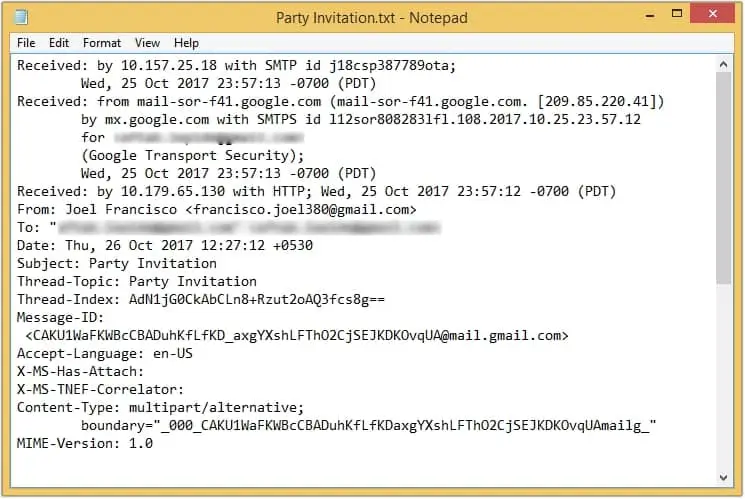
What Can You View Using Notepad?
Notepad can display information, such as Sender details, Recipient details, Subject, Date, Email headers, Plain-text message content, and HTML source code. Notepad is best for technical users who want to inspect email rather than normal access.
Method 2. Open EML Files Using Web Browser
You can open EML files directly in popular web browsers. Given below are mentioned ways with Google Chrome and Microsoft Edge.
Opening EML Files in Google Chrome
A web browser offers a quick way to open EML file without Outlook. However, the result may vary based on the email structure, HTML content, and attachments.
- Go to the EML file on your device.
- Right-click on the file, Open With, and select Google Chrome.
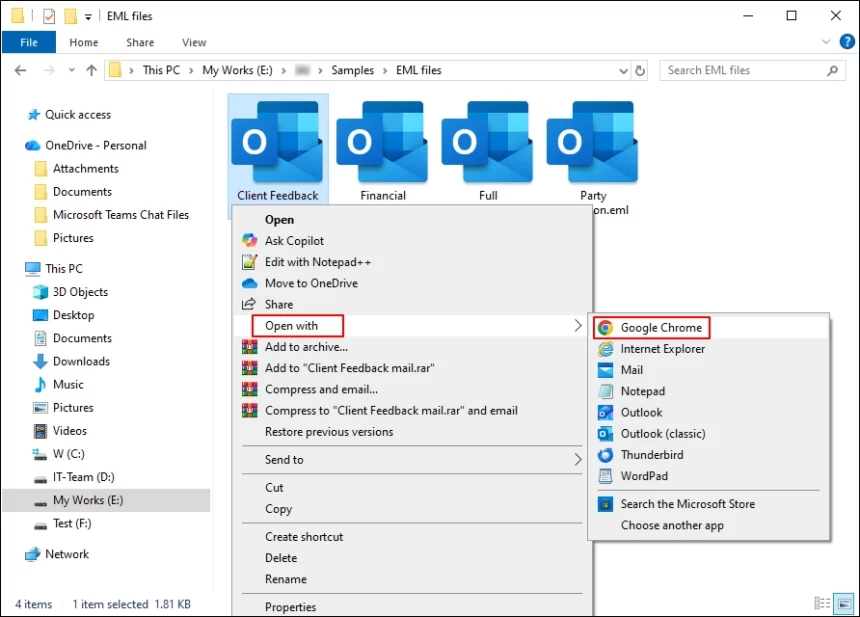
- Google Chrome will display all the content of your EML file.
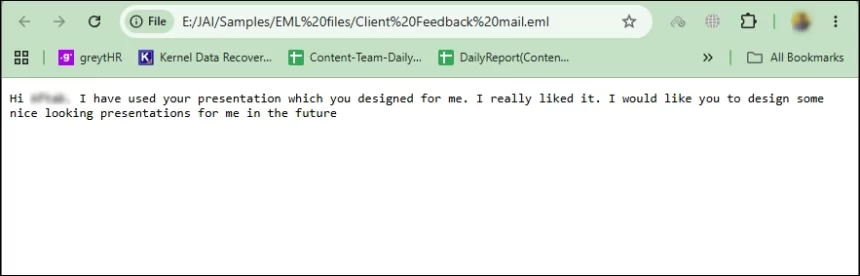
There is also an alternate way to open EML file in any other web browser. Simply rename your EML file and change its extension from EML to MHT and then open your EML file directly with any web browser.
Viewing EML Files in Microsoft Edge
- Right-click on your EML file and select Rename option.
- Rename the file from .eml extension to .mht extension.
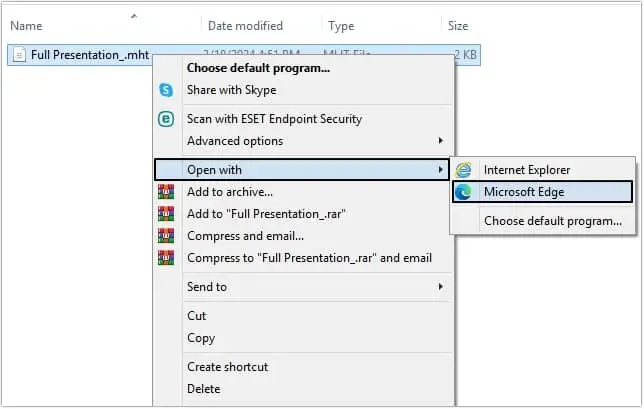
- Now, right-click on it and select Open with option, then select Microsoft Edge.
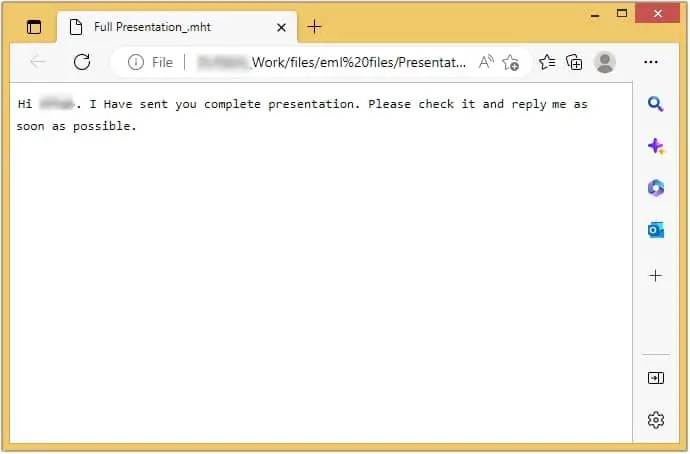
- The EML file will be opened with the web browser.
Method 3: Save EML As PDF
If you want to open EML files without Outlook regularly, then make sure to save all your EML files in PDF format. With a PDF, you don’t need to rely on any email client. Simply follow Method 1 or 2 and press Ctrl + P together, select Save as PDF, and save your EML file as a PDF.
Method 4: Open EML File Using Thunderbird
If you or your organization uses Thunderbird for daily email management, then you can open EML in Thunderbird and access your email content without Outlook.
Mozilla Thunderbird is a free email client that supports EML files. It can be a good choice if you want a more familiar email-style interface without Microsoft Outlook.
Simply create a new folder in your existing mailbox and use the drag-and-drop function to import your local EML files into Thunderbird’s created folder. After syncing all your EML files, open and access your EML content.
Quick Ways to Open EML File Without Microsoft Outlook
- You can change the EML extension to any extension, like DOC, DOCX, TXT, HTML, and more, to access its content on other platforms.
- You don’t need to perform conversion or rename your EML files because these files are easily accessible in Word documents, Notes, and web browser platforms.
- Saving EML to PDF is a better choice because it will keep your content intact in a secure PDF file. You can even access your EML file in PDF without an active internet connection.
How to Handle Multiple EML Files Without Outlook?
Manual methods may help you in opening EML files without Outlook, but it can be time-consuming process and can be a challenge to open multiple files at once, etc. The fast, secure and convenient method to view EML files is by using Kernel EML File Viewer.
This is a robust utility to open EML files without any email client. The software allows you to add multiple files at once to open the content stored in it. Additionally, you can save the EML file list in HTML format with its advanced features.
Step-by-Step Guide to Open EML Files Easily
- Download, install, and launch the EML Viewer software.
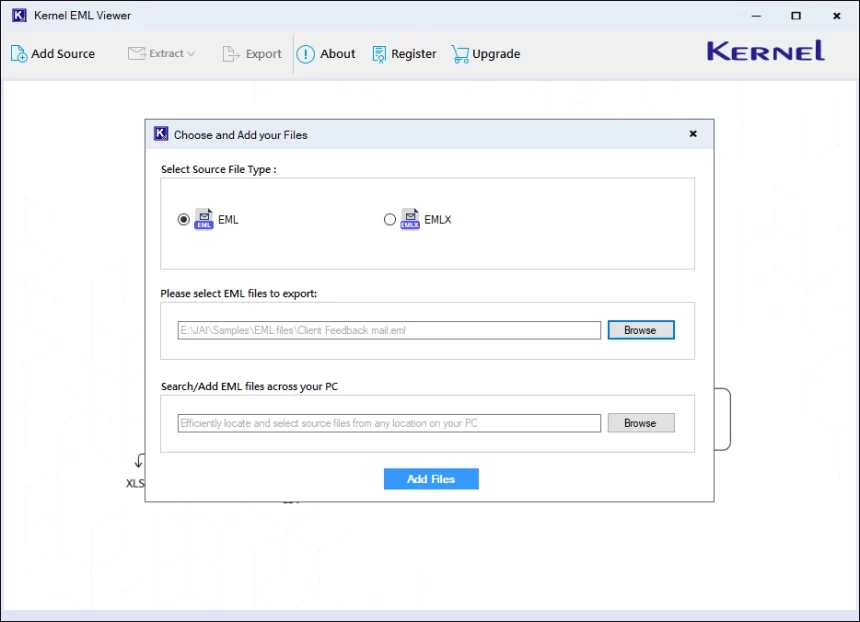
- Browse and add single or bulk EML files to the software.
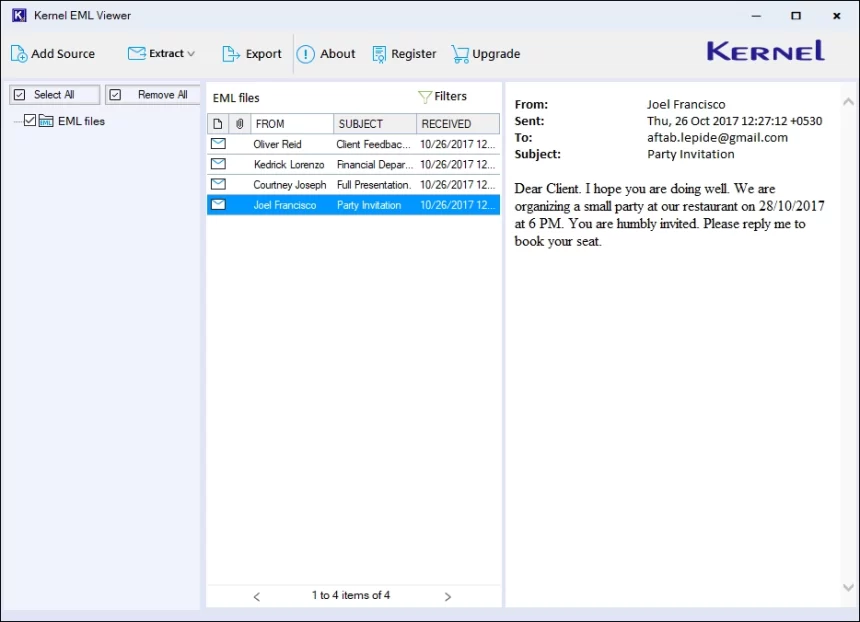
- Select any EML file and view its content in the preview pane.
- Click on the highlighted icon to save the EML file list in HTML format.
Conclusion
You can open EML file without Outlook through several simple methods. Notepad works for raw text, while a browser can provide a basic email view. Thunderbird offers a complete email-client approach without Microsoft Outlook.
Due to certain scenarios, users need to open EML file without Outlook. We have provided few manual methods to access the EML file content easily. You can also save the EML file into other formats, getting multiple options to convert EML to PST, MSG, and Office 365 effortlessly.
Frequently Asked Questions
A. The Web Browser method is easiest and quickest options. You can simply open your EML files in Chrome, Edge or any other web browser of your choice without installing Microsoft Outlook.
A. No, you cannot access your EML file attachments in Notepad. Notepad will only show the raw code of your attachments. To open EML file attachments, you will need an EML Viewer tool.
A. Yes, you can open your EML file in the Google Chrome browser. Apart from Chrome, you can use any browser, like Mozilla Firefox, Opera Mini, Edge, etc.
A. No, you can only view your EML file content. For all attributes, make sure to use professional EML Converter tool.