Read time: 7 minutes
“I am getting the error message, ‘This message can’t be sent right now. Please try again later.’ on some emails. Sometimes the message is eventually sent, while sometimes it shows sent status with a copy within the Drafts. If I can’t find a permanent fix for this problem, I’ll have to switch to another email service provider!”
This user query is one of the many we received asking for a solution to this Outlook error. The error means that the Outlook user is unable to send email messages at the moment. Outlook errors can be really frustrating, especially when you aren’t aware of the appropriate solutions. To find the solution to troubleshoot this error, you must first know the causes that lead to this error, as described in the article.
What leads to “This message can’t be sent right now” error?
Here are some possible causes for the error message that interrupts the outgoing email messages in Outlook:
- Unstable and poor internet connectivity can result in Outlook error.
- Corruption or damage in the Outlook data file.
- Selected Outlook profile is infected with corruption.
- Outlook account settings are erroneous.
- Used add-ins within Outlook are incompatible.
Some quick fixes for “This message can’t be sent right now” error
Before we try out the actual solutions to fix the error, here are some quick solutions you must try out:
- Review your internet connection: The first and foremost fix to the Outlook error “This message can’t be sent right now” will be the analysis of the internet connectivity. Make sure your network is stable and functioning just right.
- Restart Outlook and PC: Try exiting Outlook and then shut down your system to restart it after a few seconds. Now restart your Outlook application to see if the error is resolved.
- Clear outbox: Try clearing the Outbox folder to eliminate emails that were not sent and stuck in the queue.
- Disable firewalls and spam filters: Sometimes disabling the spam filters from the anti-virus software helps in resolving the error “This message can’t be sent right now.” You can also disable the firewalls and then check if the issue is resolved or still there.
How to troubleshoot “This message can’t be sent right now” error in Outlook?
Let’s check out the methods to fix the error and restore the email communication:
Solution 1: Uninstall and reinstall Outlook
There are often chances that the Outlook installation was not done correctly, which leads to errors disrupting the normal email flow. Repair the Microsoft Office program using the given steps:
Step 1: Open Control Panel on your computer and go to Programs > Programs and Features.
Step 2: Scroll down to Microsoft Office and right-click to select Change.
Step 3: Choose Repair and follow the on-screen instructions to repair Microsoft Office.
If the issue is not resolved, select Uninstall after right-clicking in Step 2. Now install the software again to see if the error is eliminated.
Solution 2: Disable faulty add-ins
The add-ins enabled in the Outlook often create issues in sending or receiving emails. You can disable these faulty add-ins and re-access the email data using the following steps:
Step 1: Press Windows and R key at once to open Run dialog box.
Step 2: Input Outlook/safe and press Enter to open Outlook in safe mode.
Note: If you are now able to send emails in safe mode, there was a faulty add-in causing the error. Now, you need to remove this add-in to make sure your Outlook is working smoothly.
Step 3: Click on the File tab and then Options.
Step 4: Go to the Add-ins tab and click Go after selecting COM Add-ins from the Manage dropdown.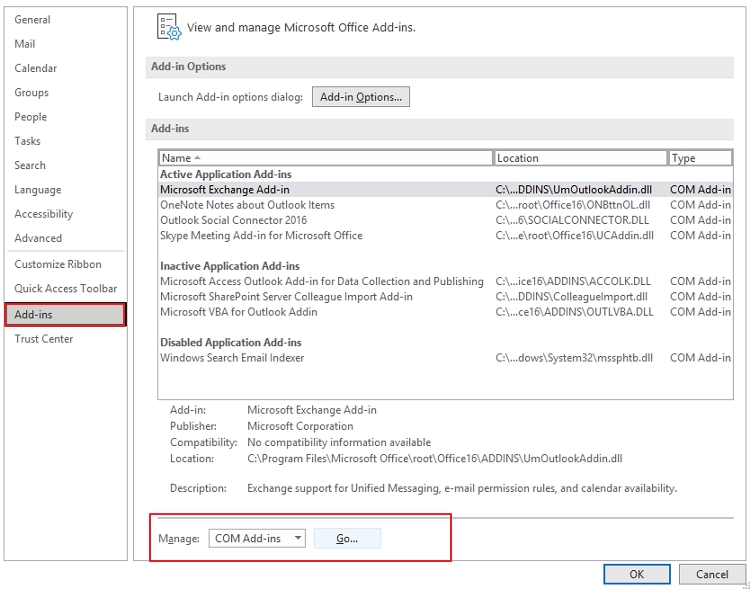
Step 5: Uncheck all the listed Add-ins and then click OK to disable these add-ins.
Once done, you can launch the Outlook application normally and enable add-ins one-by-one to identify the faulty one. And once located, disable the add-in permanently.
Solution 3: Check Outlook configuration settings
When the Outlook account settings, such as DNS Settings and port number are not defined properly, you might see the Outlook error “This message can’t be sent right now.” Here is how to verify and adjust the settings:
Step 1: Launch Outlook and go to the File tab.
Step 2: Click Account Settings > Account Settings and choose your email account.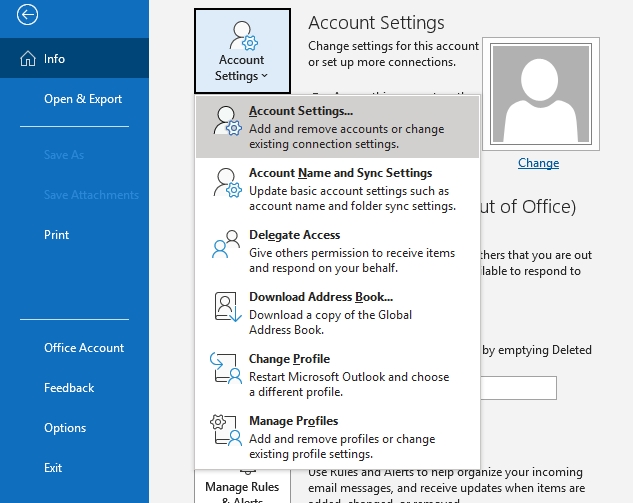
Step 3: In the Server Settings wizard, click More Settings and then Advanced.
Step 4: Check if your server settings are correctly implemented.
Solution 4: Reduce the PST file size
When the Outlook PST reach its maximum size limit, it obstructs you from sending email messages, eventually leading to the stated error. You can create a PST archive in such a situation, containing mailbox data to manage the PST file size. Here are the steps:
Step 1: In Outlook, go to File and then Info.
Step 2: Click on Tools and then Clean up old items.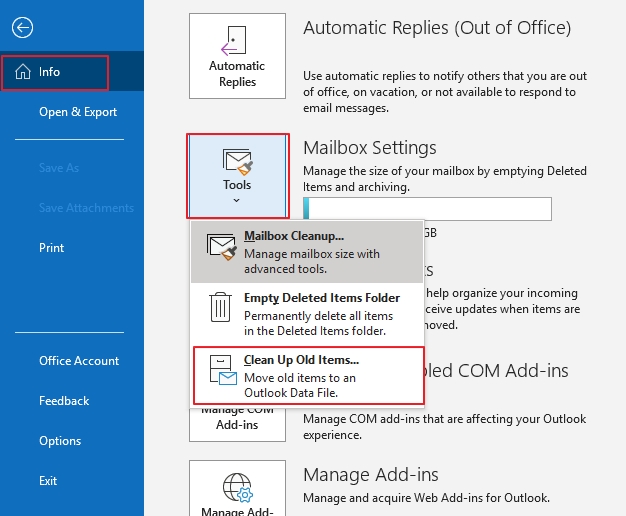
Step 3: Tap on the option Archive this folder and all subfolders and select the data items.
Step 4: Provide a suitable date in Archive items older than.
Step 5: Then, click Browse to enter a saving path. Click Ok.
It will create a PST file with the archived data from your mailbox.
Error is still there: How to handle the issue?
Sometimes, when the Outlook data file is corrupted or inaccessible due to damage, you can see the error, disturbing the smooth workflow. To fix this issue, there are two options: repair (using a POP3 account) PST or rebuild (using an IMAP or Exchange server account) the OST file. Let’s check out the steps.
How to repair PST file?
You can use the ScanPST utility to repair the corrupted or damaged Outlook PST. It will help you recover inaccessible email items that have become inaccessible due to Outlook errors. Simply locate the ScanPST utility within your local machine and run it to repair the PST file.
However, there are certain limitations to doing this. You can only repair a file containing minor corruption and up to 2 GB. It will not help you repair heavily corrupted PST files.
How to recreate Outlook PST files?
Follow the steps below to recreate OST file:
Step 1: Open the location of OST file on your computer.
drive:\Users\User Name\AppData\Local\Microsoft\Outlook
drive:\Documents and Settings\\Local Settings\Application Data\Microsoft\Outlook.
Step 2: Rename this OST and replace the .ost with .bak file extension.
Step 3: Open Outlook, which will create a new OST file at the default OST location, syncing all the emails from the server.
Now try sending emails and see if the issue is resolved and see if any data is missing.
Once a new OST file is created, you can use the Kernel OST to PST converter and convert your backup OST file to PST to retrieve lost email items and save them within the resultant PST file. Once done, you can import this PST within your Outlook profile and access the mailboxes again.
Conclusion
Use the methods explained in the article to fix Outlook error, “This message can’t be sent right now.” However, if the error results from corruption in the Outlook data file, you need to either repair the PST file or recreate the OST file. Run ScanPST.exe to fix corruption from the PST file and access the mailbox again in case you use POP3 accounts for sending emails. If you are working with IMAP or Exchange Server, recreate the OST file and use the backup OST file to restore data using recommended Kernel OST to PST Converter.