Read time 5 minutes
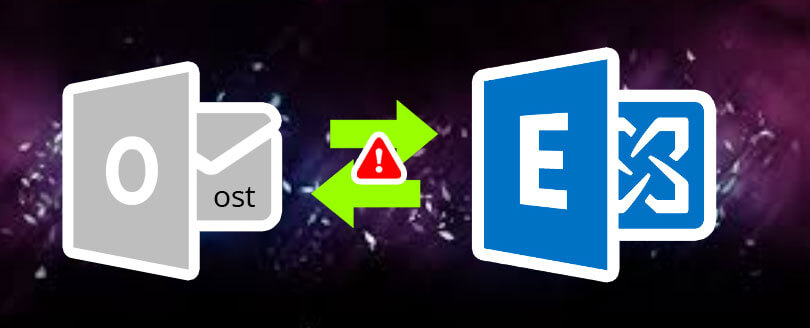
Any errors in the OST file can damage or corrupt mailbox data, making the file inaccessible to the users. When Outlook starts throwing sync errors, freezes or crashes unexpectedly, or displays some random errors, rebuilding OST file is usually the most suitable fix available.
When you rebuild OST file in Outlook, it replaces the damaged file with a fresh one that directly syncs with your Exchange Server or Microsoft 365 account.
Why is there a Need to Rebuild OST File?
Users need to rebuild OST file in Outlook to resolve the performance issues or errors. Here are the main reasons given below:
- Damaged or corrupted Outlook data file structure.
- Sync issues between OST and Exchange Server.
- Unexpected system shutdowns or power cuts.
- Incompatible add-ins conflict with data files.
- Certain folders or new emails fail to display offline.
- Oversized OST file issues.
- Incorrect account settings stops proper syncing.
- Bad sectors on your storage drive.
How to Rebuild OST File in Outlook?
In this section, we will discuss 3 methods for rebuilding OST files for Outlook. Proper steps for each method are provided. You can select any as per your convenience:
Method 1. Delete or Rename OST File
When you delete or rename your old OST file, Outlook creates a new file whenever you open it again. Follow the steps below:
- Close Outlook and open File Explorer.
- Navigate to the location where your OST file is saved.
- Right-click on the OST file linked with your Outlook.
- You can either rename it as .bak or .old or delete it simply.
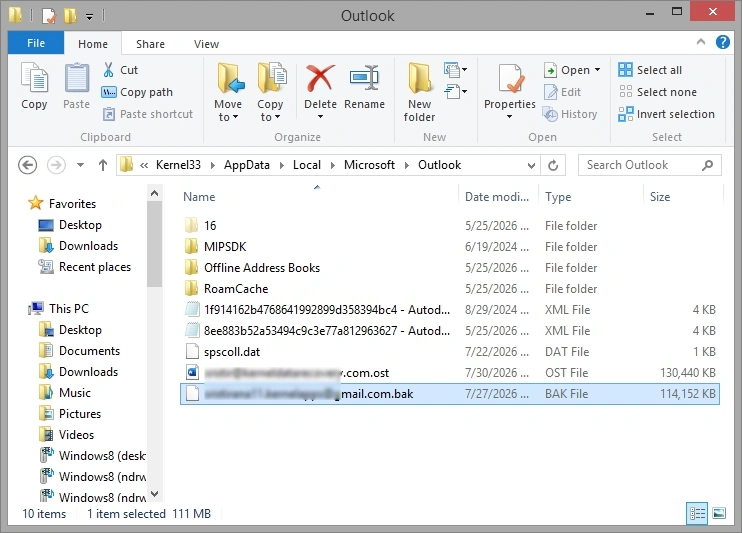
- Reopen Outlook to start working with a fresh OST file.
Note: The default location of OST file is: C:\Users\[username]\AppData\Local\Microsoft\Outlook
Method 2. By Switching Cached Exchange Mode
If you have an Exchange Account configured in Outlook, then you can try to disable and enable the Cached Exchange Mode to fix issues in Outlook. Steps for this are mentioned below:
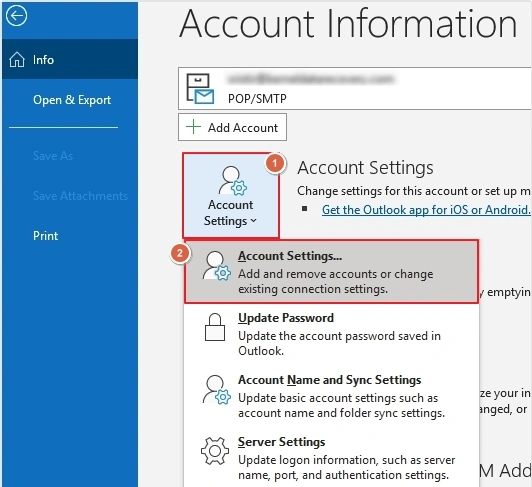
- In Outlook, go to File, then click on Account Settings and again click Account Settings.
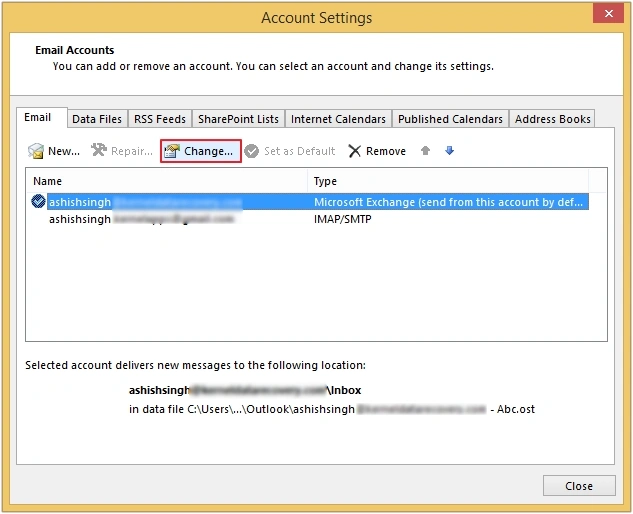
- Select OST file configured with Microsoft Exchange and click Change.
- Uncheck checkbox next to Use Cached Exchange Mode and click Next.
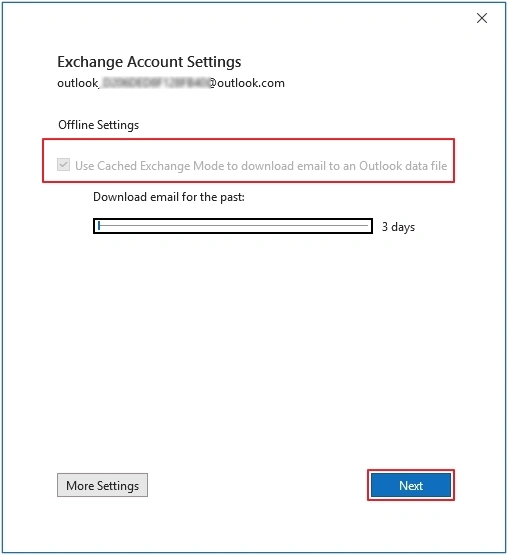
- Click on the Finish button and restart Outlook.
- This time, tick the checkbox next to Use Cached Exchange Mode.
- Click Next >Finish and restart Outlook.
Method 3. Rebuilding OST File via Control Panel
You can even rebuild OST file in Outlook via the Control Panel. Here are the steps for it:
- Close your Outlook application completely.
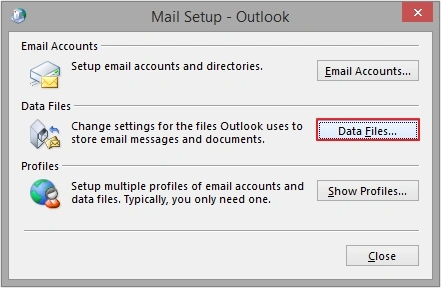
- Open the Control Panel, then look for Mail (Microsoft Outlook) and click on it.
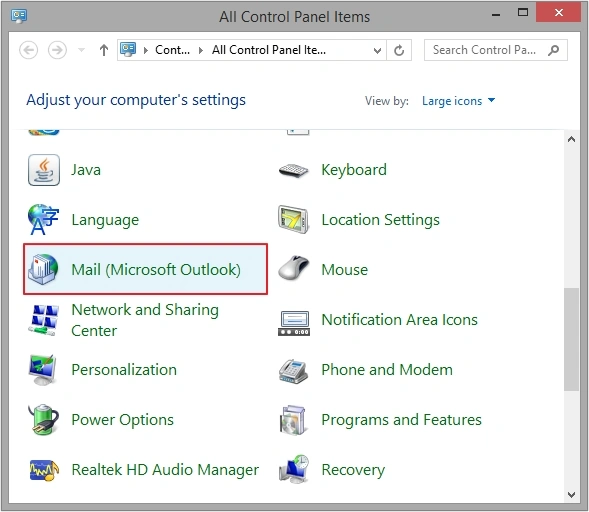
- Click on the Data Files.
- Click on the Data Files tab, then select your OST file and click Open File Location.
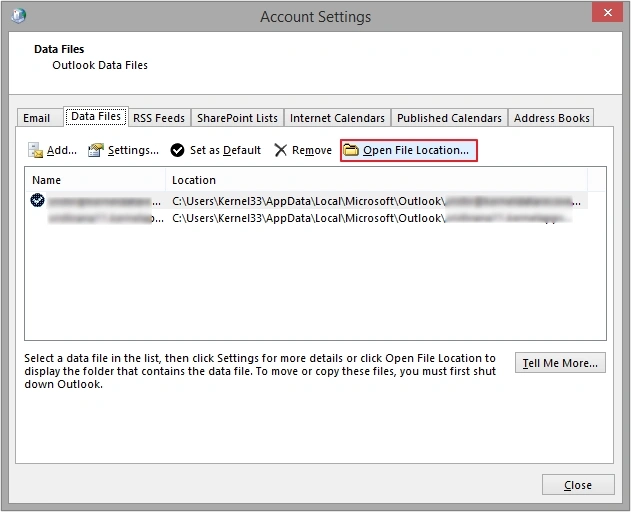
- Right-click on the damaged OST file and delete it.
- Now reopen Outlook, it will automatically recreate a new OST file.
When Rebuilding OST File isn’t Enough
Sometimes, when the OST file has severe corruption in it or the mailbox is deleted from the server, then rebuilding OST file doesn’t help users at all. Outlook cannot recover the missing mailbox data because the original server data is unavailable. In that case, they need to convert their OST file into PST to access old emails, contacts, calendars, and other data.
Kernel OST to PST Converter Tool can simplify the process by providing access to mailbox data that cannot be recovered through rebuilding OST file for Outlook alone. The software supports orphaned and corrupted OST files conversion that allows users to recover even the deleted or lost emails.
Final Words
Rebuilding OST file for Outlook is a great fix to resolve synchronization errors and improves Outlook performance. We have listed 3 methods in this guide, to rebuild OST files safely. However, the method you choose entirely depends on the condition of your OST file and the accessibility of the associated Exchange, Microsoft 365, or IMAP account.
Frequently Asked Questions
Yes, rebuilding OST file is usually safe if your mailbox data is stored on the Exchange Server, Microsoft 365, or IMAP server.
No, Outlook downloads mailbox data from the server again after creating a new OST file. However, locally stored data that is not synced may be lost.
In most cases, standard user permissions are sufficient unless organizational policies restrict Outlook settings.
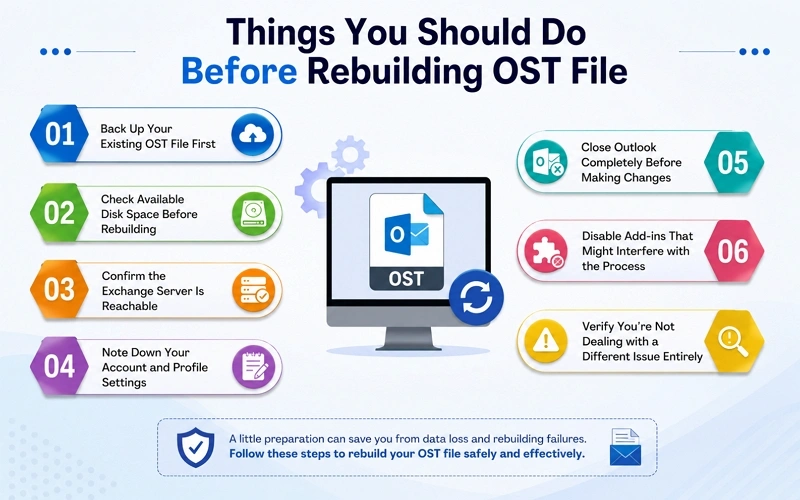
Check server connectivity, close Outlook properly, verify account settings, and make sure important data is backed up.