


Read time: 6 minutes
Cached Exchange Mode in Outlook allows you to work with emails, contacts, calendars, and tasks even when the internet is slow or unavailable. Outlook stores a local mailbox copy in an OST file, which improves speed and access.
However, when your OST becomes larger, it can be damaged, corrupted, or inaccessible over time. It is advisable to safeguard all your OST data in a portable PST file, so that you can seamlessly access your data anytime or anywhere.
What is Cached Exchange Mode in Outlook?
Cached Exchange Mode stores a synchronized mailbox copy on your computer in an OST file. Outlook reads data from this local file first, which improves performance. It offers two major benefits: better performance and access to mailbox data even during an offline mode. For users who want to understand how Cached Mode handles mailbox storage, it’s also helpful to compare OST vs PST, since Cached Mode uses OST files while PST files are mainly used for backups or manual exports.
What are the Benefits of Enabling Cache Mode in Outlook?
- It enhances your Outlook performance and offers faster Outlook response.
- Saves an offline mailbox file in OST to access your emails without Exchange connectivity.
- Offers better experience on slow networks or without internet.
- It will reduce server load and easily send or receive emails.
- Automatic sync when connection returns with Exchange.
How to Enable Cached Exchange Mode in MS Outlook?
Here is the step-by-step process to enable Cached Exchange Mode in Outlook.
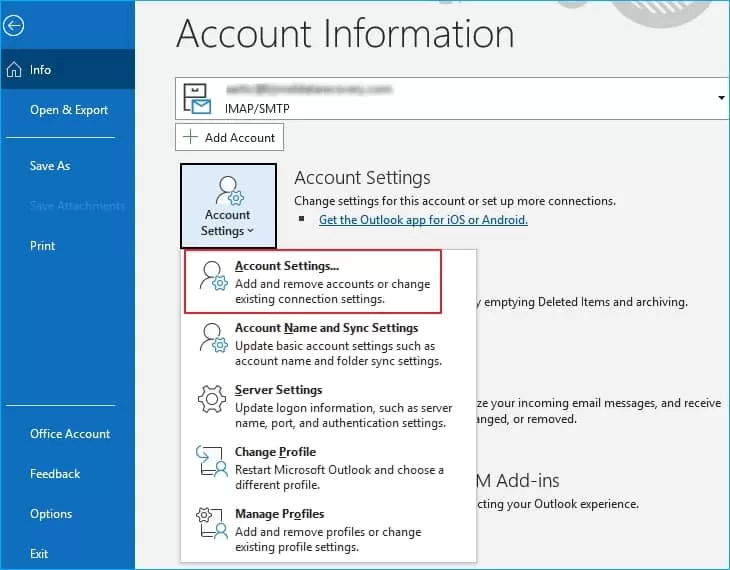
- Open MS Outlook and click File > Account Settings > Account Settings.
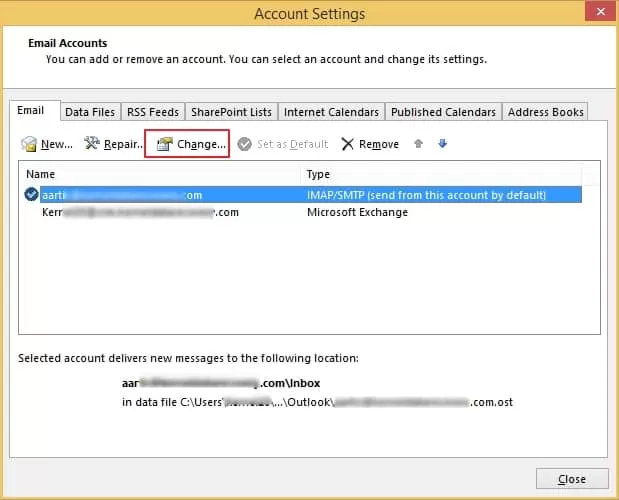
- Select the already configured account and then choose Change.
- In this wizard, you have can check or uncheck Cached Exchange Mode and click Next.
Note: You can choose the time (months) on the slider as per your requirement, which is, by default 12 months. It specifies that the available offline email data will be adjusted for duration.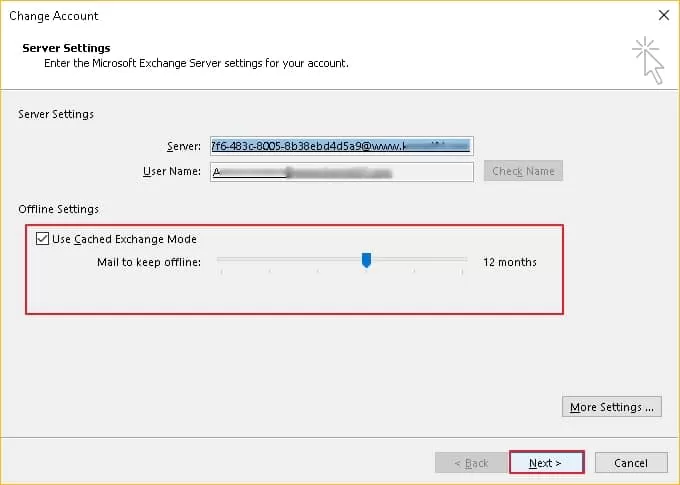
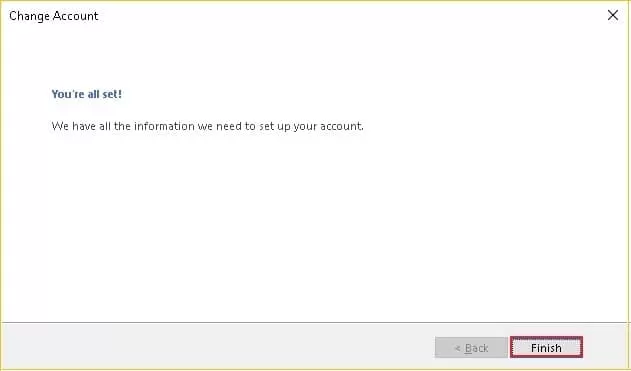
- Once you are done, then click the Finish button.
Note: If your Outlook account is not showing the option to enable or disable Cached Exchange mode, there’s no Exchange account in the MS Outlook profile, or the administrator has disabled the option. It might also be that your computer is working with the Microsoft Terminal Services.
How can OST Files be Useful in Restoring Exchange User Mailboxes?
Apart from its use for offline working, these offline Outlook Data (OST) files are helpful in many ways. OST files can help with the recovery of Exchange mailbox as these stores an offline copy of Exchange folders. Exchange administrators can use them to restore deleted or missing user mailboxes. Also, some other situations in which they become useful are:
- When your Exchange Server crashes.
- The Exchange Server is under maintenance.
It is useful when you need to access emails from small-sized OST files. But, for organizations dealing with huge data and oversized OST files, it is not a feasible solution, because large OST files are prone to corruption. In all these situations, Exchange administrators convert the OST files to PST files to retrieve the user mailboxes. It allows them to access their users’ mailboxes from any Outlook. Let’s know all the prime benefits of converting OST files to PST.
Why Convert OST to PST?
- Exchange Server Downtime or Crashes: If the Exchange server is down or corrupted, the OST file becomes orphaned and inaccessible. Converting it to PST allows you to again access your OST data.
- Data Backup and Archiving: PST files are used for creating backups of mailbox items to prevent data loss. They are also useful for archiving old emails to free up mailbox space.
- Migration of Data: When changing systems or switching computers, converting OST to PST enables easy transfer of mailbox data to a new profile or different email client.
- Recovering Corrupted Files: If an OST file becomes damaged due to software issues or abrupt shutdowns, conversion to PST can recover the inaccessible mailbox data.
- Accessing Orphaned OST Files: When a user profile is deleted from the server, the associated OST file cannot be opened by Outlook. Converting it to PST restores access.
When you know the prime benefits of converting your OST file to PST. Now, your main concern is how to convert your OST file to PST. Outlook offers free methods to convert OST to PST using an advanced Import/Export feature to convert your synchronized OST file to PST. However, this method has multiple drawbacks, such as it cannot convert inaccessible, corrupt, damaged, and unsynchronized OST files. In that case, a professional OST to PST converter tool helps you to convert any OST files to PST.
Why Prefer a Professional Tool Over Manual Methods?
- The manual method cannot access the orphaned OST file.
- There is a risk of data loss while converting your OST to PST.
- You cannot convert specific emails or folders of OST file to PST.
- Manual methods always fail with large OST files
- Manual methods are not suitable for large-enterprises or IT.
Professional OST to PST Converter Tool
Kernel for OST to PST converter is a robust OST conversion tool for converting even damaged, corrupt, or inaccessible OST files to PST. The software performs complete OST recovery without losing the originality or the hierarchy of the mailbox data. Even, it can handle and split large-sized OST files.
Final Thoughts on Cached Exchange Mode
Cached Exchange Mode improves Outlook speed and offline access, but OST files may create issues like corruption, sync errors, or oversized storage. Basic Import/Export method helps with only synchronized OST files and cannot convert corrupt, inaccessible files. Thus, the OST converter tool becomes an all-in-one solution to convert corrupt, damaged, inaccessible, unsynchronized, and inactive OST to PST.
Frequently Asked Questions
Answer: Try to create a new OST file or rebuilt it first. For severe damage, use a professional OST Repair tool.
Answer: Yes, Kernel OST to PST Converter tool allows you to convert OST to PST even without Outlook profile access.
Answer: When you disable the Cached Exchange mode in Outlook, it means that the application does not store a copy of your Exchange mailbox now on the local storage. You can access the mailbox directly on the Exchange server.



![How to Export Outlook Mac to PST? [2 Easy Methods]](https://www.nucleustechnologies.com/blog/wp-content/uploads/2026/08/outlook-mac-to-pst.webp)
